Within WowChat Omni Channel, users can create, manage, and submit Utility templates directly for Meta approval. The platform allows you to configure the template category, add message content, include dynamic variables, attach media, and add interactive buttons based on your communication requirements.Once approved by Meta, Utility templates can be used in WhatsApp Business conversations, automated workflows, and customer notifications to provide reliable and structured communication.
Create a Utility Template
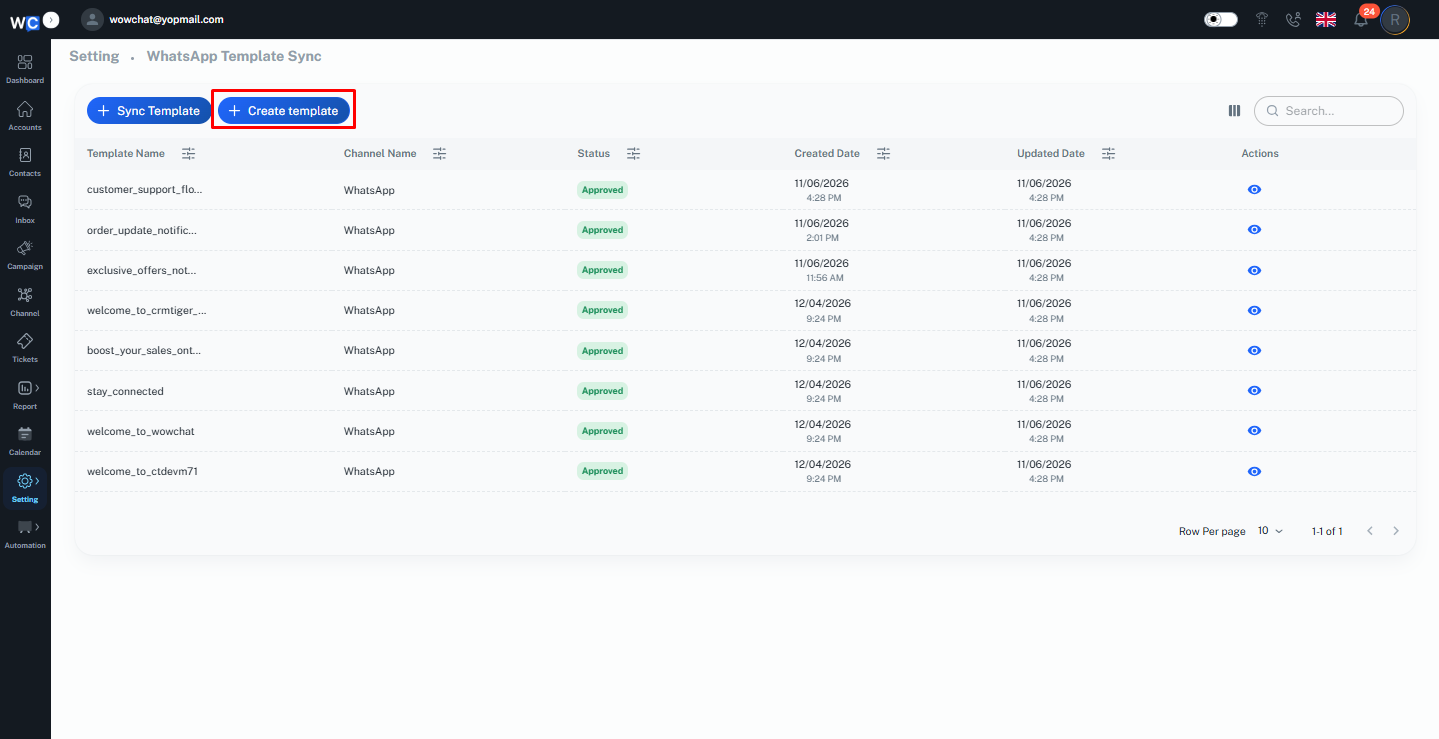
To create a Utility WhatsApp Business template, navigate to the Settings section from the WowChat navigation menu and open WhatsApp Templates.On the WhatsApp Templates page, click the Create Template button to start creating a new template.
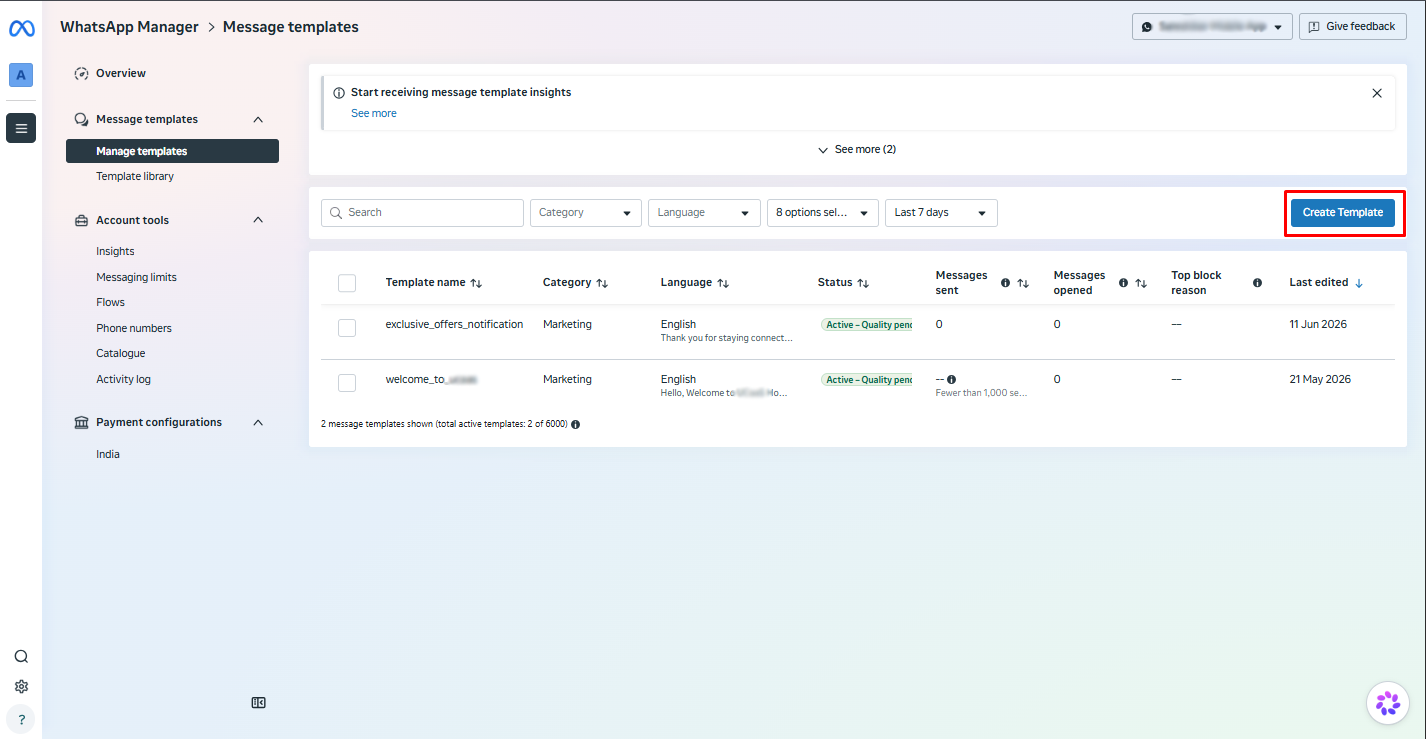
When you click on Create Template, the system will redirect you to the official WhatsApp Business template creation page.Once the page opens, click on the Create Template button to proceed with setting up your new template.
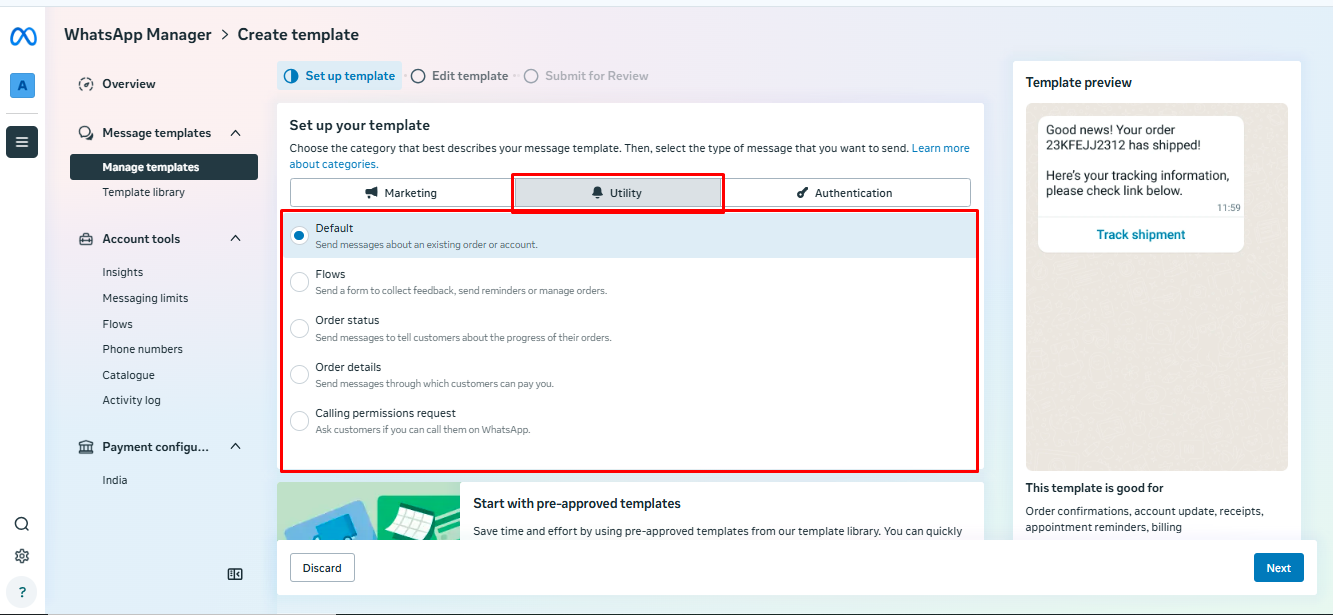
After clicking the Create Template button, you will be taken to the template setup screen.Here, choose the Utility option as the template category. This is used for transactional or important informational messages such as updates, alerts, or confirmations.Next, select the template format. You can either keep it as Default or choose any other available format based on your requirement.Once you have made your selections, click on the Next button to proceed to the next step of template configuration.
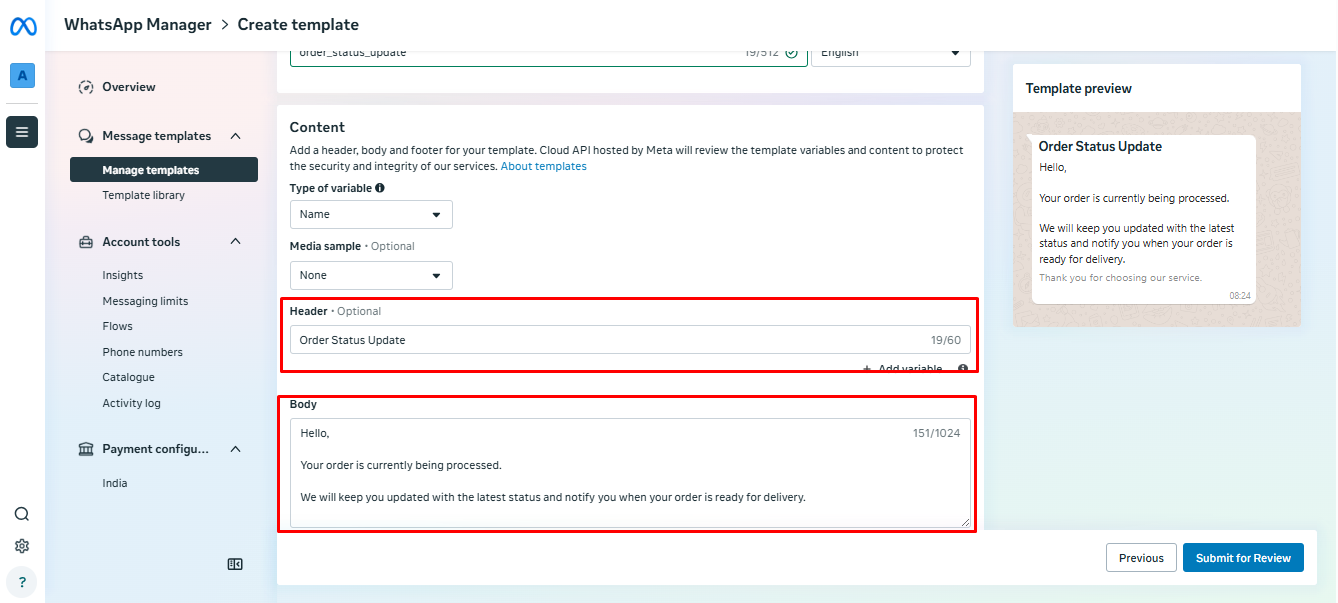
After selecting the template category and format, you will be taken to the template editor screen. Here, fill in the required template components:
- Start by entering a Template Name that clearly represents the purpose of the message. This helps you easily identify the template later.
- Next, add the Header section if applicable. This can include text, an image, or other supported formats depending on your setup.
- Then, write the main Message Body, which contains the primary content you want to send to users. Keep it clear, relevant, and aligned with your use case.
- You can also include a Footer, which is optional and typically used for short notes, disclaimers, or additional information.
- Finally, configure Buttons if needed. These can be action-based options like visiting a website, contacting support, or quick replies (similar to marketing template setup).
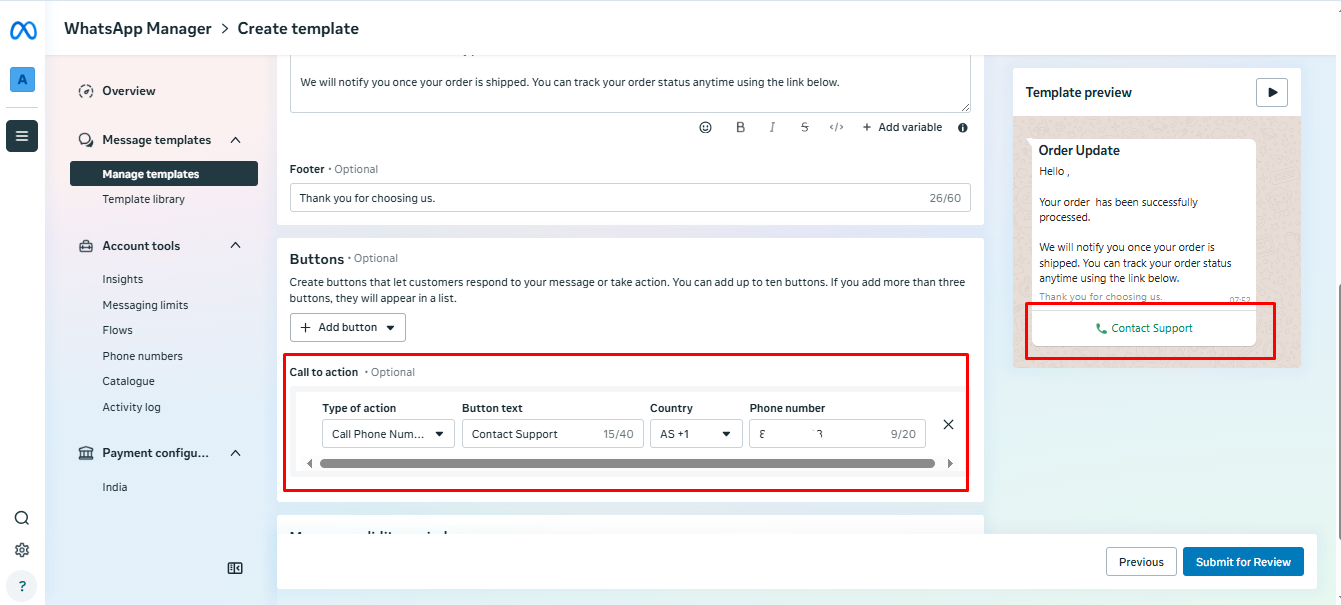
WhatsApp Business Template Features
Explore the detailed explanation and usage steps for each feature:
- Media Template - Click here to learn more
- Interactive Buttons - Click here to learn more
- Template Status - Click here to learn more
- Template Variables - Click here to learn more
Once all details are added and reviewed, click on the Submit and Review button to send the template for approval.
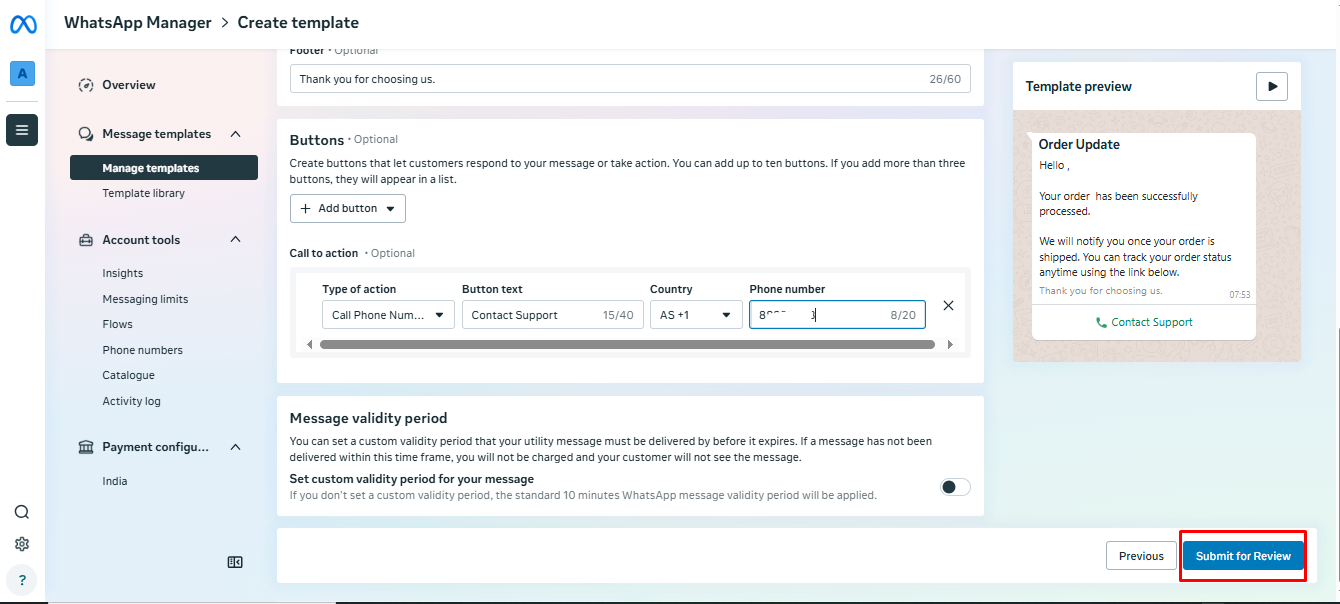
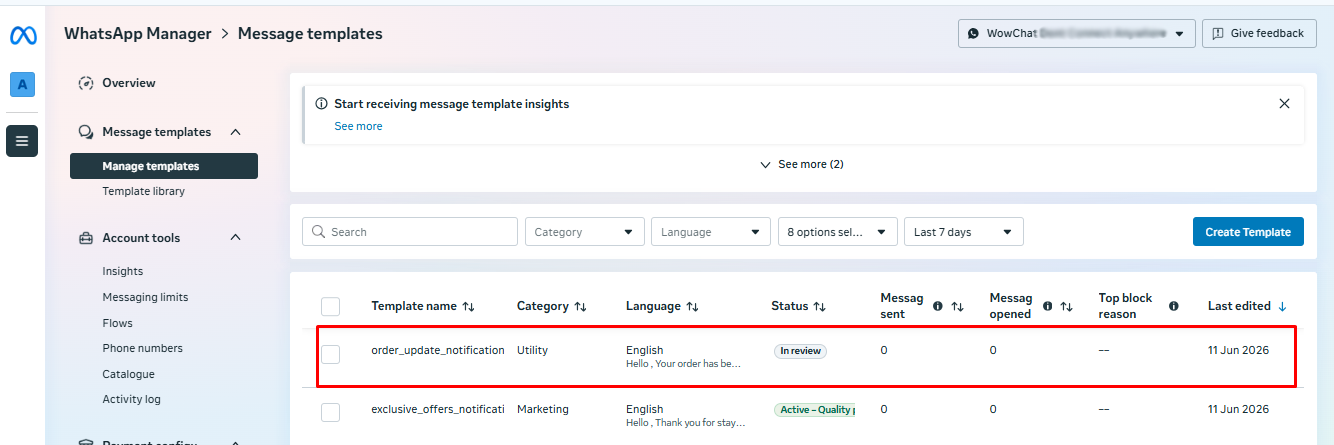
After you click on the Submit and Review button, the system will redirect you back to the Template Listing Page.On this page, you will be able to see your newly created template listed along with its current status.At this stage, the status will show as Pending, which means the template has been successfully submitted to Meta for review and is awaiting approval.
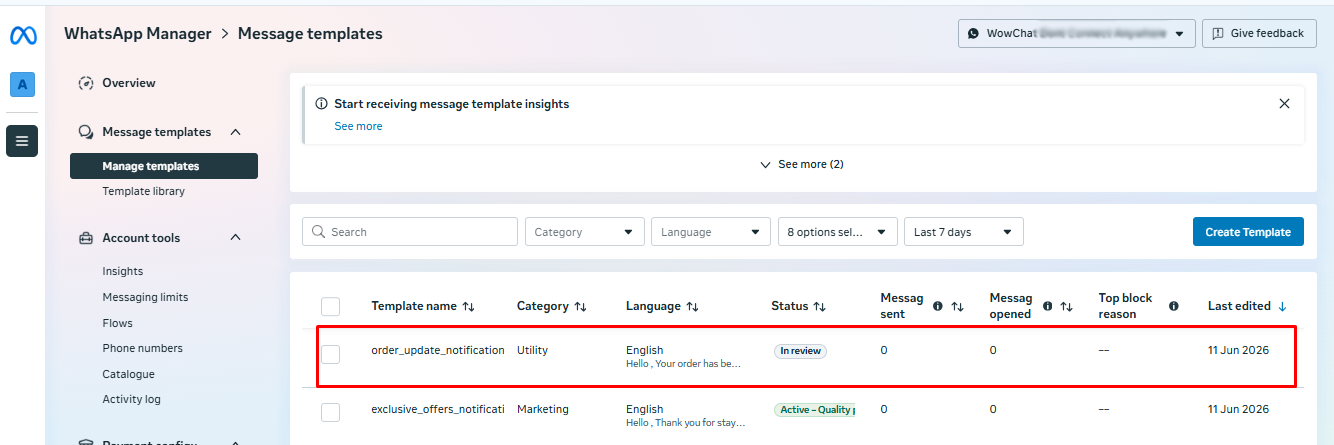
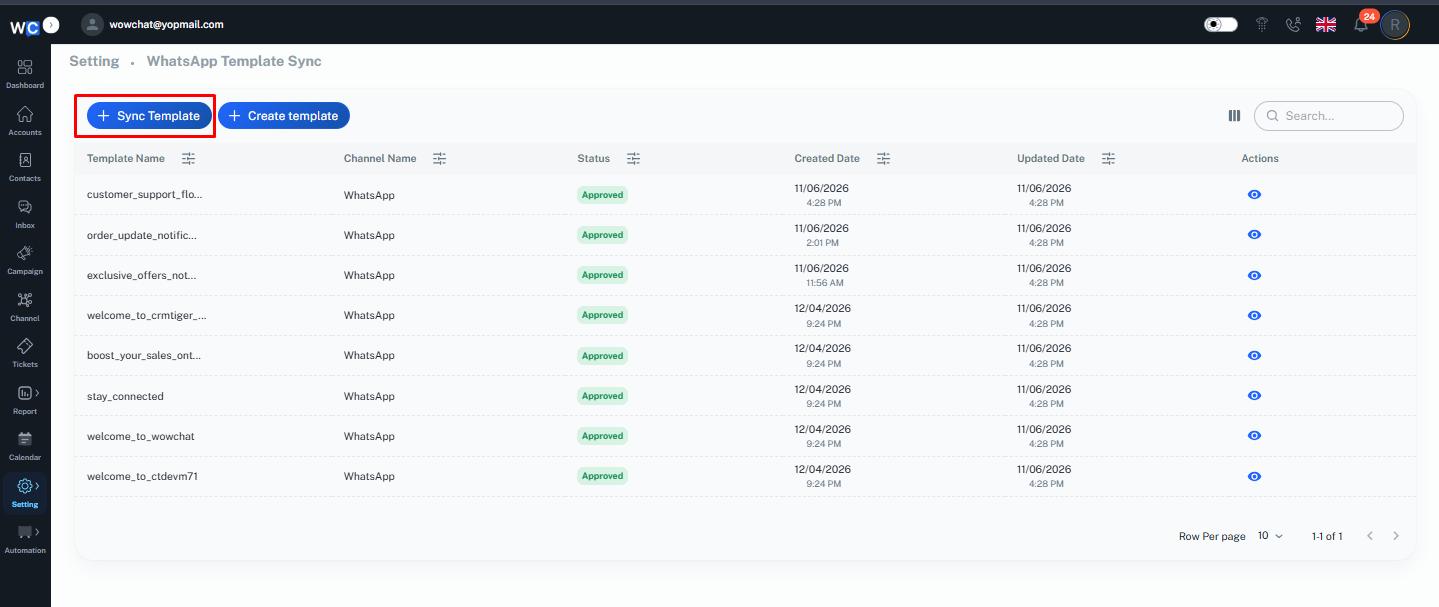
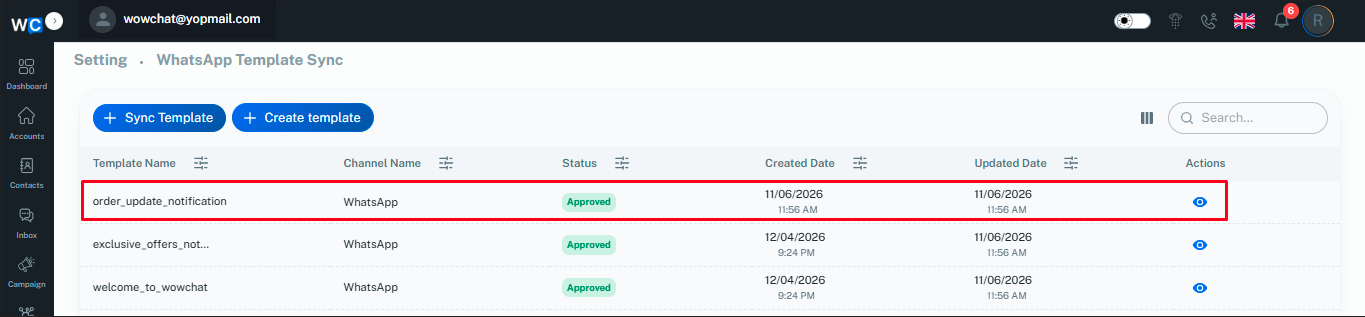
Once your template has been approved by Meta, you can start using it in WowChat.To do this, navigate back to the WowChat WhatsApp Templates. Here, you will need to sync the template so that the approved template from Meta is updated and available inside WowChat.Click on the Sync button to fetch the latest approved templates.
FAQ for Utility Templates
Utility templates are pre-approved WhatsApp message formats used for transactional and service-related updates such as order confirmations, payment updates, delivery status, and appointment reminders.