To create a Marketing WhatsApp Business template, navigate to the Settings section from the WowChat navigation menu and open WhatsApp Templates.On the WhatsApp Templates page, click the Create Template button to start creating a new template.
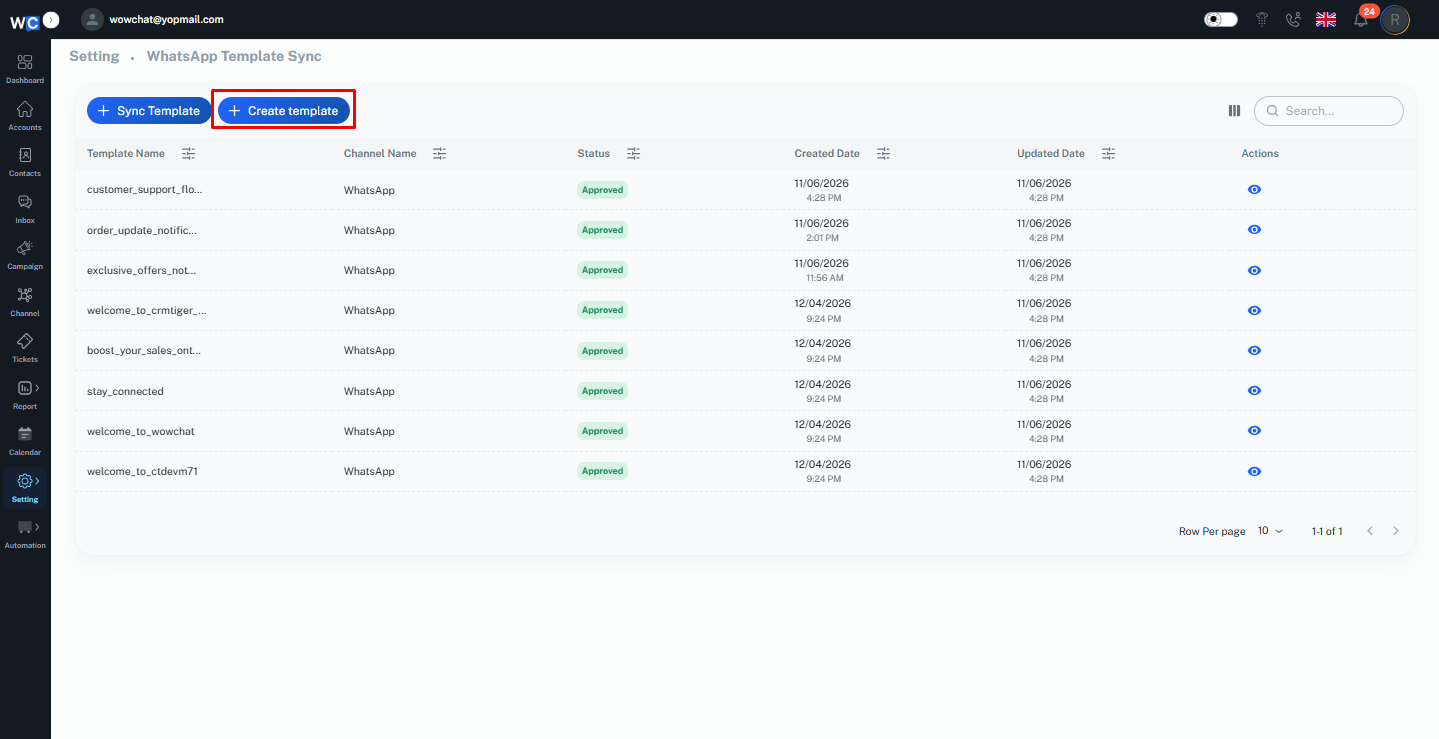
When you click on Create Template, the system will redirect you to the official WhatsApp Business template creation page.
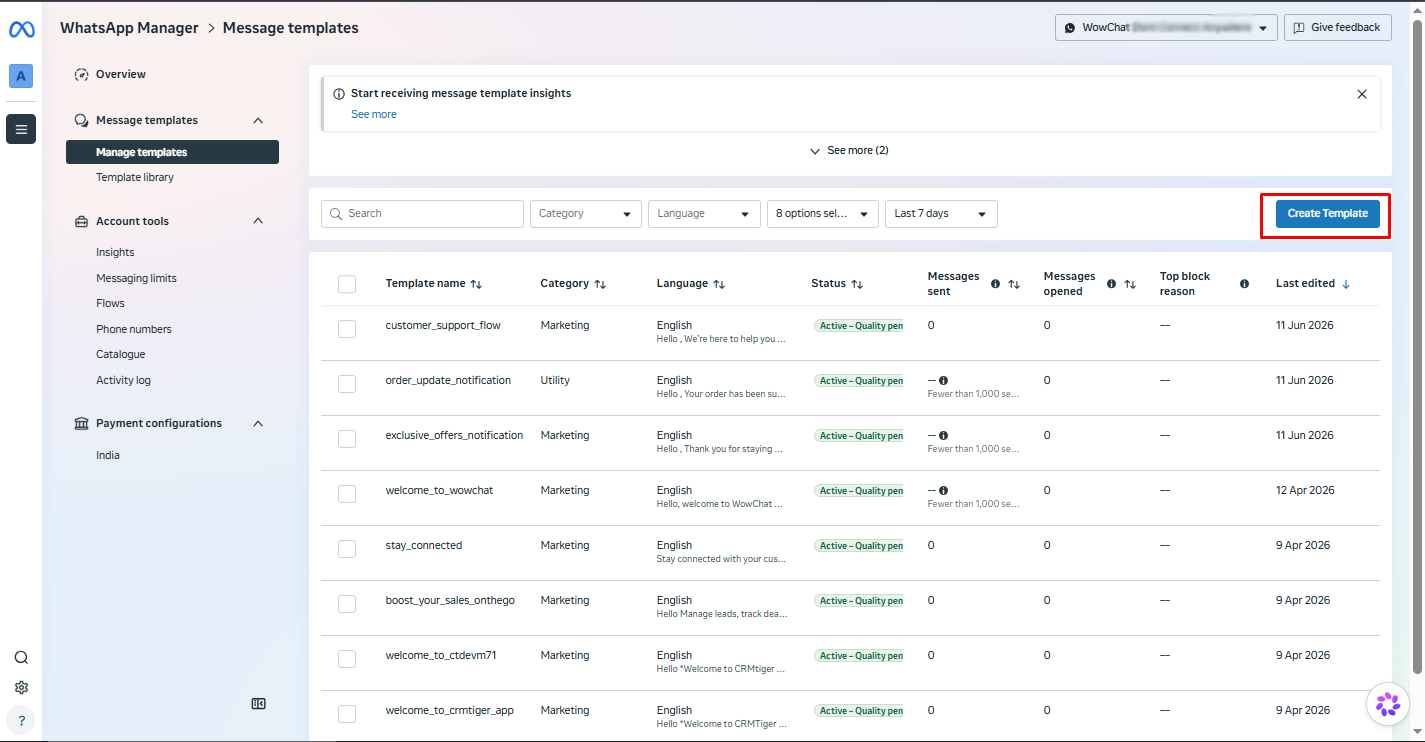
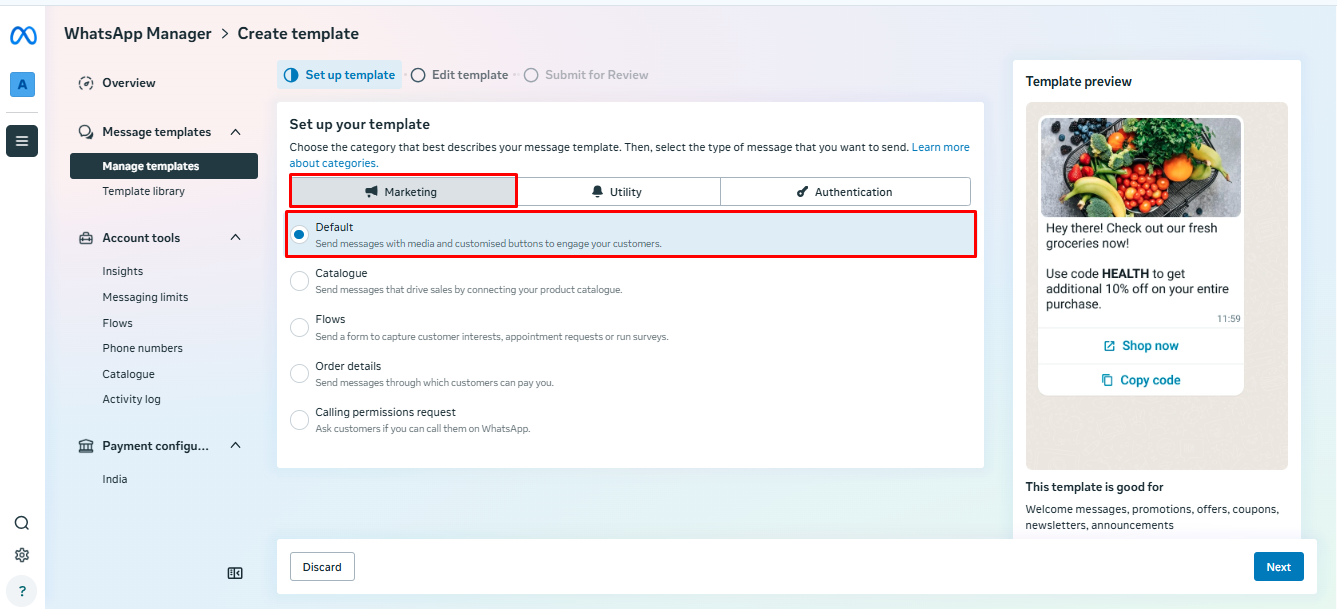
To create a marketing template, select Marketing as the template category. Under the available options, choose the Default template type and click Next to continue.The Default marketing template is suitable for sending promotional messages, announcements, offers, and customer engagement campaigns. After clicking Next, you will be taken to the template configuration page where you can define the template content and other settings.
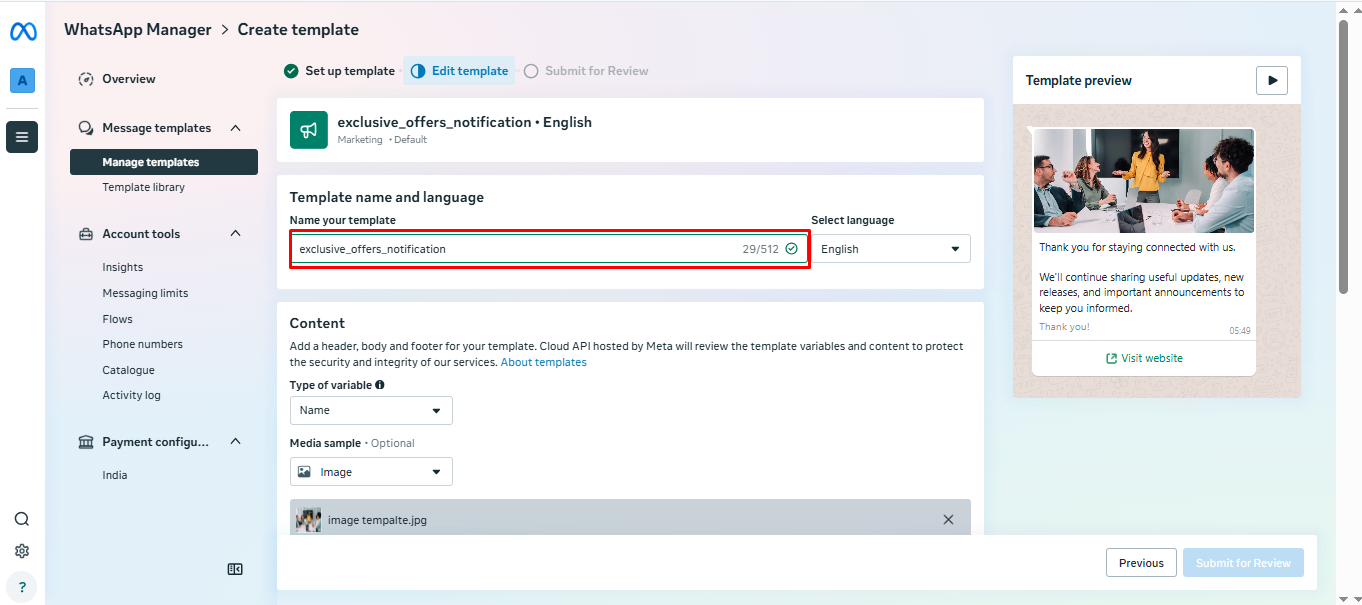
On the template configuration page, enter a unique Template Name that clearly identifies the purpose of the message.Select the Language in which the template content will be created and sent to customers. Choose the language that best matches your target audience before proceeding to the next step.
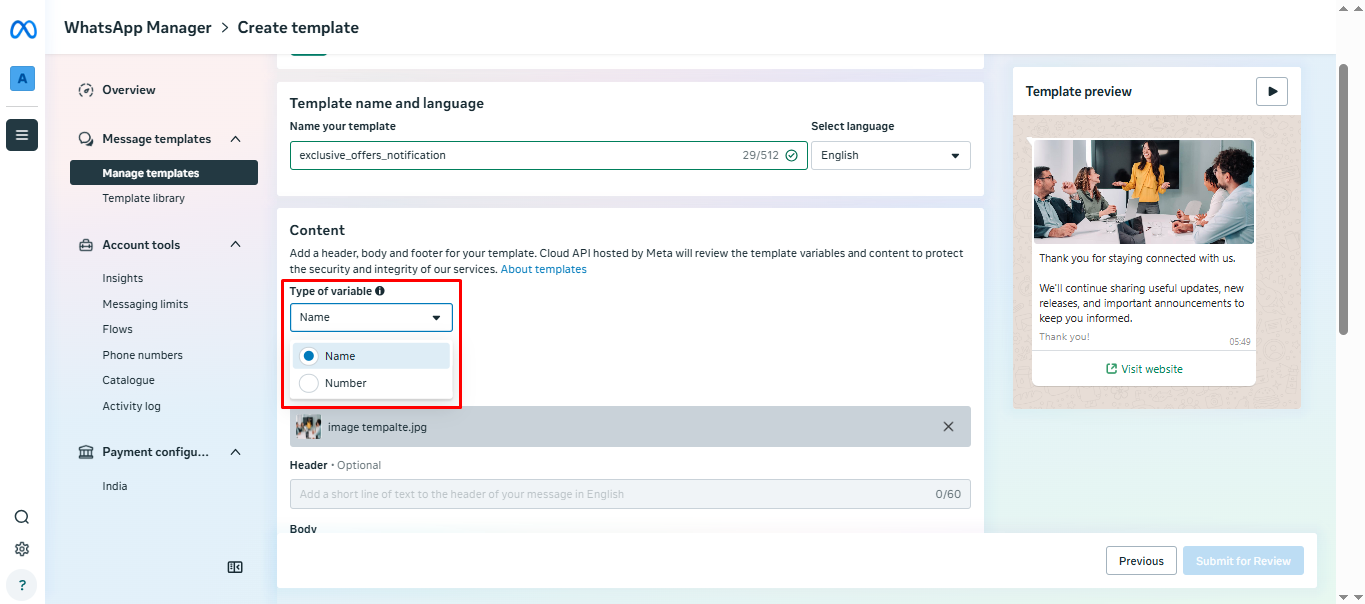
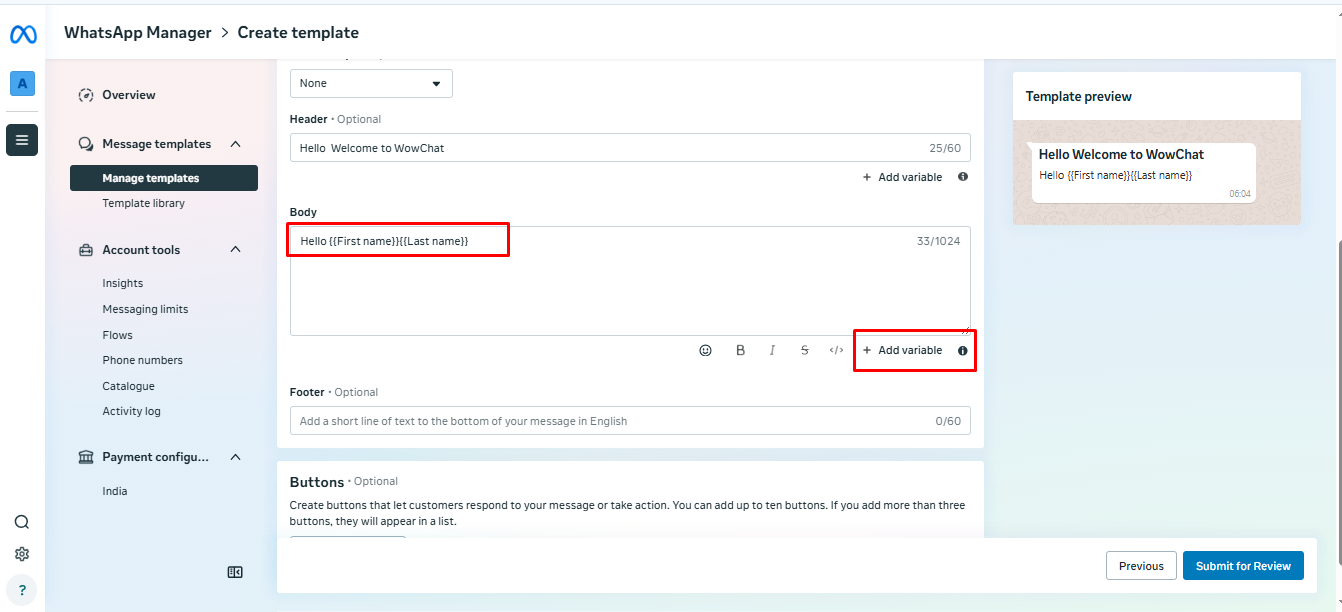
Add Variables to the Message Body
When composing the template message, you can add dynamic variables to personalize the content for each recipient. Select the variable type based on the information you want to include in the message.You can choose between Text Variables (such as customer name, order number, or company name) and Number Variables (such as invoice numbers, reference IDs, or verification codes). These variables will be automatically replaced with the relevant customer data when the message is sent.
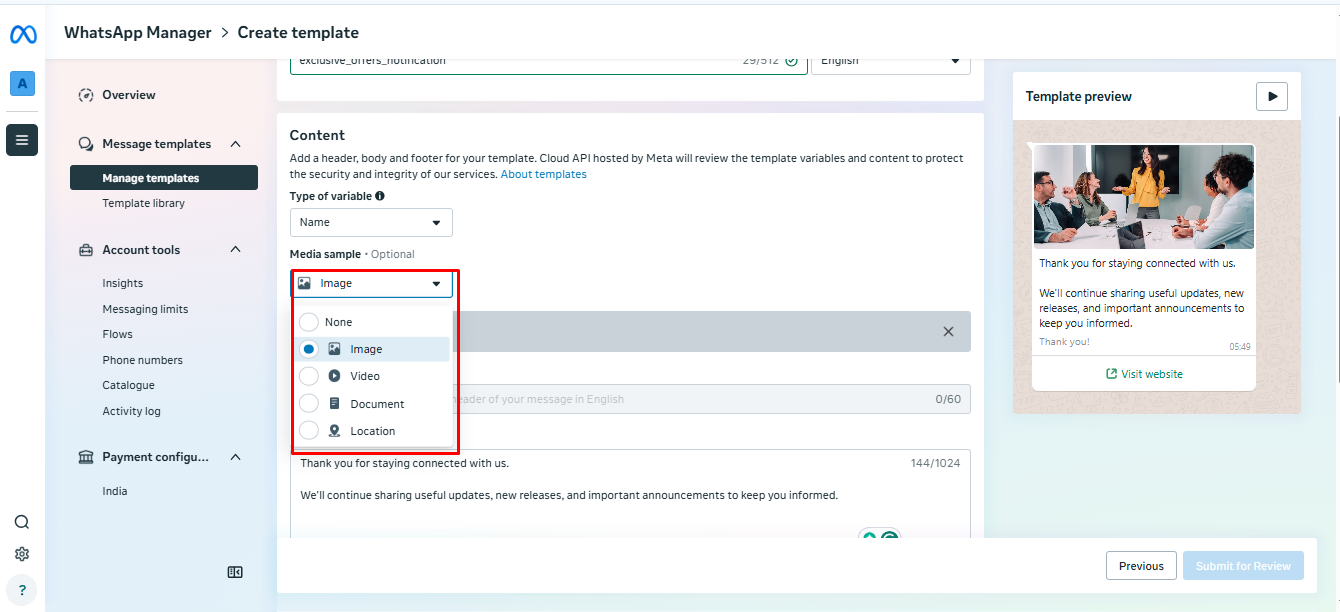
Add Media to the Template Header
If you want to include media in your WhatsApp template, select the Media Template option. The header section allows you to enhance your message by adding rich media content that provides additional context and improves customer engagement.You can choose from the following header types:Image - Add a product image, promotional banner, or other visual content.Video - Include a video to showcase products, services, or announcements.Document - Attach files such as brochures, invoices, reports, or guides.Location - Share a specific business or event location directly within the message.Select the media type that best suits your message and upload or configure the required content before proceeding.
If you do not want to add any media to the template, you can select the Text Header option instead. Enter the required header text that will appear at the beginning of your WhatsApp message.The header helps provide context to the customer and highlights the main purpose of the message before displaying the message body.
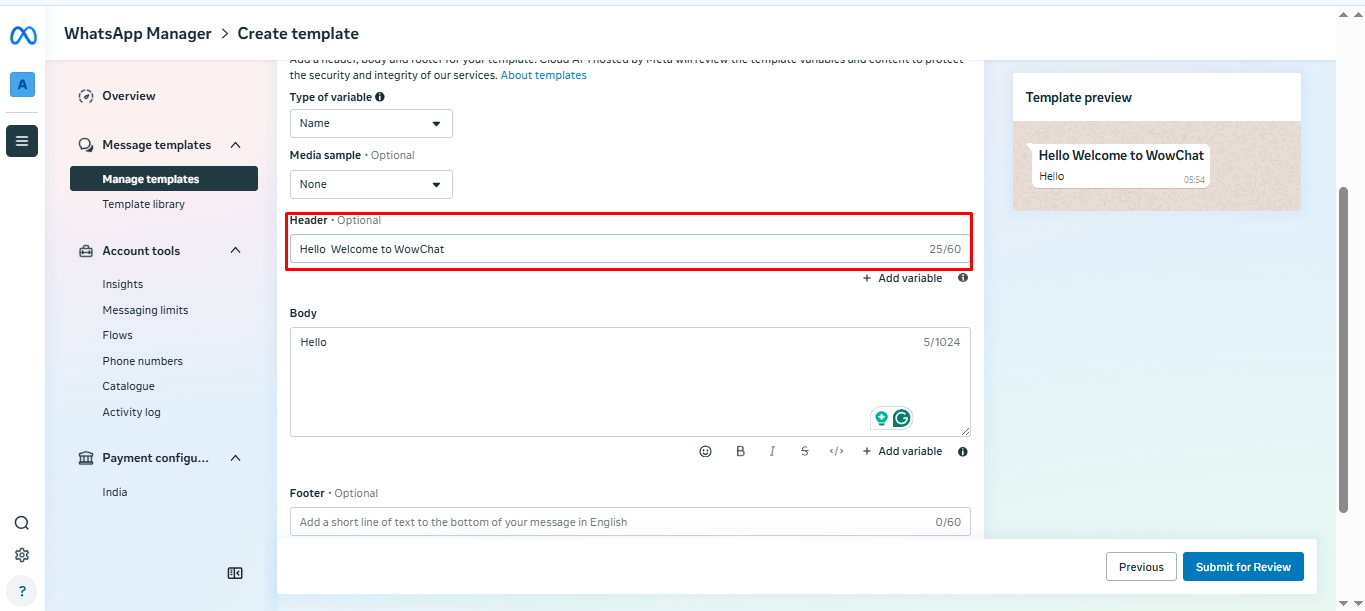
Compose the Message Body
In the Message Body section, enter the content that you want to send to your customers. This is the main part of the WhatsApp template and should clearly communicate the purpose of your message.You can enhance your message by using emojis, variables, bold formatting, italic formatting, and other supported text styles to make the content more engaging and personalized. Variables can be used to dynamically insert customer-specific information, such as names, order numbers, or account details.
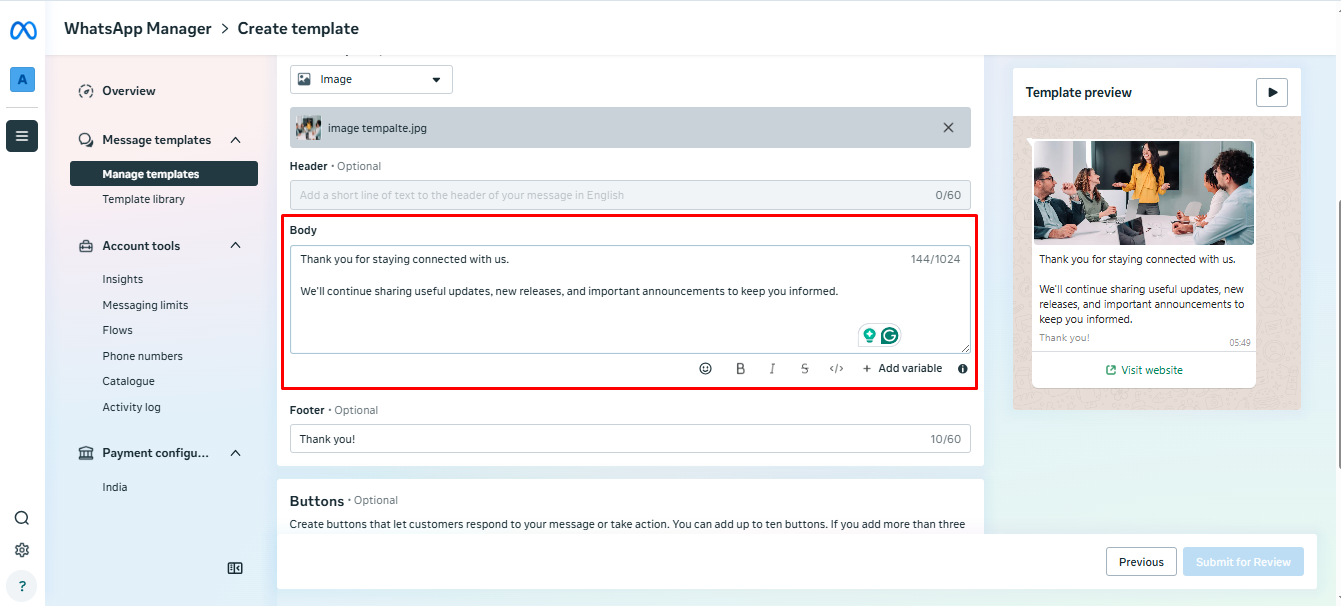
The Footer section allows you to add a short closing message that appears at the bottom of your WhatsApp template. This can be used to include greetings, thank-you notes, company information, disclaimers, or any additional context that supports the main message.
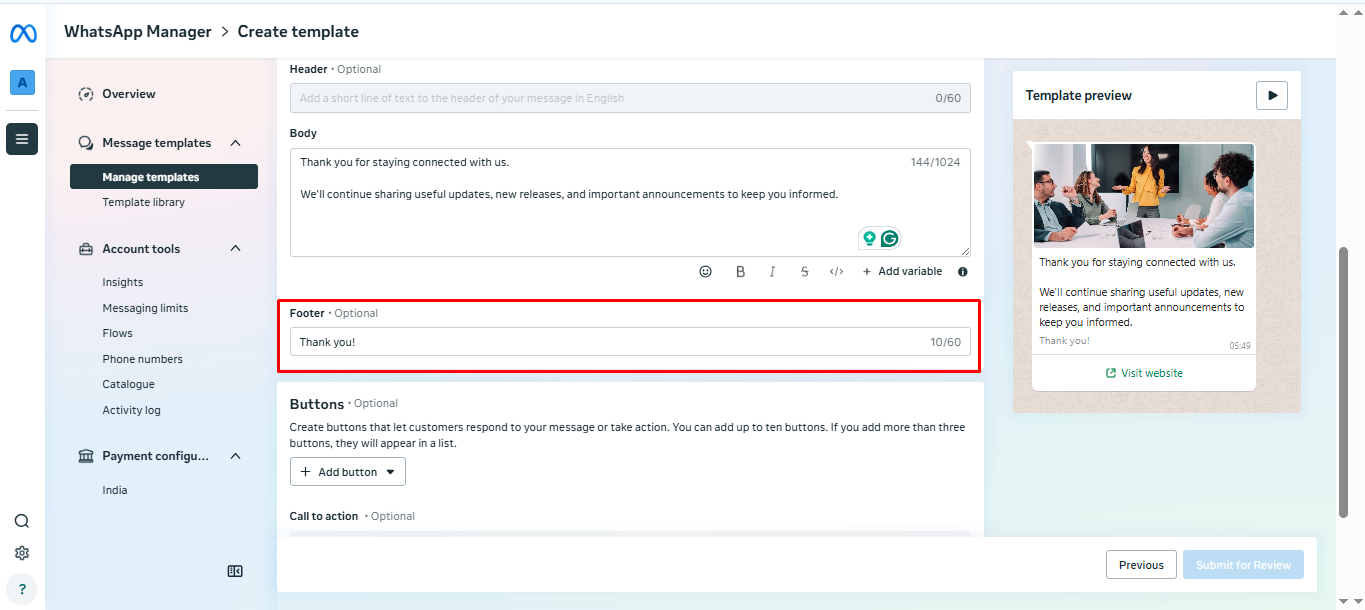
Add Interactive Buttons
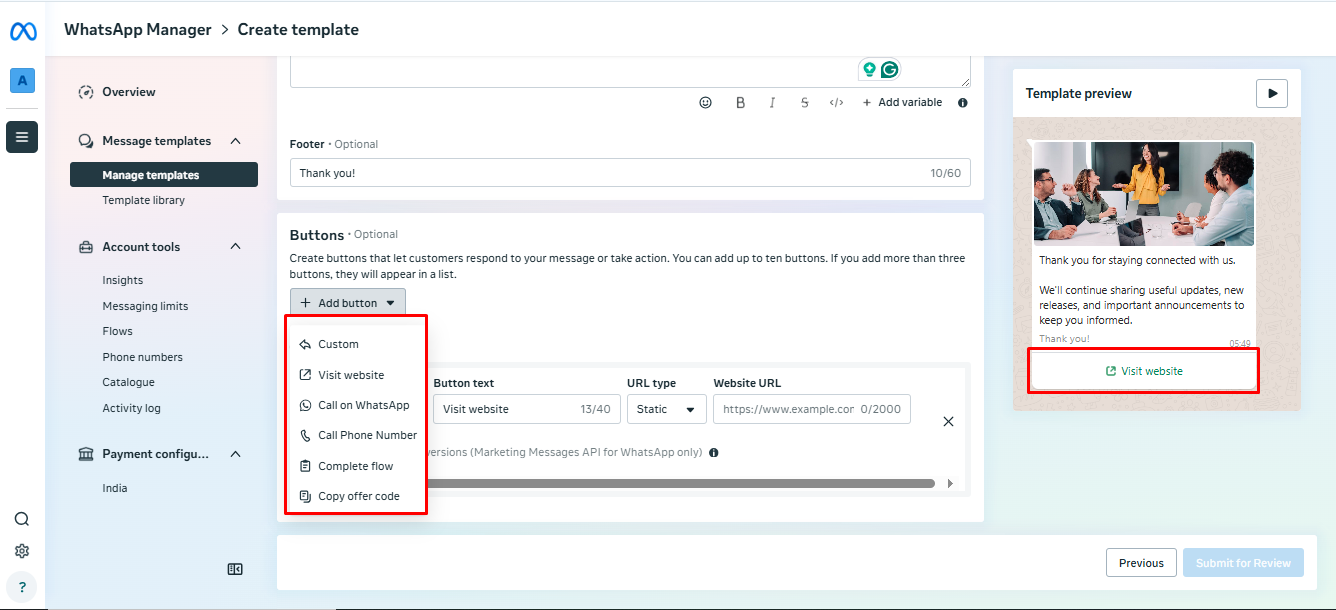
The Buttons section allows you to add interactive actions to your WhatsApp template, making it easier for customers to engage with your business directly from the message. Buttons appear at the bottom of the template and provide quick access to specific actions without requiring customers to type a response.You can choose from the following button types:Custom Button - Create a custom action based on your communication needs.Visit Website - Direct customers to a specific webpage, product page, landing page, or online resource.Call on WhatsApp - Allow customers to start a WhatsApp conversation with your business.Call Phone Number - Enable customers to call a specified phone number directly from the message.Complete Flow - Guide customers through a predefined WhatsApp Flow for tasks such as registrations, bookings, or information collection.Copy Offer Code - Provide a promotional or discount code that customers can copy with a single tap.Choose the button type that best supports your message objective and configure the required details before submitting the template for approval.
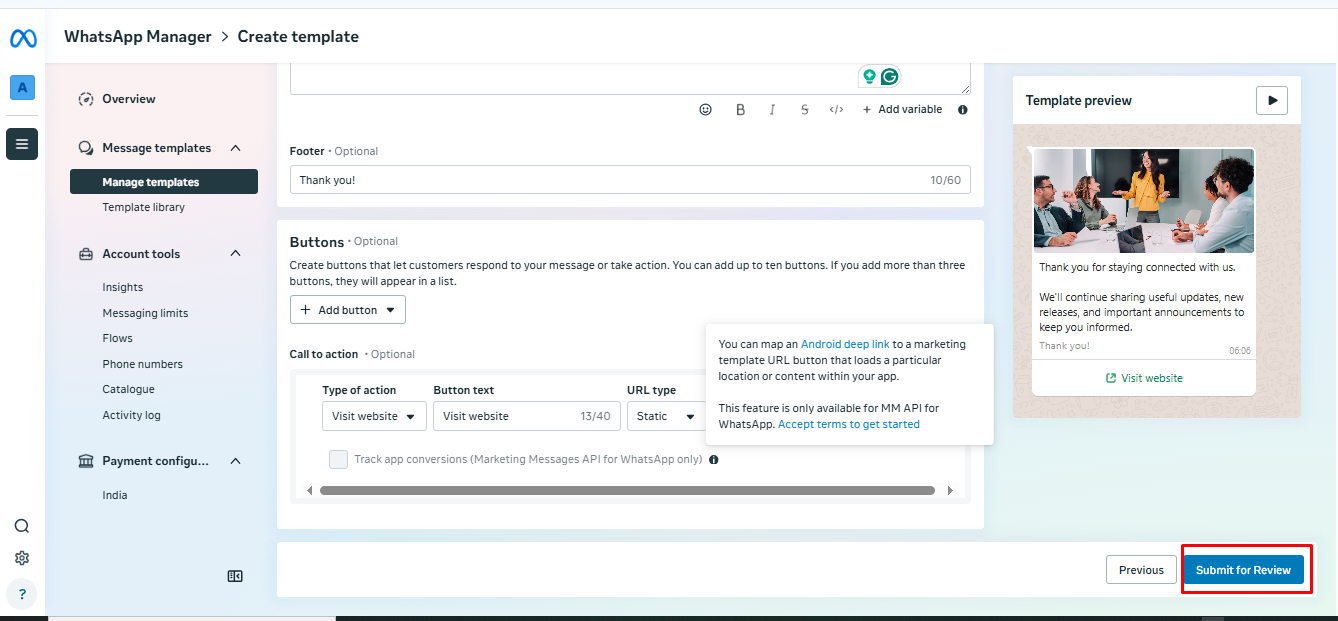
Once you have completed all the required template details, click the Submit and Review button to submit the template to Meta for approval. Meta will review the template based on its guidelines, and the approval status will be updated once the review process is completed.
Check Template Review Status
After submitting the template for review, you will be redirected to the WhatsApp Template Listing page in Meta. Here, you can find your newly created template in the list with the status marked as In Review.Meta will review the template based on WhatsApp Business guidelines. Once the review process is completed, the template status will be updated accordingly.
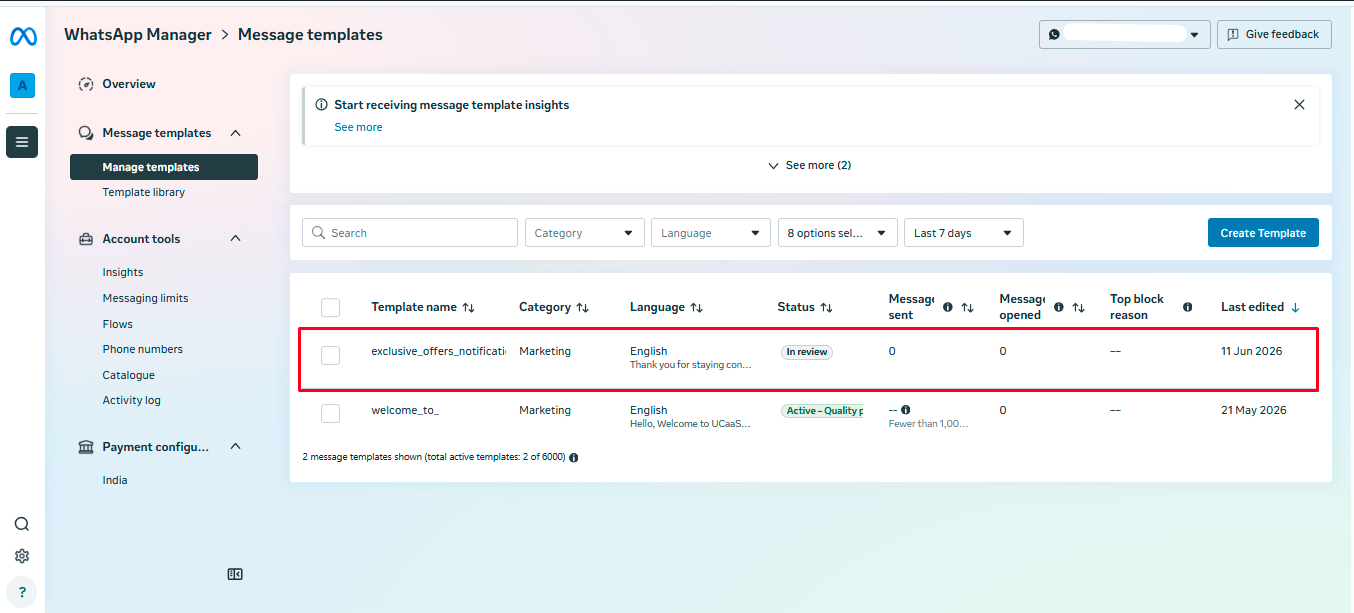
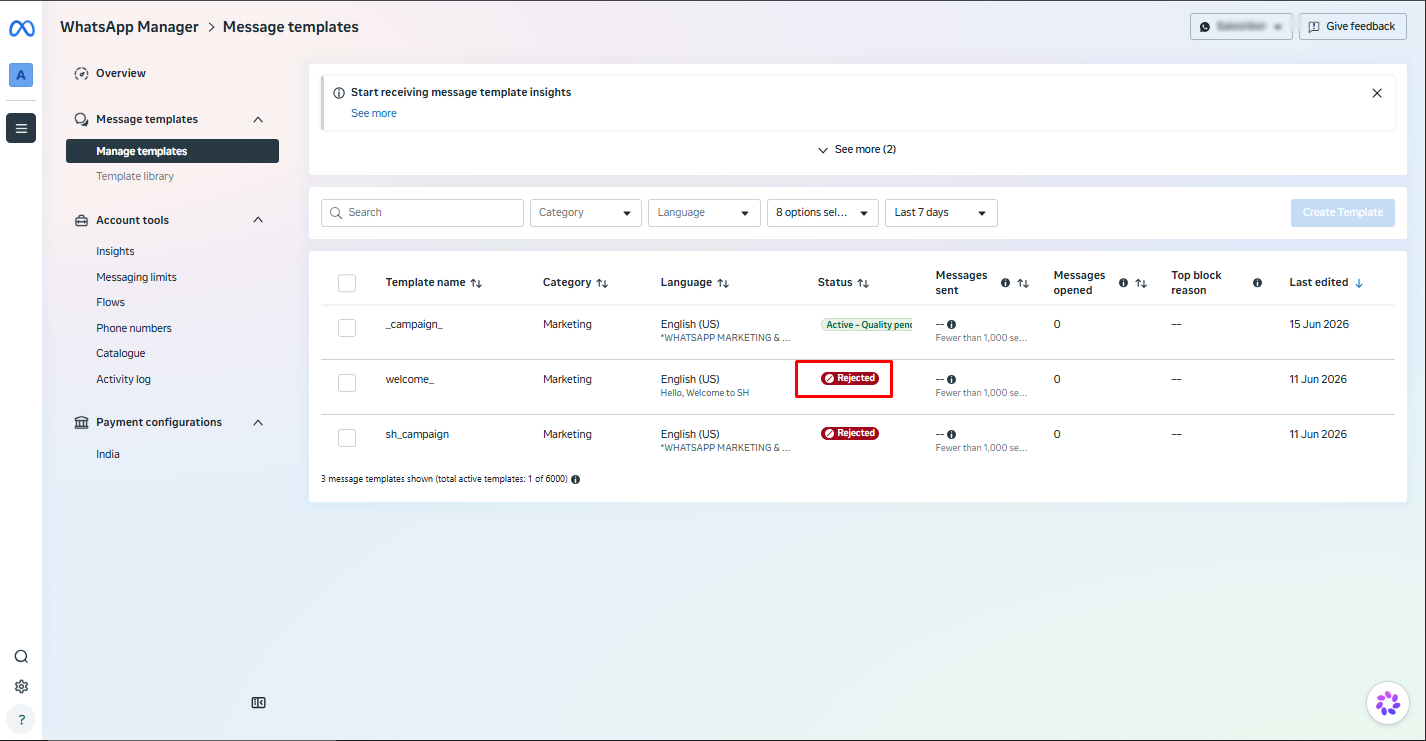
Once Meta completes the review process, the template status will be updated based on the review result. The template will either be marked as Approved or Rejected.If the template is approved, it can be used for sending WhatsApp Business messages. If it is rejected, review the template details, make the required changes according to Meta guidelines, and resubmit it for approval.
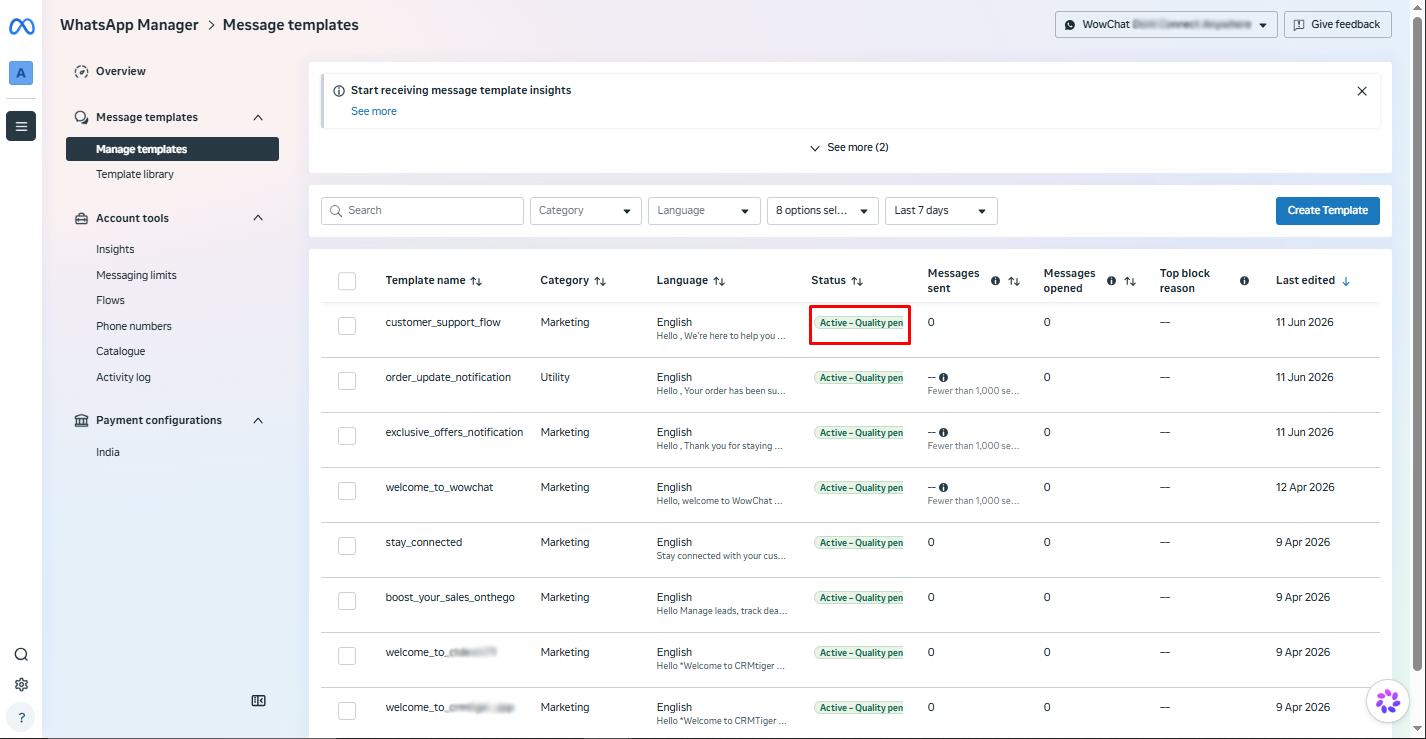
Once the template is approved by Meta, return to WowChat and open the WhatsApp Templates section. Click the Sync button to fetch the latest approved templates from Meta and update them in WowChat.
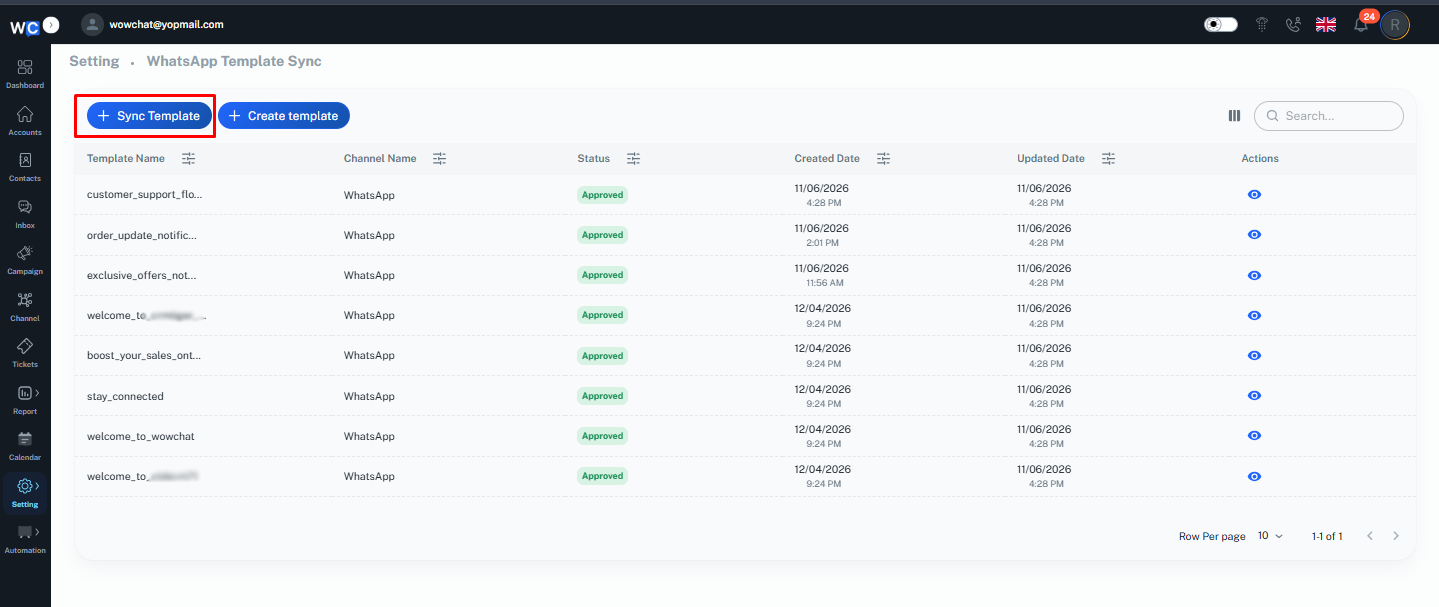
After clicking the Sync button, a pop-up window will appear asking you to select the connected WhatsApp Business Channel.Select the required WhatsApp Business channel and click the Sync button to start the synchronization process. A validation message will appear, showing that the template sync process has started.
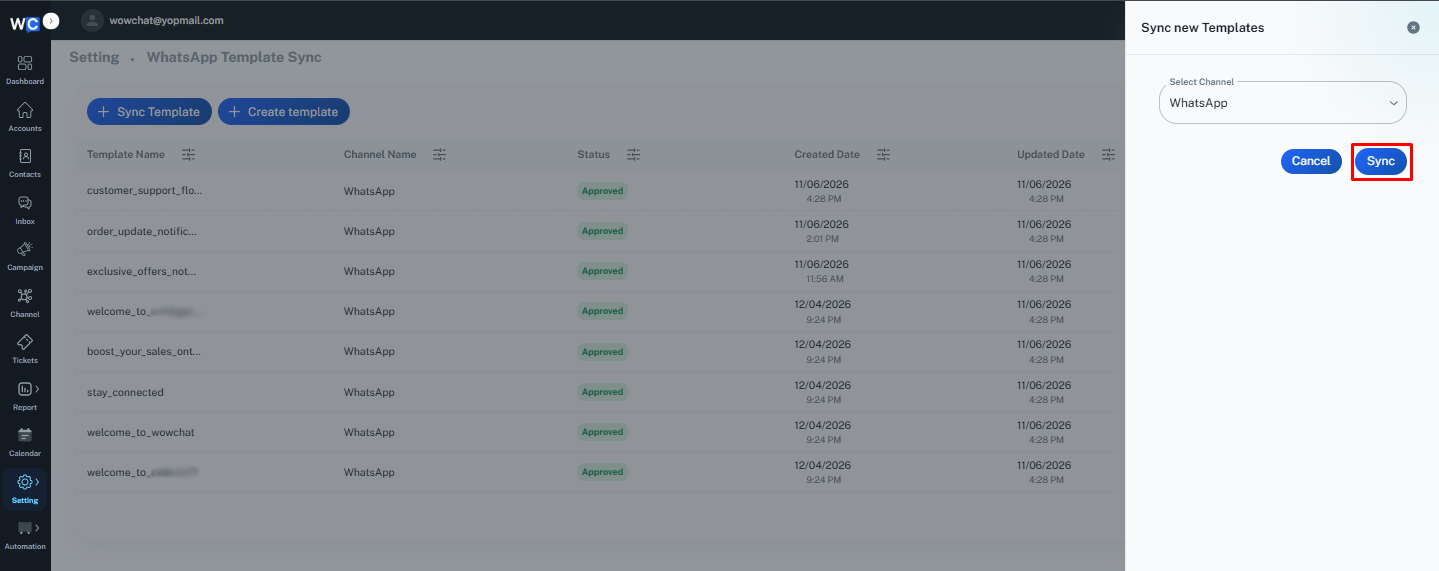
Once the sync is completed successfully, the approved Meta template will be available in WowChat for use.
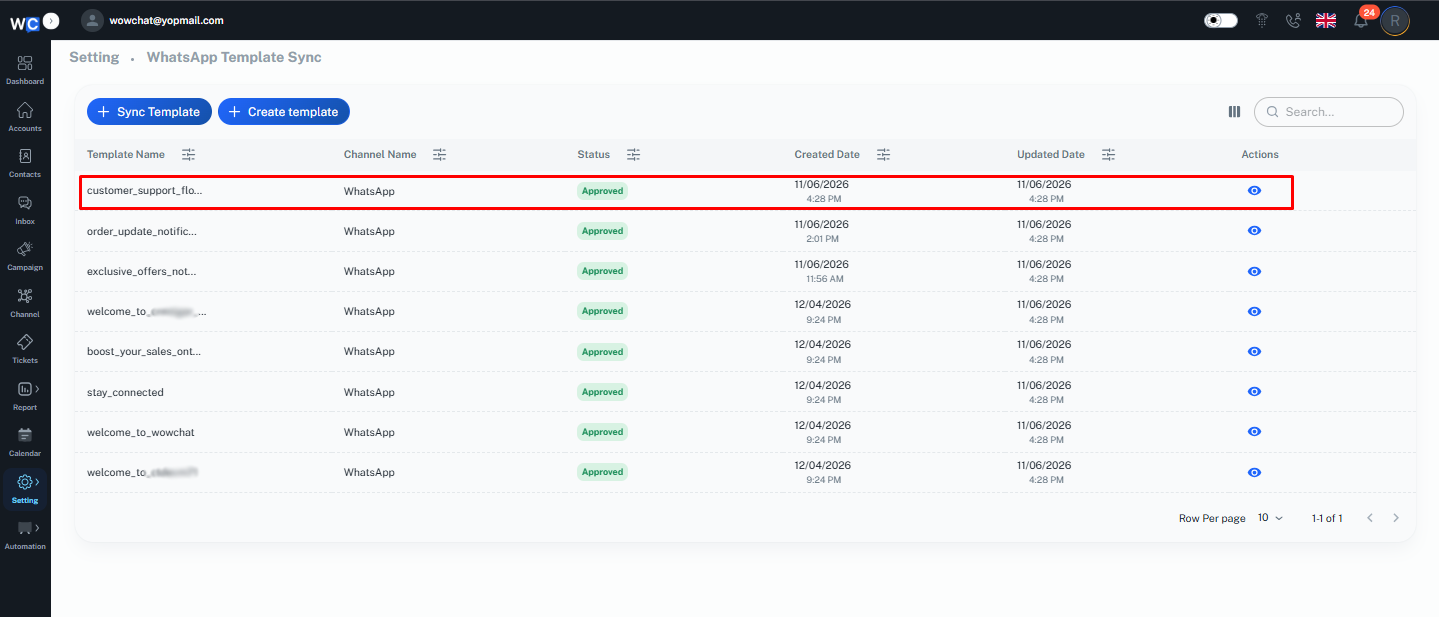
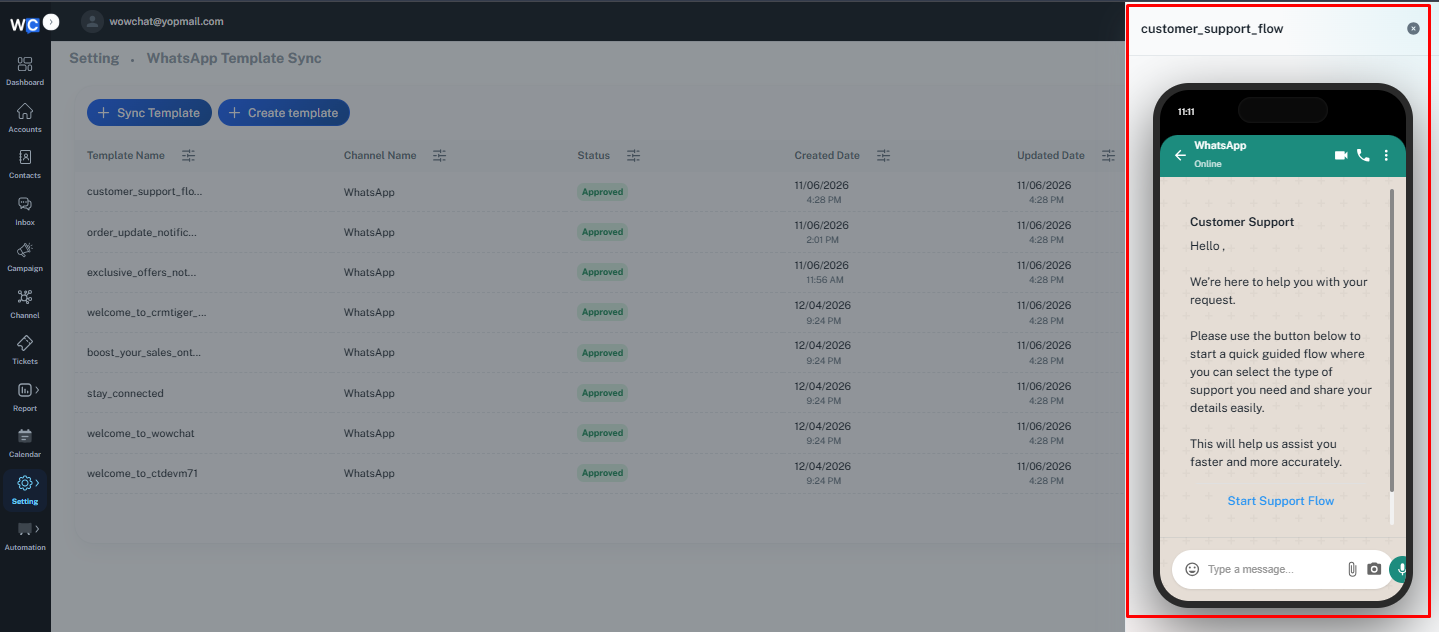
Users can preview the created WhatsApp template before using it by clicking the Eye Icon available in the template list.The preview option displays how the template will appear to customers on a mobile device, including the header, message body, media, and buttons. This helps users verify the template layout and content before sending it to customers.
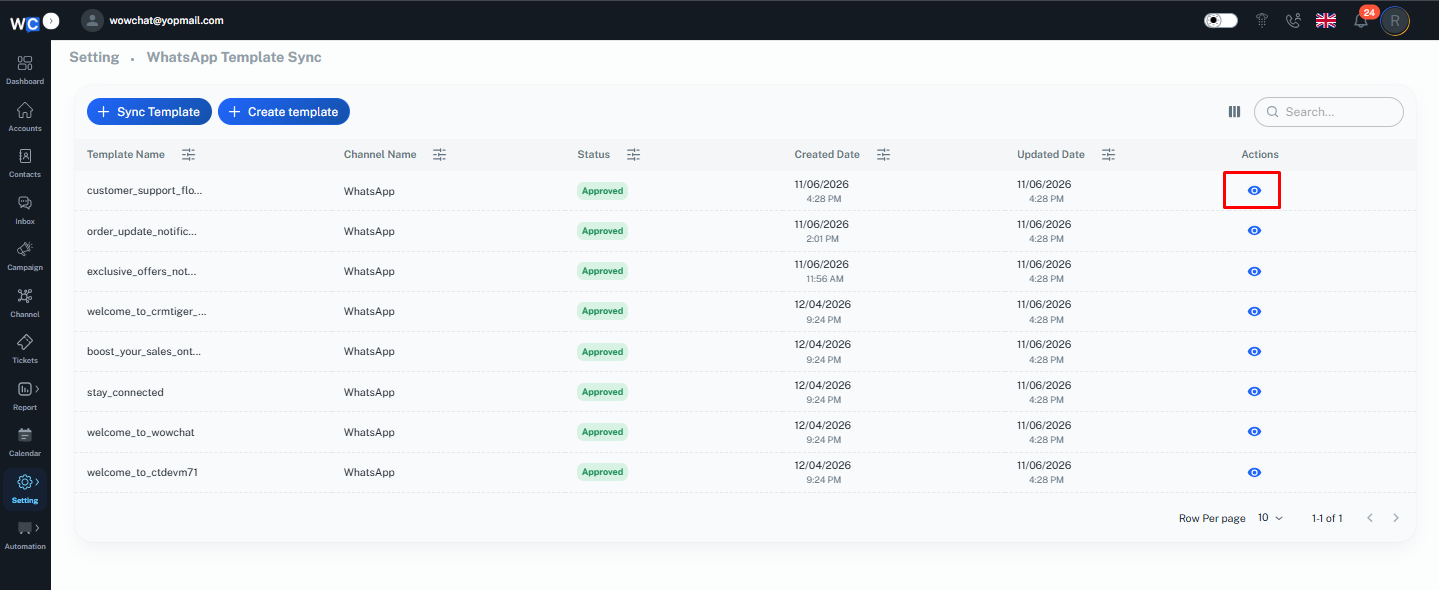
Once the template is successfully synced and available in WowChat, you can use it while sending messages from the WhatsApp Business Chat window.
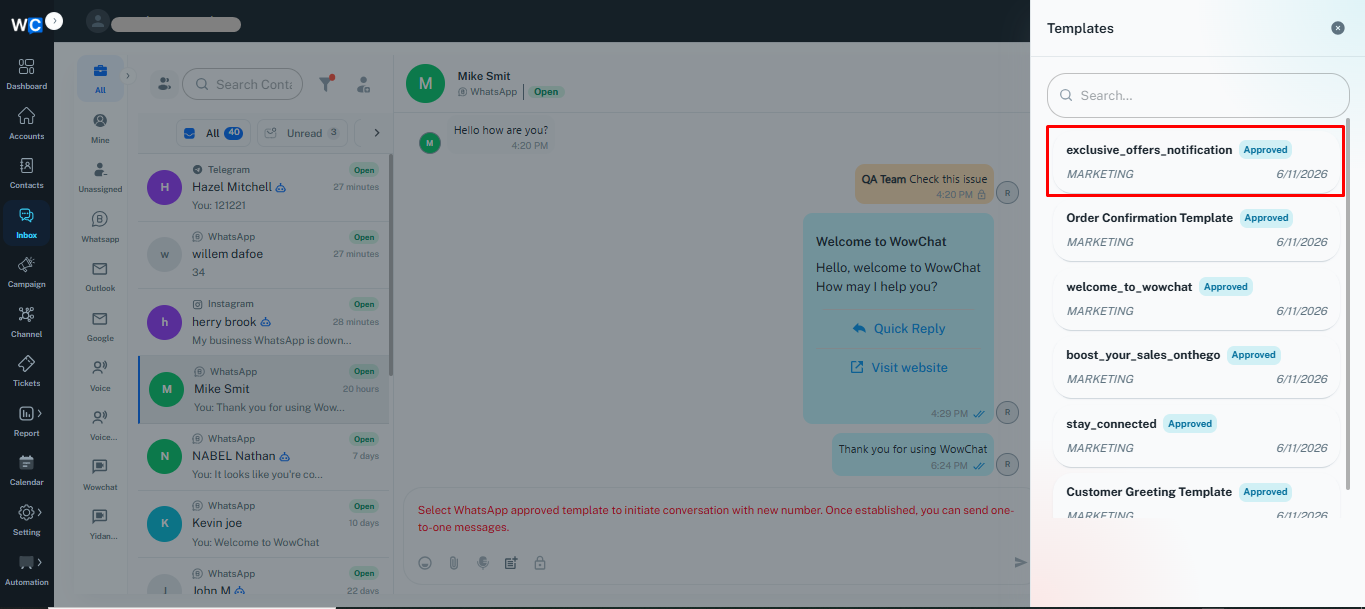
Note: Only Meta-approved templates will be synced in WowChat and made available for use in WhatsApp Business. Templates in pending or rejected status cannot be used.
FAQ
A Marketing WhatsApp Business Template is a pre-approved message format used to send promotional content, announcements, offers, product updates, and customer engagement messages through WhatsApp.