These templates are commonly used for processes like lead collection, bookings, surveys, and onboarding flows, making interactions more engaging and organized.
Flow Template Usage
Users can create flow templates only under the Marketing and Utility categories.These templates are used to build interactive, step-by-step user journeys for engaging or informational purposes within WhatsApp.
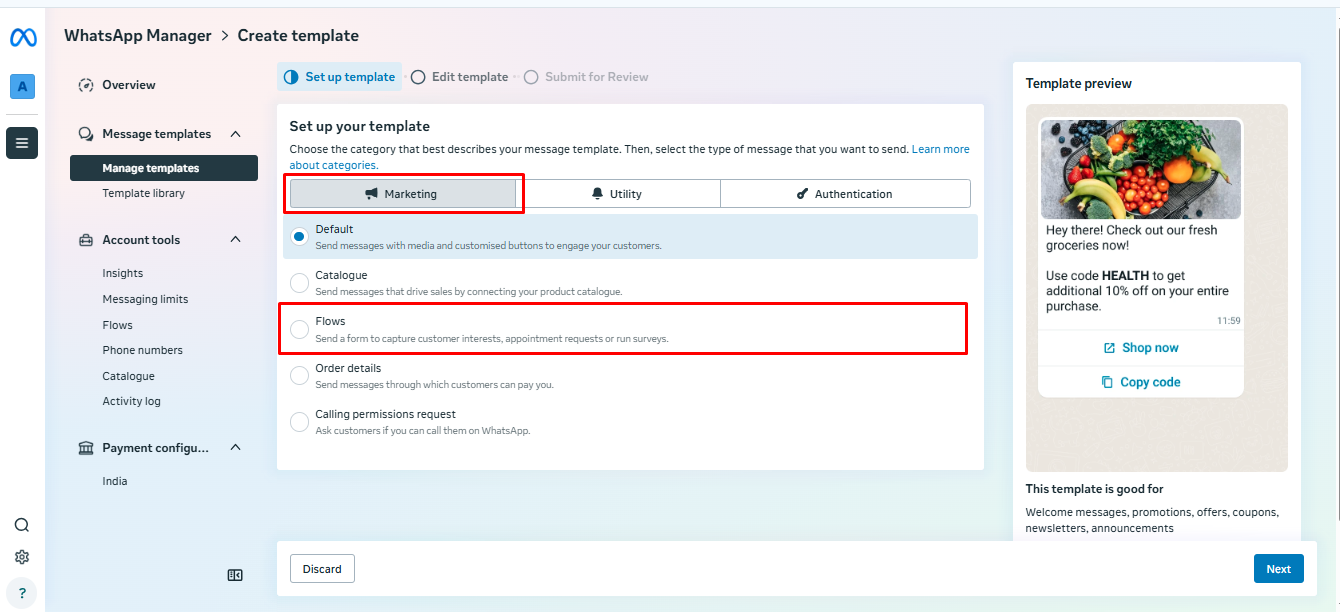
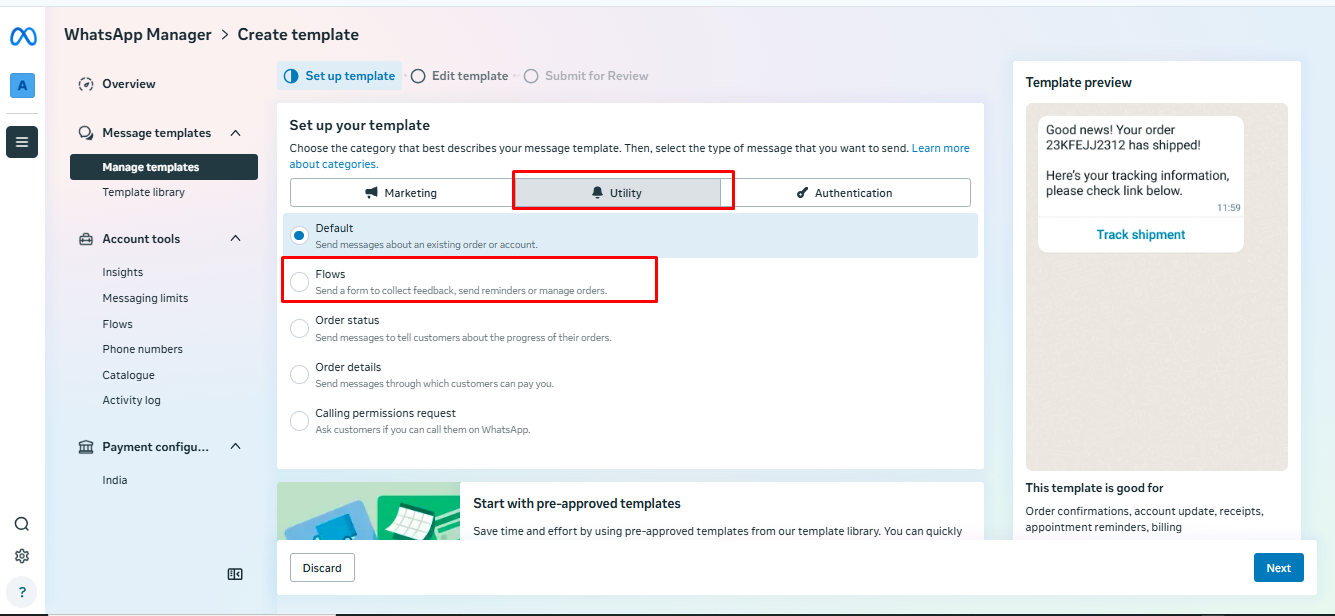
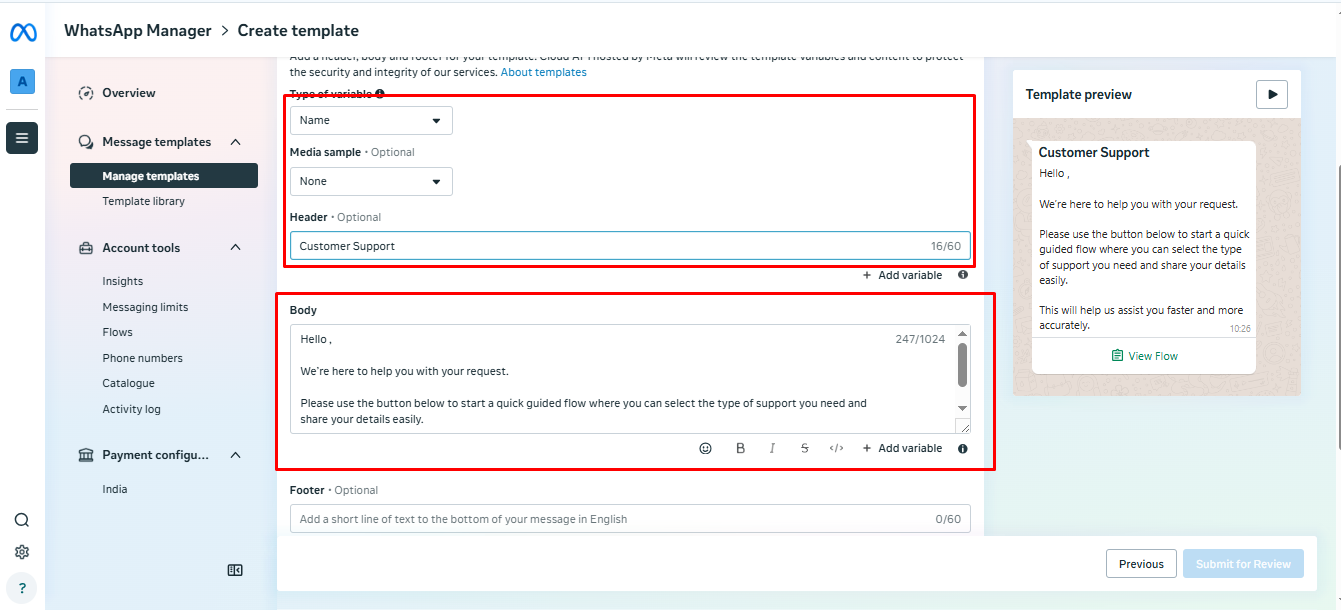
While creating a flow template, start by entering the Template Name and selecting the preferred Language.Next, configure the template structure by adding a Header, writing the main Message Body, and including an optional Footer if needed.
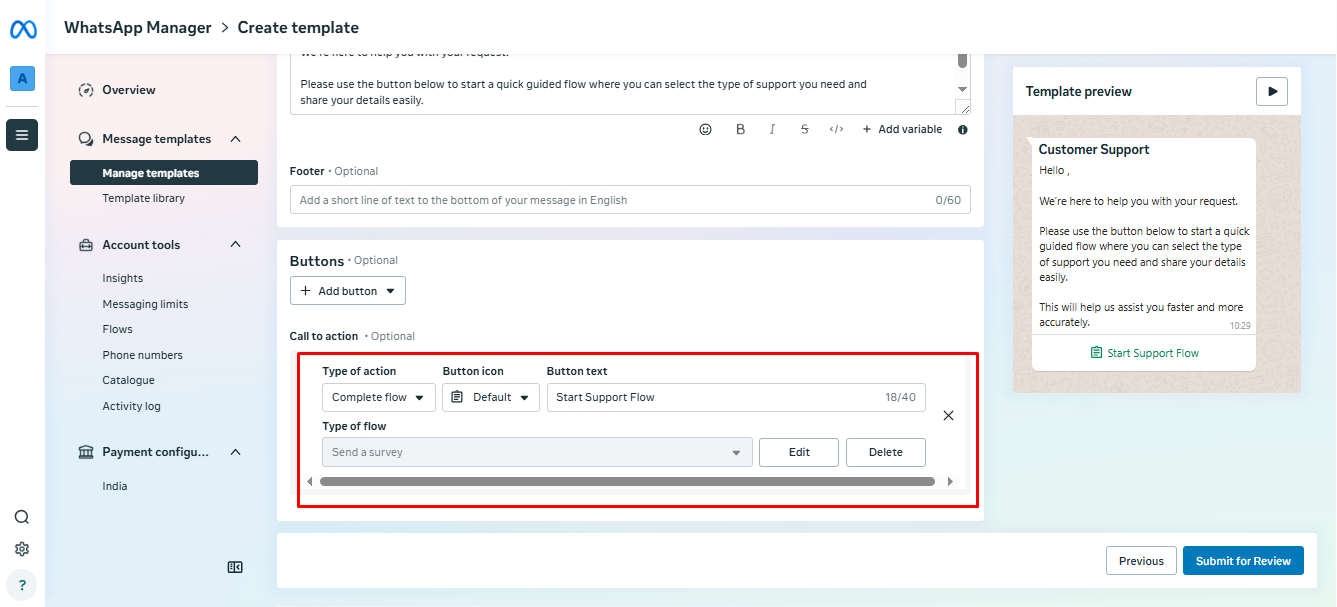
In the Call-to-Action section, the default action type will be set to Complete Flow.Here, you can enter the Button Text that users will see on WhatsApp. This text should clearly indicate the action, such as "Start Now" or "Get Started".Next, choose the flow source by selecting either Create New Flow or an Existing Flow based on your requirement.
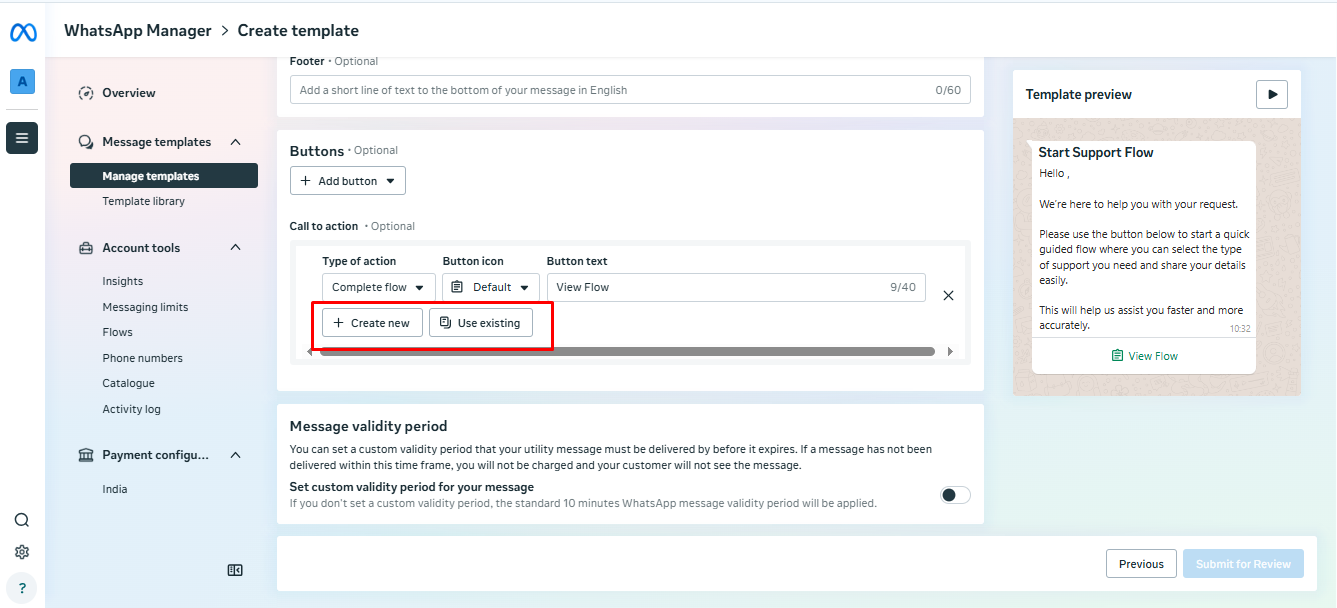
After selecting Create New Flow, a pop-up window will appear to help you set up the flow.In this window, choose and configure the required fields based on your workflow requirements.Once all necessary details are added, click on the Save button to create the flow.
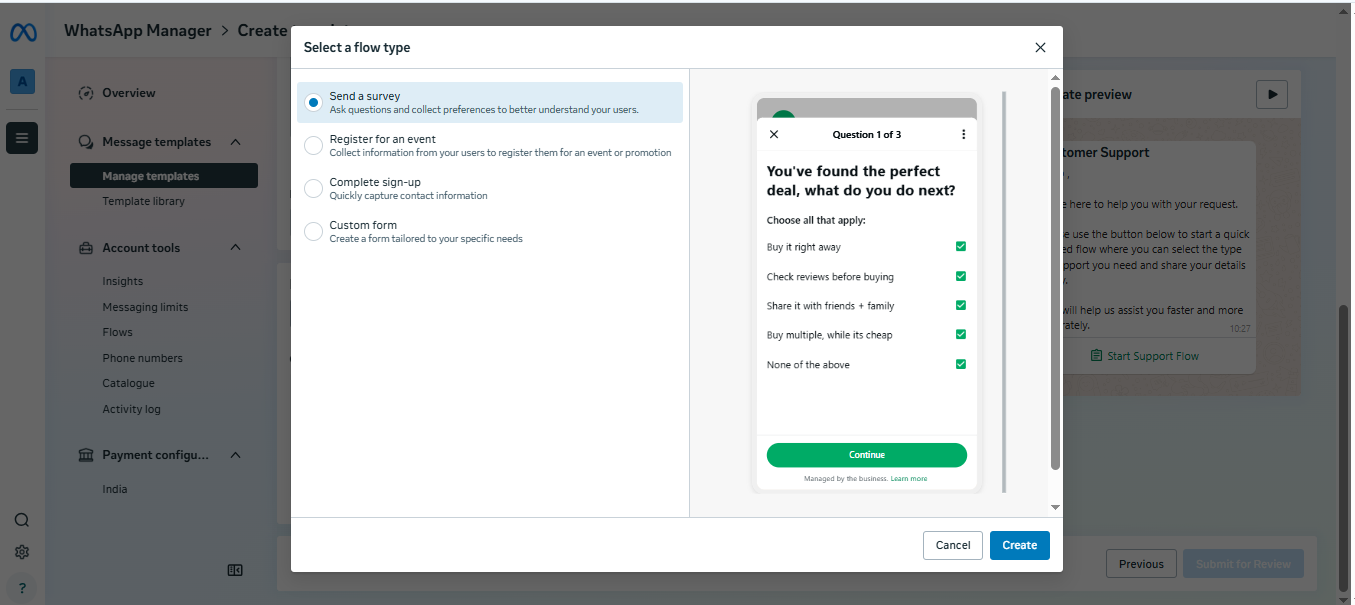
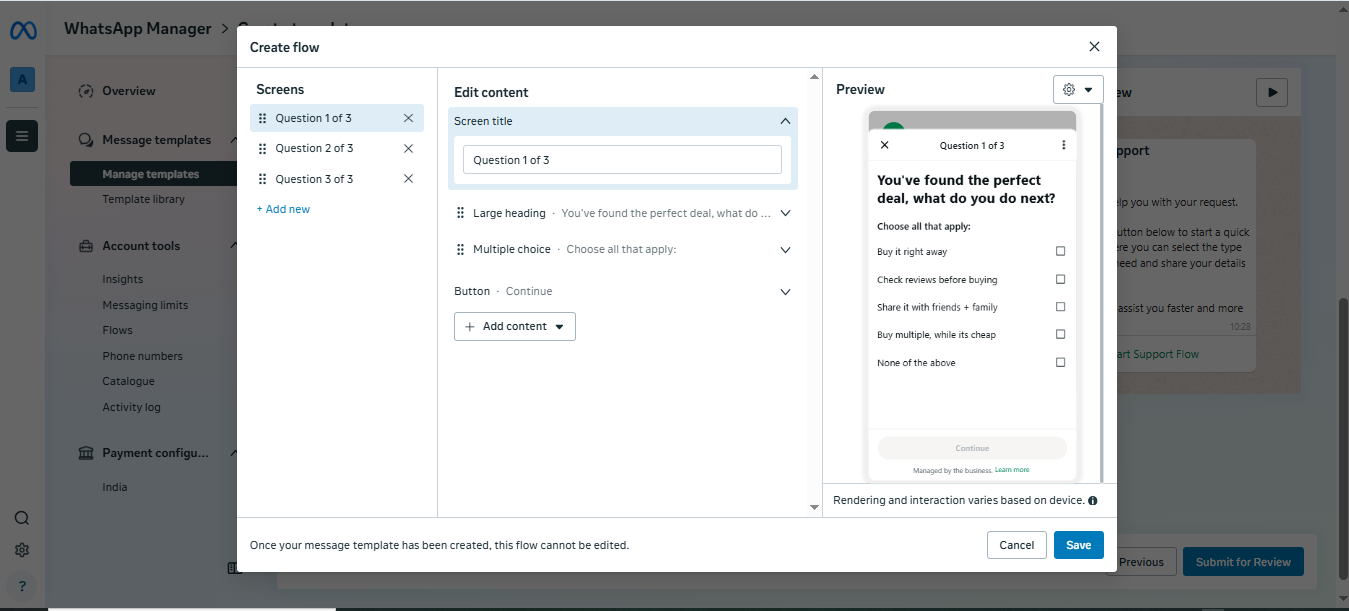
After selecting the flow type and saving it, the chosen flow will automatically be added to the Call-to-Action section.This ensures that the button in your template is now linked to the selected flow, allowing users to directly start the interaction when they click it.
WhatsApp Business Template Features
Explore the detailed explanation and usage steps for each feature:
- Media Template - Click here to learn more
- Interactive Buttons - Click here to learn more
- Template Status - Click here to learn more
- Template Variables - Click here to learn more
Once all required details are completed and the flow is properly linked in the Call-to-Action section, click on the Submit and Review button.This will send your flow template to Meta for review and approval as per WhatsApp guidelines.
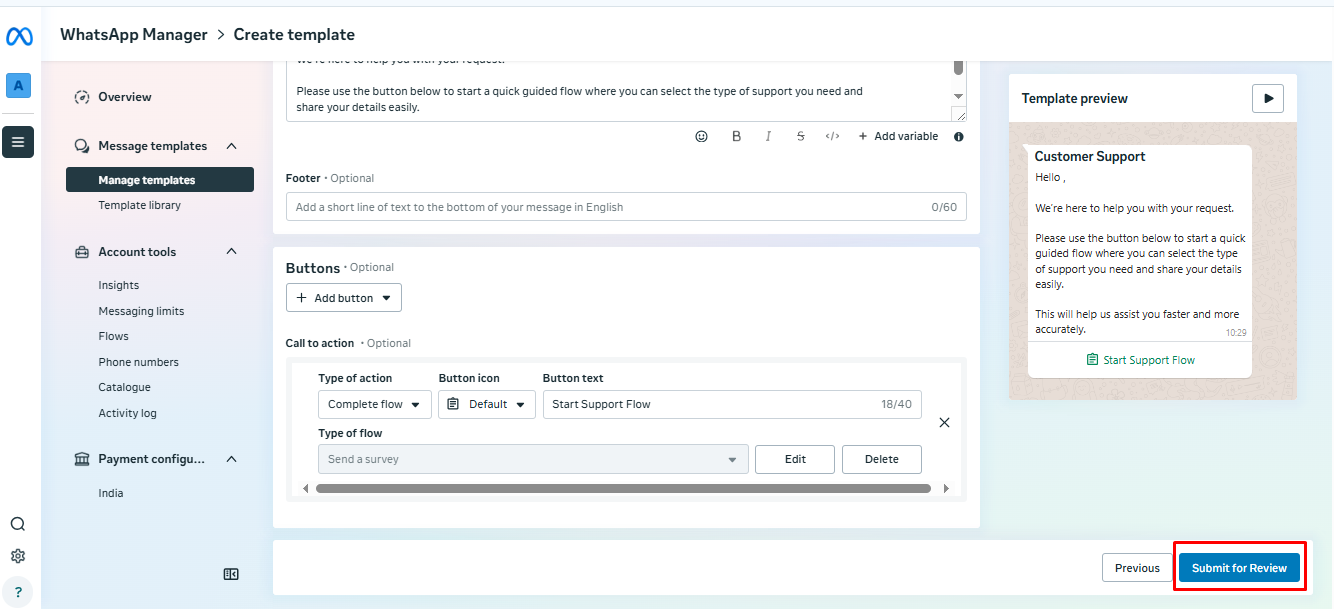
After clicking on Submit and Review, you will be redirected to the Template Listing Page.Here, your newly created flow template will appear with the status shown as In Review, indicating that it has been submitted to Meta and is currently under review.
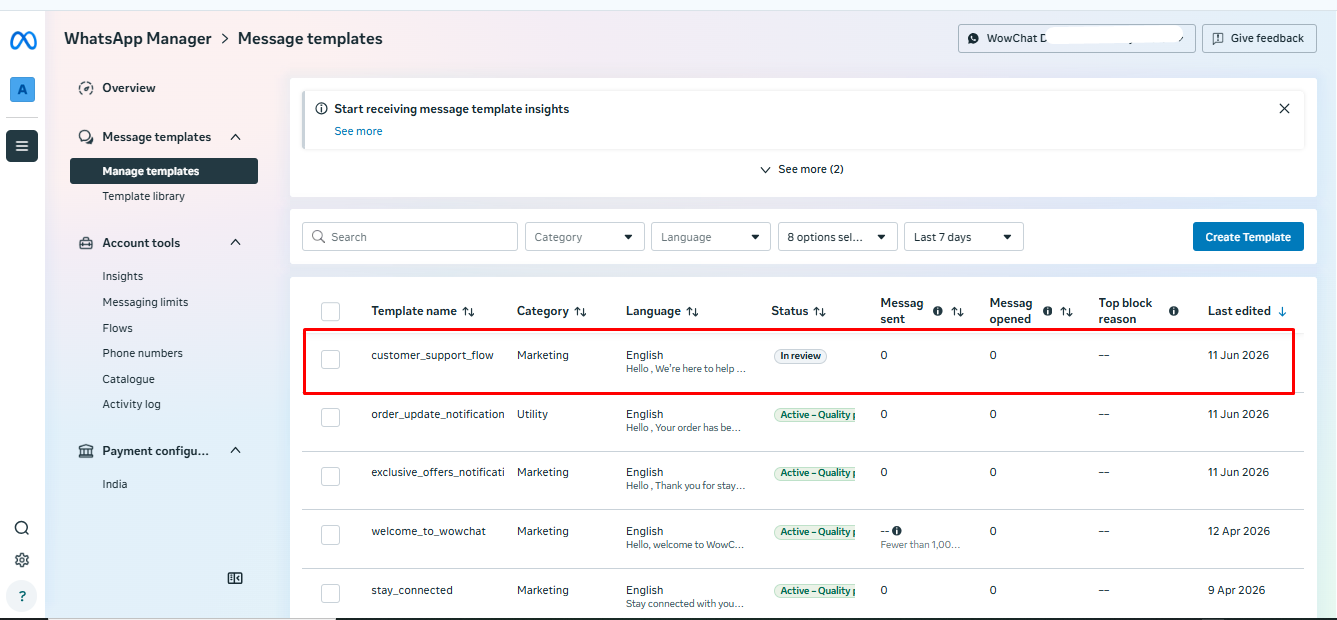
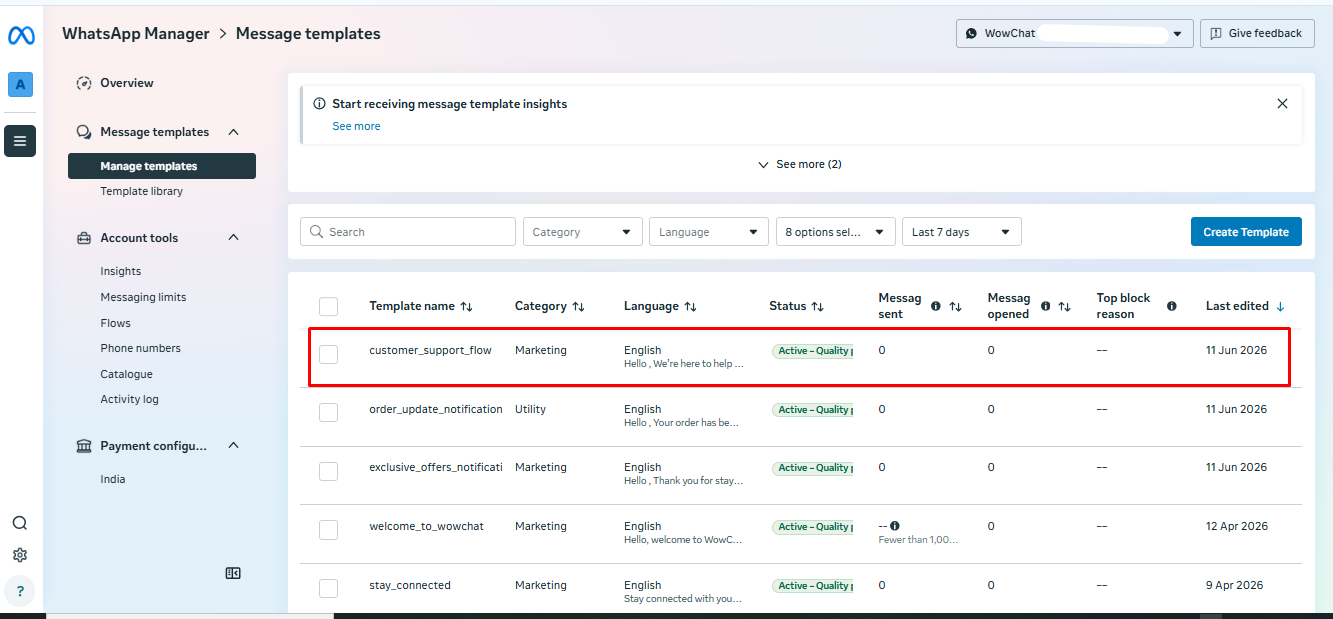
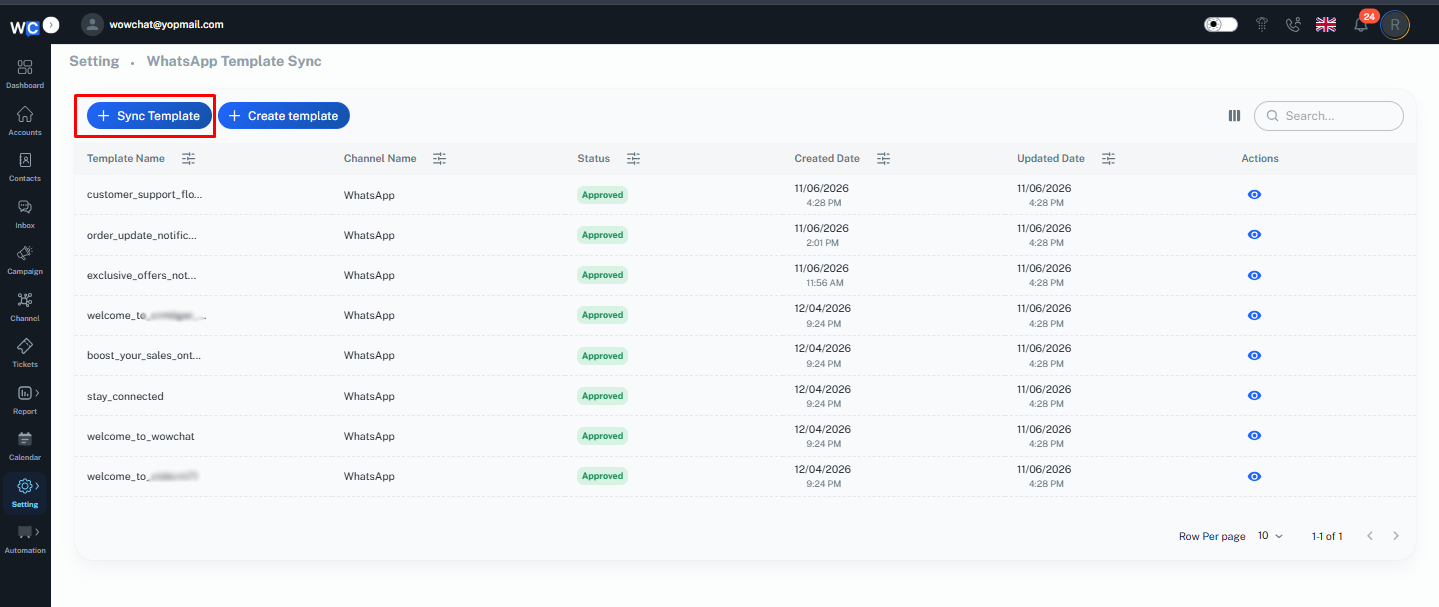
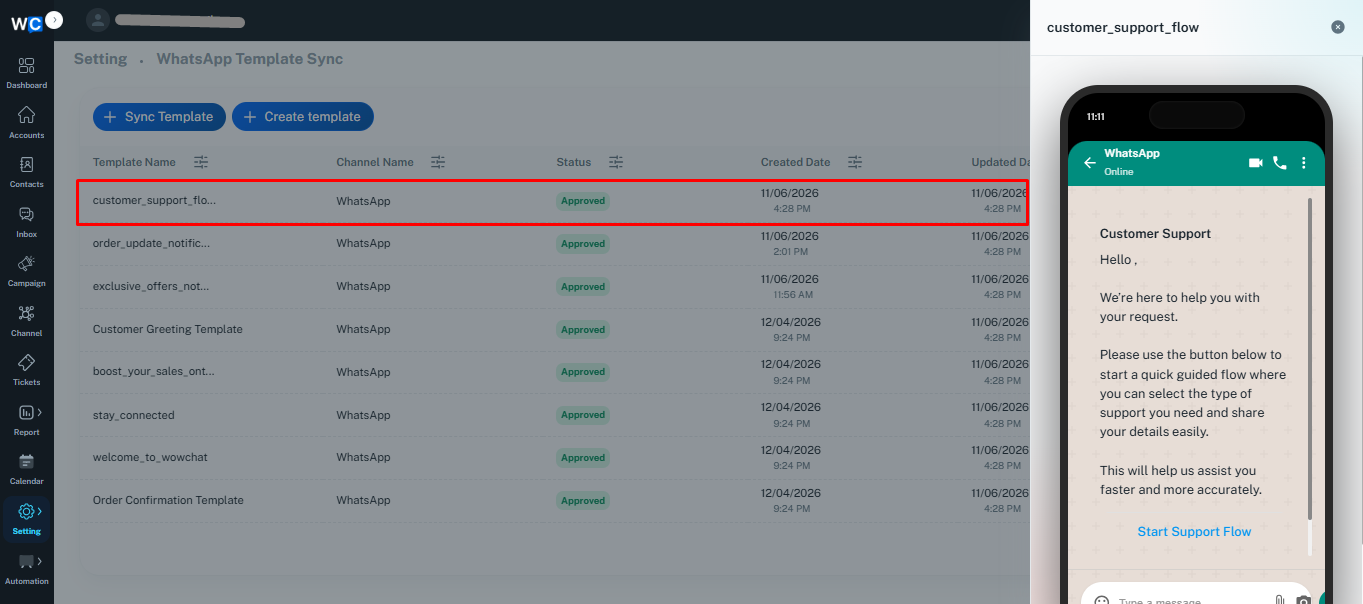
Once the template is approved by Meta, go to the WowChat WhatsApp Templates page and click on the Sync button.This will fetch the latest approved templates and make them available in WowChat for use.
FAQ
Flow templates are interactive templates that guide users through a step-by-step journey to collect information, show options, or complete actions like bookings, surveys, and onboarding.