The Voice Call Channel allows your team to manage inbound and outbound customer calls directly through WowChat. By integrating voice communication into your workspace, you can handle customer conversations alongside WhatsApp, Email, Live Chat, and other communication channels from a single platform.
With the Voice Call Channel, businesses can provide faster support, improve customer engagement, and maintain a complete history of customer interactions in one centralized location.
This guide explains how to configure and manage the Voice Call Channel in WowChat.
Why Use the Voice Call Channel?
Voice communication remains one of the most effective ways to provide personalized customer support and resolve issues quickly.
Using the Voice Call Channel helps your organization:
- Manage customer calls from a centralized platform
- Improve customer communication
- Reduce response times
- Maintain call history and records
- Improve team collaboration
- Deliver a better customer experience
Before You Begin
Before setting up the Voice Call Channel, ensure you have:
- Access to your WowChat workspace
- Permission to manage channels
- A configured voice service or provider (if applicable)
- Users available to receive and manage calls
Setting Up the Voice Call Channel
Follow these steps to create and configure your Voice Call Channel.
Step 1: Open Channels
After successfully logging in to your WowChat account, click on the Channels option from the left-hand navigation menu.
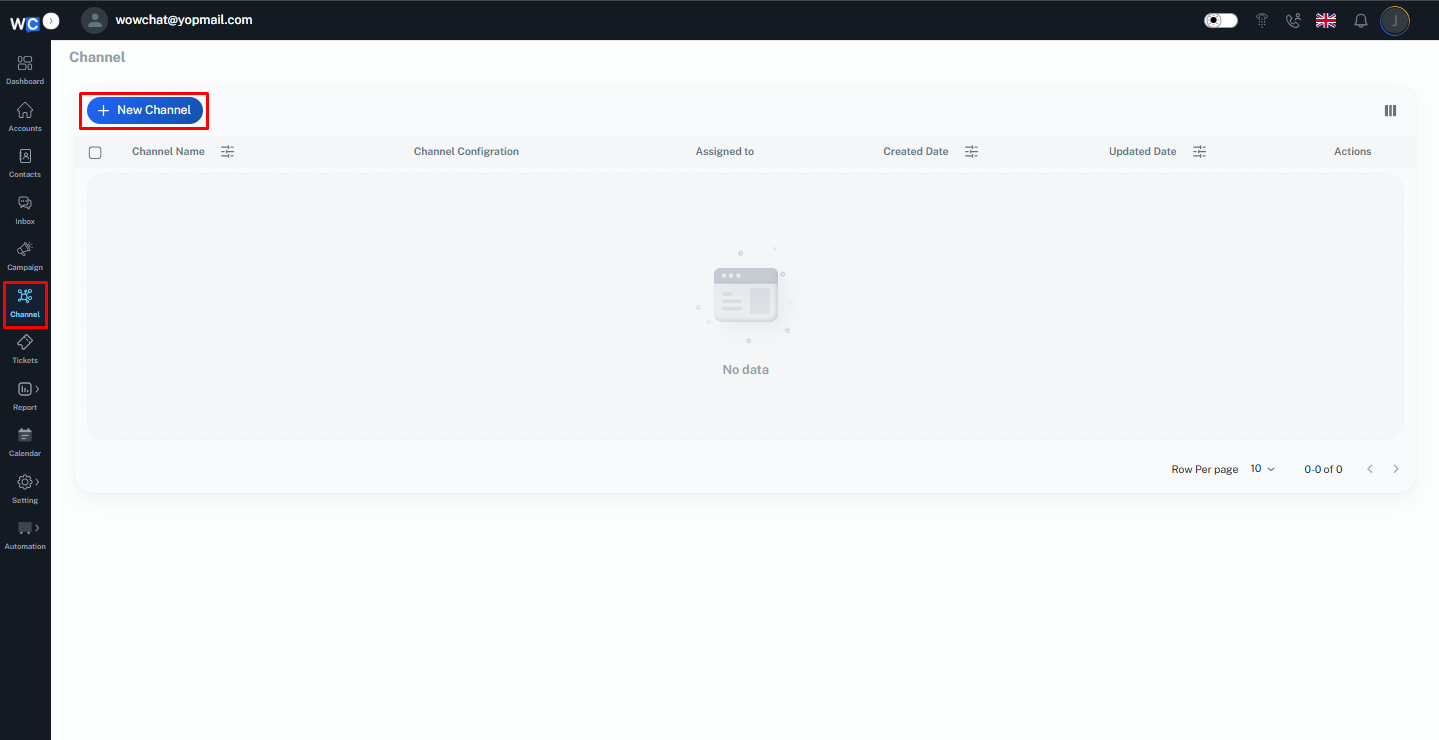
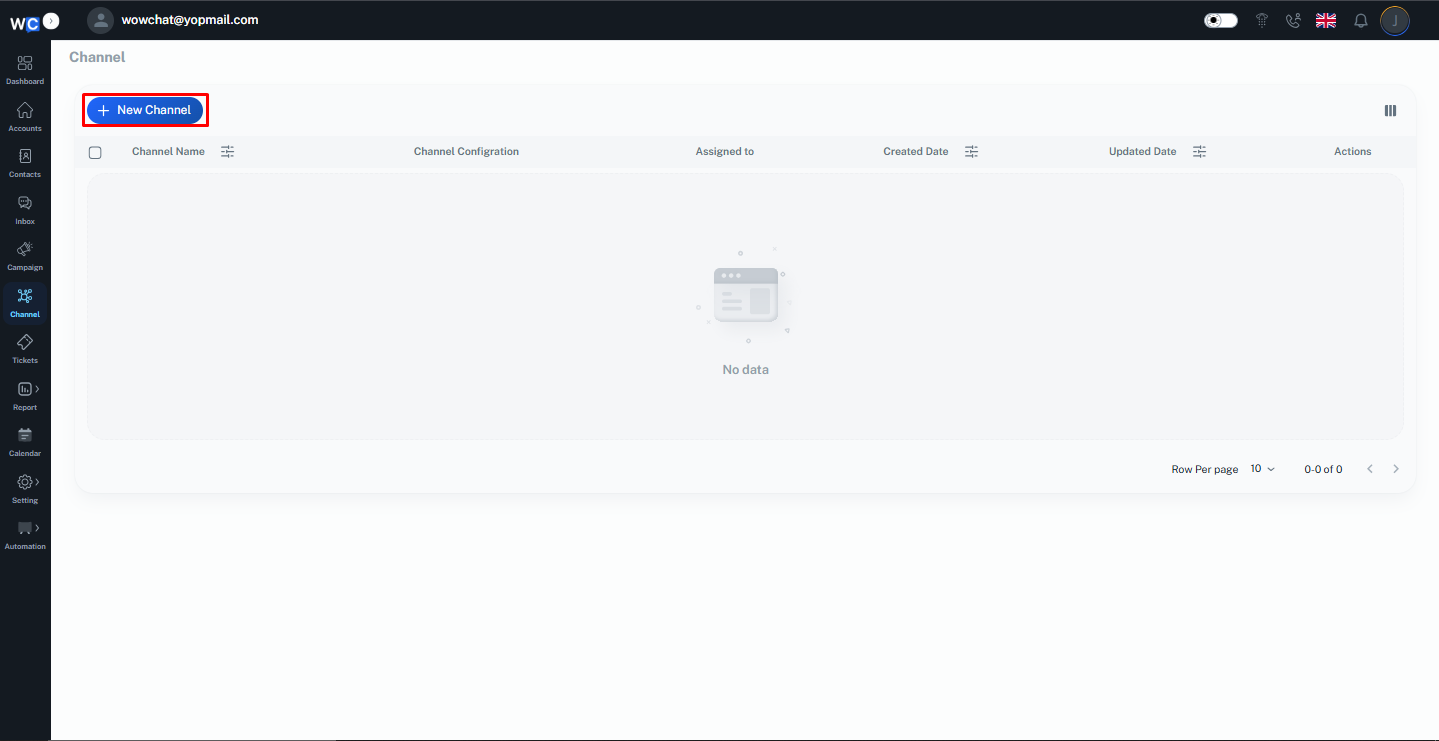
Step 2: Create a New Channel
Click the New Channel button to begin creating a new communication channel.
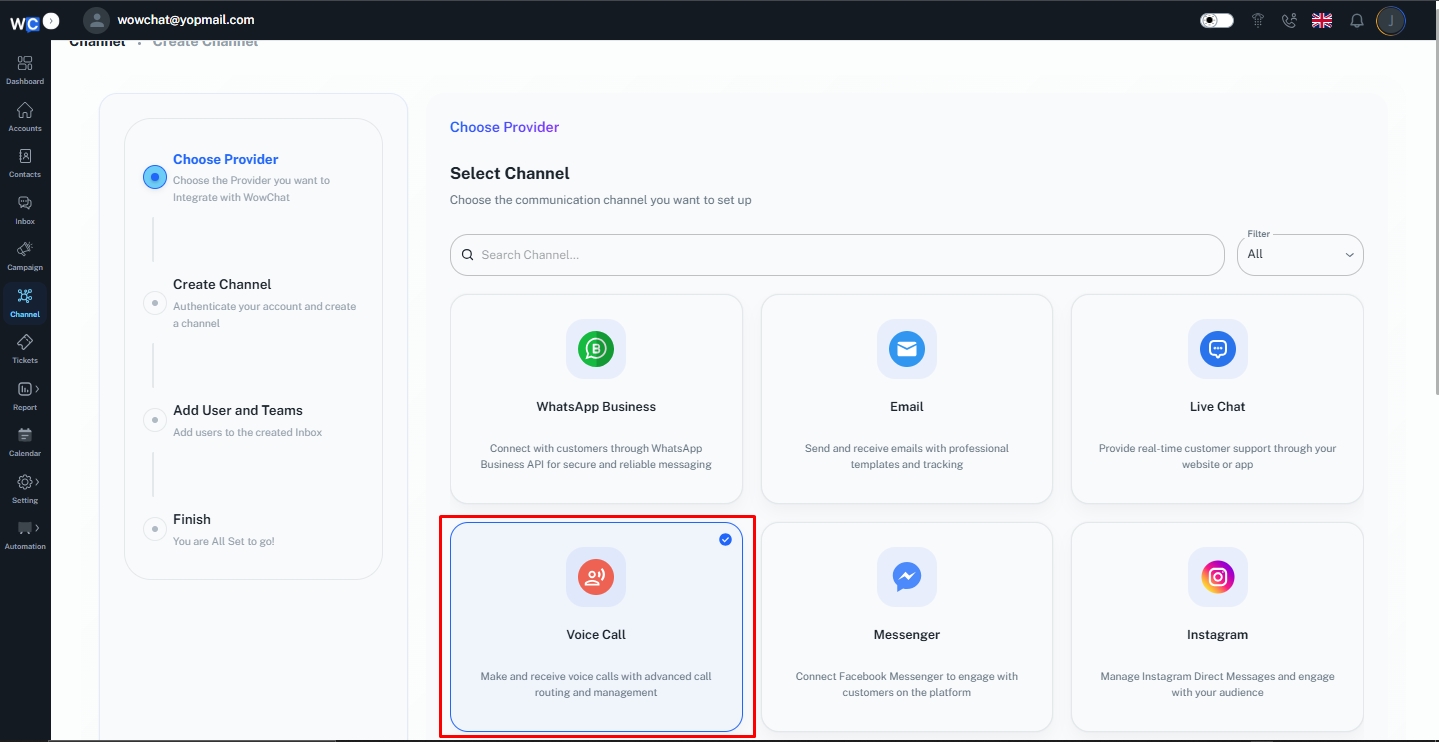
Step 3: Select Voice Call Channel. And click on the next button
From the available channel types, select Voice Call Channel.
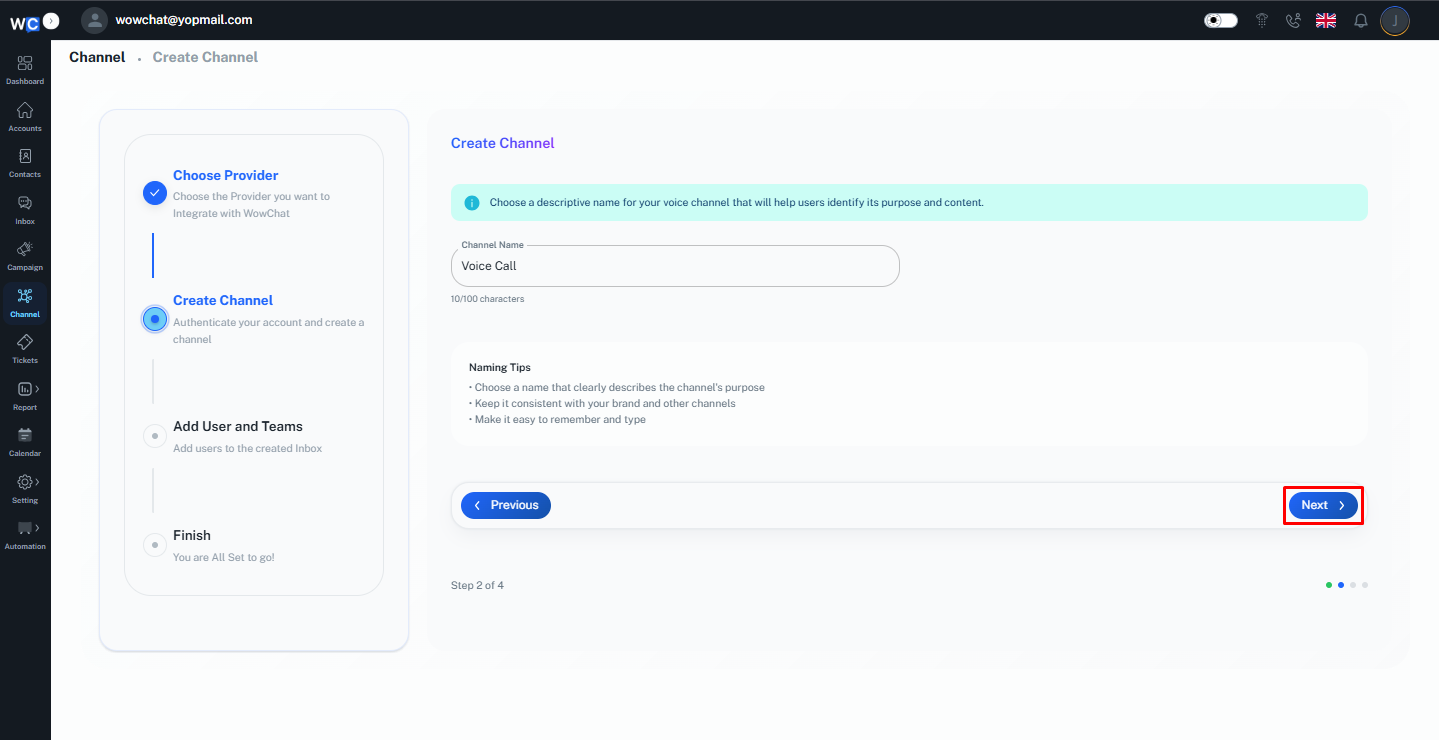
Step 4: Enter Channel Name
These details help identify the voice channel within your workspace.
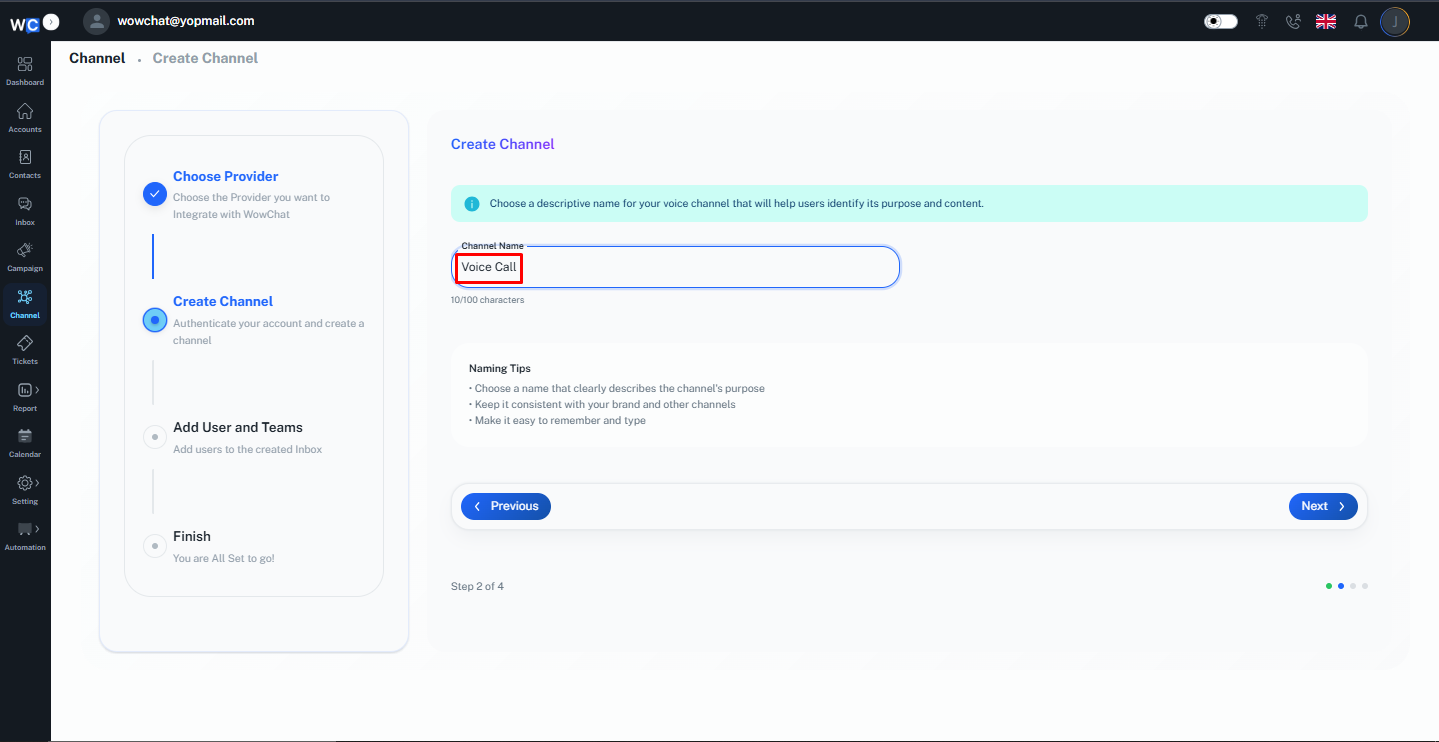
Step 5: Click Next
After entering the Channel Name, click the Next button.
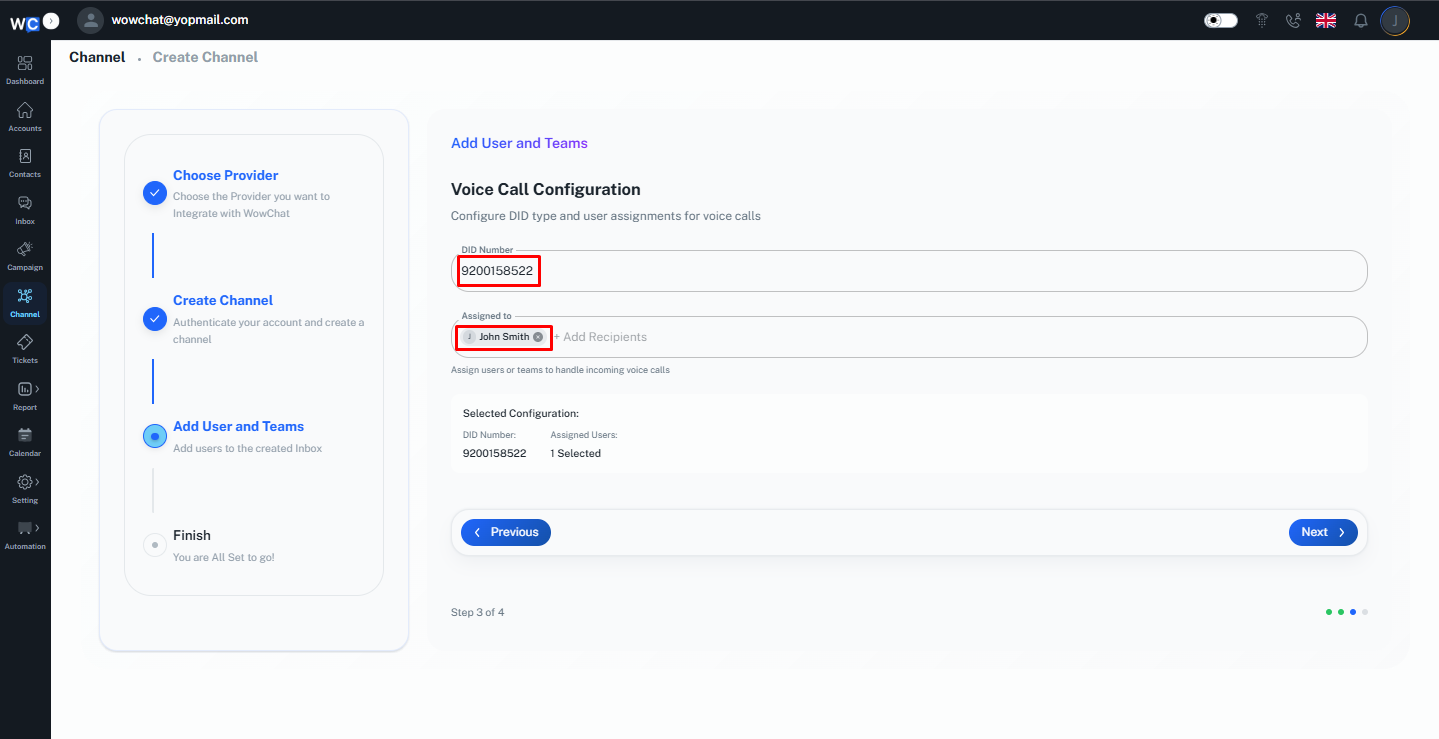
Step 6: Enter DID Number and Assign Users
Enter the DID Number and select the user or users from the Assign To option who should receive and manage incoming voice calls.
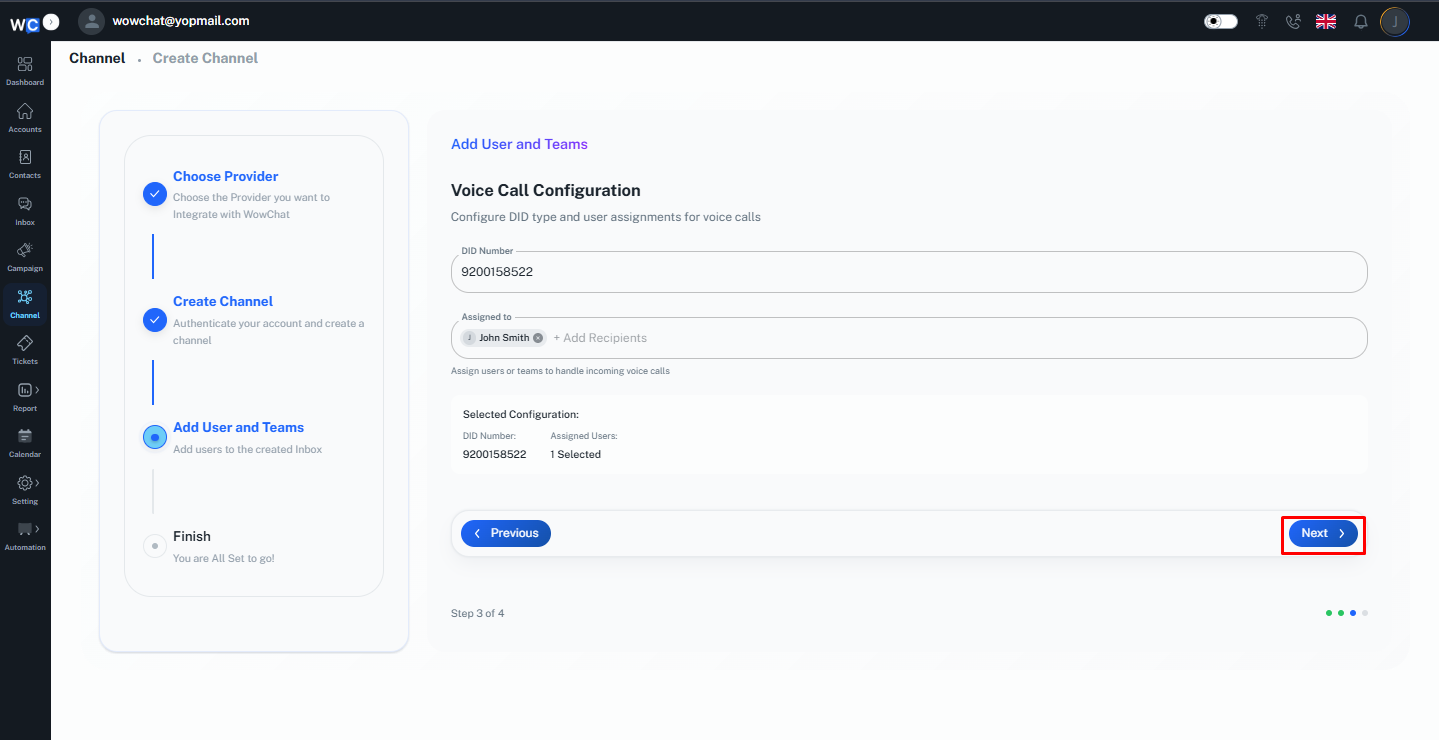
Step 7: Click Next
Review the channel configuration and click the Next button to continue.
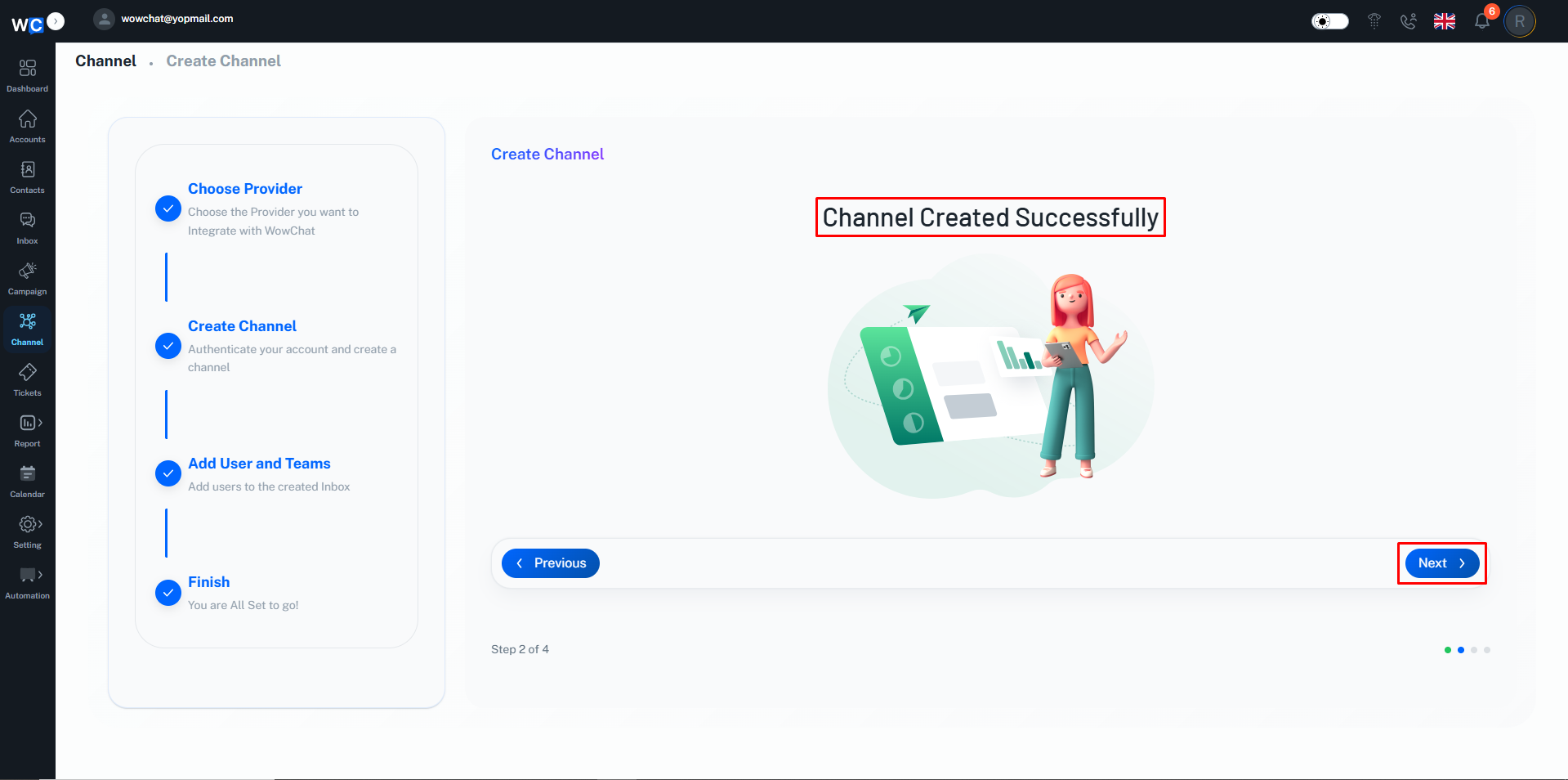
Step 8: Channel Created Successfully
The Voice Call Channel has now been created successfully.Click the Finish button to complete the setup process.
How Voice Calls Work
Once the Voice Call Channel is active:
- Customers place a call to your business number.
- Calls are routed through the configured Voice Call Channel.
- Assigned users receive incoming calls.
- Team members can manage and track call activity.
- Call history is stored for future reference.
This ensures that customer communication remains organized and accessible.
Benefits of the Voice Call Channel
Using the Voice Call Channel helps your organization:
- Improve customer communication
- Respond to customer inquiries faster
- Centralize call management
- Maintain communication history
- Increase team productivity
- Deliver better customer support
Managing Voice Call Conversations
After setup, administrators can:
- Assign calls to users
- Review call history
- Monitor call activity
- Update call routing settings
- Manage channel configurations
Proper call management helps ensure efficient customer communication.
Frequently Asked Questions (FAQ)
The Voice Call Channel allows businesses to manage customer calls directly within WowChat.