The Email Channel allows you to manage customer emails directly from WowChat alongside your other communication channels.
By connecting your email account, incoming and outgoing emails can be managed from the Unified Inbox, making it easier for your team to respond to customers, collaborate internally, and maintain a complete communication history in one place.
WowChat currently supports the following email providers:
- Microsoft
- Other Email Providers
This guide explains how to connect and configure each provider.
Why Connect an Email Channel?
Connecting an email channel helps your organization:
- Manage emails from a centralized inbox
- Improve response times
- Track customer communication history
- Enable team collaboration
- Reduce missed customer inquiries
- Manage multiple communication channels from a single platform
Supported Email Providers
WowChat supports three methods for connecting email accounts:
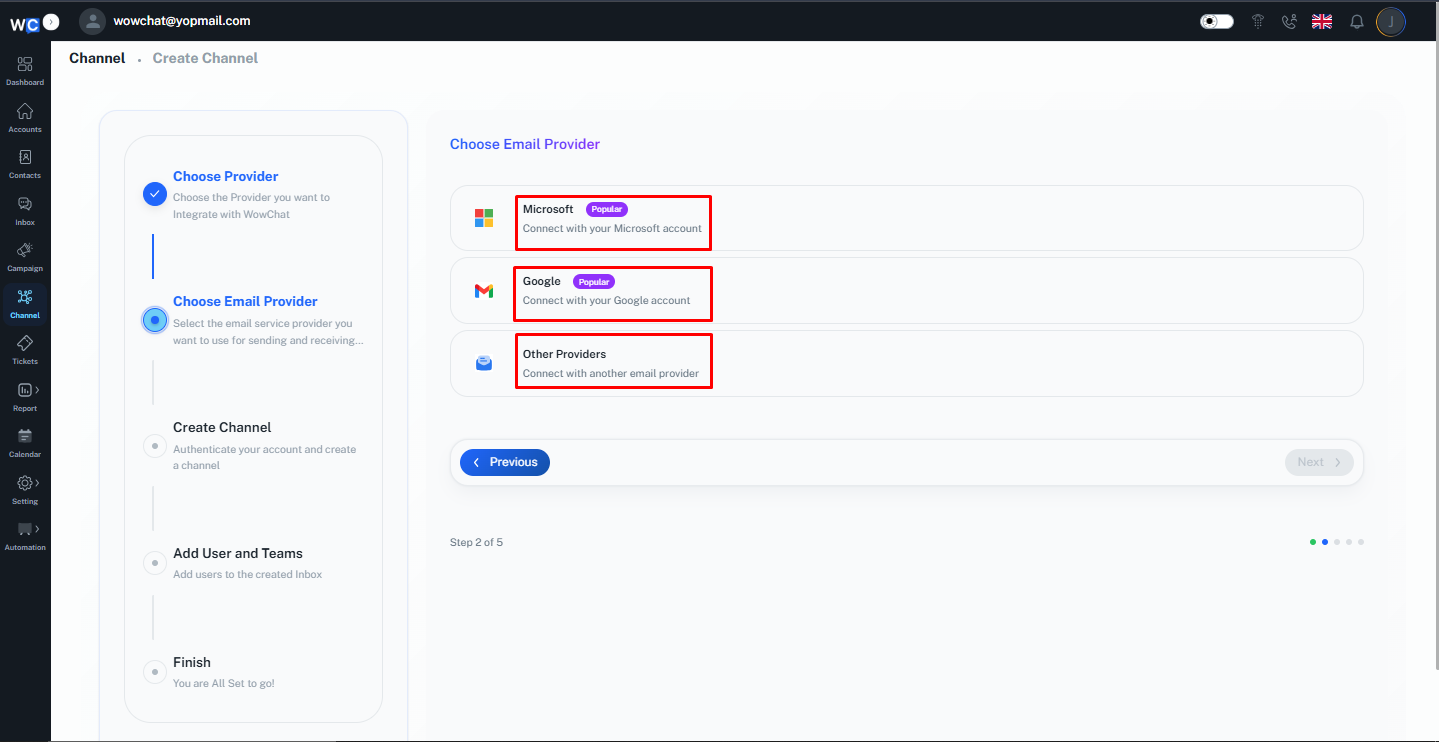
Microsoft
Connect Microsoft-based email accounts such as
Connect Google Workspace and Gmail accounts.
Other Providers
Connect email providers that support standard IMAP and SMTP configurations.Examples include:
- Zoho Mail
- Hostinger Email
- GoDaddy Email
- cPanel Email
- Custom Business Email Accounts
Microsoft Email Integration
Follow these steps to connect a Microsoft email account.
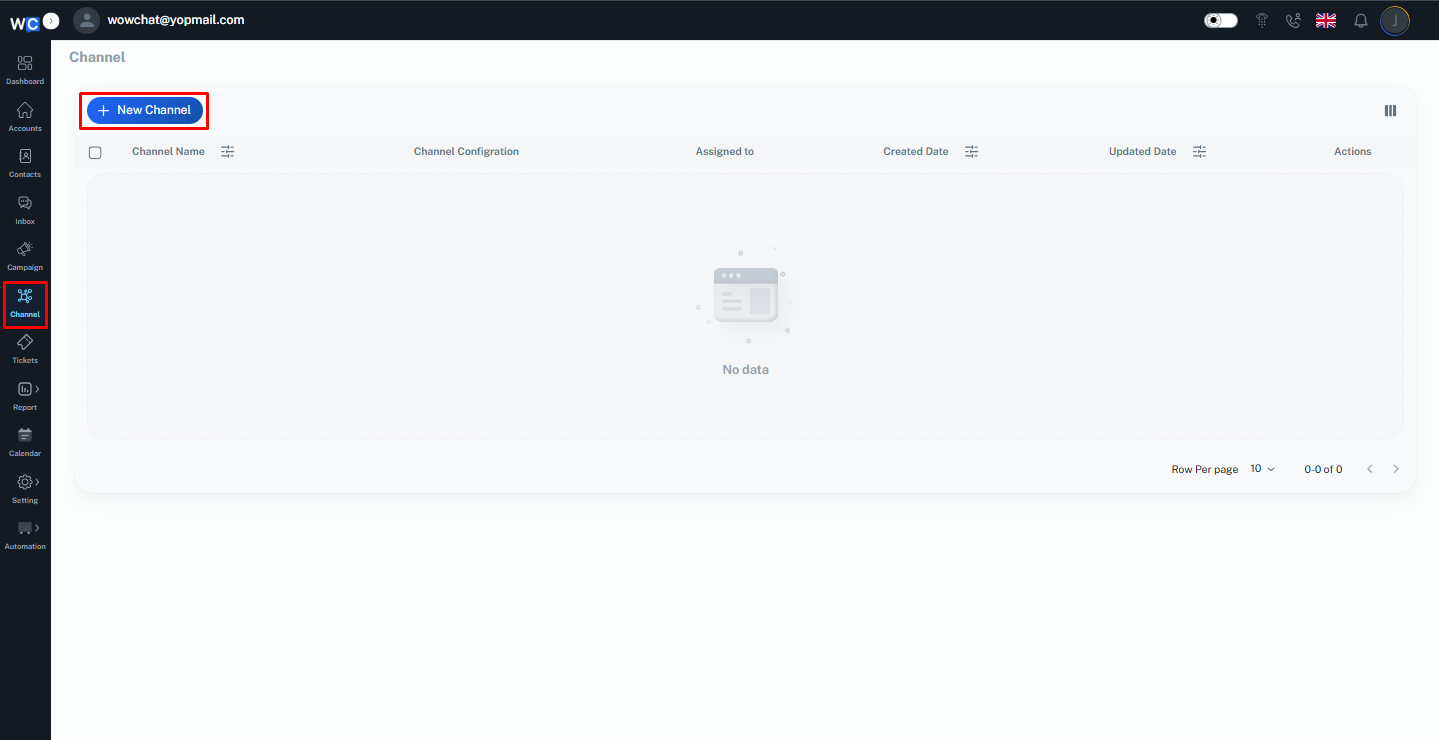
Step 1: Open Channels
After successfully logging in to your WowChat account, click on the Channels option from the left-hand navigation menu. You will be redirected to the Channels page.
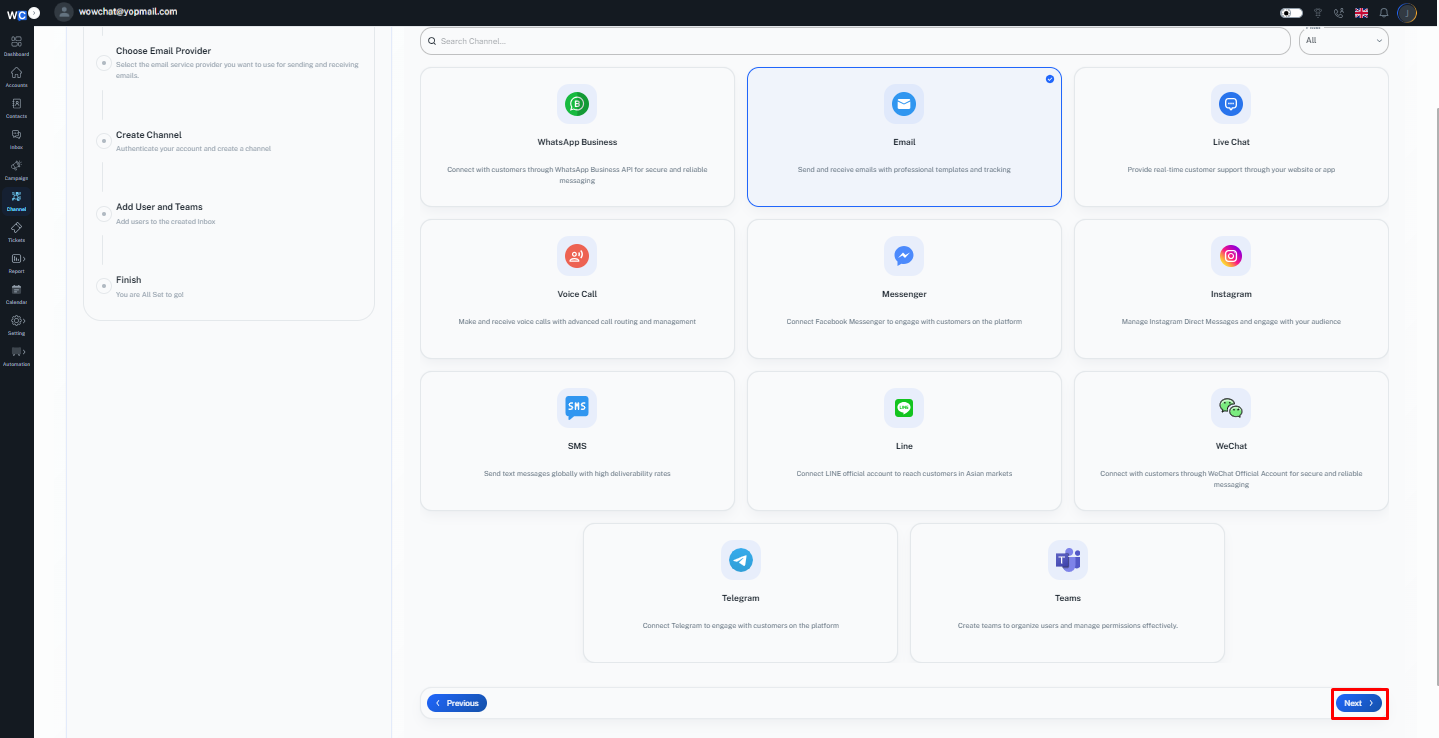
Step 2: Select Email Channel
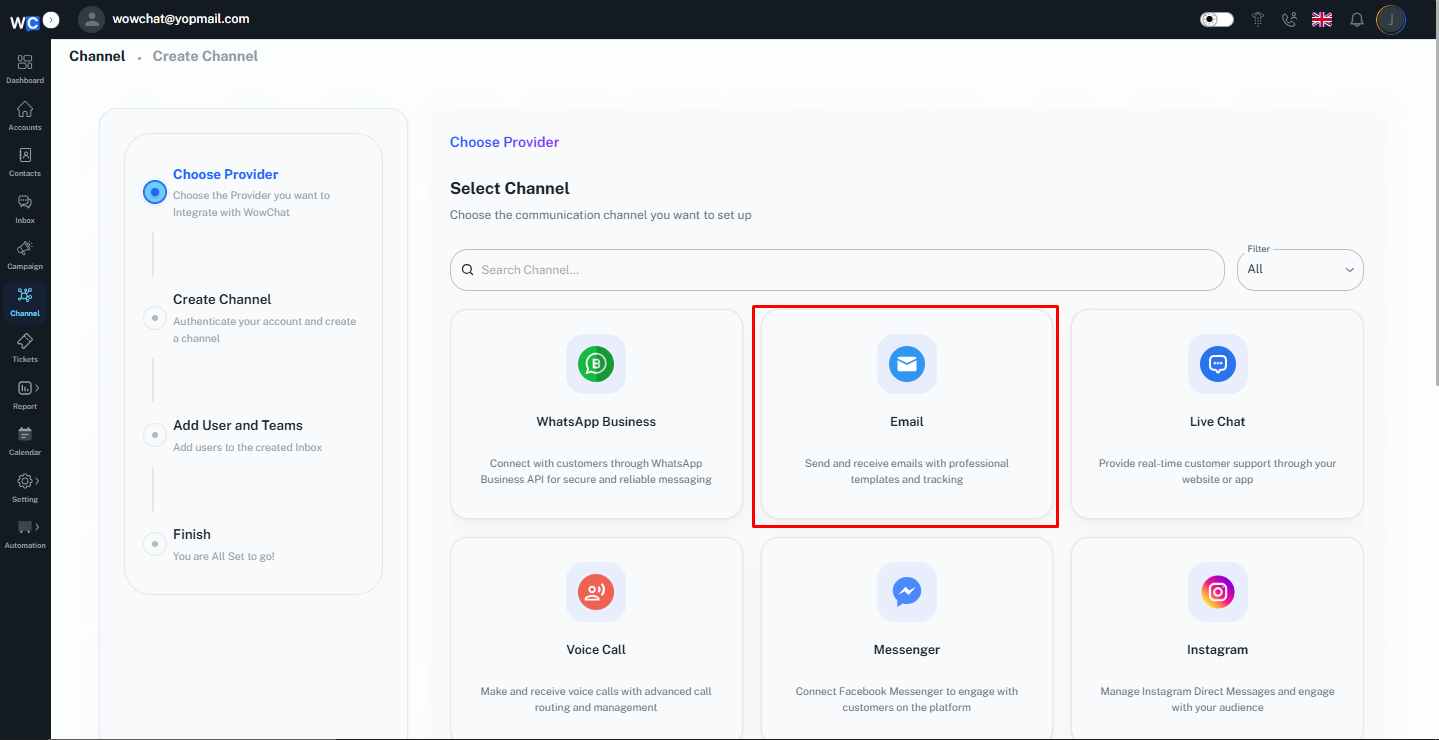
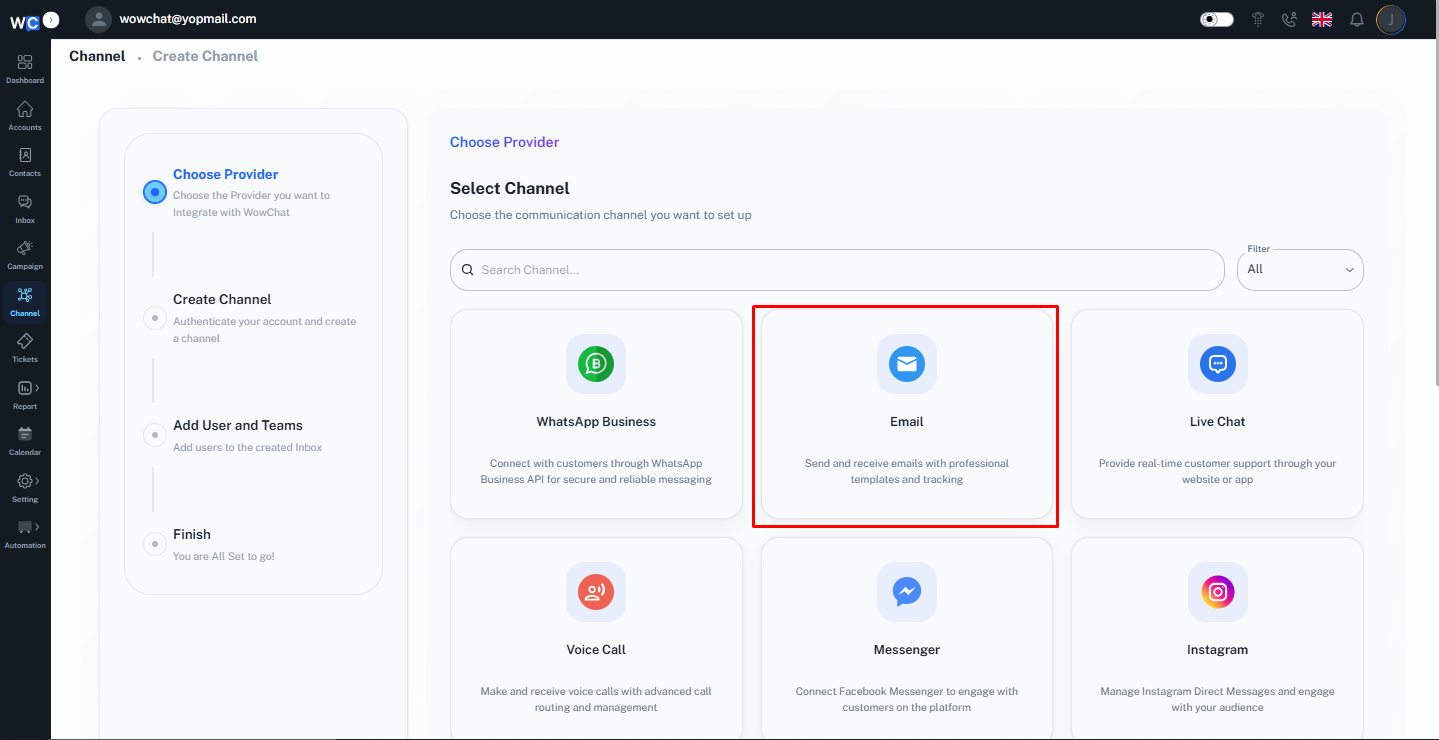
Click on the Email Channel option from the available channel types.
Step 3: Click Next
Click the Next button to continue with the email channel setup process.
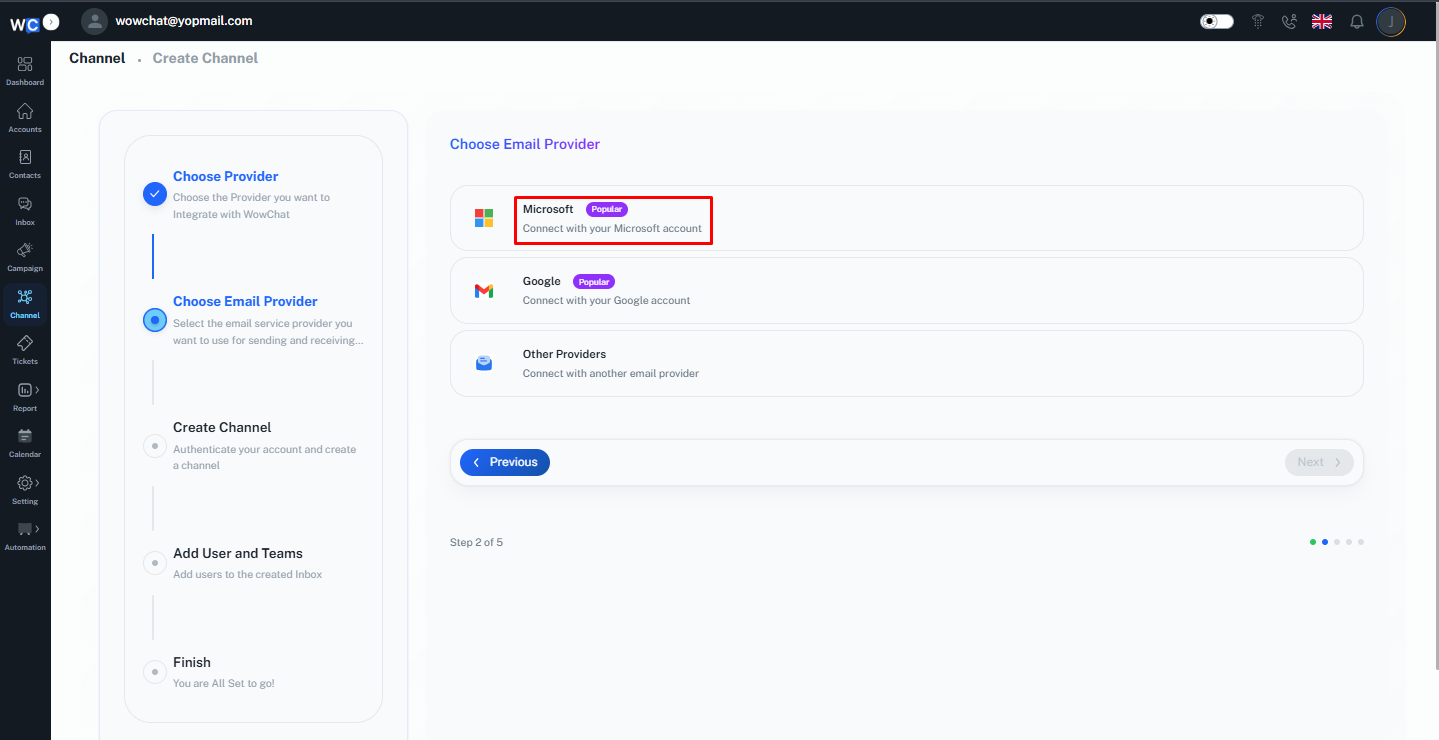
Step 4: Select Microsoft Provider
Choose Microsoft as your email provider.
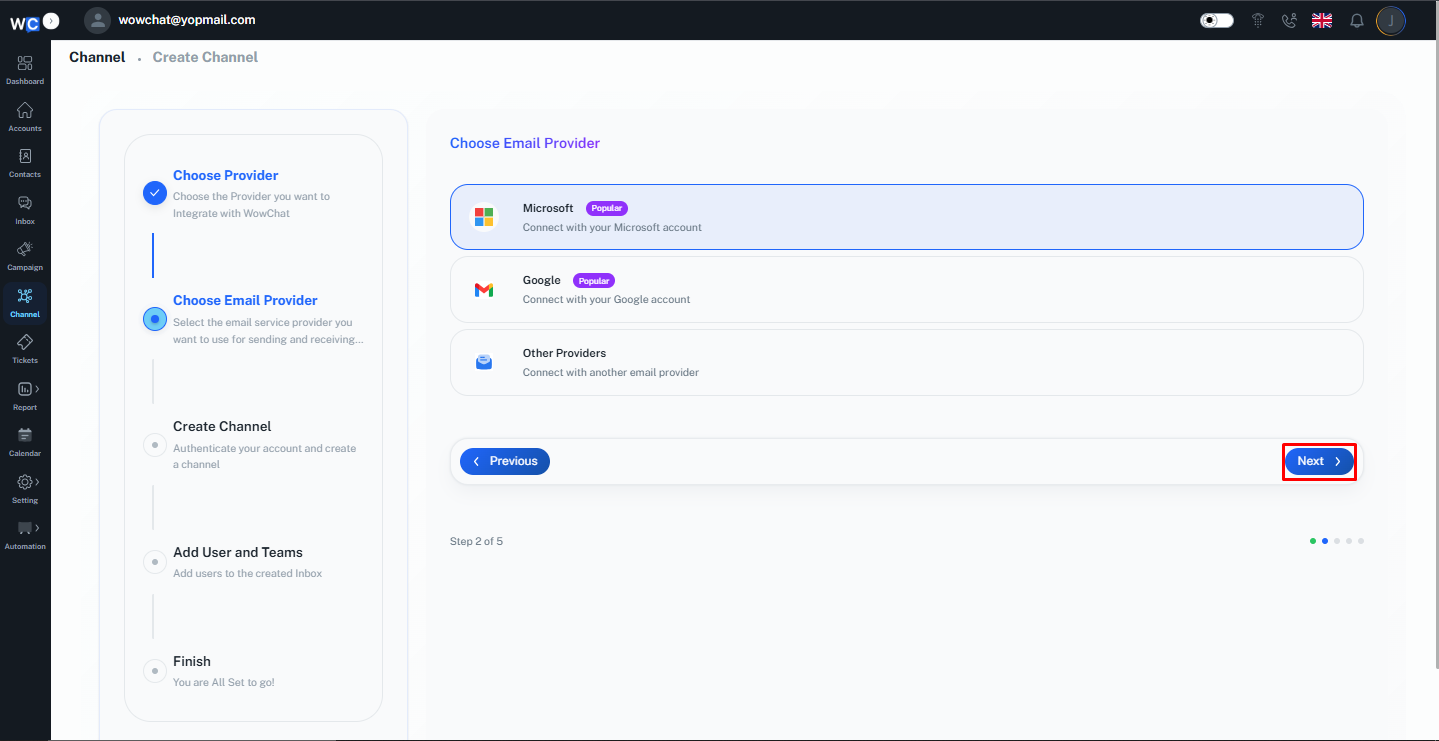
Step 5: Click Next
Click the Next button to proceed.
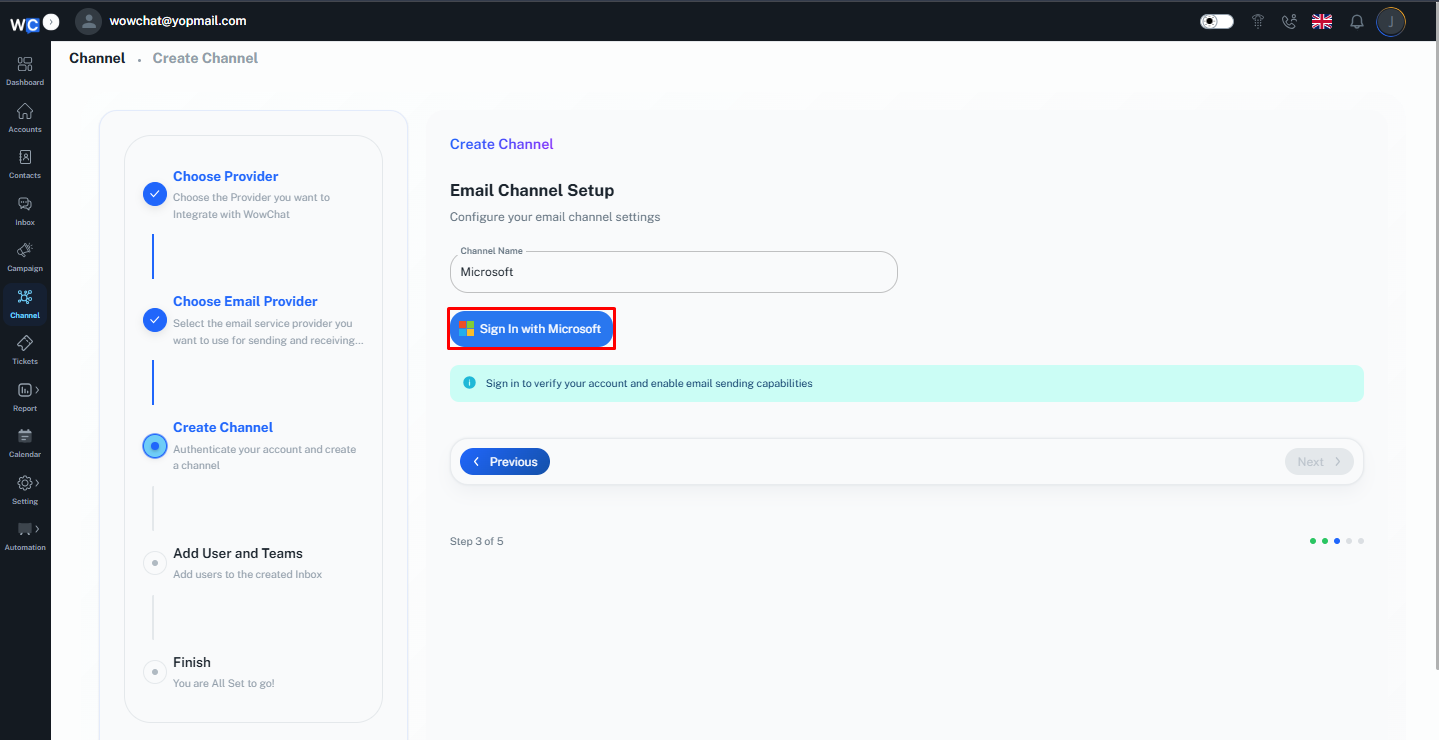
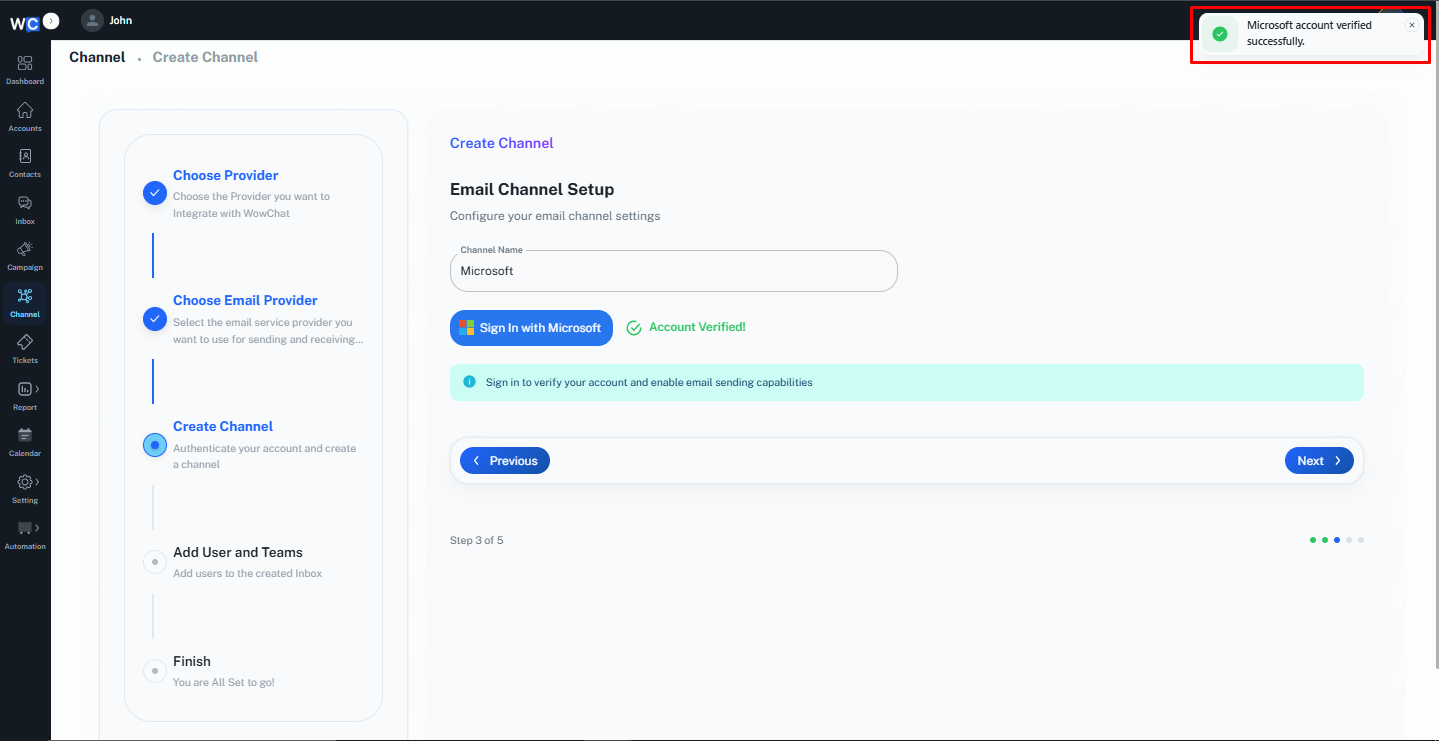
Step 6: Enter Channel Name
Enter a unique Channel Name for your Microsoft email channel.This name will help identify the channel within your workspace.
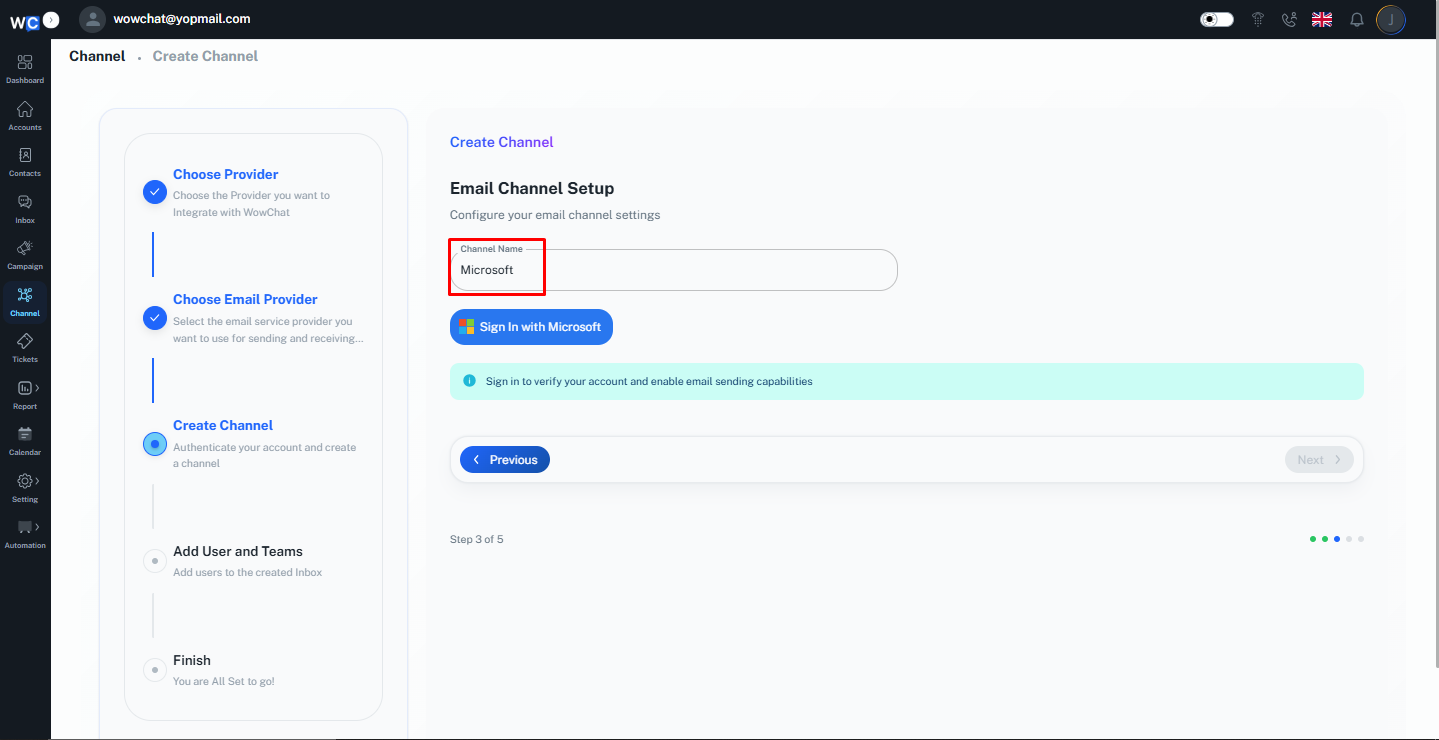
Step 7: Sign In with Microsoft
Click the Sign in with Microsoft button.
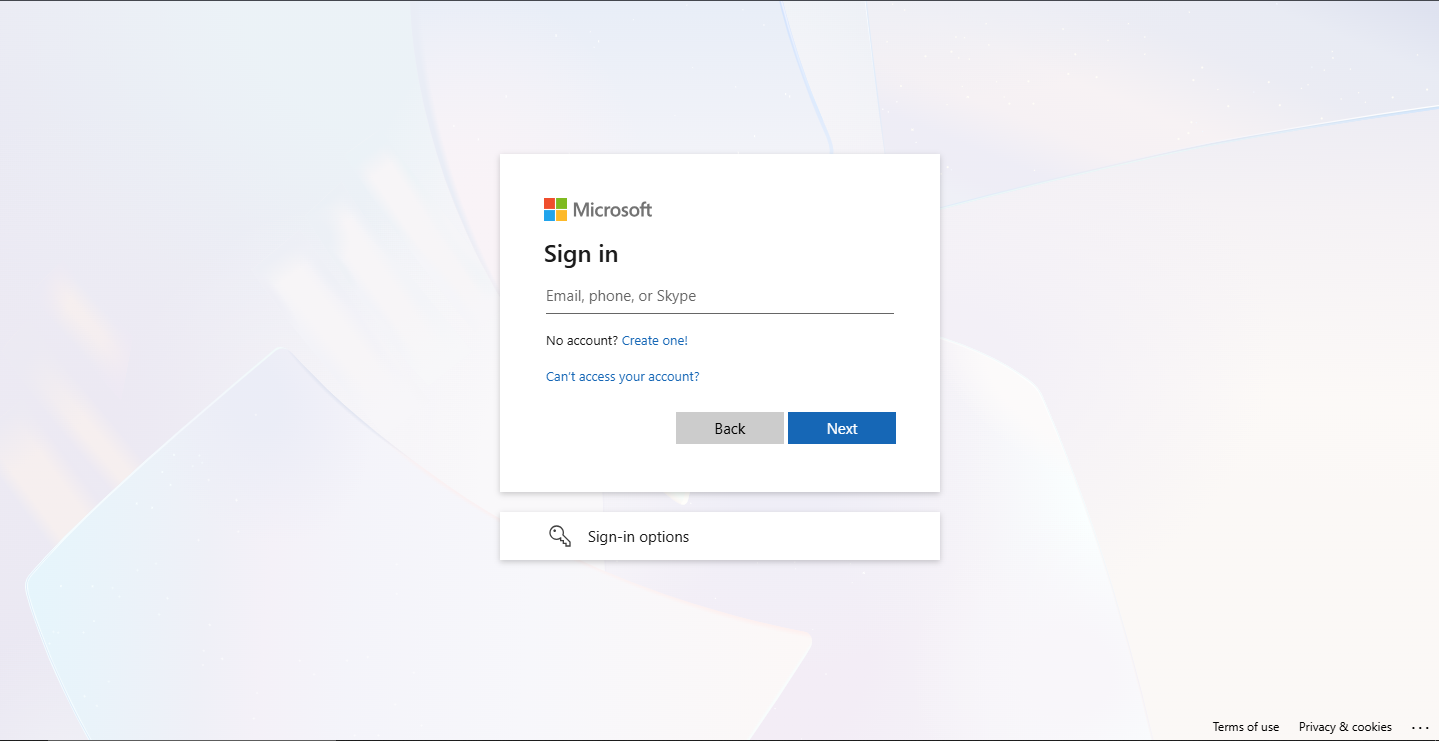
Step 8: Microsoft Login Page
You will be redirected to the Microsoft login page.
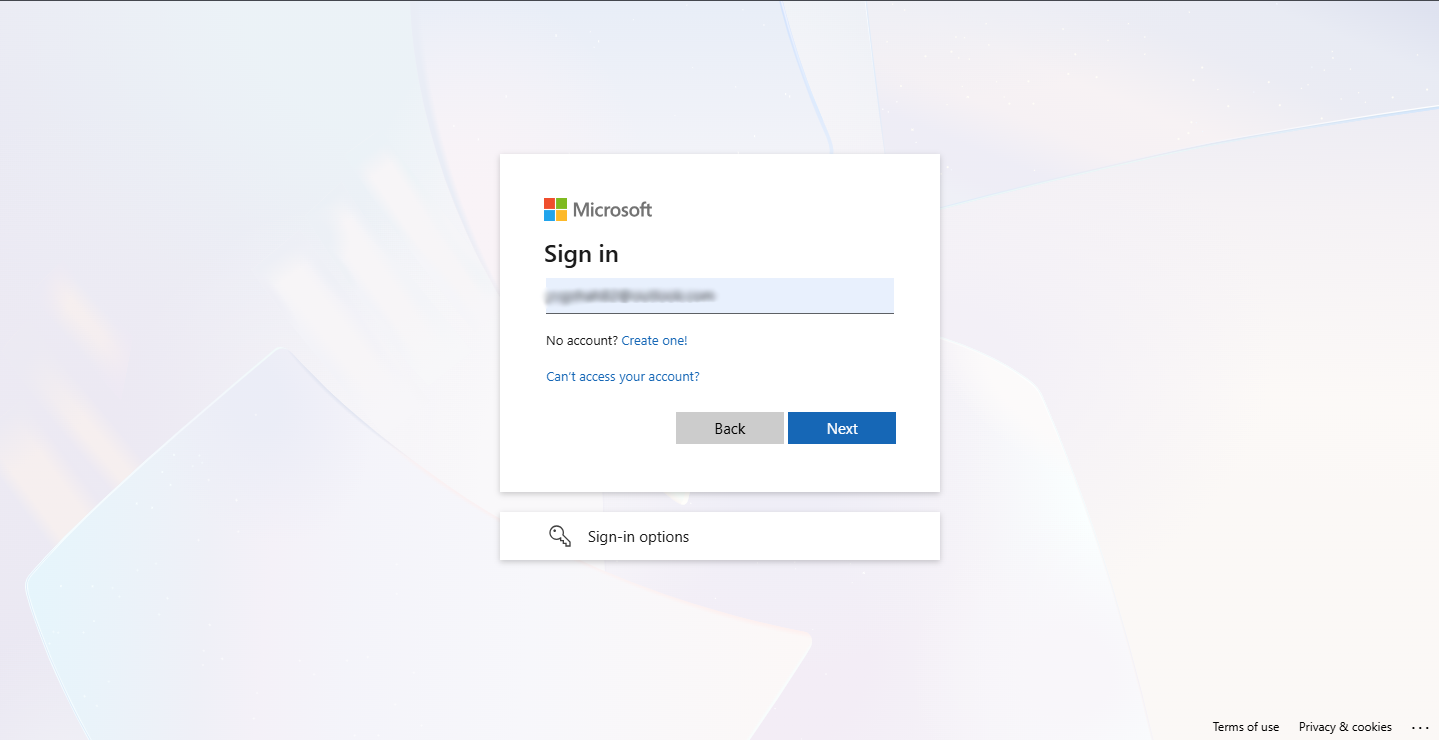
Step 9: Enter Email Address
Enter your Microsoft email address and click the Next button.
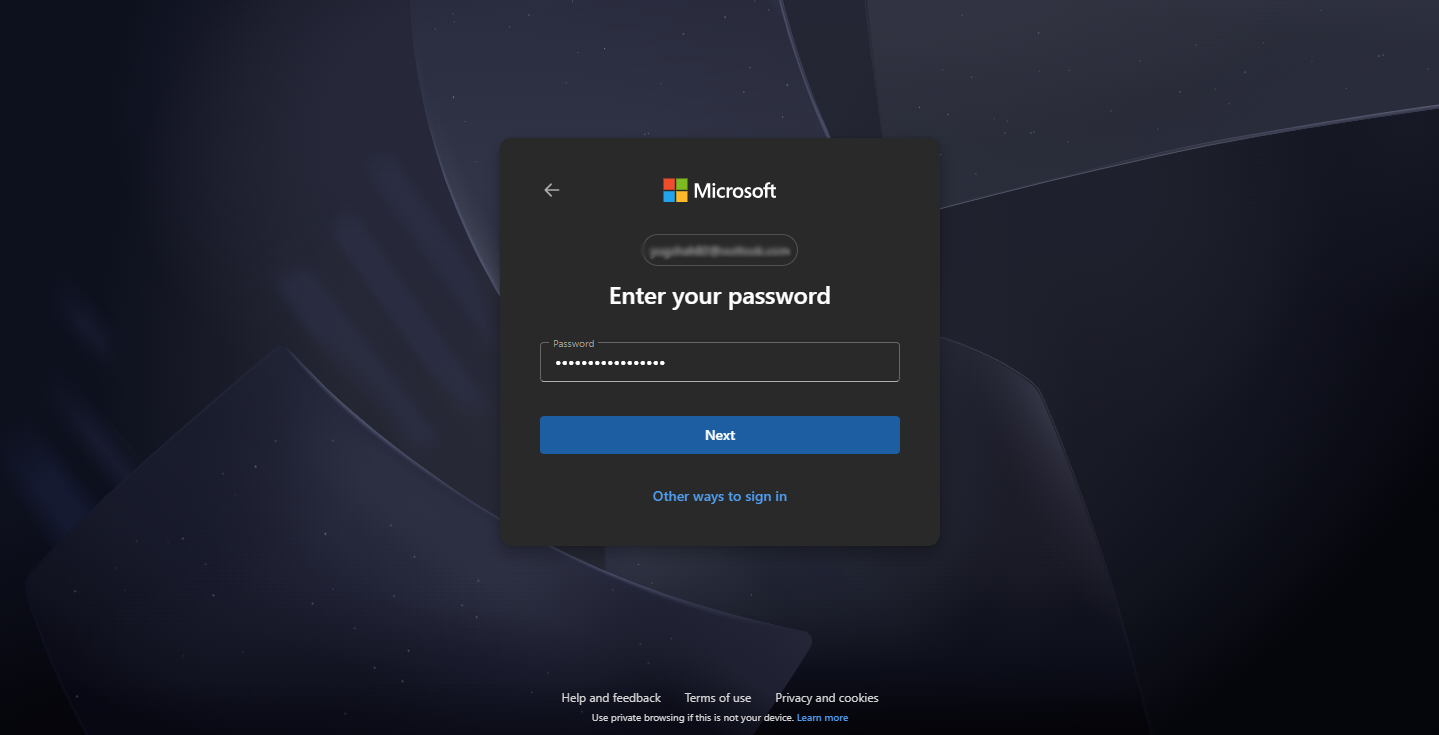
Step 10: Enter Password
Enter your Microsoft account password and continue the login process.
Step 11: Complete Microsoft Authorization
Follow the remaining Microsoft authorization steps and grant the required permissions.
Step 12: Verify Account and Continue
After your Microsoft account has been successfully verified, click the Next button to return to WowChat.
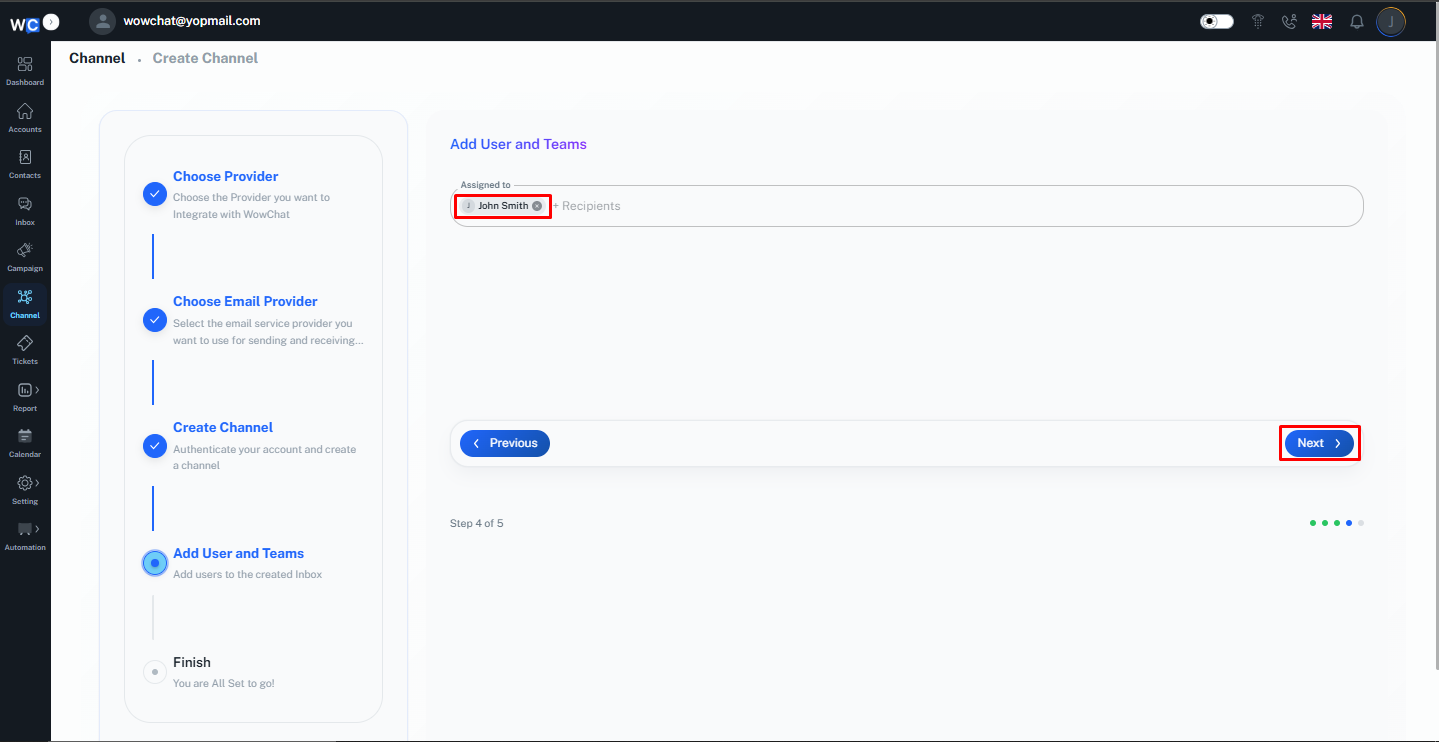
Step 13: Assign Users
Select the user or users who should have access to manage this email channel and click the Next button.
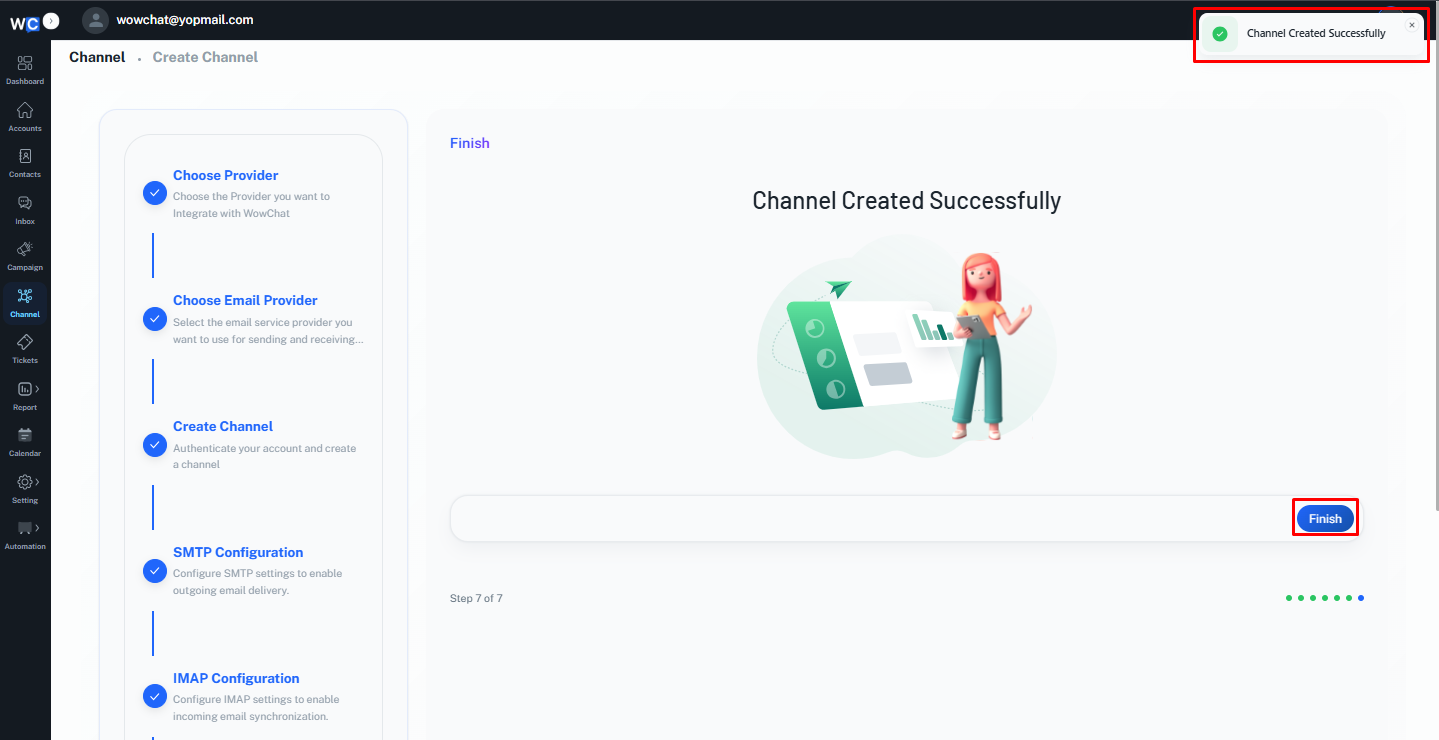
Step 14: Finish Setup
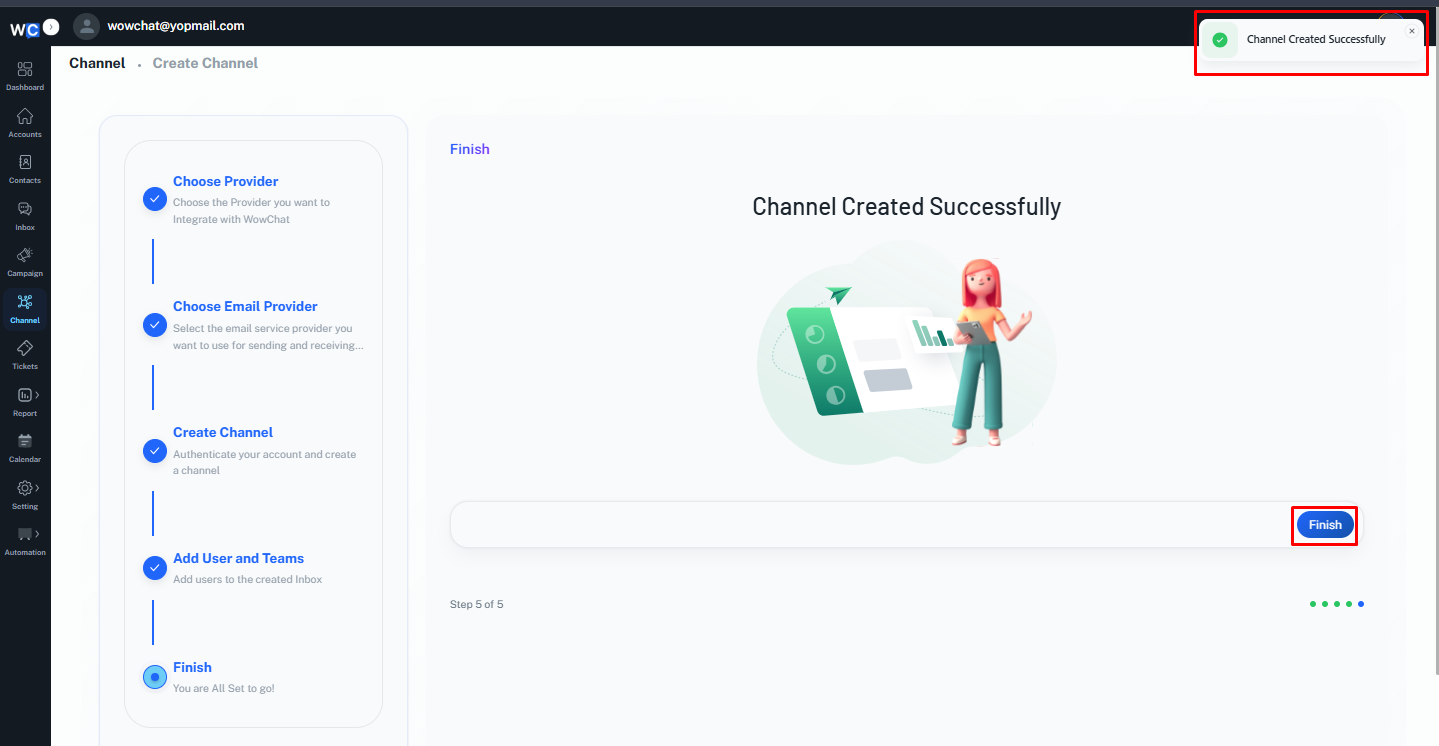
The Microsoft email channel has now been created successfully.Click the Finish button to complete the setup process.
Google Email Integration
Follow these steps to connect a Google email account.
Step 1: Open Channels
After successfully logging in to your WowChat account, click on the Channels option from the left-hand navigation menu. You will be redirected to the Channels page.
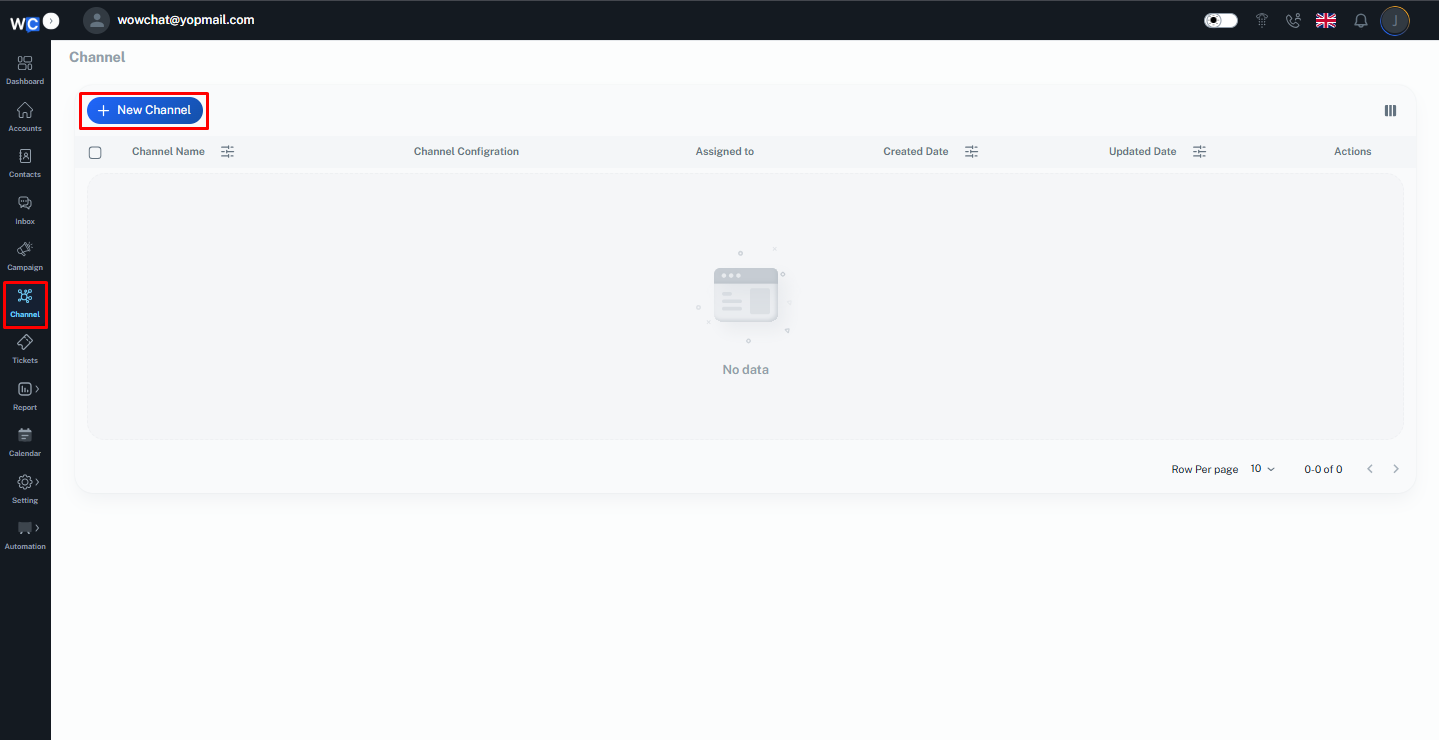
Step 2: Select Email Channel
Click on the Email Channel option from the available channel types.
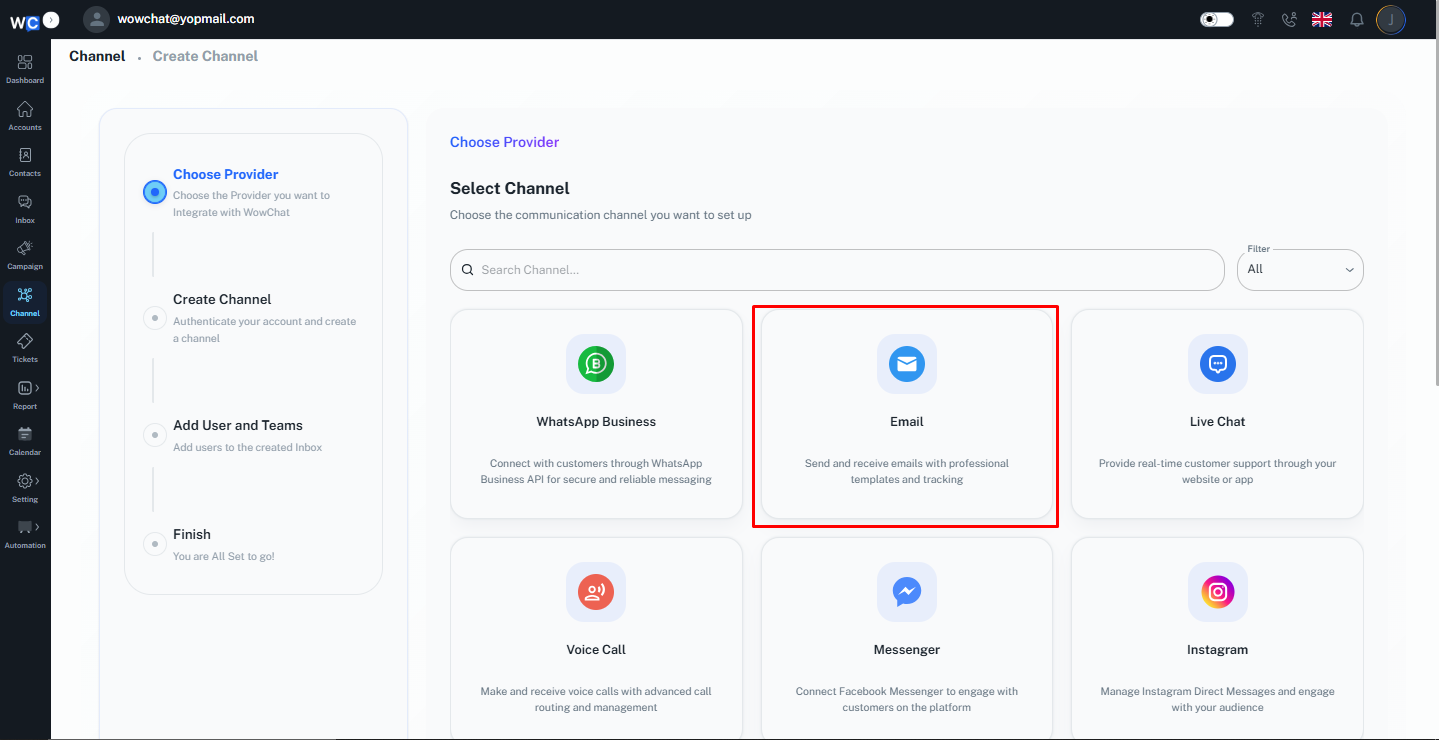
Step 3: Click Next
Click the Next button to continue with the email channel setup process.
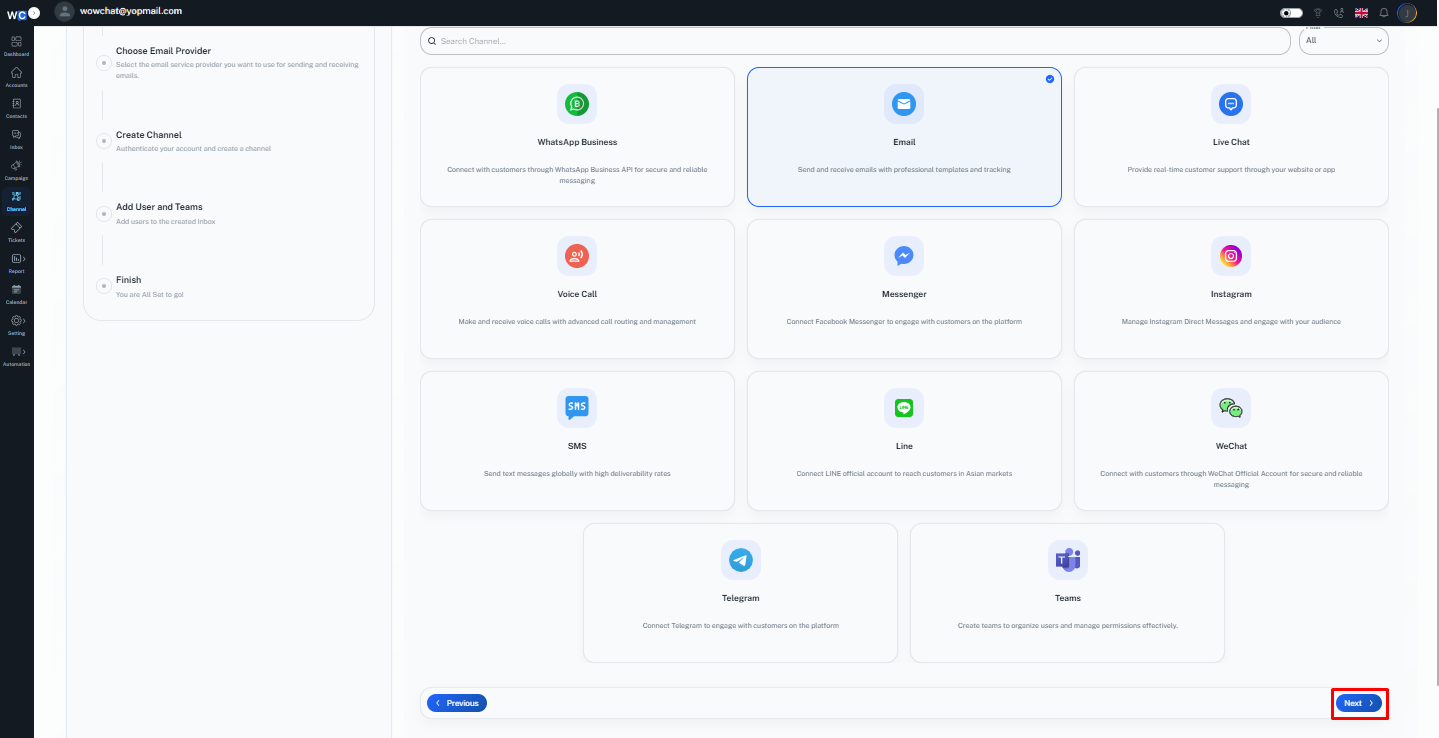
Step 4: Select Google Provider
Choose Google as your email provider.
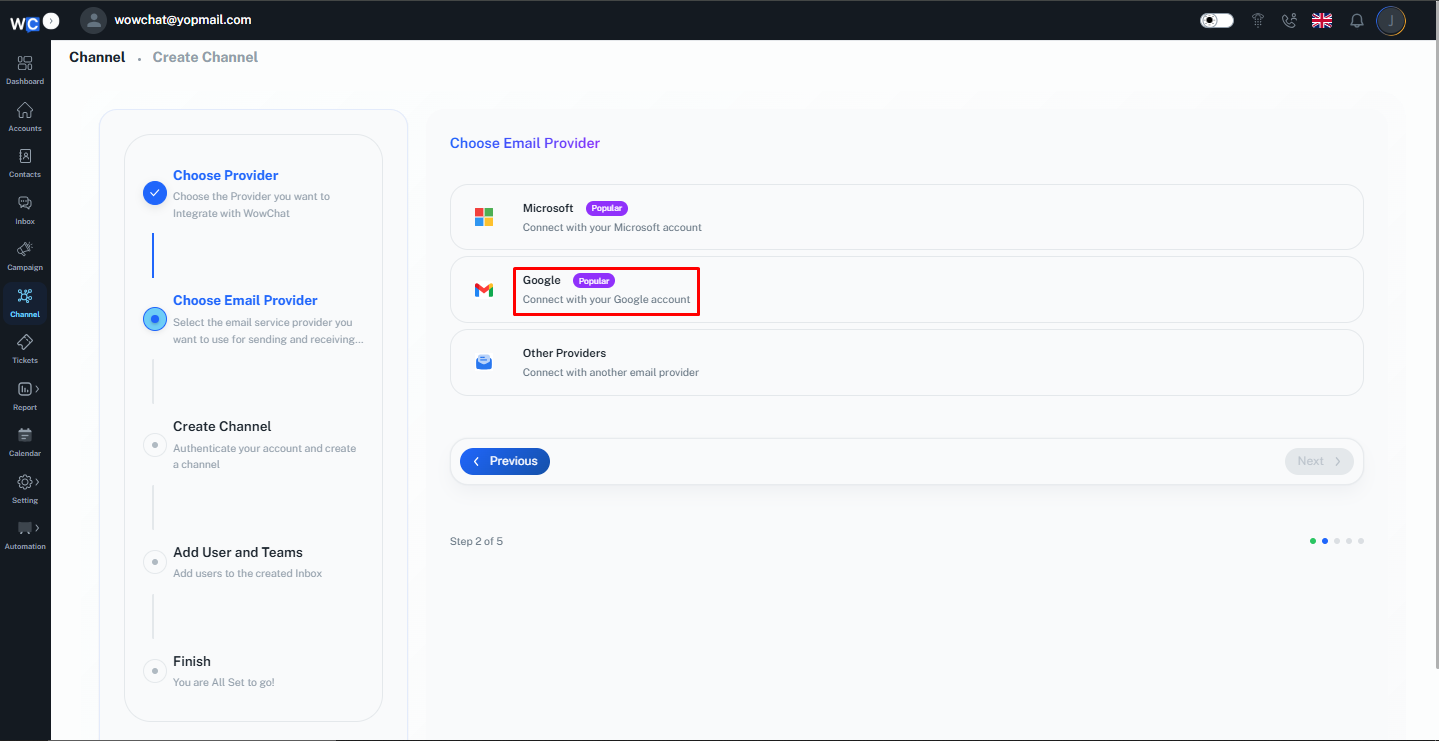
Step 5: Click Next
Click the Next button to proceed.
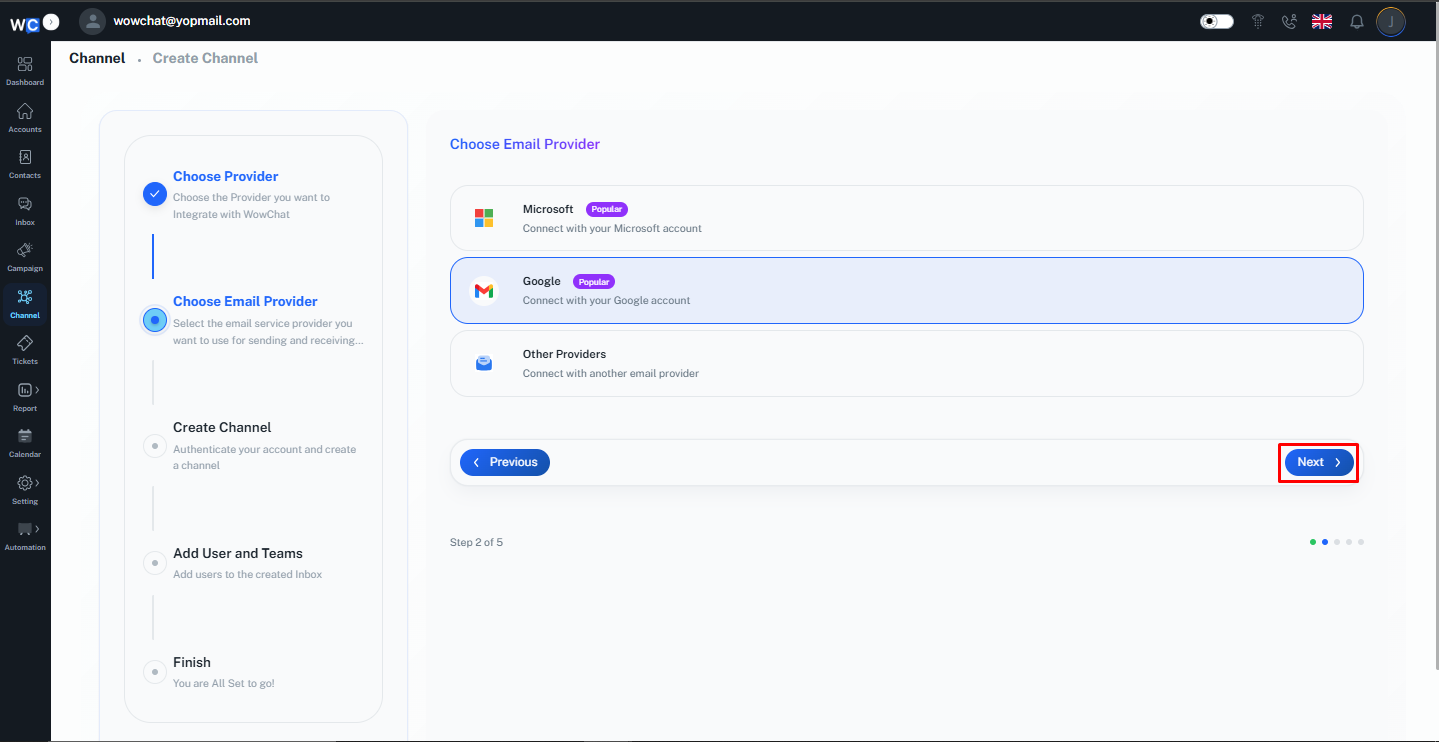
Step 6: Enter Channel Name
Enter a unique Channel Name for your Google email channel.This name will help identify the channel within your workspace.
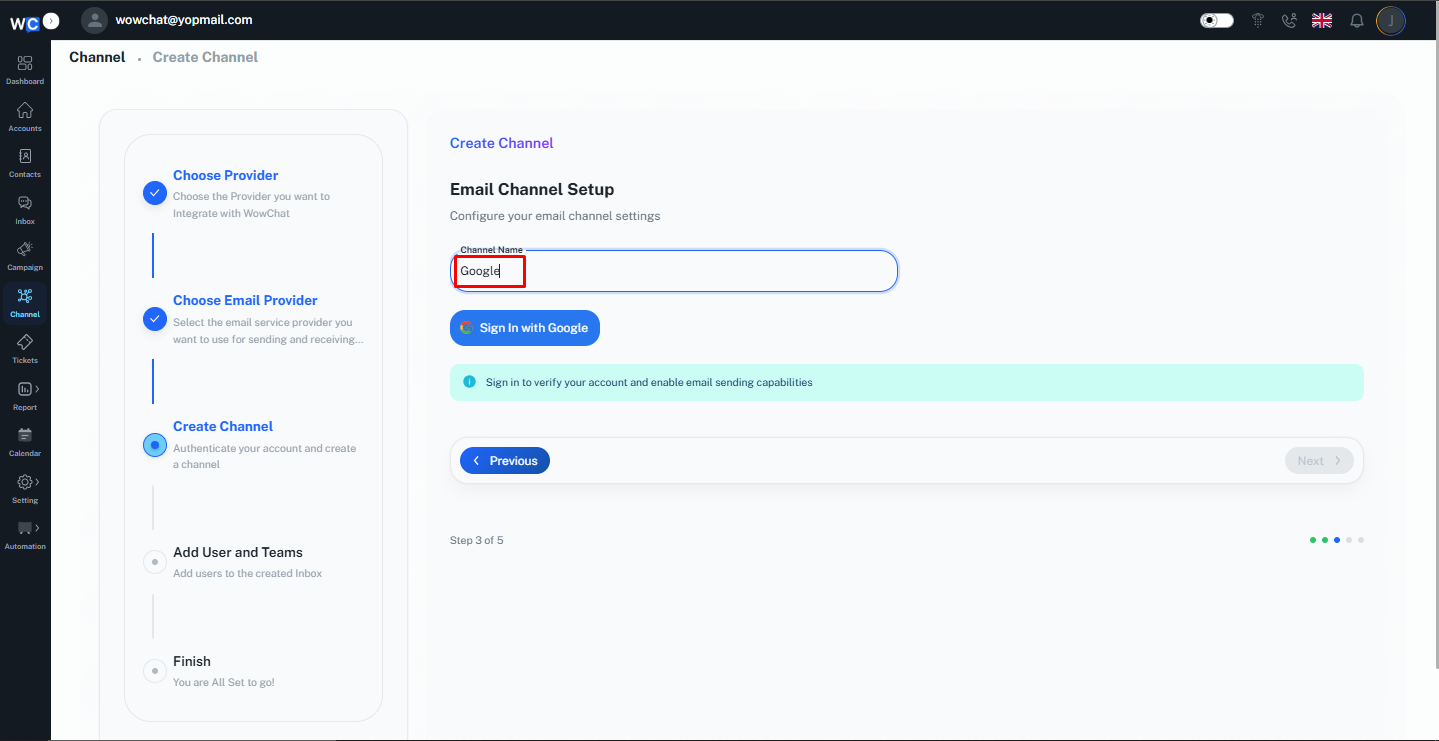
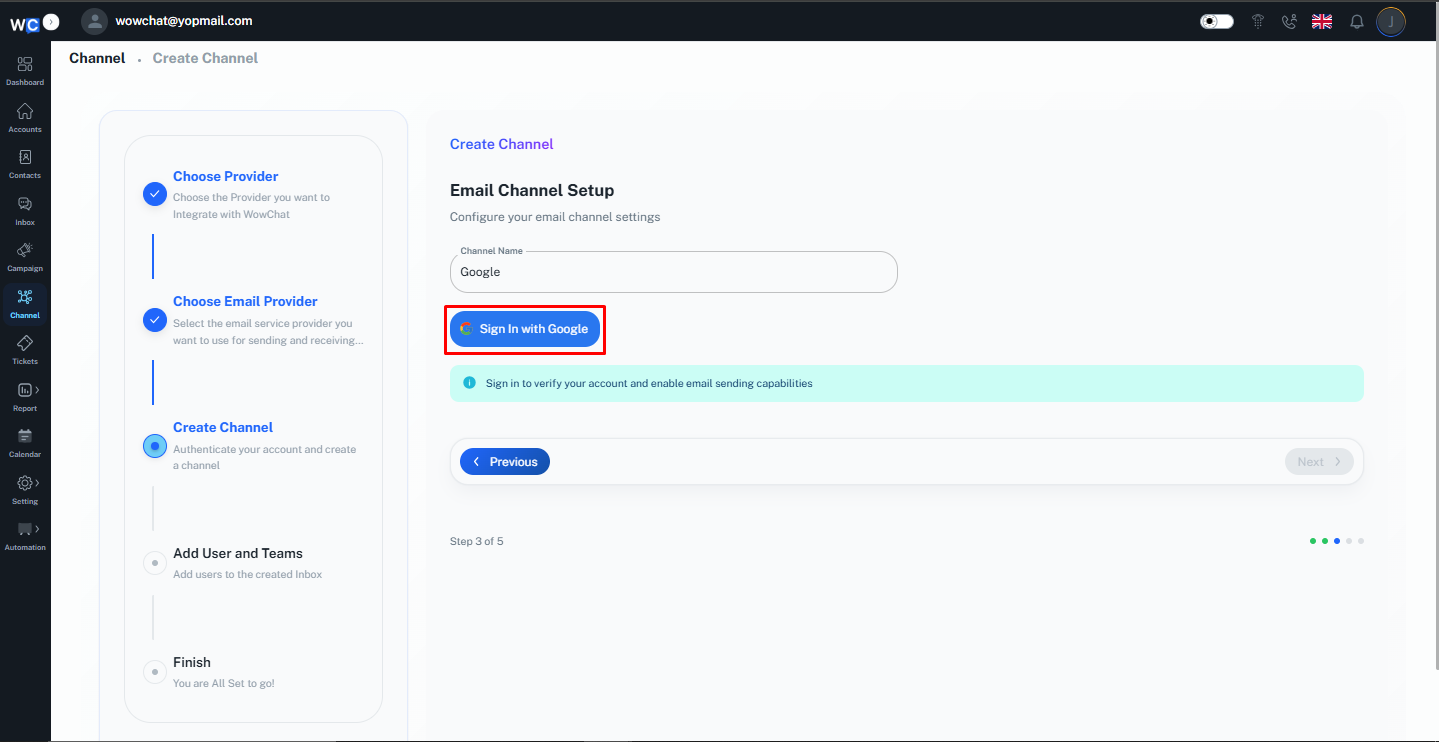
Step 7: Sign In with Google
Click the Sign in with Google button.
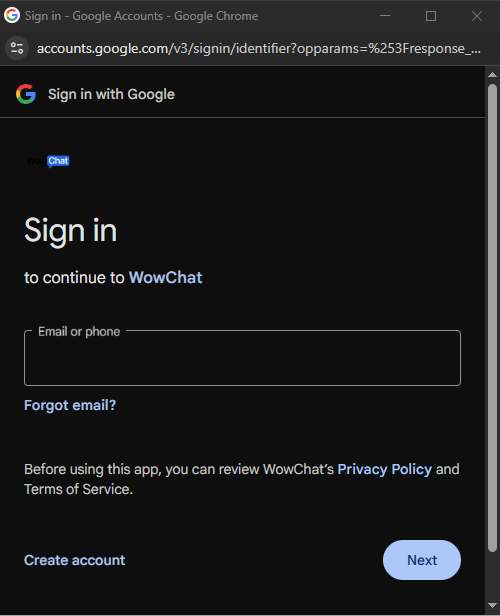
Step 8: Google Login Page
You will be redirected to the Google login page.
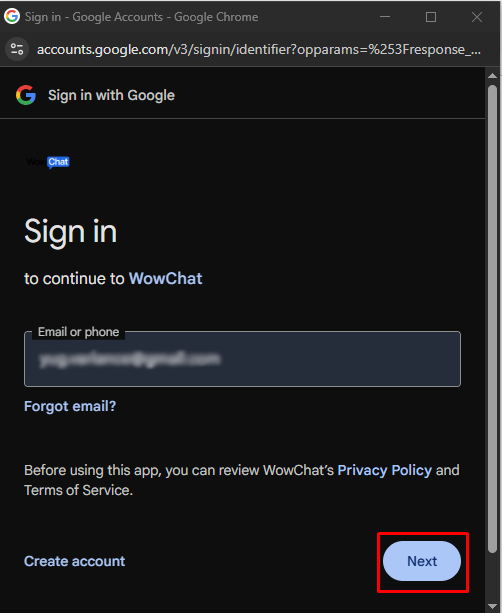
Step 9: Enter Email Address
Enter your Google email address and click the Next button.
Step 10: Enter Password
Enter your Google account password and continue the login process.
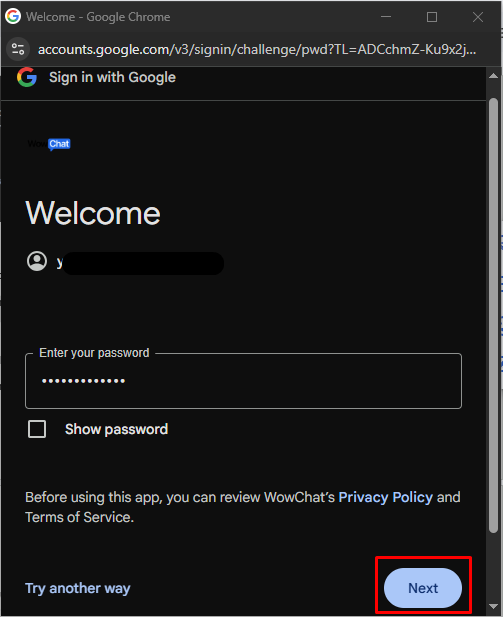
Step 11: Complete Google Authorization
Follow the remaining Google authorization steps and grant the required permissions.
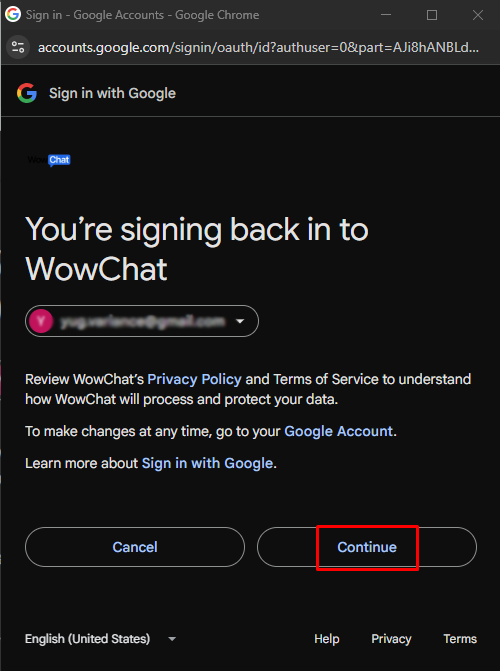
Step 12: Verify Account and Continue
After your Google account has been successfully verified, click the Next button to return to WowChat.
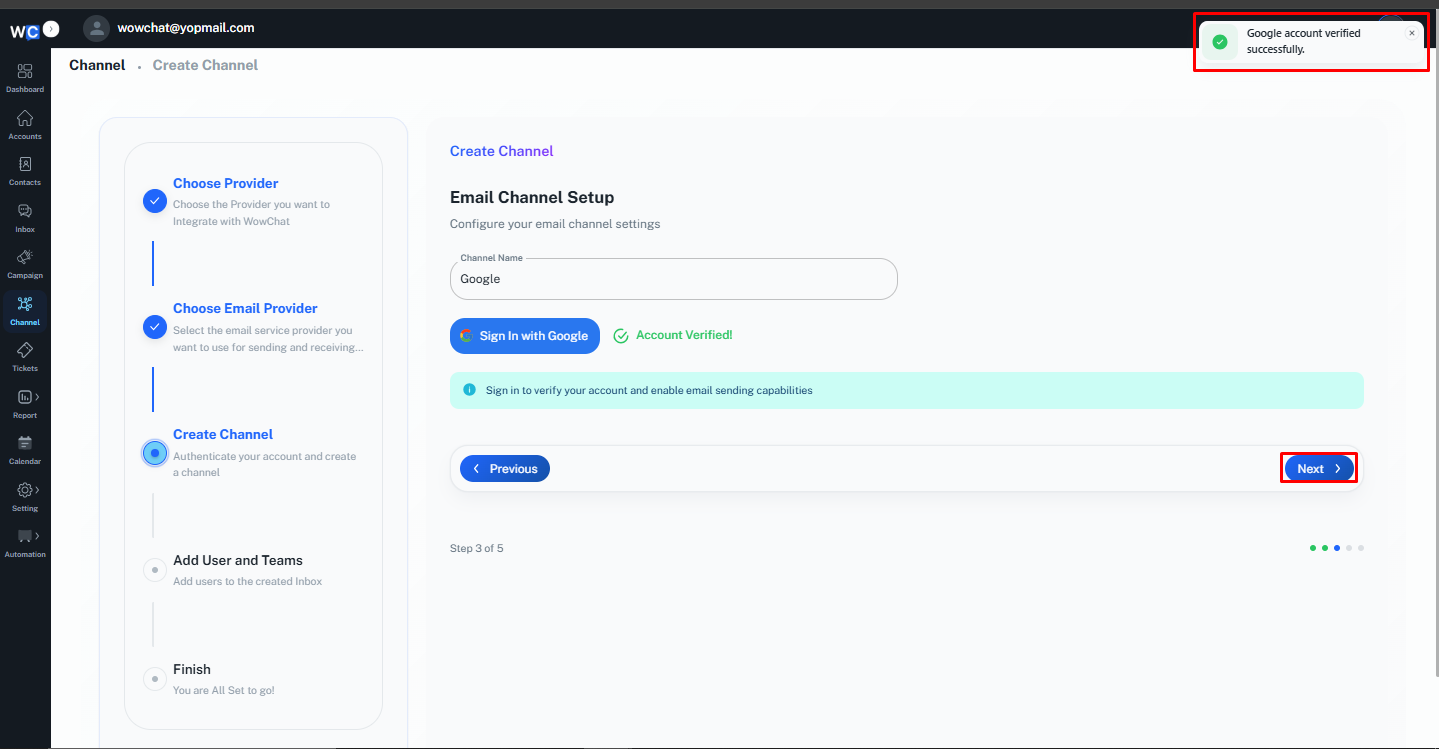
Step 13: Assign Users
Select the user or users who should have access to manage this email channel and click the Next button.
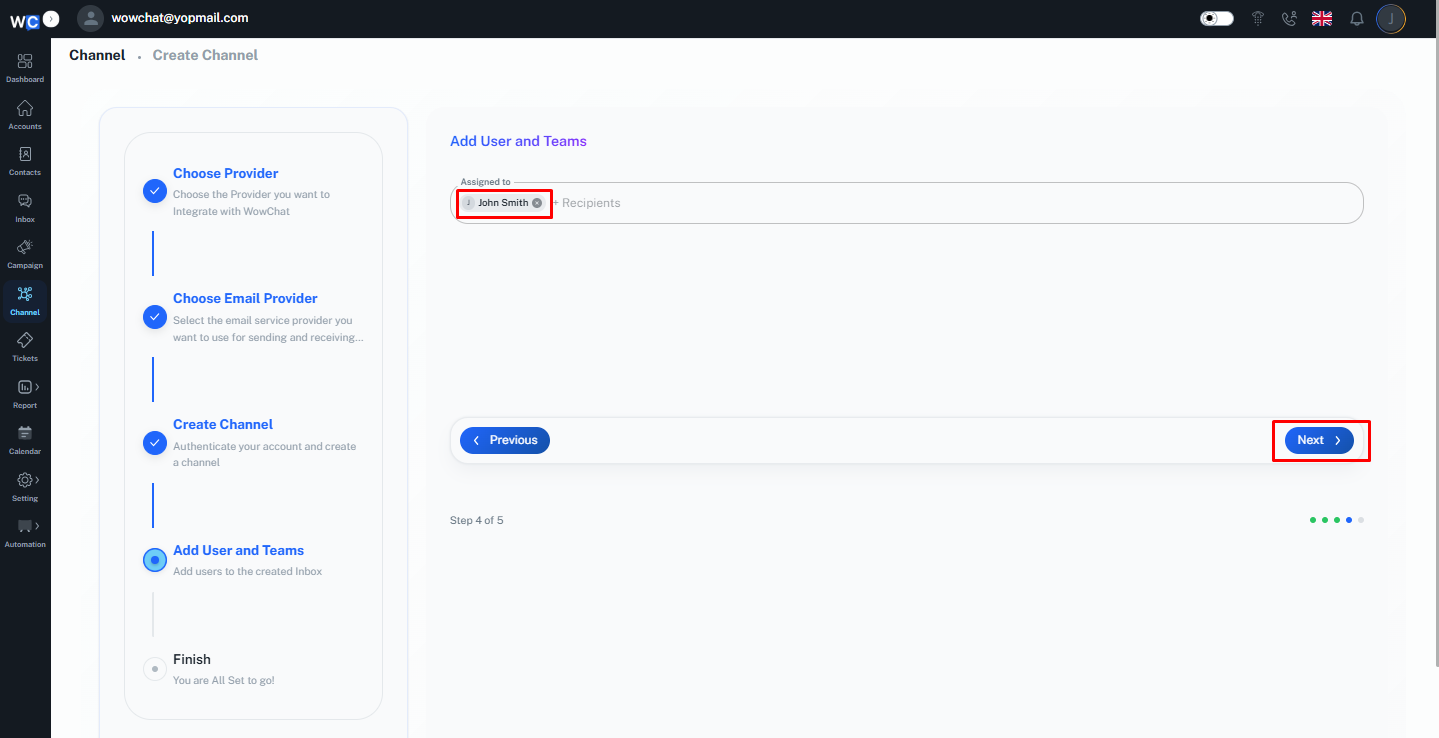
Step 14: Finish Setup
The Google email channel has now been created successfully.Click the Finish button to complete the setup process.
Other Email Providers
Use this option when your email provider is not Microsoft or Google.
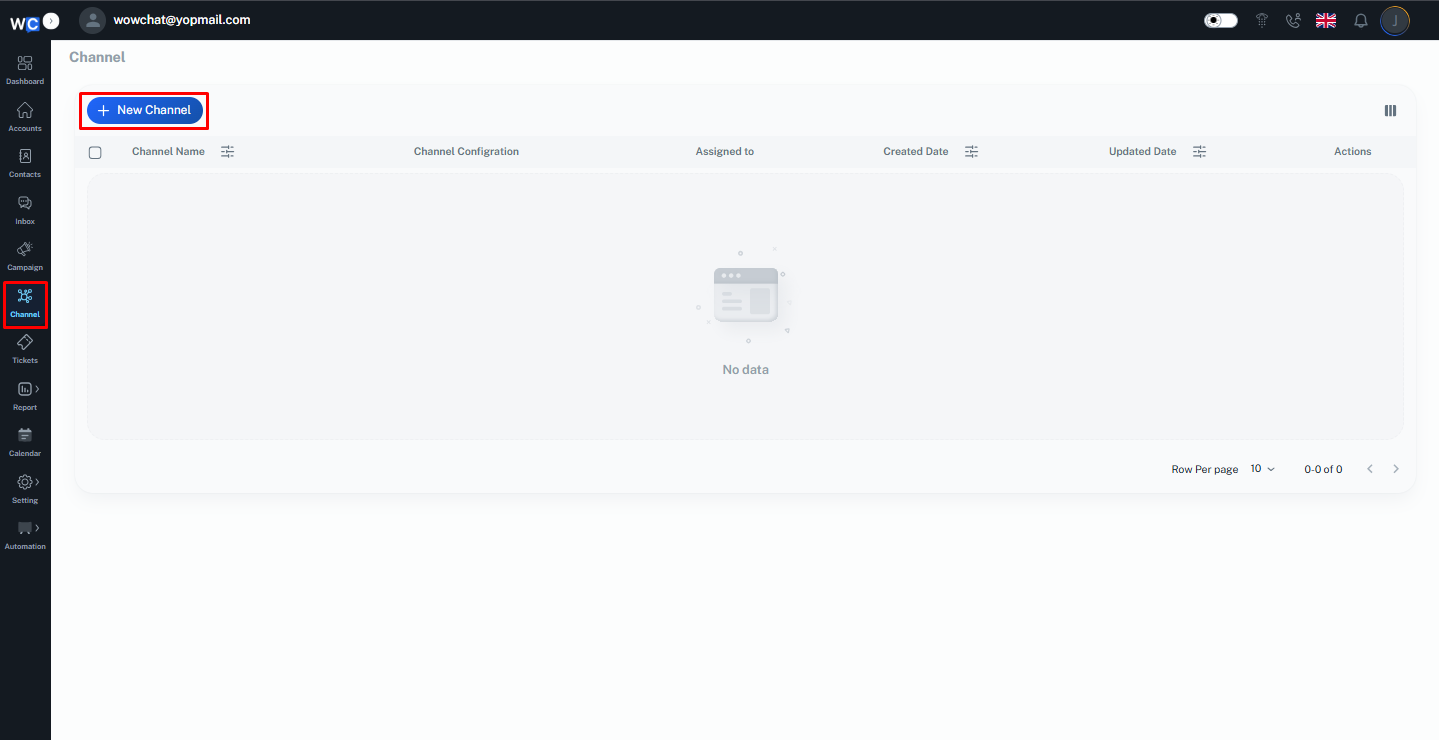
Step 1: Open Channels
After successfully logging in to your WowChat account, click on the Channels option from the left-hand navigation menu. You will be redirected to the Channels page.
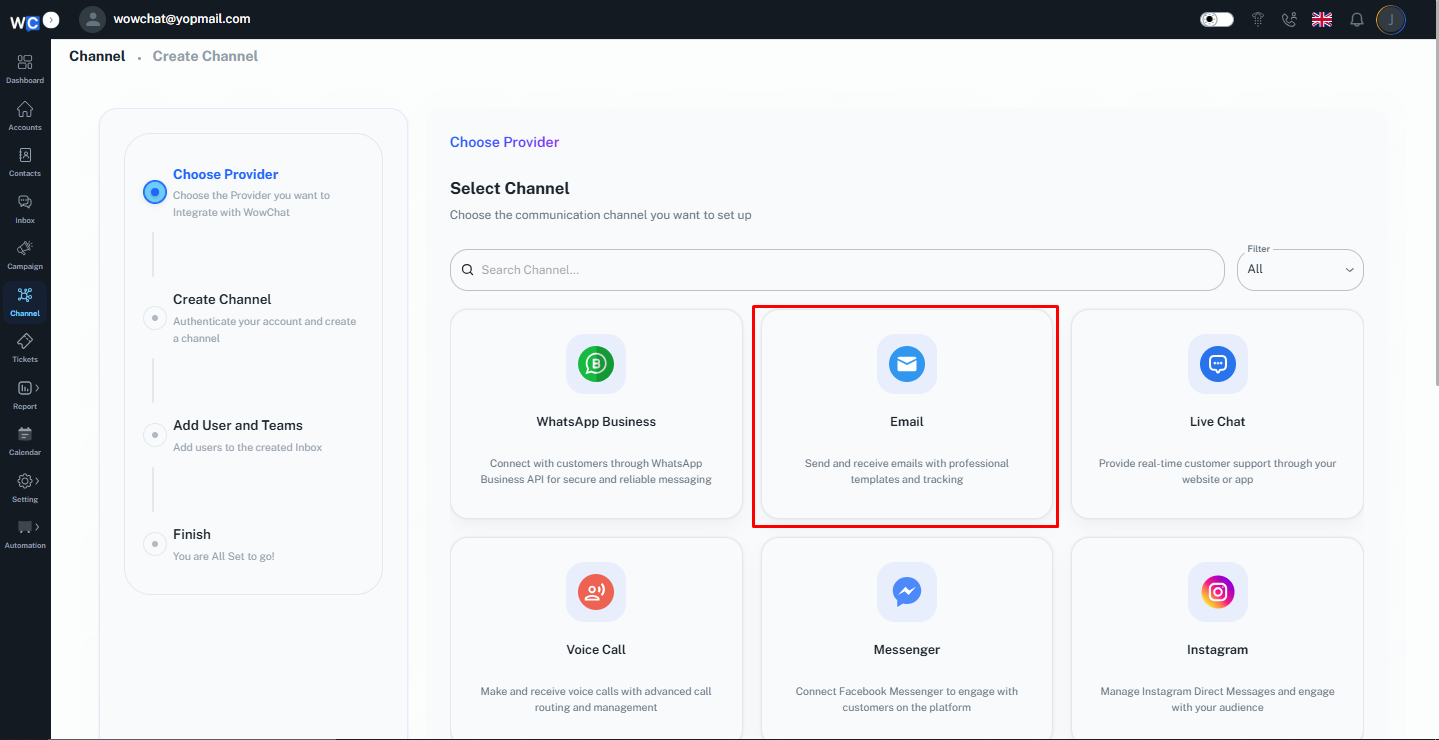
Step 2: Select Email Channel
Click on the Email Channel option from the available channel types.
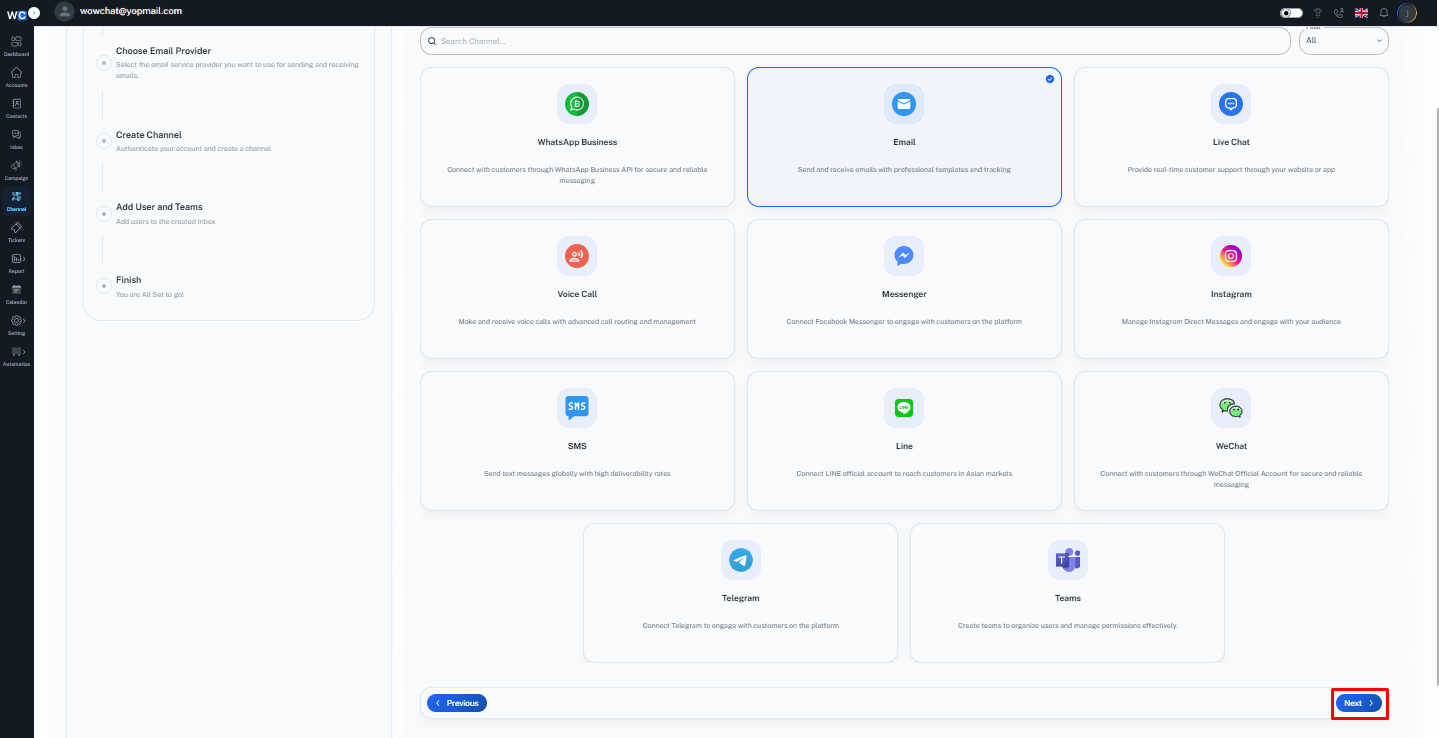
Step 3: Click Next
Click the Next button to continue with the email channel setup process.
Step 4: Select Other Provider
Choose Other Provider as your email provider.
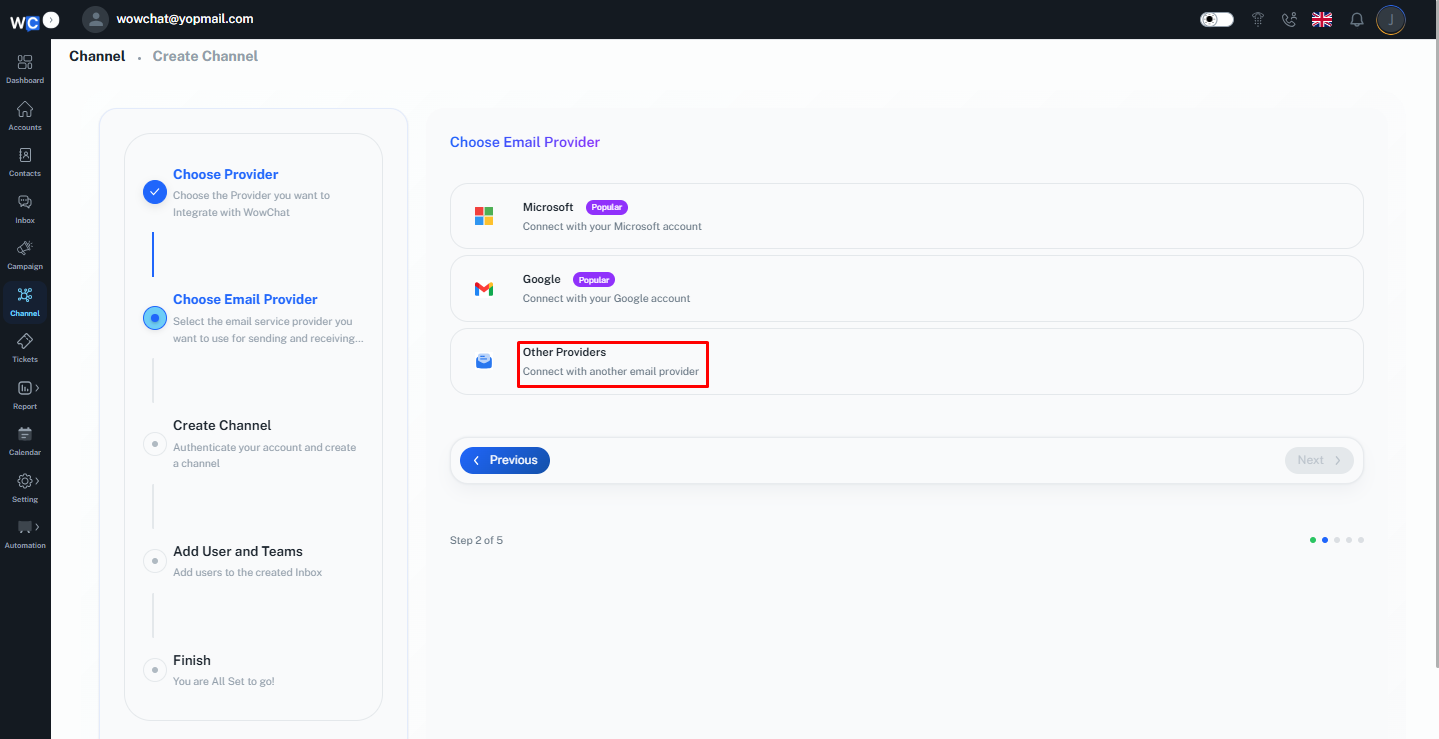
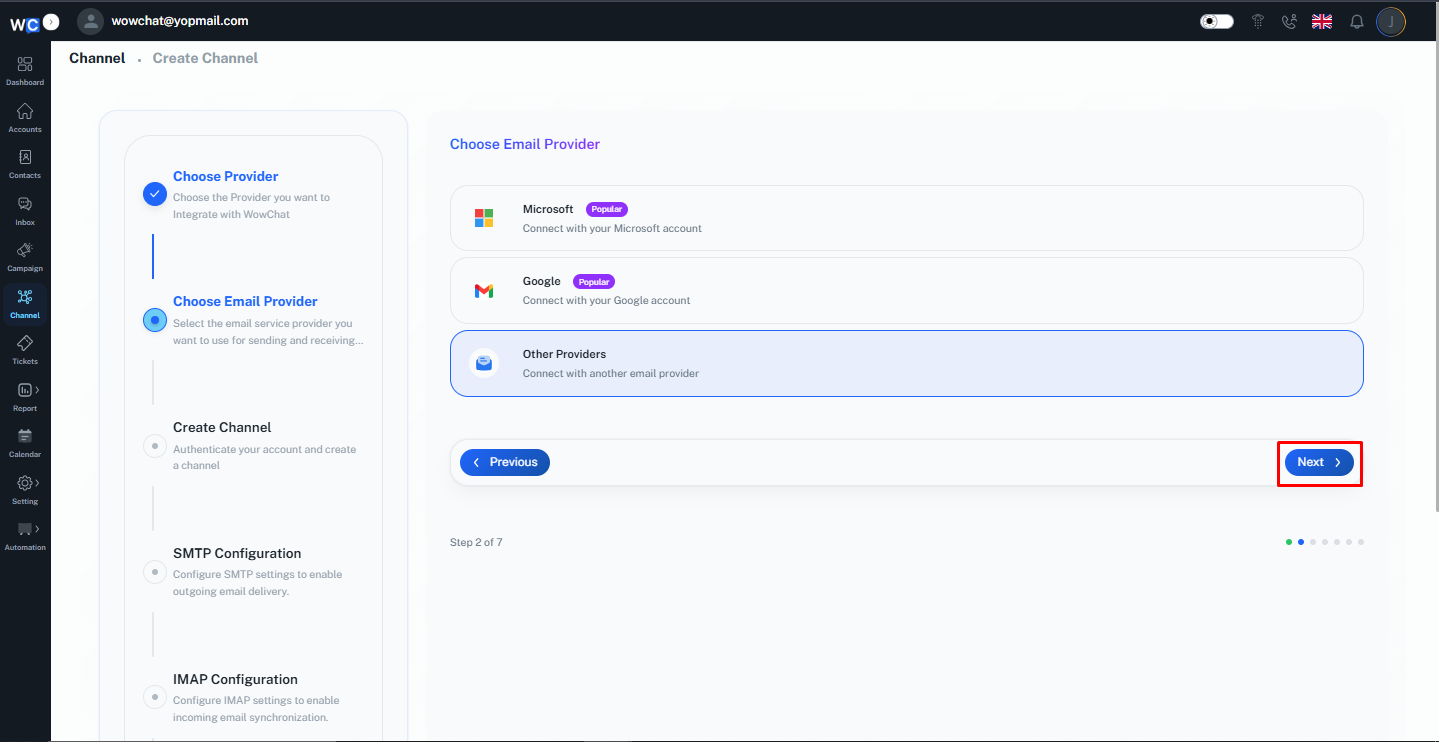
Step 5: Click Next
Click the Next button to proceed.
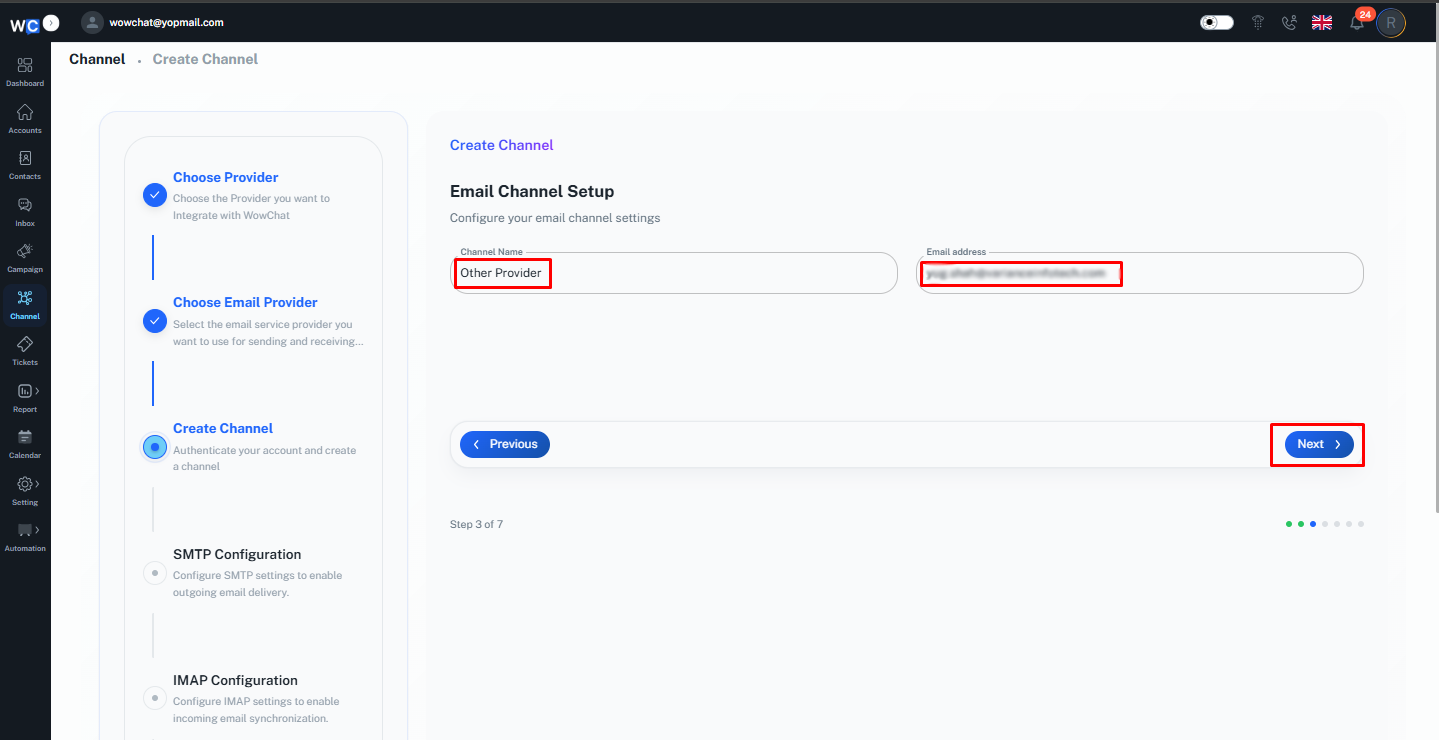
Step 6: Enter Channel Name and Email Address
Enter the following information:- Channel Name- Email AddressAfter entering the required information, click the Next button.
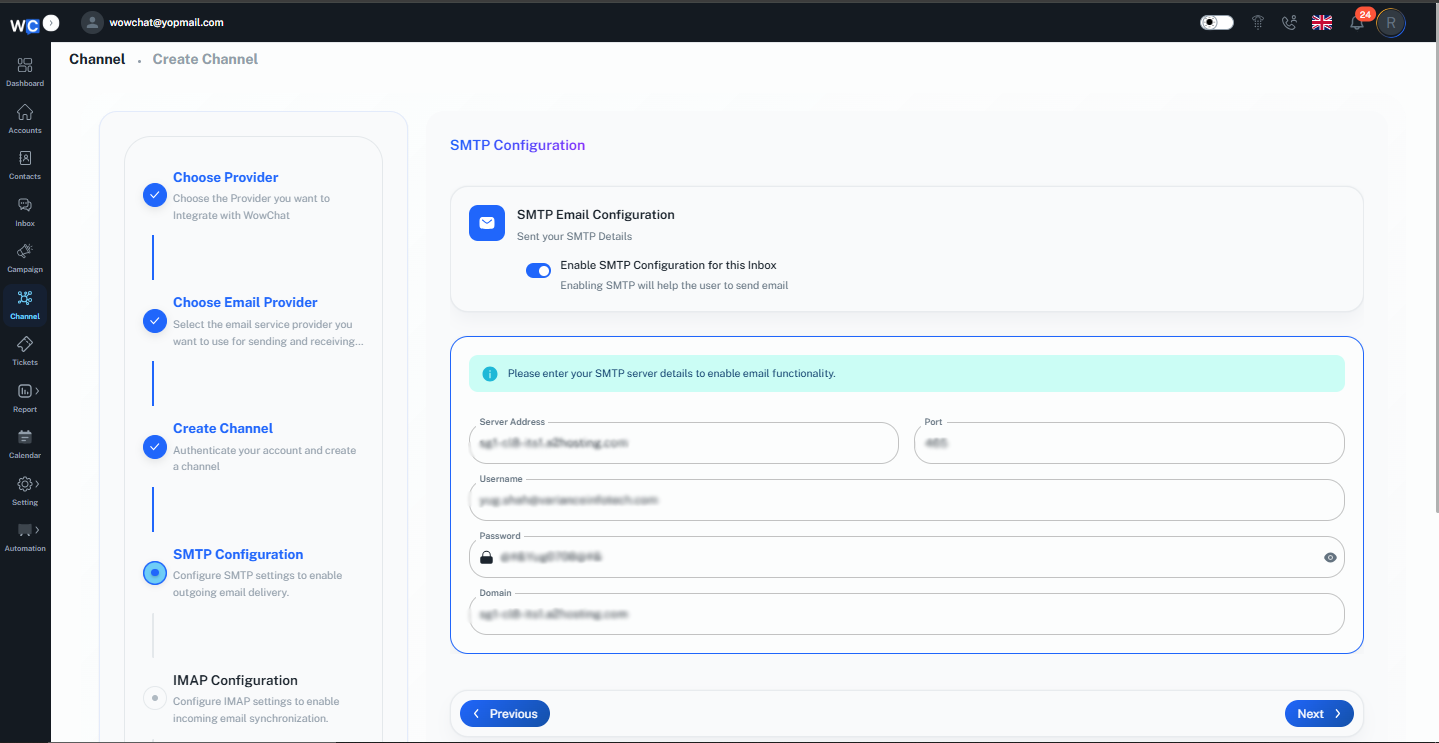
Step 7: Enable SMTP Configuration
Enable the SMTP Configuration for this Inbox option.
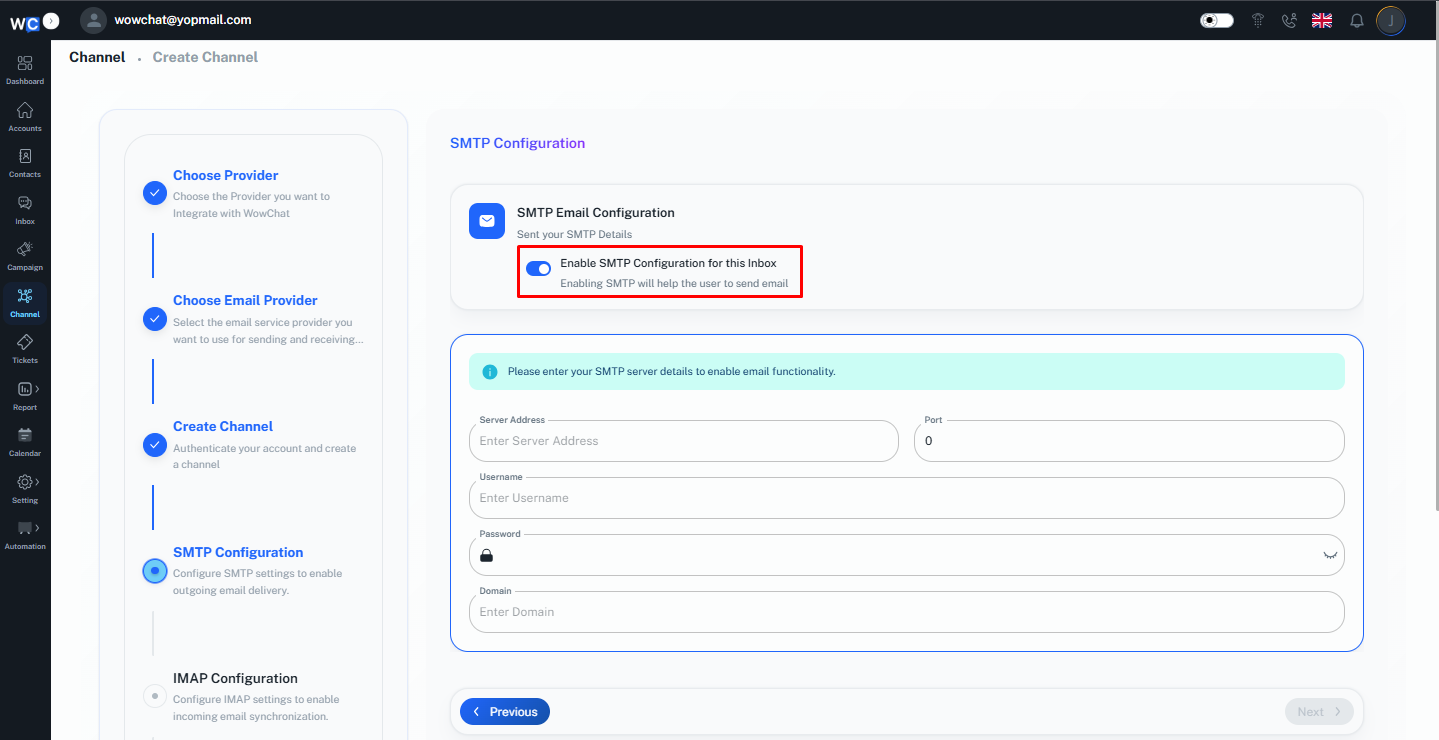
Step 8: Enter SMTP Server Details
Provide the SMTP configuration details:- Server Address- Port- Username- Password- Domain
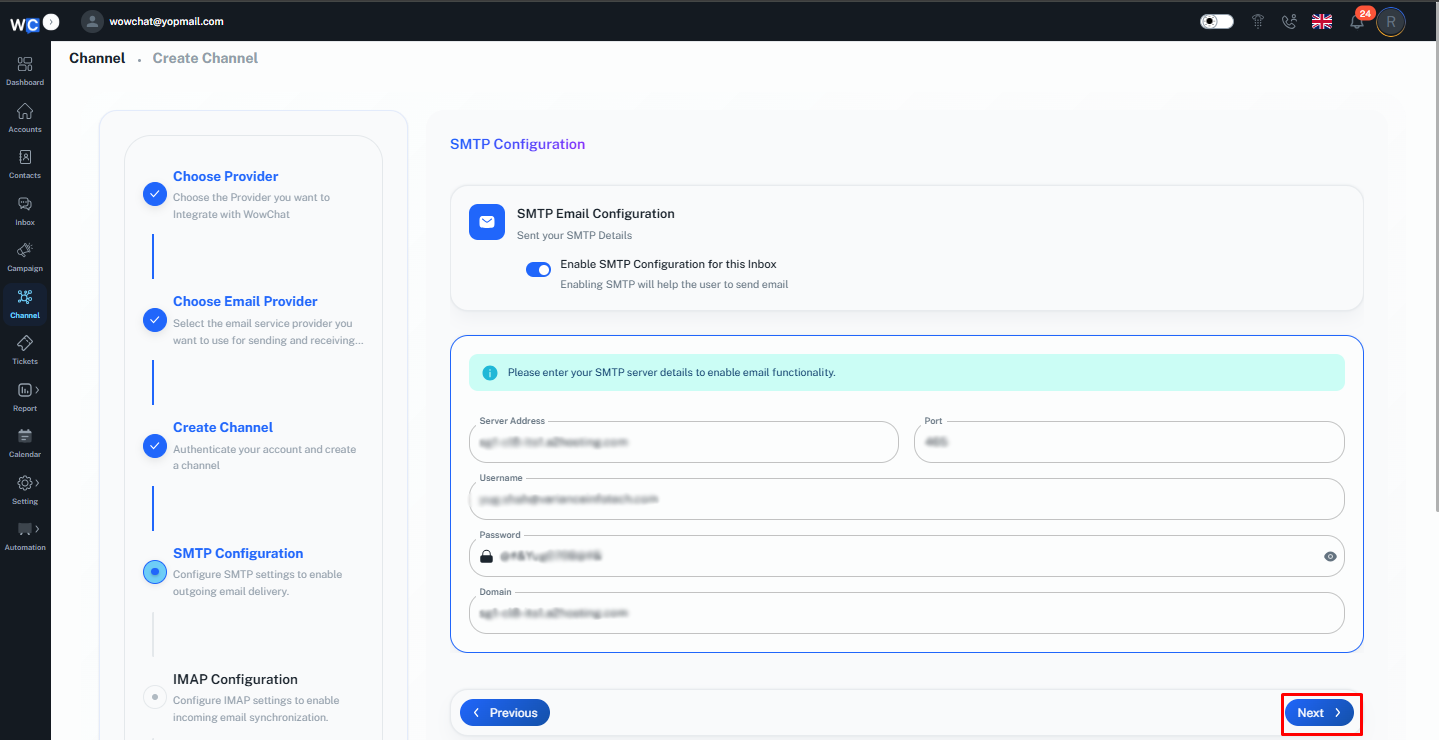
Step 9: Click Next
After entering the SMTP configuration details, click the Next button.
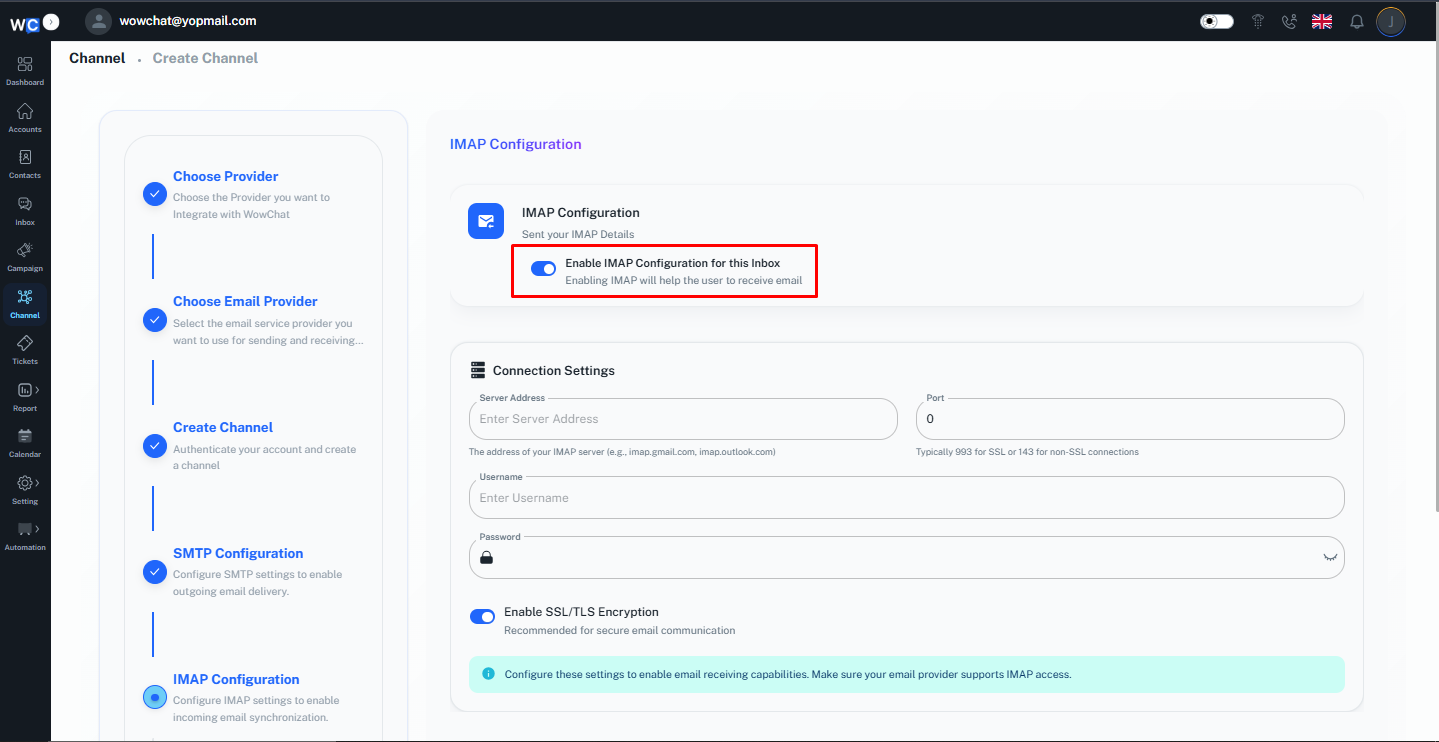
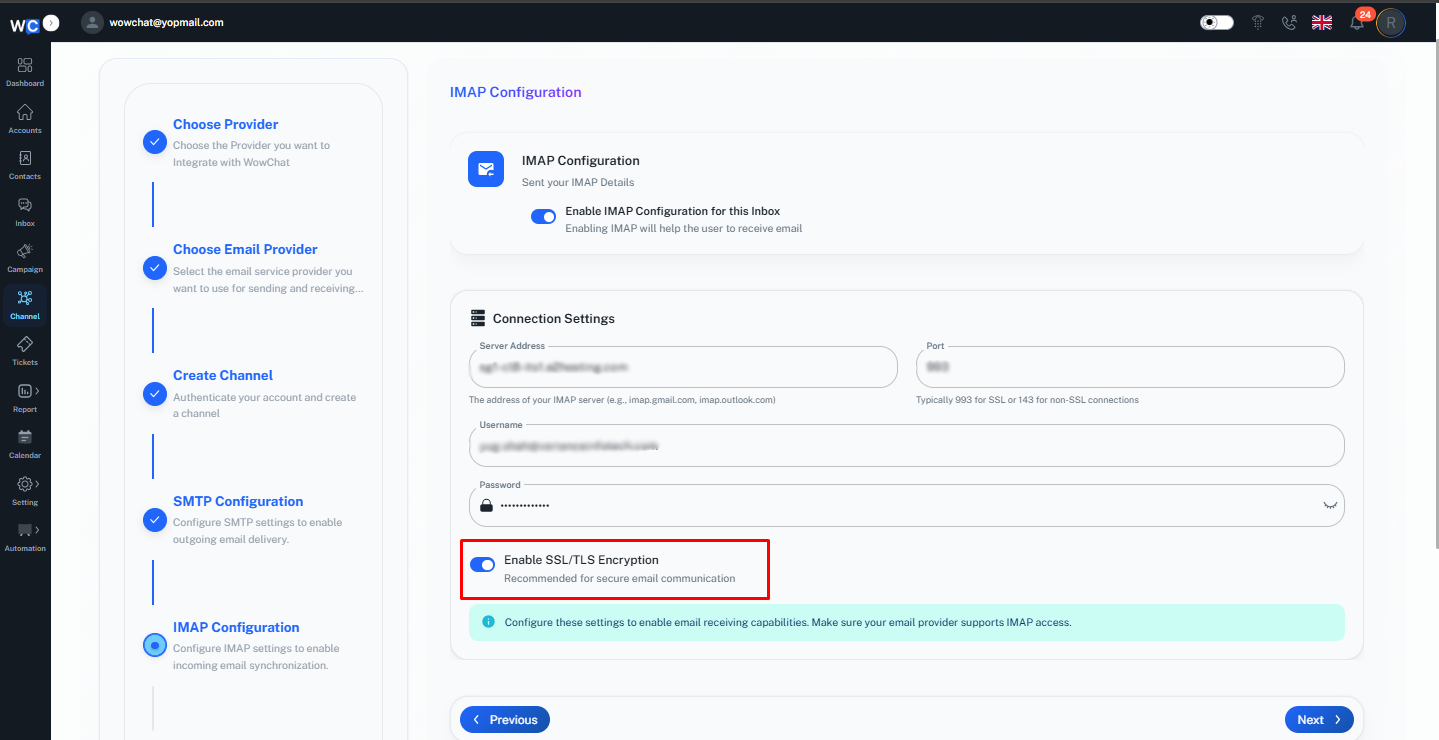
Step 10: Enable IMAP Configuration
Enable the IMAP Configuration for this Inbox option.
Step 11: Enter IMAP Server Details
Provide the IMAP configuration details:- Server Address- Port- Username- Password- Domain
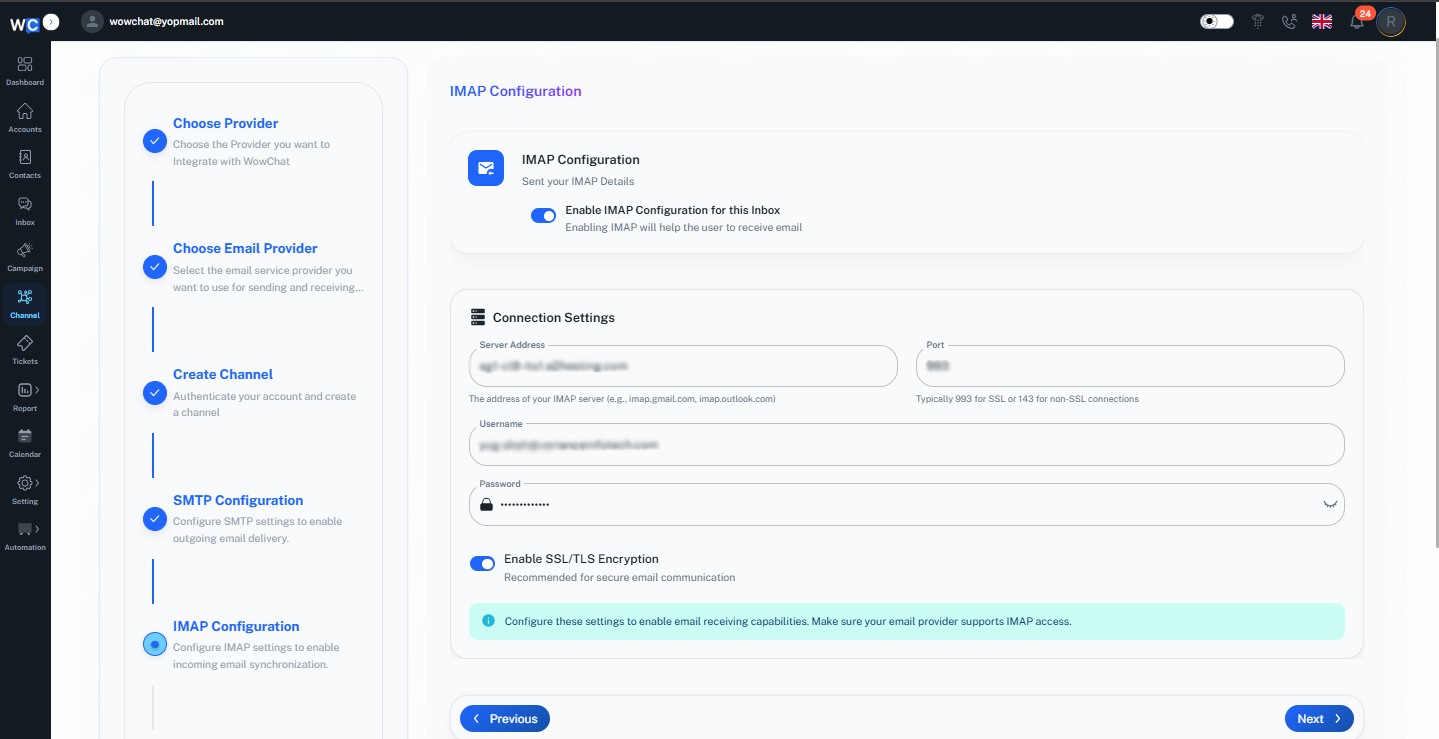
Step 12: Enable SSL/TLS Encryption
Enable the SSL/TLS Encryption option to secure email communication.
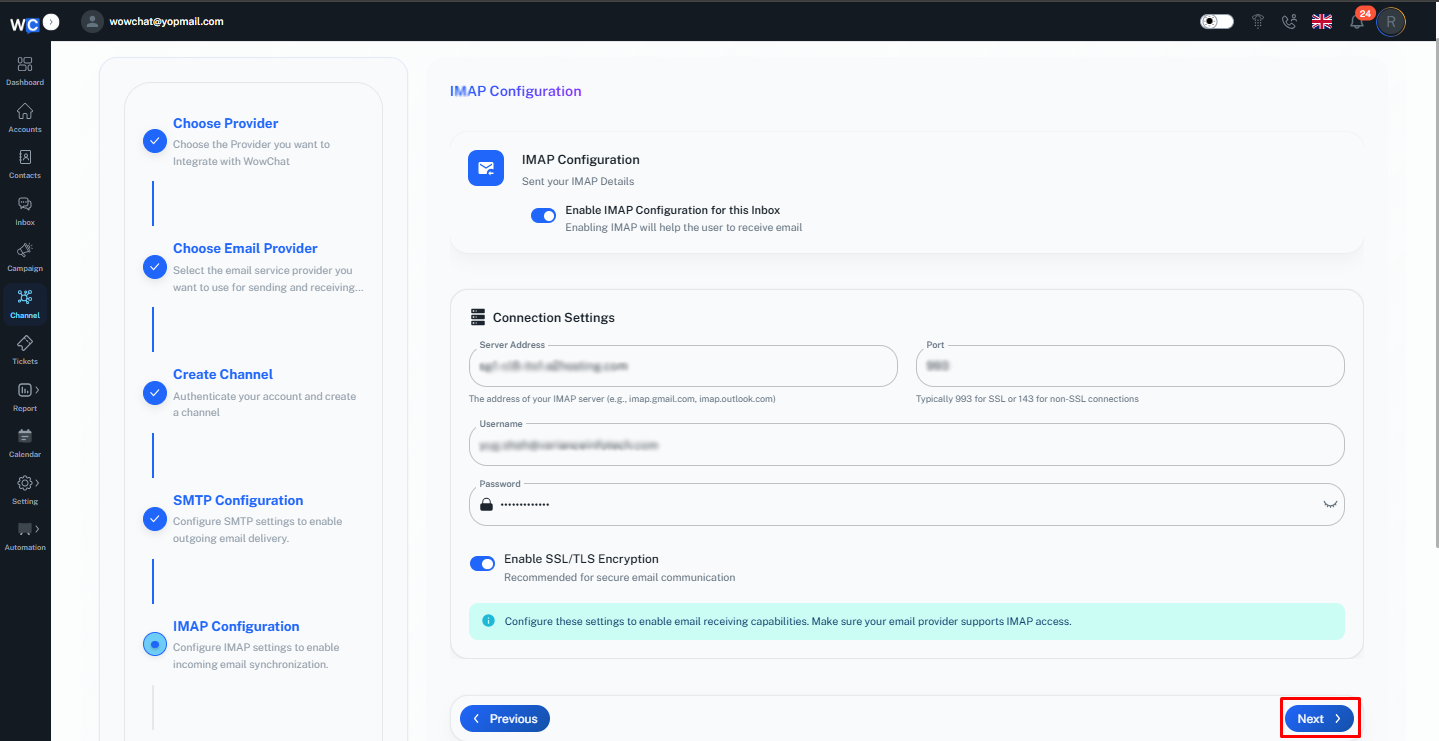
Step 13: Click Next
After completing the IMAP configuration, click the Next button.
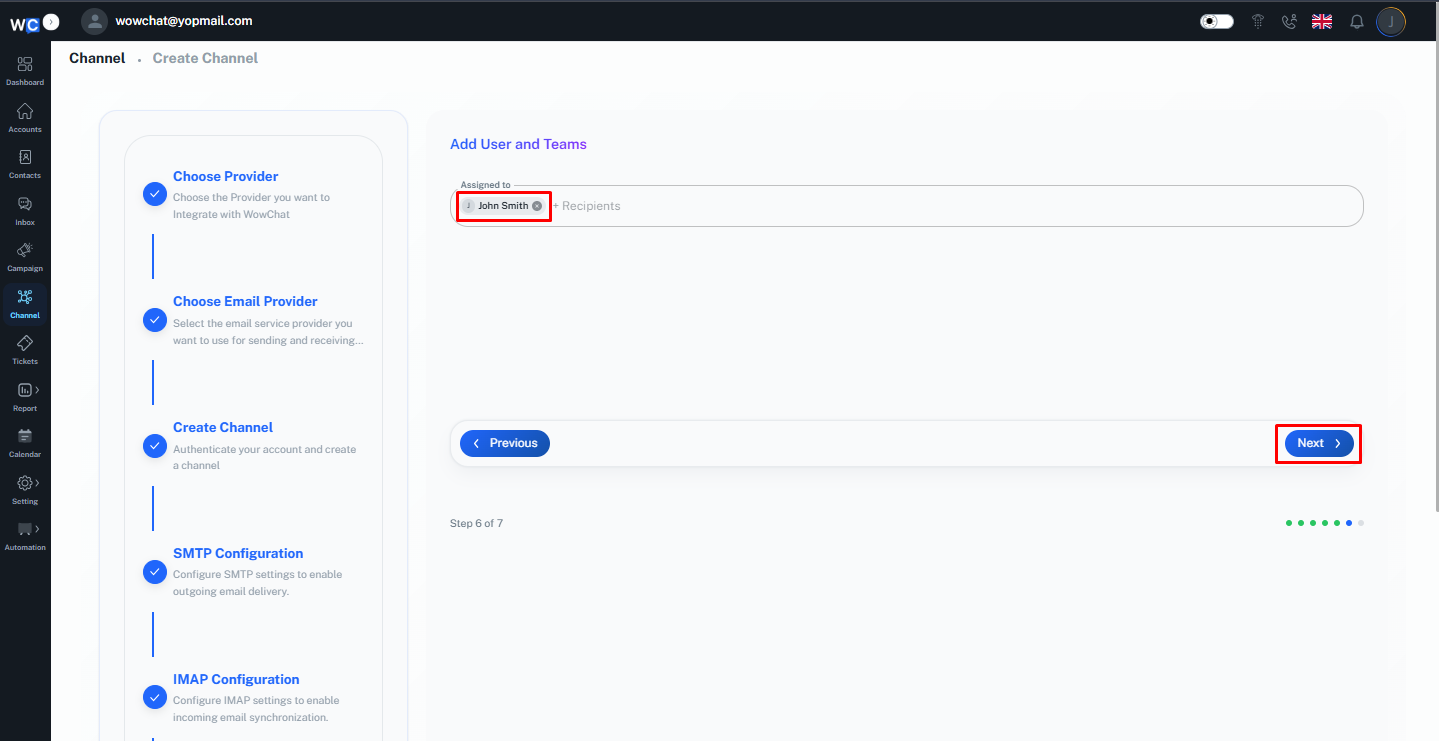
Step 14: Assign Users
Select the user or users who should have access to manage this email channel and click the Next button.
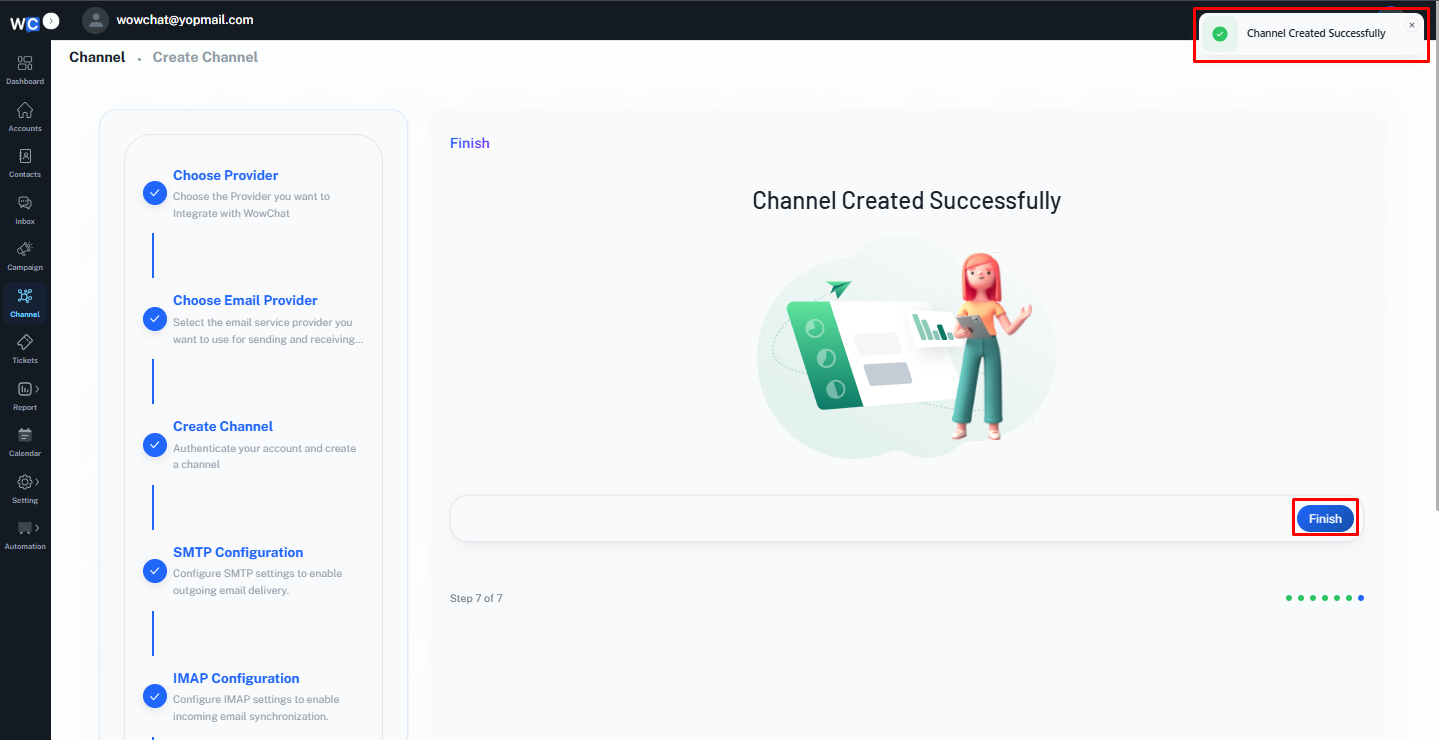
Step 15: Finish Setup
The Other email channel has now been created successfully.Click the Finish button to complete the setup process.
How Email Conversations Work
Once your email channel is connected:
- Incoming emails appear in the WowChat Inbox.
- Users can view and respond to emails directly from WowChat.
- Email conversations are stored in the conversation history.
- Conversations can be assigned to users or teams.
- Teams can collaborate on customer inquiries more efficiently.
Benefits of Email Integration
Connecting your email account to WowChat allows you to:
- Centralize customer communication
- Manage emails alongside other channels
- Improve team collaboration
- Reduce response times
- Maintain complete conversation history
- Increase customer satisfaction
Frequently Asked Questions (FAQ)
WowChat supports Microsoft, Google, and other email providers that support IMAP and SMTP protocols.