With SMS integration, your team can manage customer conversations, respond quickly to inquiries, and maintain a complete communication history from a single platform. This guide explains how to connect and configure SMS channels in WowChat.
Why Connect SMS?
Connecting SMS to WowChat helps your organization:
- Manage SMS conversations from a centralized inbox
- Improve customer response times
- Reach customers instantly
- Reduce missed communications
- Maintain conversation history
- Enable team collaboration
Instead of managing messages across multiple systems, your team can handle all customer communication from one workspace.
Supported SMS Providers
WowChat currently supports the following SMS providers:
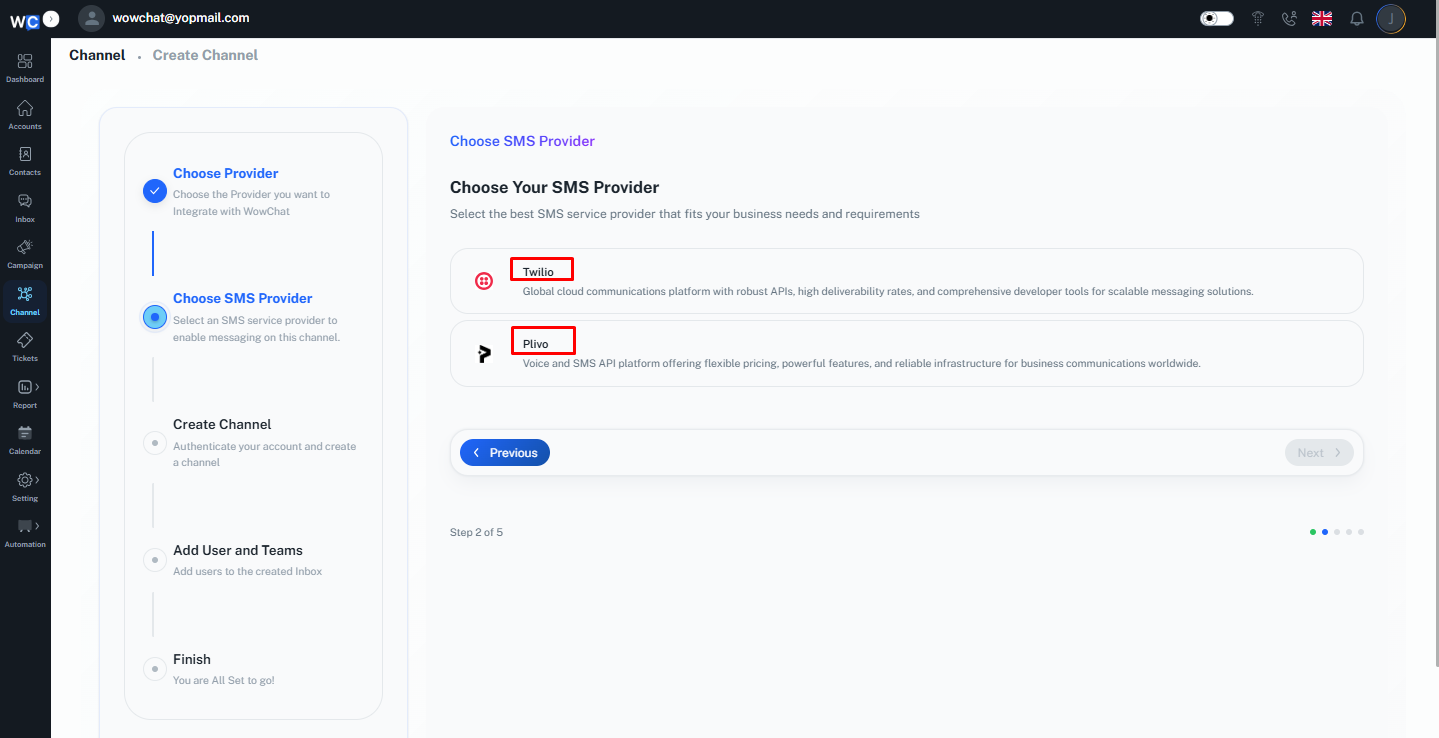
Twilio
Twilio is a cloud communications platform that enables businesses to send and receive SMS messages using Twilio phone numbers and messaging services.
Plivo
Plivo is a communication platform that allows businesses to manage SMS messaging through secure and scalable messaging APIs.
Before You Begin
Before connecting an SMS provider, ensure you have:
- Access to your WowChat workspace
- An active Twilio or Plivo account
- Required account credentials
- A purchased SMS-enabled phone number from your provider
- Permission to manage messaging services
Twilio SMS Integration
Follow these steps to connect a Twilio SMS channel.
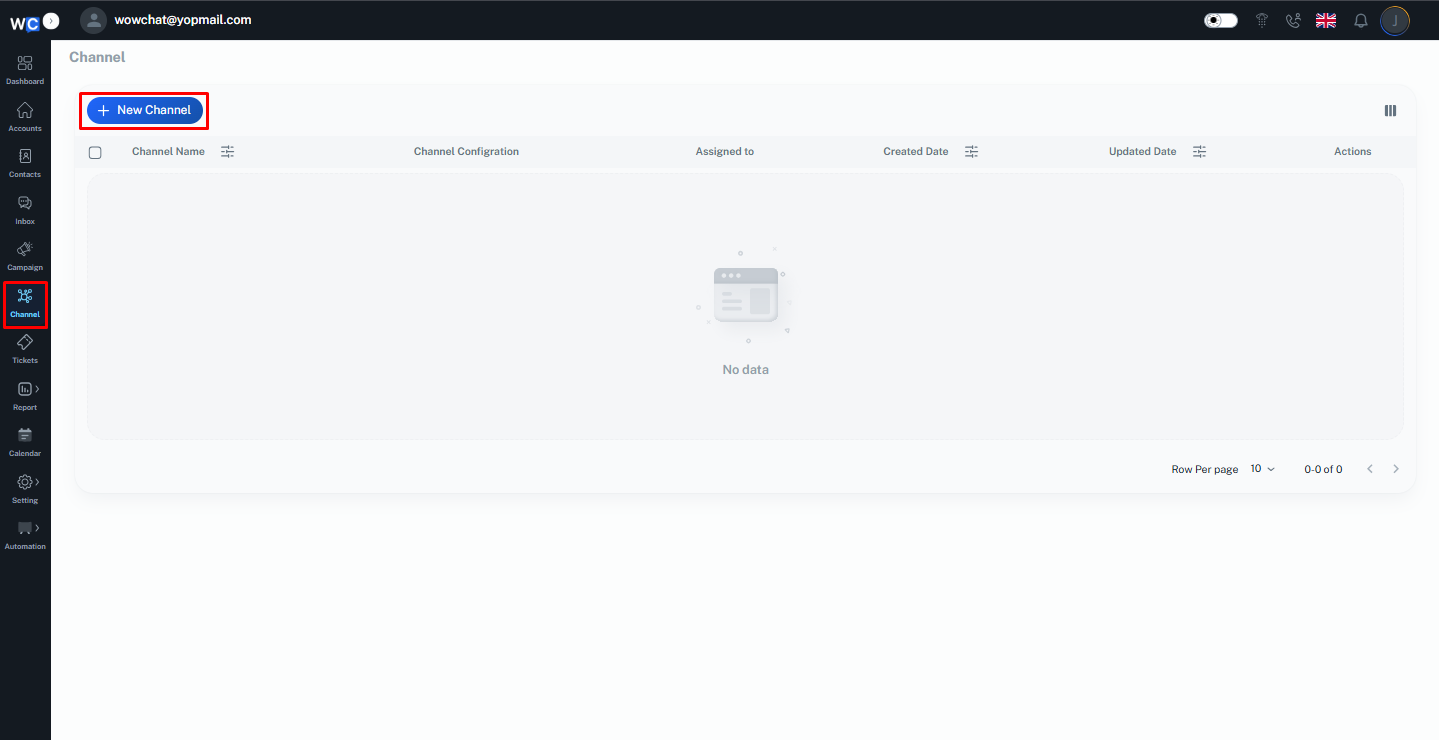
Step 1: Open Channels
After successfully logging in to your WowChat account, click on the Channels option from the left-hand navigation menu.
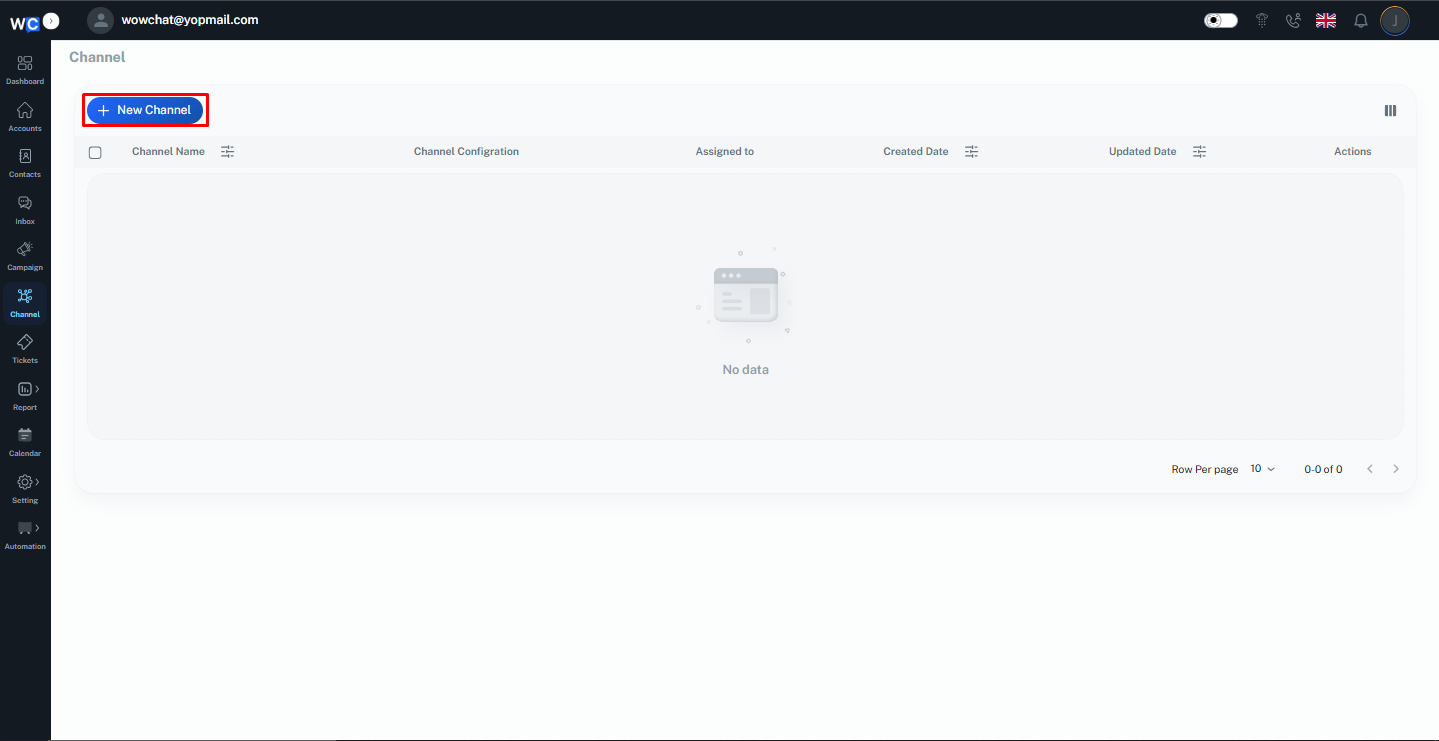
Step 2: Create a New Channel
Click the New Channel button to begin creating a new communication channel.
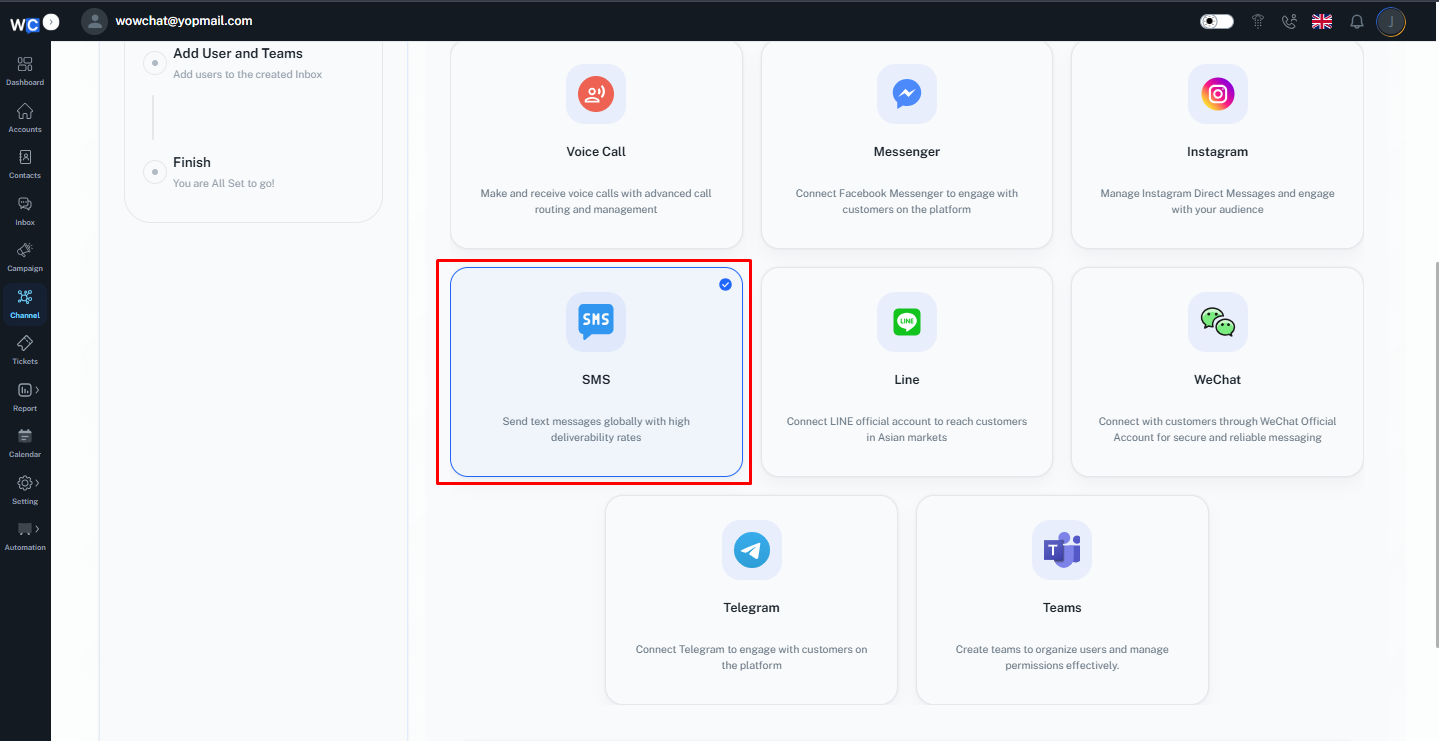
Step 3: Select SMS Channel
From the available channel types, select SMS Channel.
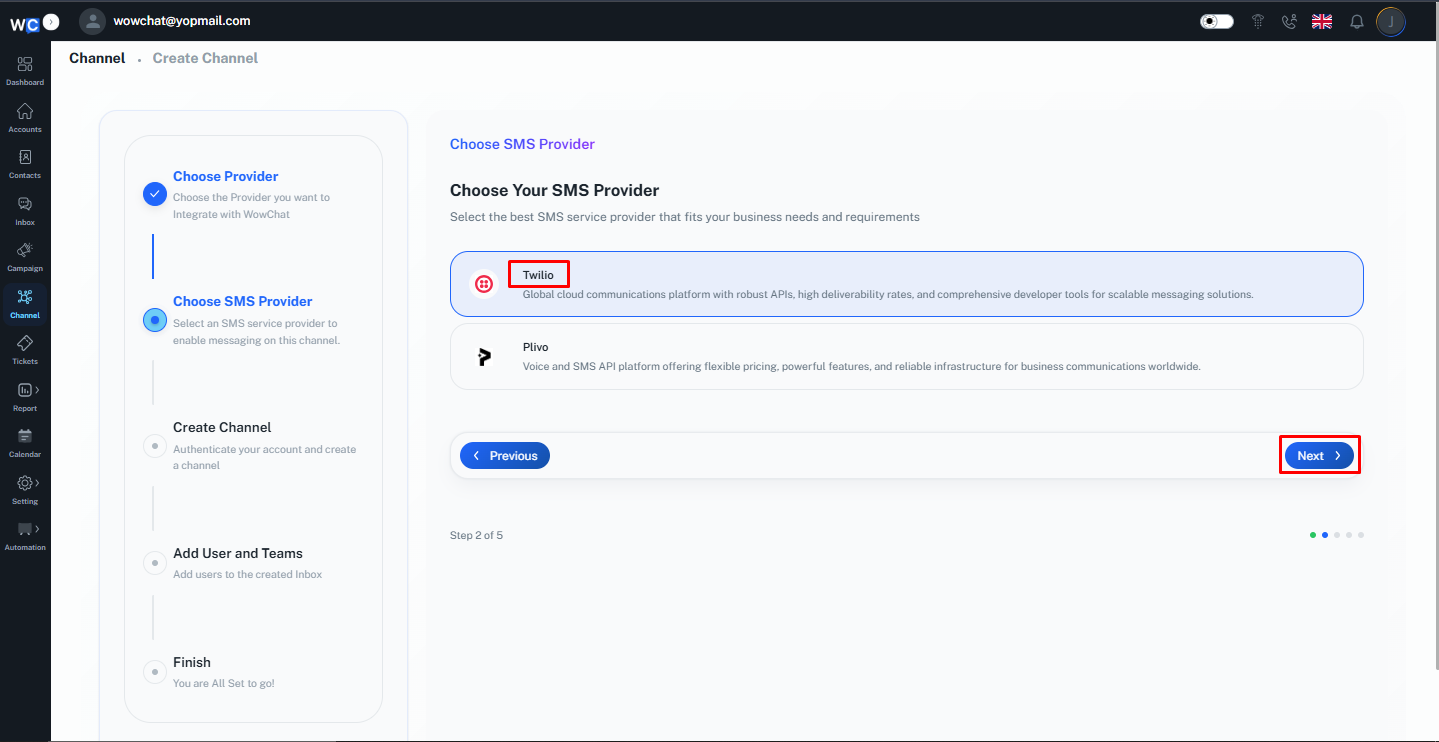
Step 4: Select Twilio Provider
Choose Twilio as your SMS provider. And click on the next button.
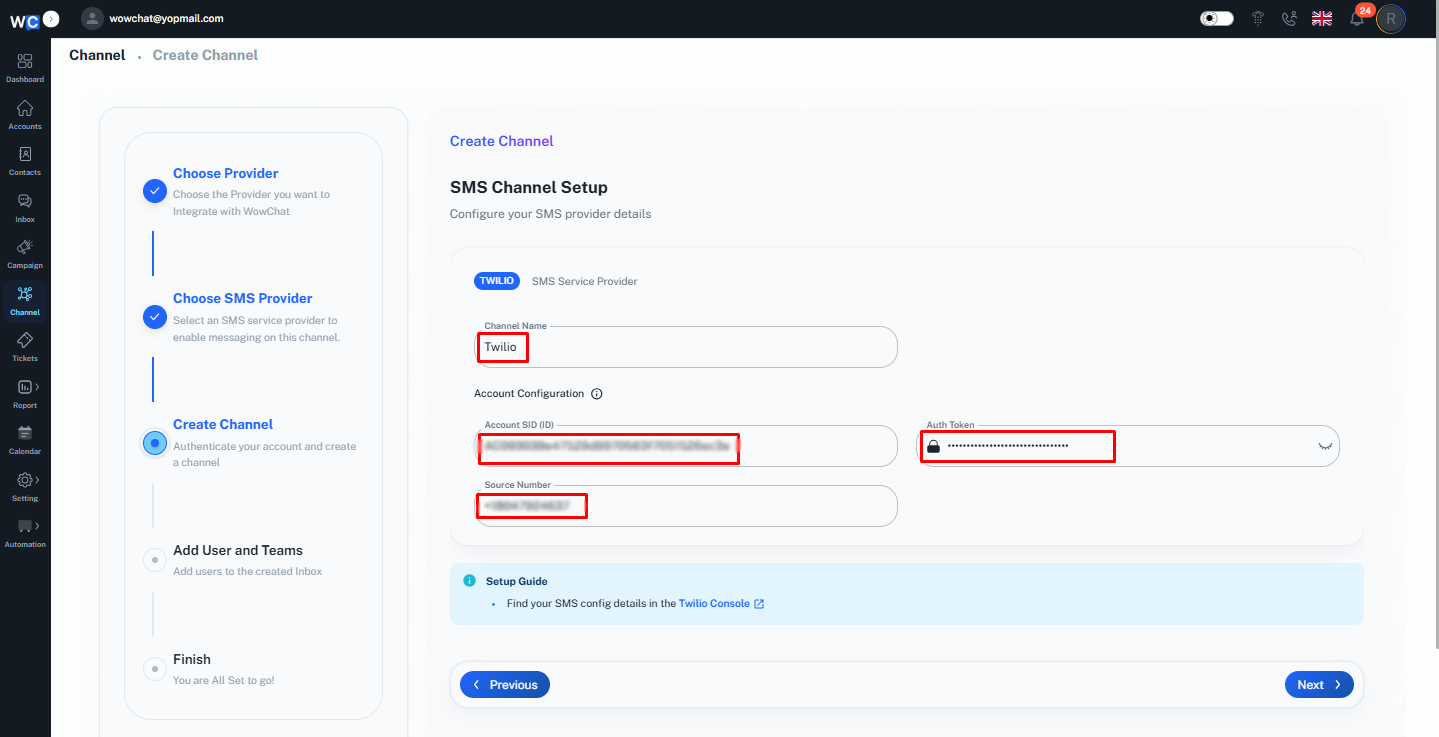
Step 5: Enter Channel Information
Provide the required channel information:• Channel Name• Account SID• Auth Token• Source Number
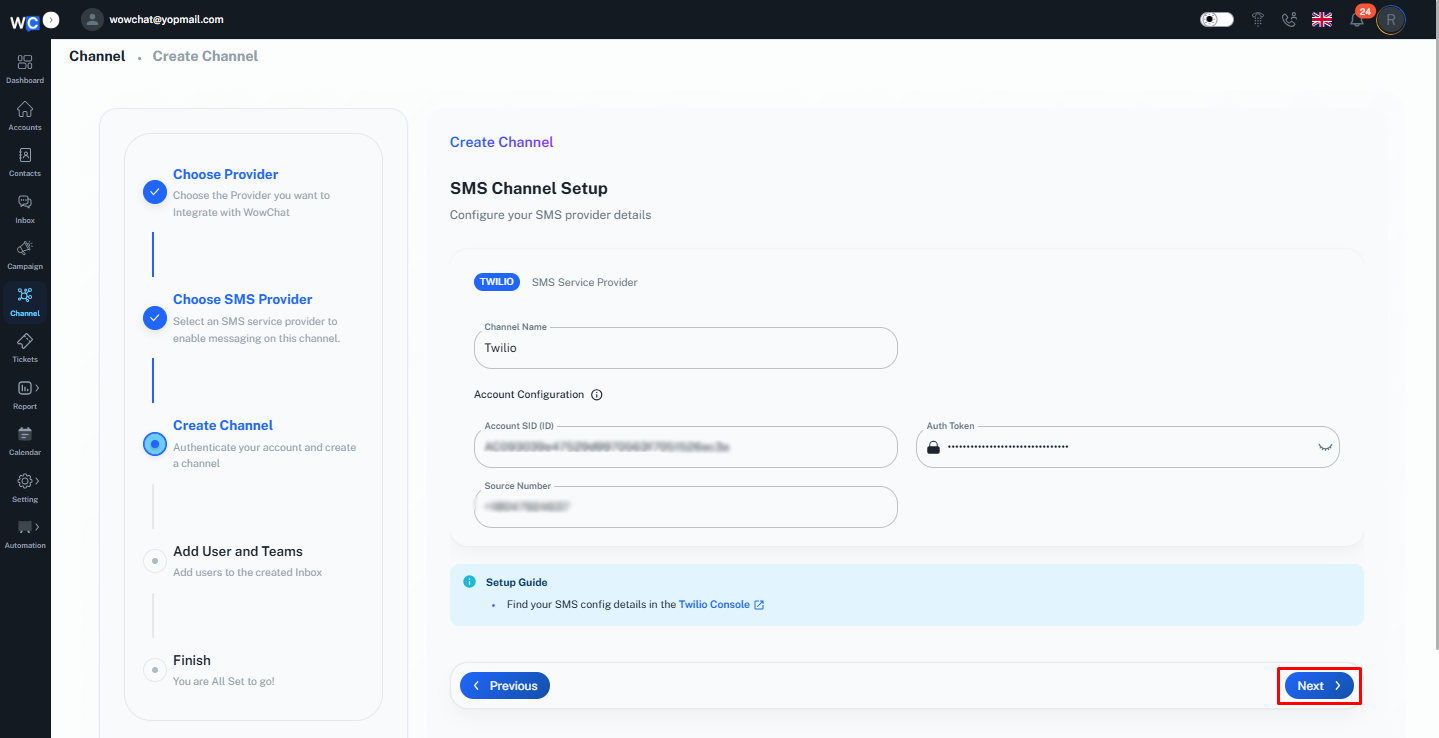
Step 6: Click Next
Review the configuration details and click the Next button.
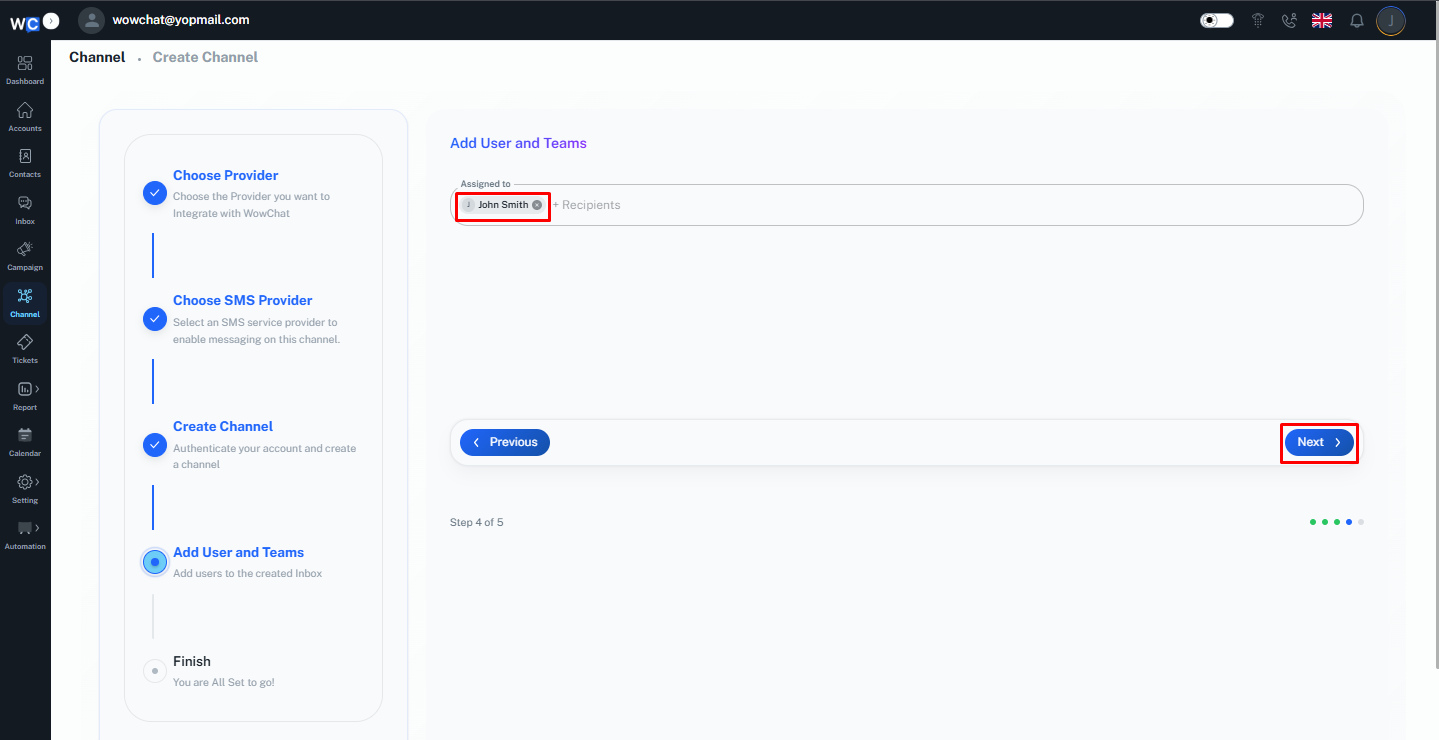
Step 7: Assign Users
Select the user or users who should manage SMS conversations for this channel. And click on the next button.
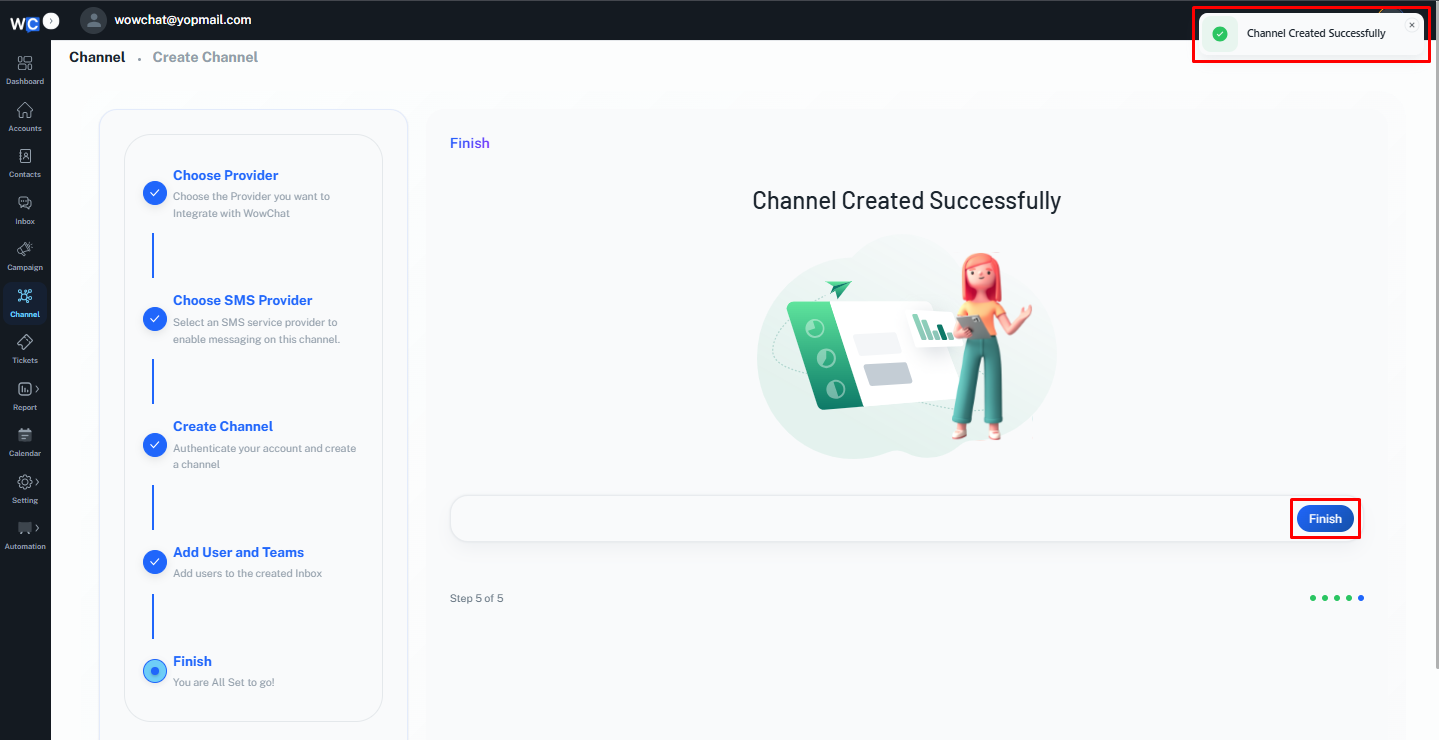
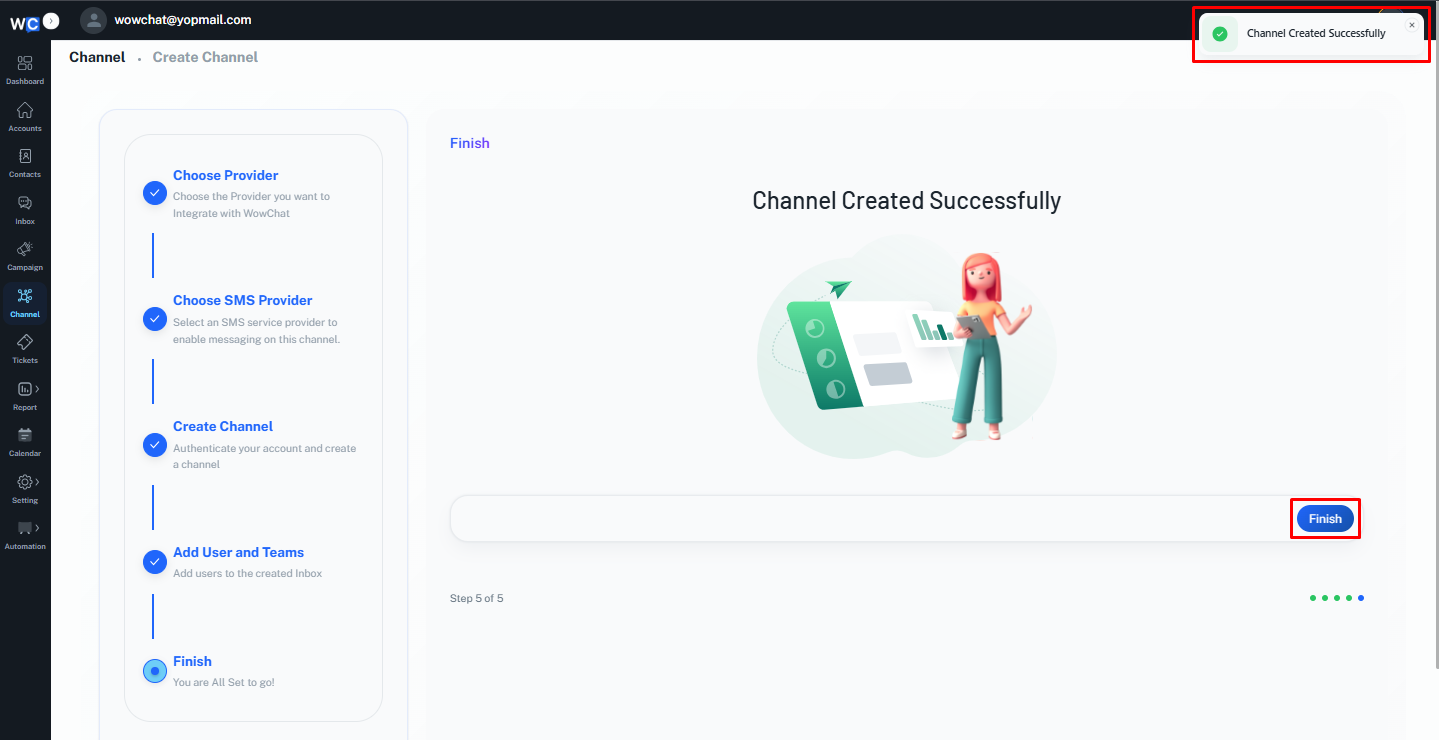
Step 8: Channel Created Successfully
The SMS channel has been created successfully. Click the Finish button to complete the setup process.
Plivo SMS Integration
Follow these steps to connect a Plivo SMS channel.
Step 1: Open Channels
After successfully logging in to your WowChat account, click on the Channels option from the left-hand navigation menu.
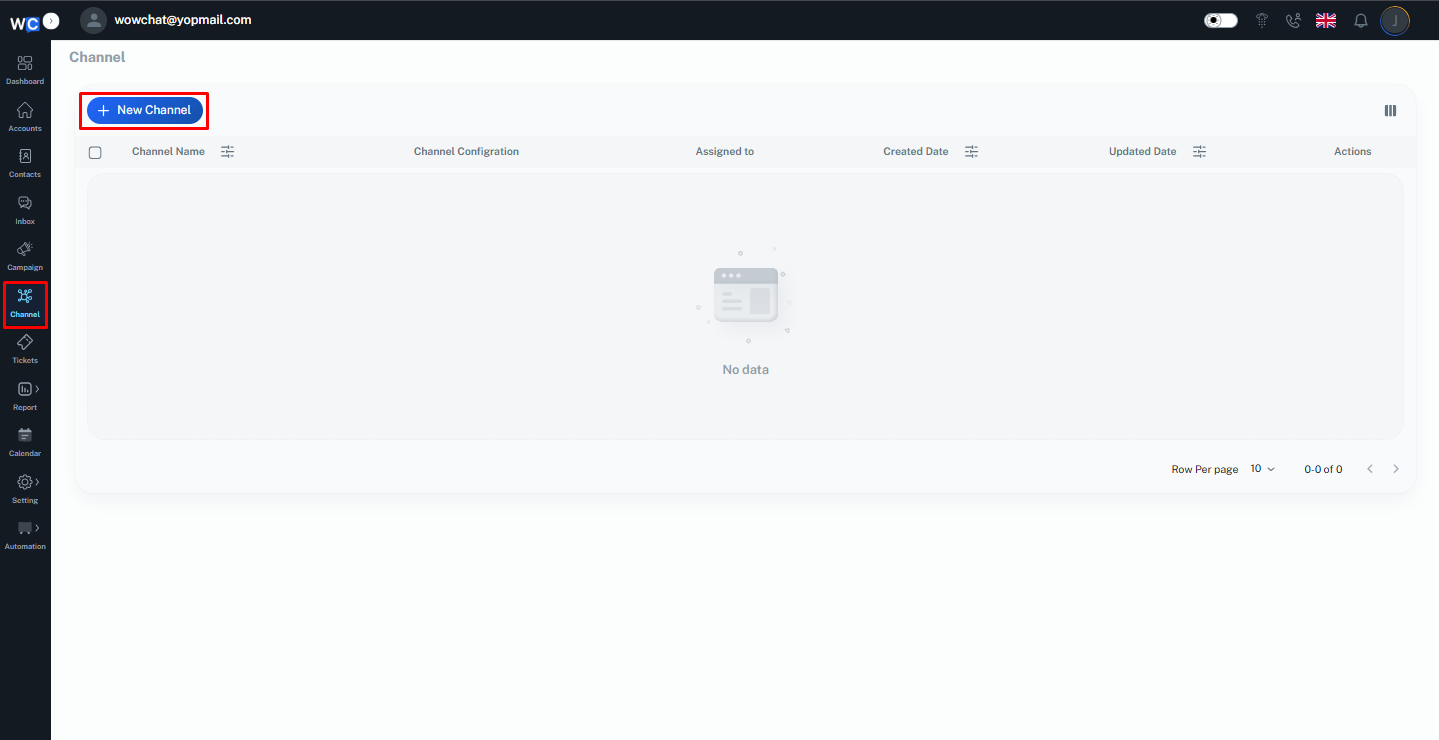
Step 2: Create a New Channel
Click the New Channel button to begin creating a new communication channel.
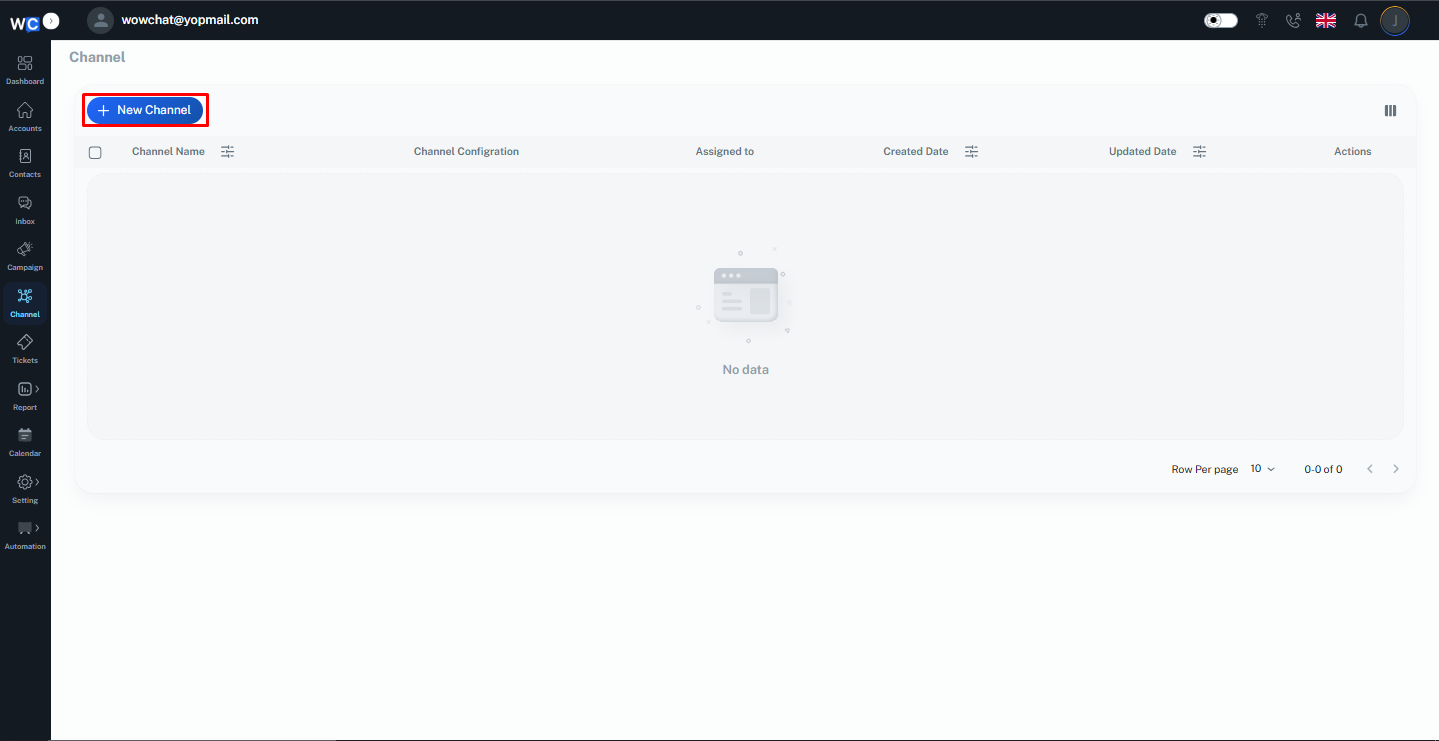
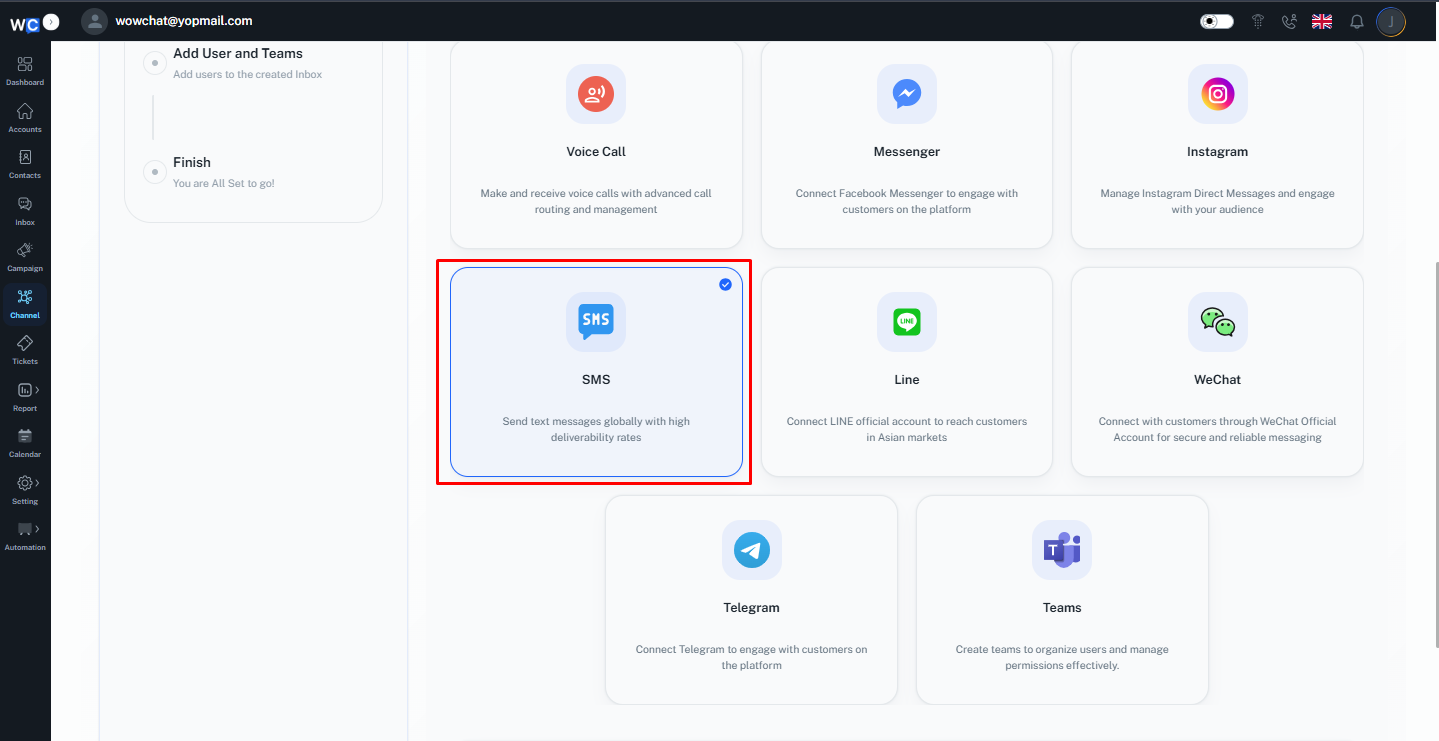
Step 3: Select SMS Channel
From the available channel types, select SMS Channel.
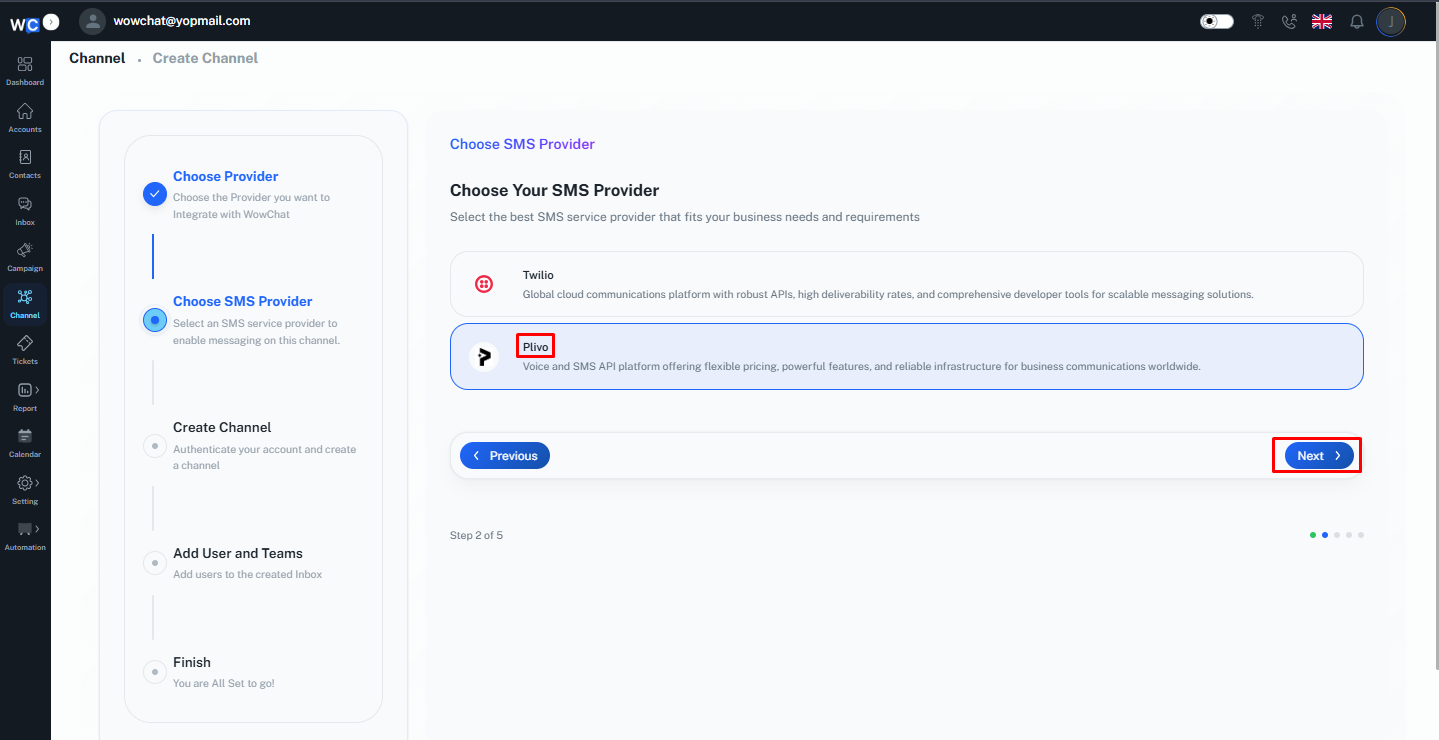
Step 4: Select Plivo Provider
Choose Plivo as your SMS provider. And click on the next button.
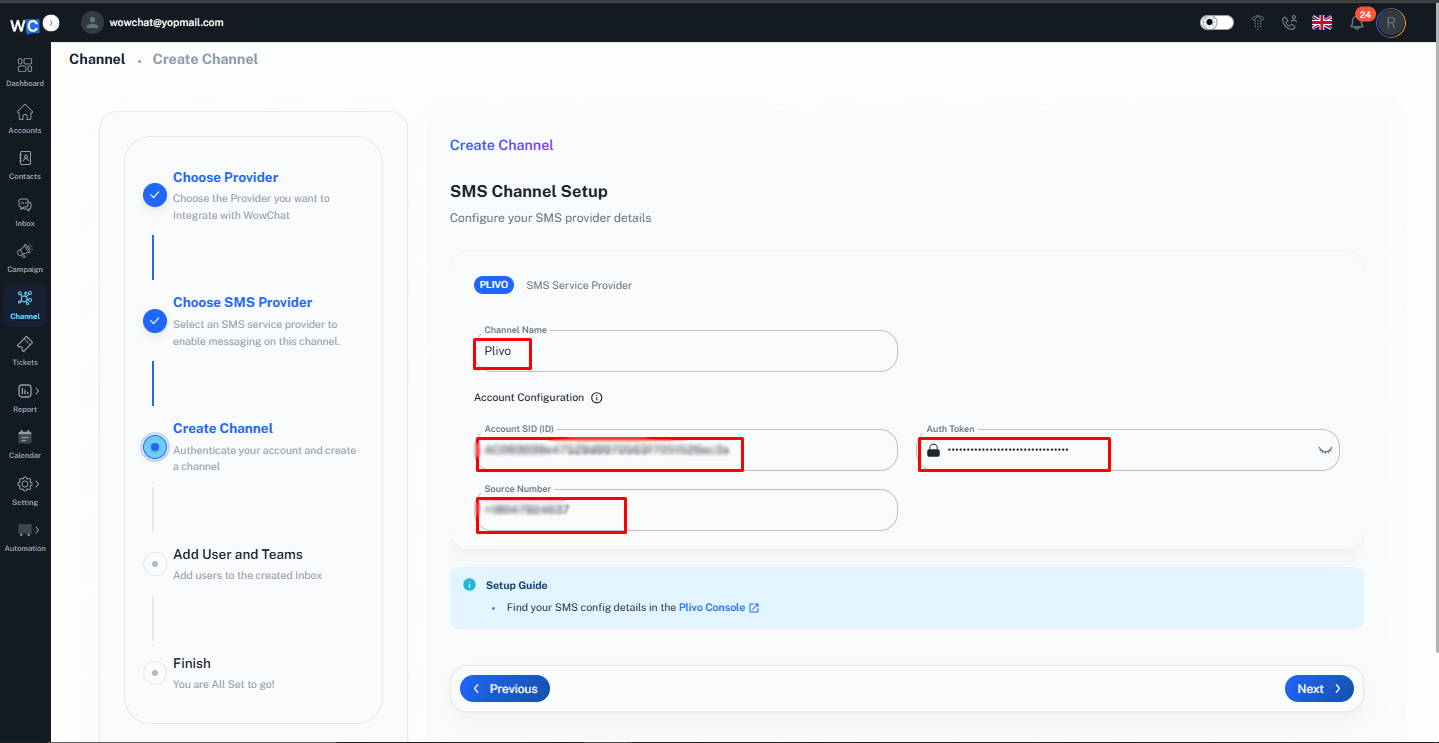
Step 5: Enter Channel Information
Provide the required channel information:• Channel Name• Auth SID• Auth Token• Source Number
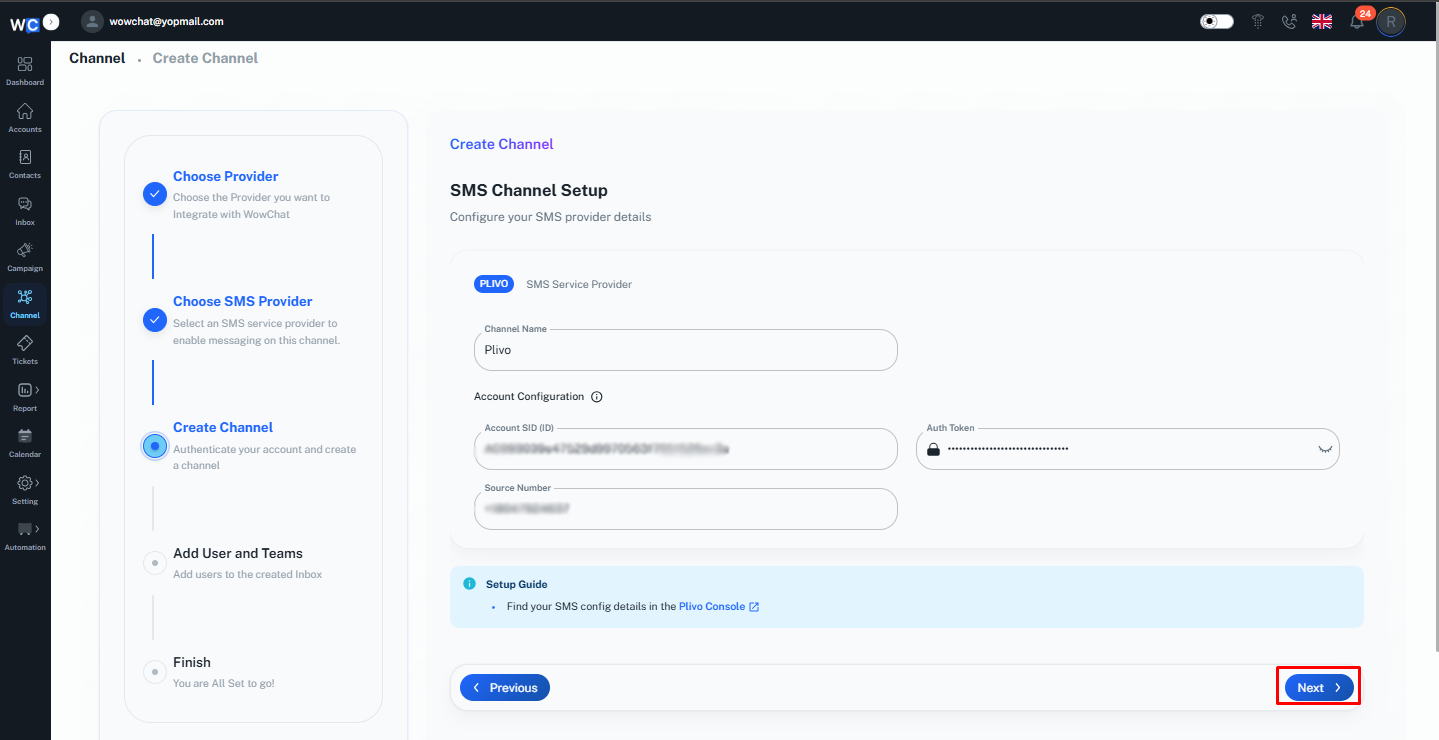
Step 6: Click Next
Review the configuration details and click the Next button.
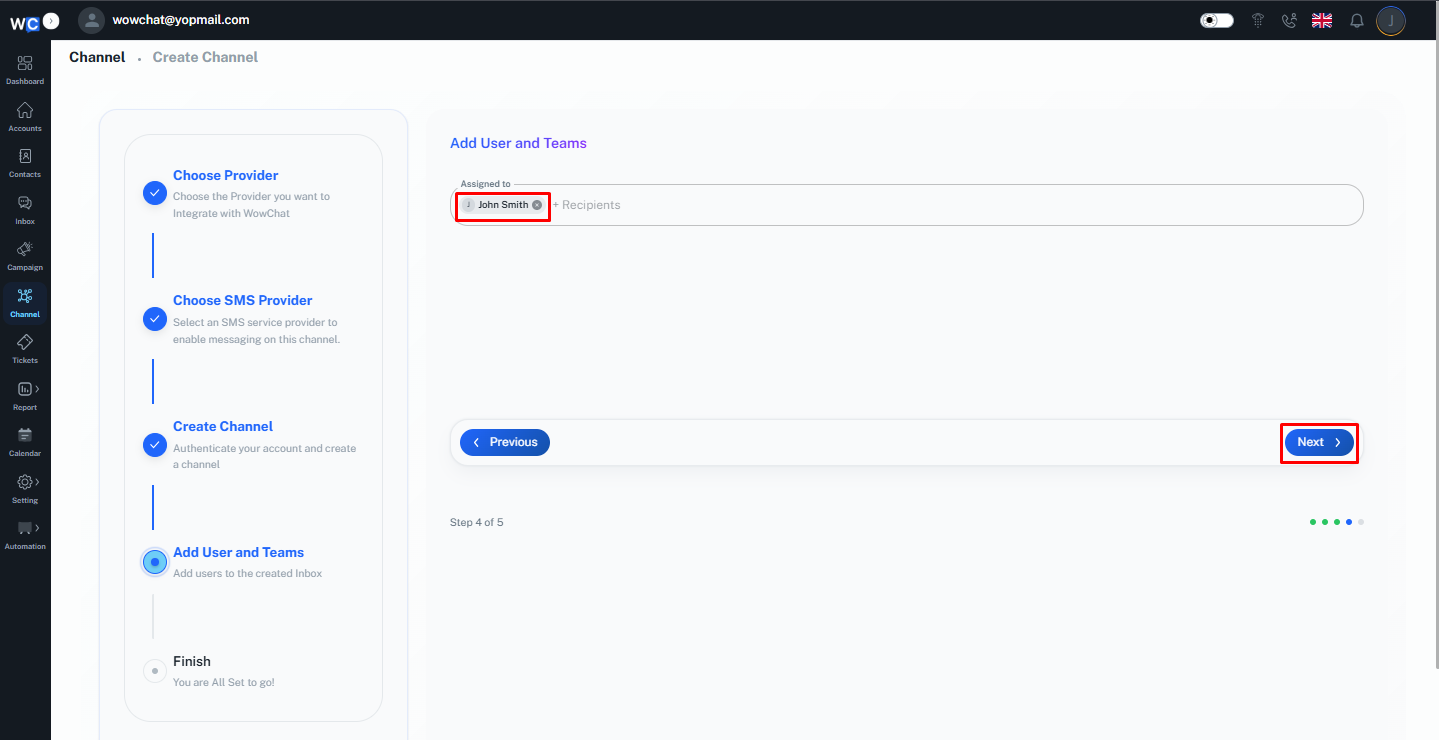
Step 7: Assign Users
Select the user or users who should manage SMS conversations for this channel. And click on the next button.
Step 8: Channel Created Successfully
The SMS channel has been created successfully. Click the Finish button to complete the setup process.
How SMS Conversations Work
Once connected:
- Customers send SMS messages to your configured phone number.
- Messages automatically appear in the WowChat Unified Inbox.
- Team members can respond directly from WowChat.
- Conversations can be assigned to users or teams.
- Conversation history remains available for future reference.
This helps your team manage SMS communication more efficiently.
Benefits of SMS Integration
Connecting SMS to WowChat allows you to:
- Centralize SMS conversations
- Improve customer response times
- Enable team collaboration
- Reduce missed customer messages
- Maintain a complete communication history
- Manage multiple communication channels from one platform
Frequently Asked Questions (FAQ)
WowChat currently supports Twilio and Plivo, SMS providers.