With LINE connected, your team can respond to customer inquiries, manage conversations collaboratively, and maintain a complete communication history from a single platform. This guide explains how to connect your LINE channel to WowChat.
Why Connect LINE?
Connecting LINE to WowChat helps your organization:
- Manage LINE conversations from a centralized inbox
- Respond to customers faster
- Improve team collaboration
- Reduce missed messages
- Maintain conversation history
- Deliver a consistent customer experience
Instead of switching between multiple applications, your team can manage all customer interactions from one workspace.
Before You Begin
Before connecting LINE, ensure you have:
- Access to your WowChat workspace
- A LINE Business Account
- A LINE Official Account
- Channel ID and Channel Secret from LINE Developers Console
- Permission to manage LINE messaging channels
Connecting LINE Channel
Follow these steps to connect your LINE channel.
Open Channels
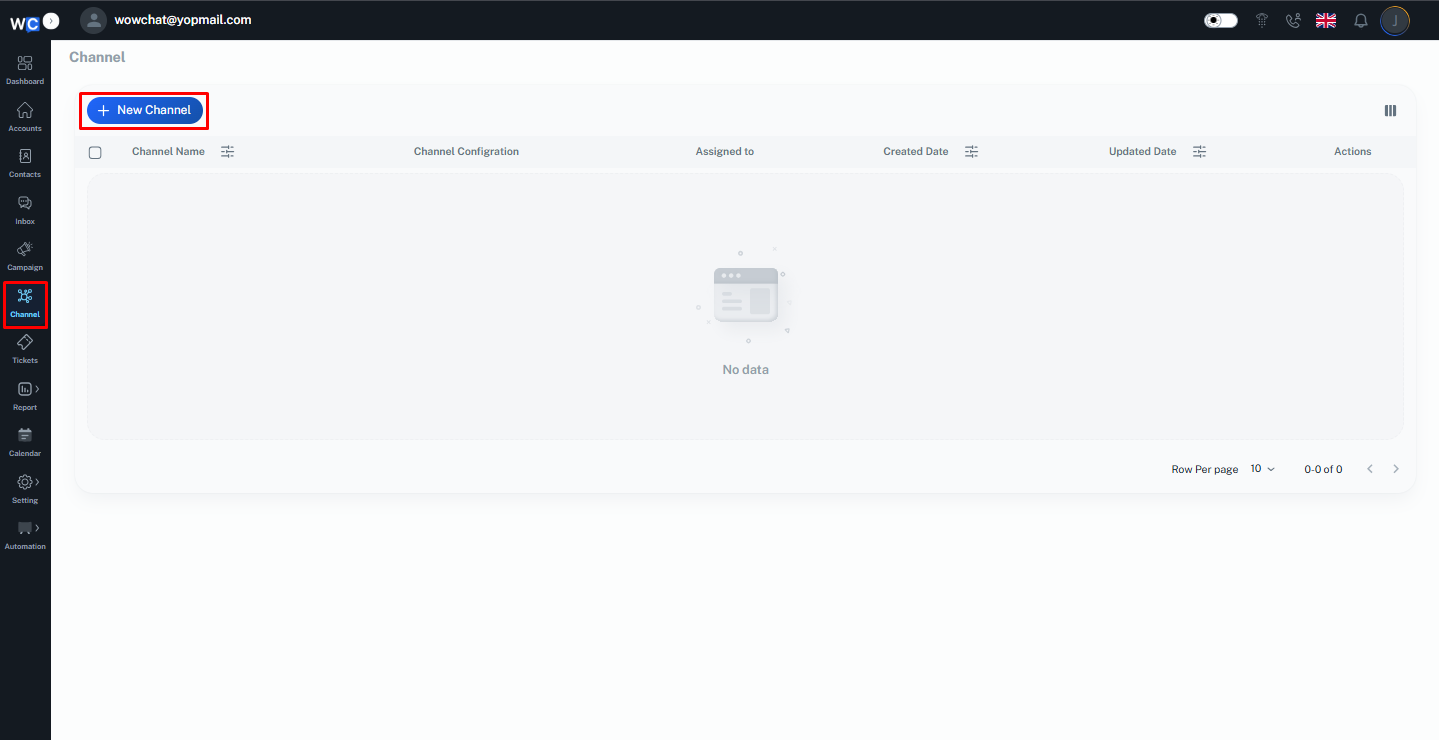
After successfully logging in to your WowChat account, click on the Channels option from the left-hand navigation menu.
Create a New Channel
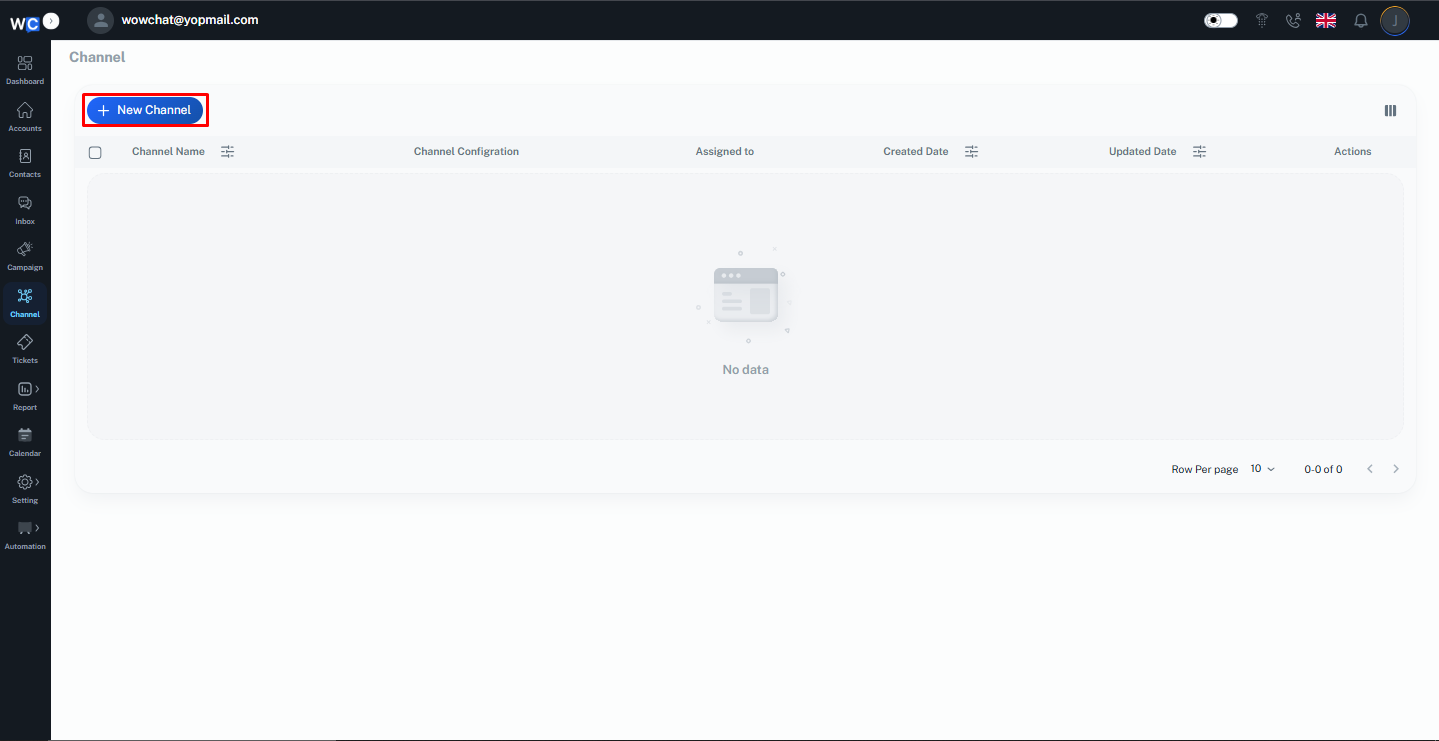
Click the New Channel button to begin creating a new communication channel.
Select LINE Channel
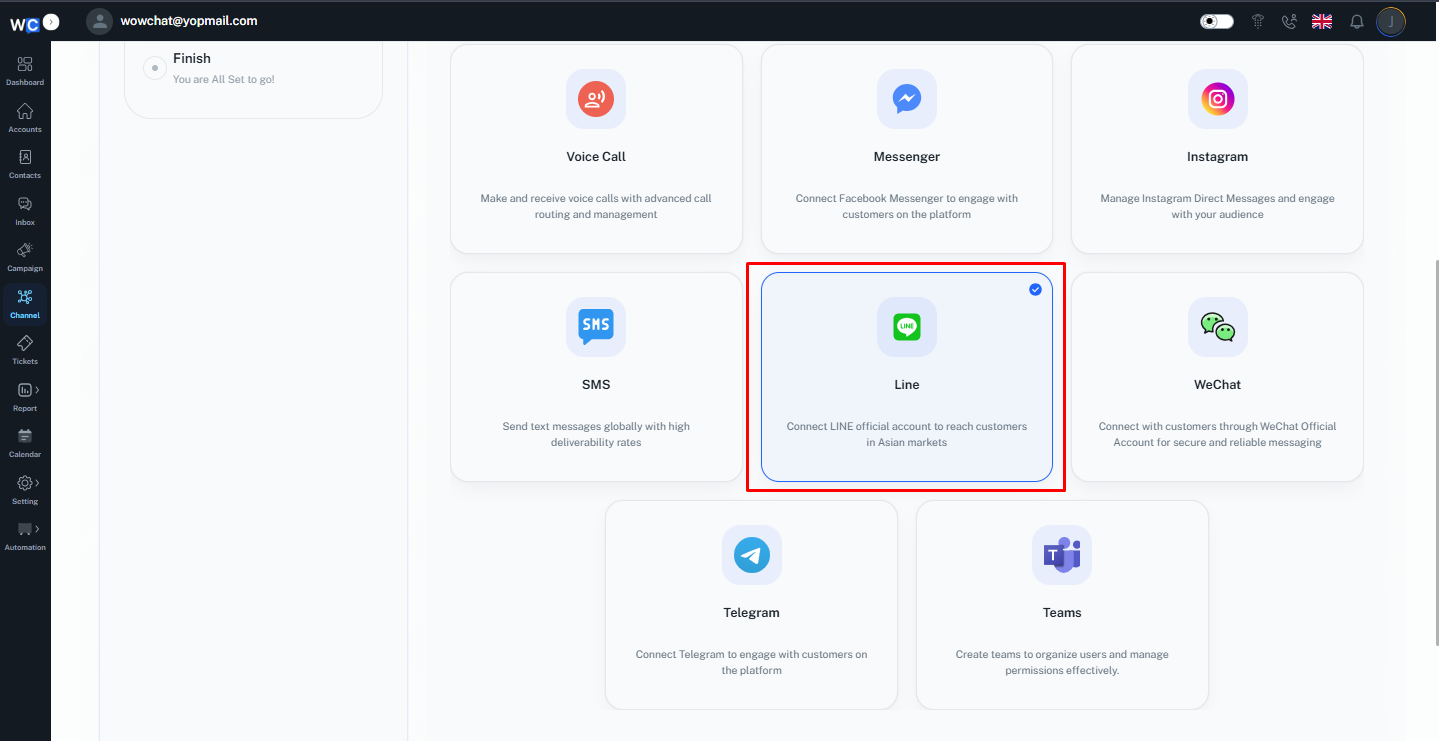
From the available channel types, select LINE Channel.
Create a LINE Business Account
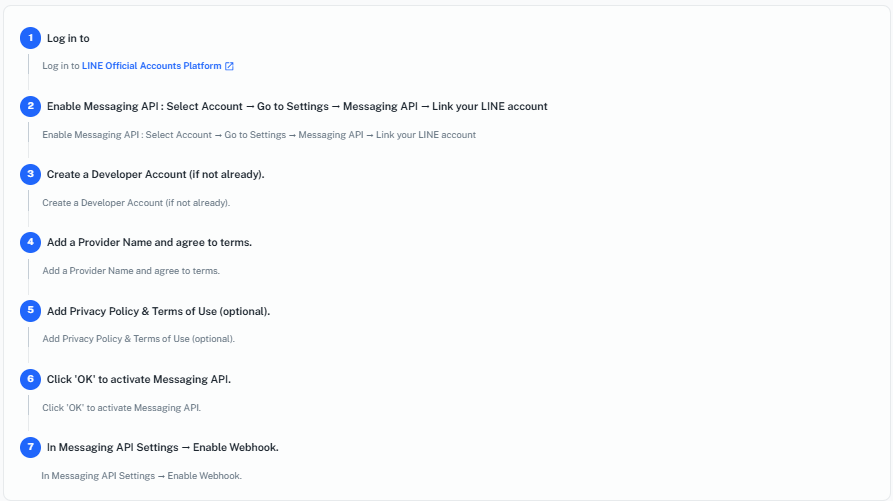
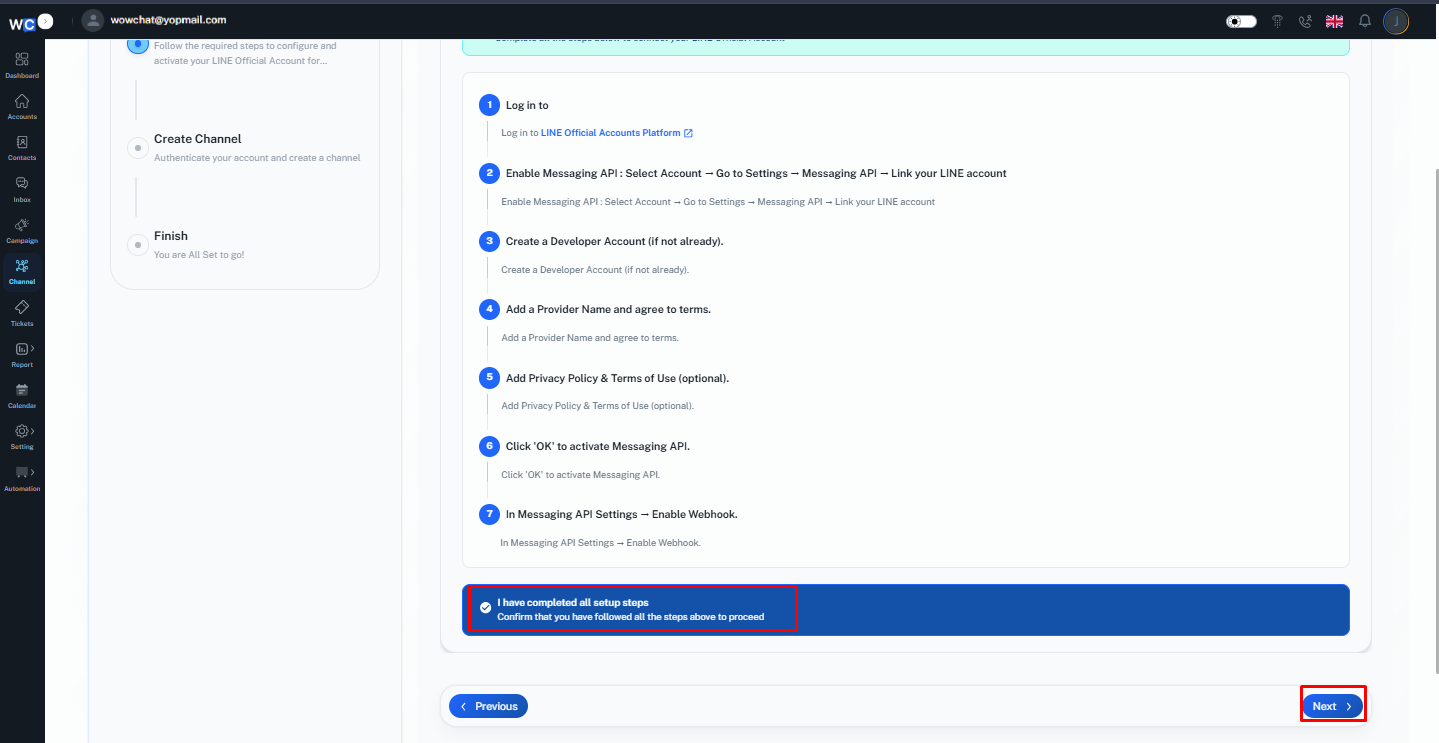
If you do not already have a LINE Business Account, create one by following the instructions provided on the LINE platform.Complete all required setup steps for your LINE Official Account.
Confirm Setup Completion
After completing the LINE Business Account setup, select the Completed All Setup Steps checkbox. Click the Next button to continue.
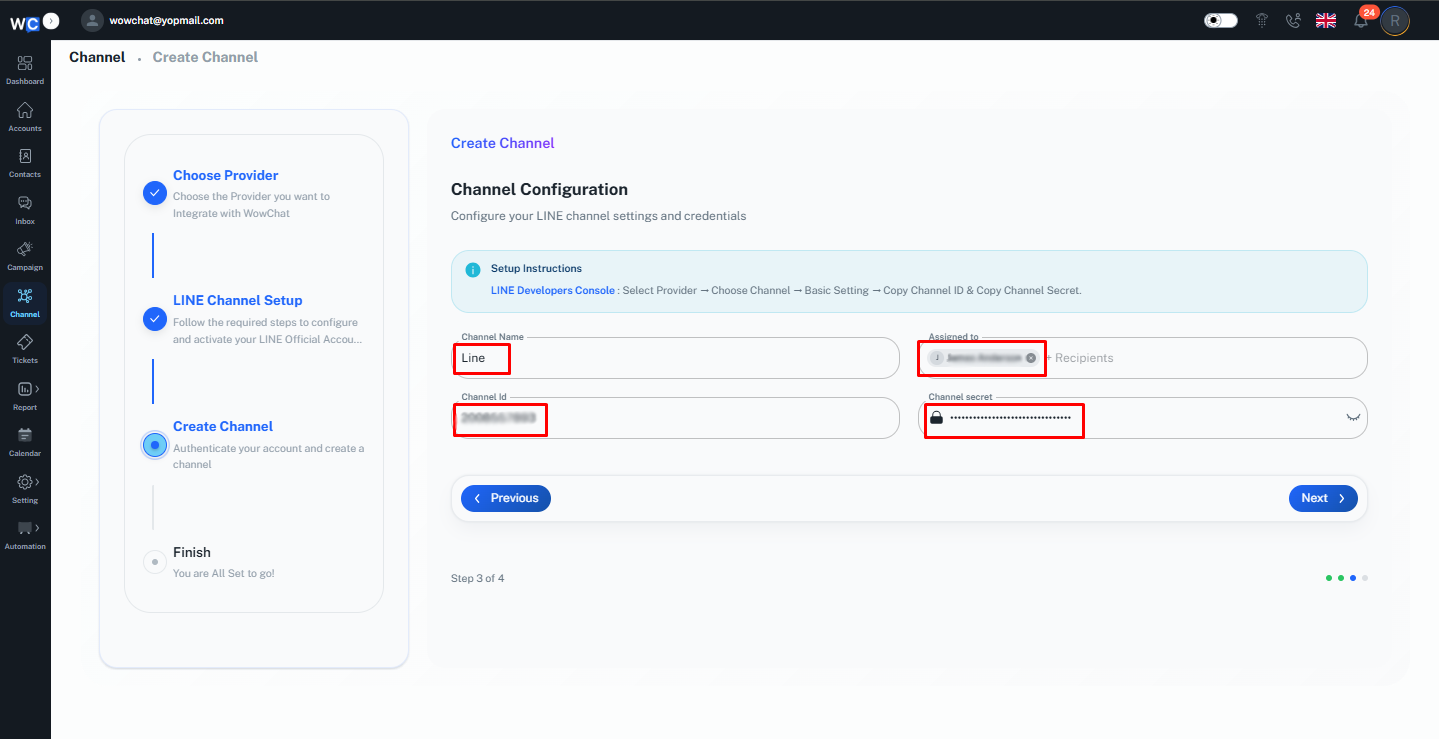
Enter Channel Information
Provide the required channel information:• Channel Name• Assign To (User)• Channel ID• Channel Secret
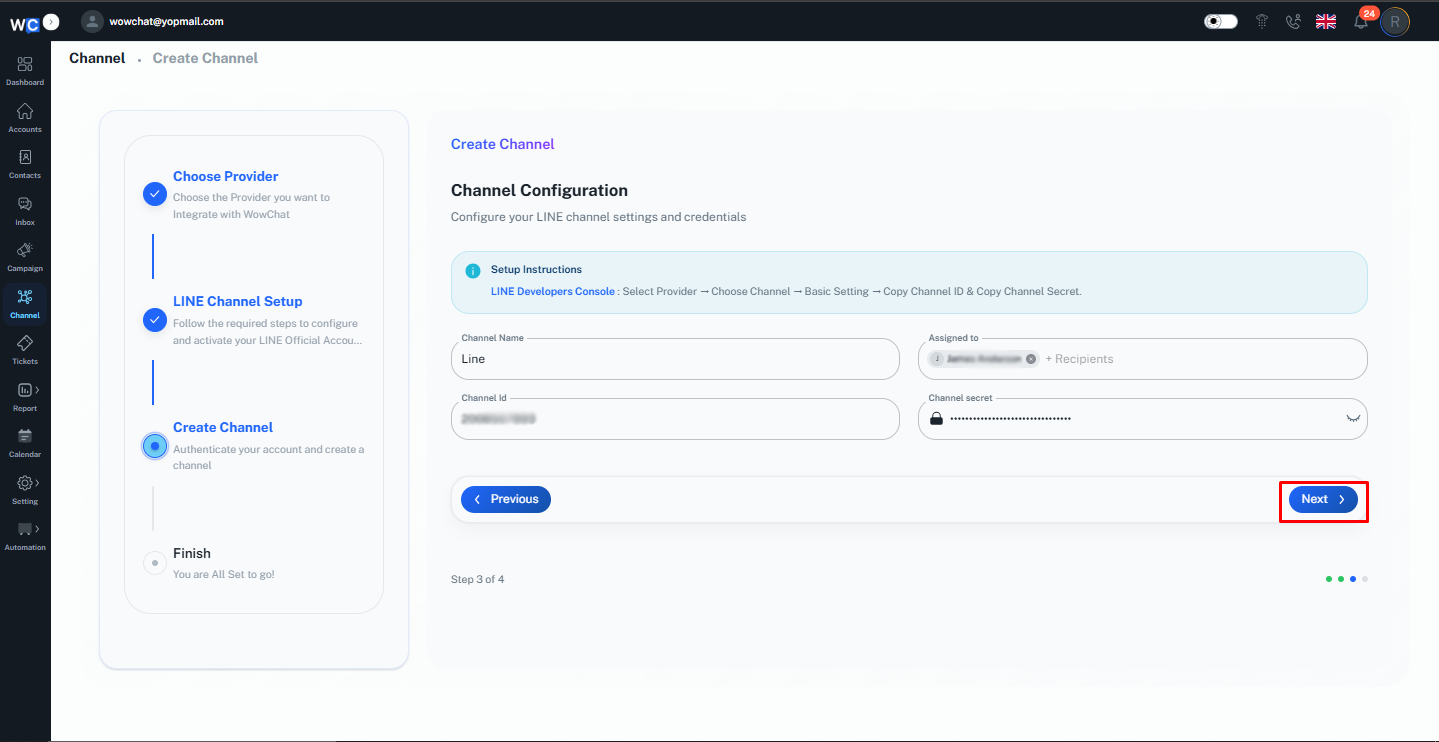
Click Next
After entering all required information, click the Next button.
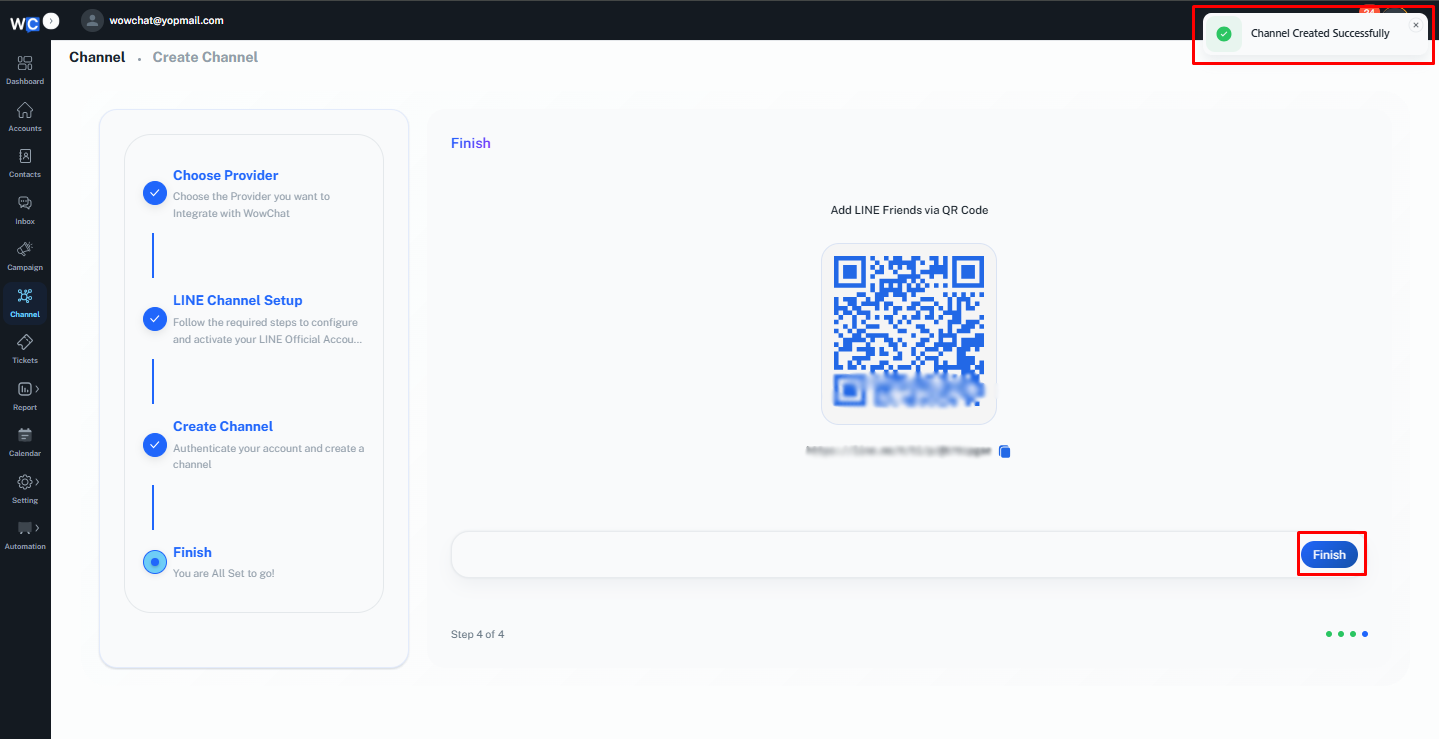
Channel Created Successfully
Your LINE channel has been created successfully. And click on the Finish button. A QR Code will be displayed. Scan the QR Code using the LINE application to add this LINE account to your friend list.
How LINE Conversations Work
Once connected:
- Customers send messages through LINE.
- Messages automatically appear in the WowChat Unified Inbox.
- Team members can respond directly from WowChat.
- Conversations can be assigned to users or teams.
- Customer conversation history remains available for future reference.
This helps your team manage customer communication more efficiently.
Benefits of LINE Channel Integration
Connecting LINE to WowChat allows you to:
- Centralize LINE conversations
- Improve customer response times
- Enable team collaboration
- Reduce missed customer inquiries
- Maintain complete conversation history
- Manage multiple communication channels from one platform
Frequently Asked Questions (FAQ)
LINE Channel Integration allows you to connect your LINE Official Account and manage LINE conversations directly within WowChat.