With WowChat, users can connect and handle conversations from different communication channels through a unified Inbox. This helps teams manage customer queries, respond faster, and maintain all conversations in one place without switching between multiple applications.
From the Inbox, users can select the required channel and start managing customer conversations based on their communication needs.WowChat supports multiple channels, including:
- WhatsApp Business – Manage WhatsApp customer conversations, send messages, and handle business communications.
- Email – Manage customer emails and continue conversations directly from the inbox.
- Live Chat – Communicate with website visitors through real-time chat.
- Voice Call – Handle customer interactions through voice communication.
- Messenger – Manage conversations received through Facebook Messenger.
- Instagram – Respond to customer messages and interactions from Instagram.
- SMS – Send and manage customer communications through text messages.
- LINE – Handle customer conversations through the LINE messaging platform.
- WeChat – Manage customer communication through WeChat.
- Telegram – Connect and respond to customer messages from Telegram.
- Teams – Manage conversations through Microsoft Teams integration.
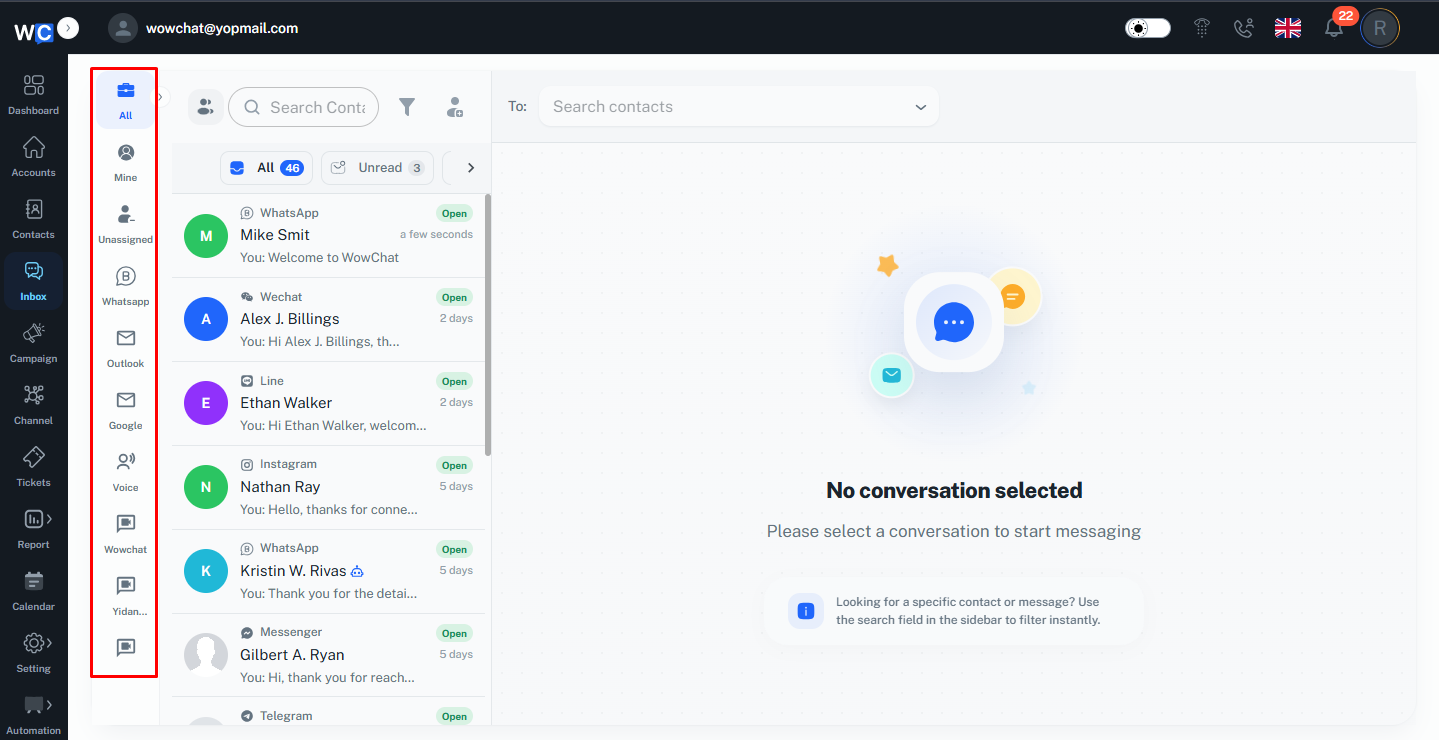
By bringing all communication channels together, WowChat helps businesses provide a consistent customer experience, improve team collaboration, and efficiently manage conversations from a single workspace.
WhatsApp Business
The WhatsApp Business Channel in WowChat allows businesses to connect their WhatsApp Business Account and manage customer conversations directly from the unified Inbox.
Users can send and receive WhatsApp messages, handle customer queries, and manage interactions from a single platform.With WhatsApp Business integration, teams can use approved templates, manage conversations, and collaborate efficiently while maintaining complete chat history.
Note: To configure and connect the communication channel, refer to the Channel Configuration Guide by clicking on the link.
To manage customer conversations, navigate to the Inbox section from the WowChat navigation menu.
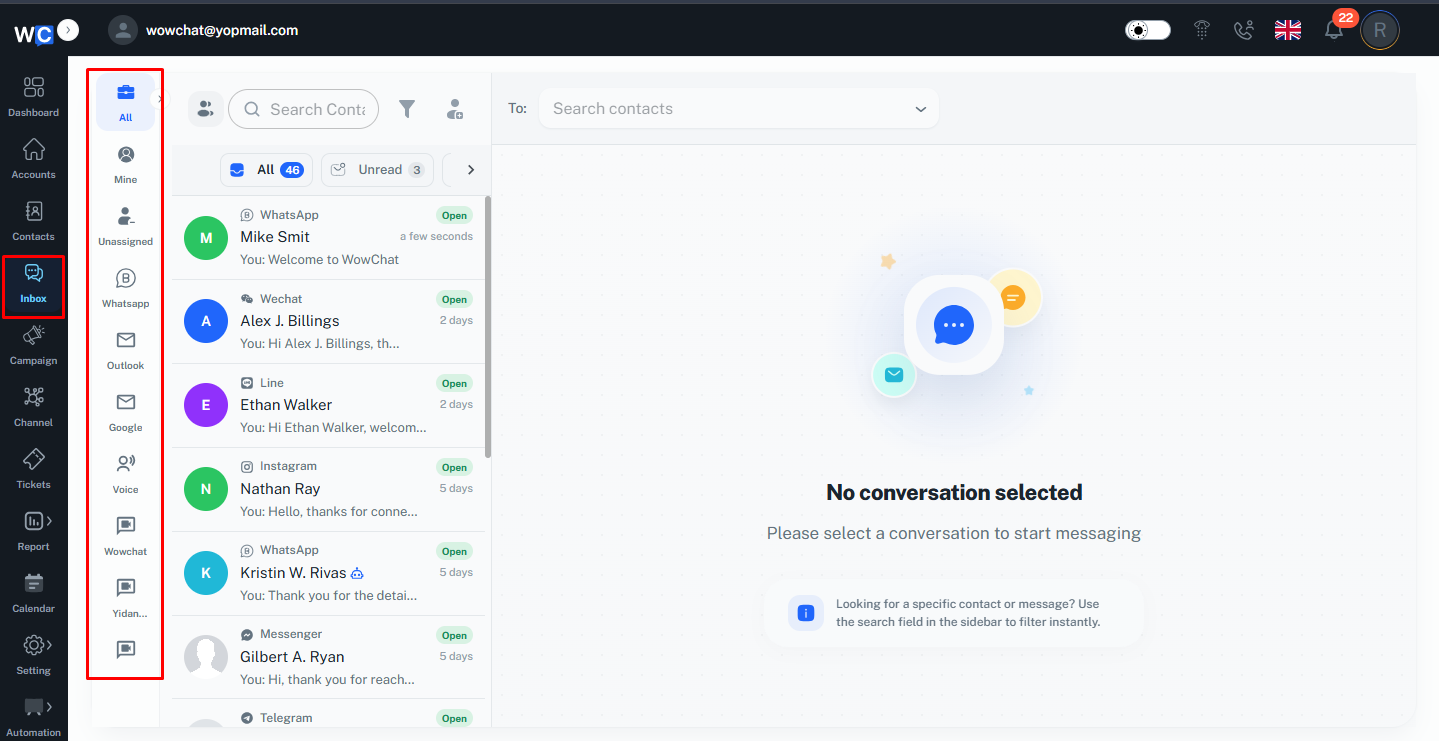
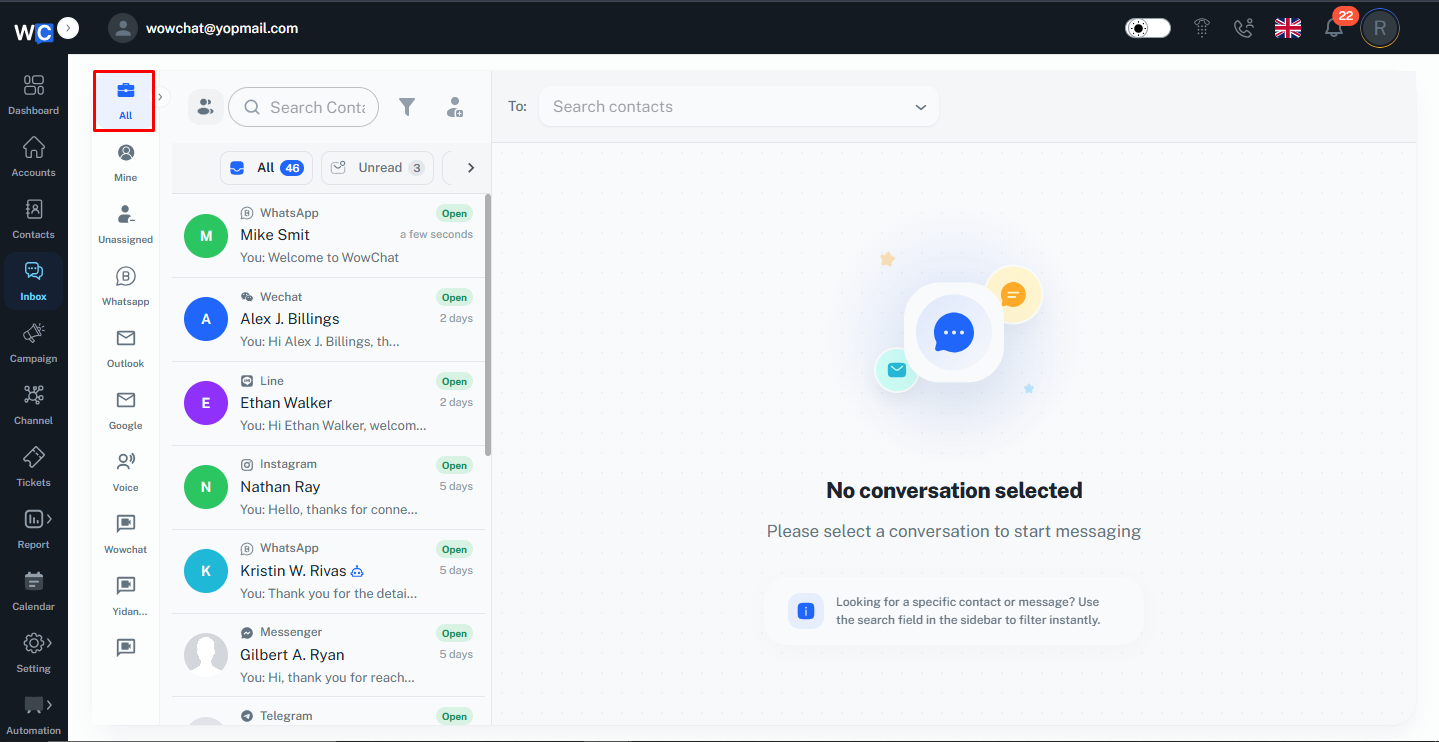
In the Inbox, you will find all connected communication channels available in the side menu. You can select All to view conversations from every connected channel in one place.
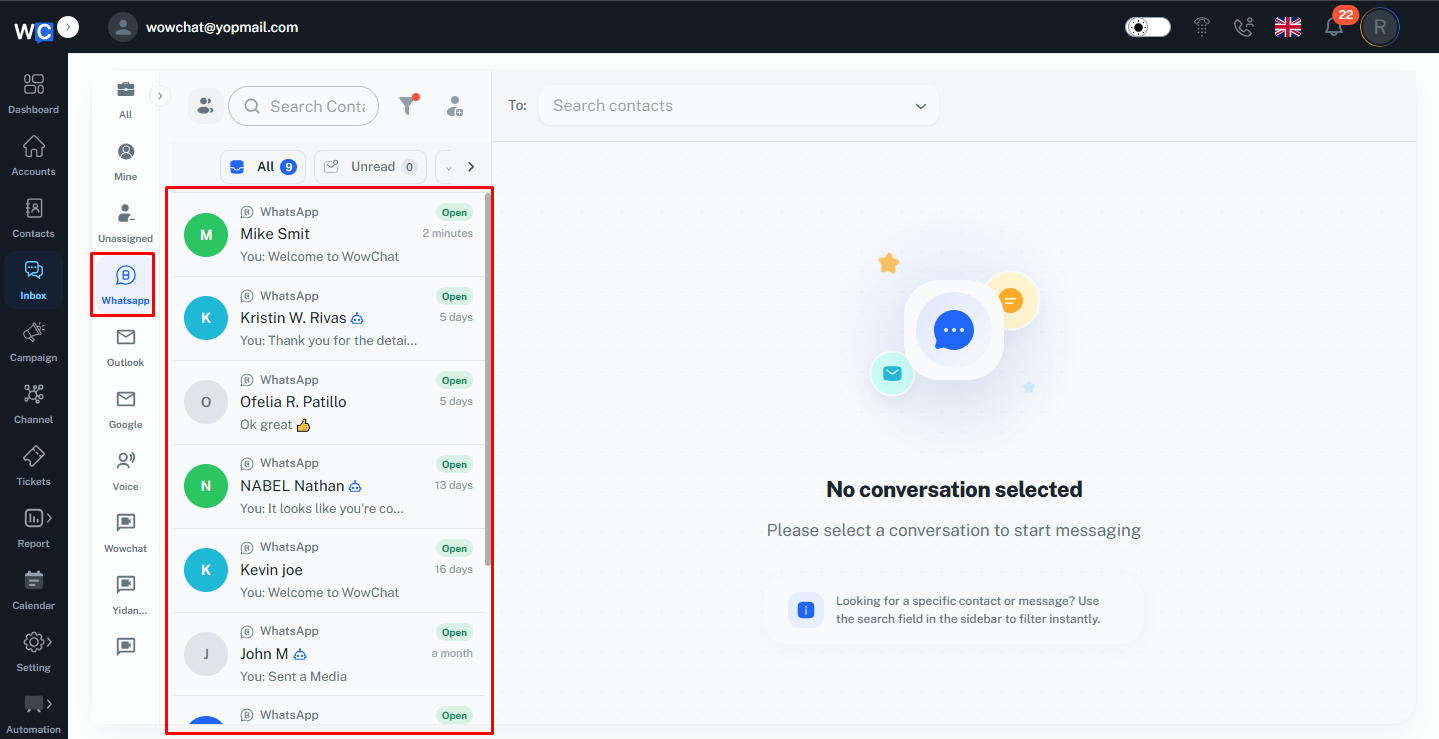
Alternatively, you can choose a specific channel to view conversations only from that platform. For example, selecting WhatsApp Business will display only WhatsApp Business conversations, allowing you to manage customer interactions from that channel.
Create a New Conversation
To start a new conversation, click on the Create New Conversation icon from the Inbox.
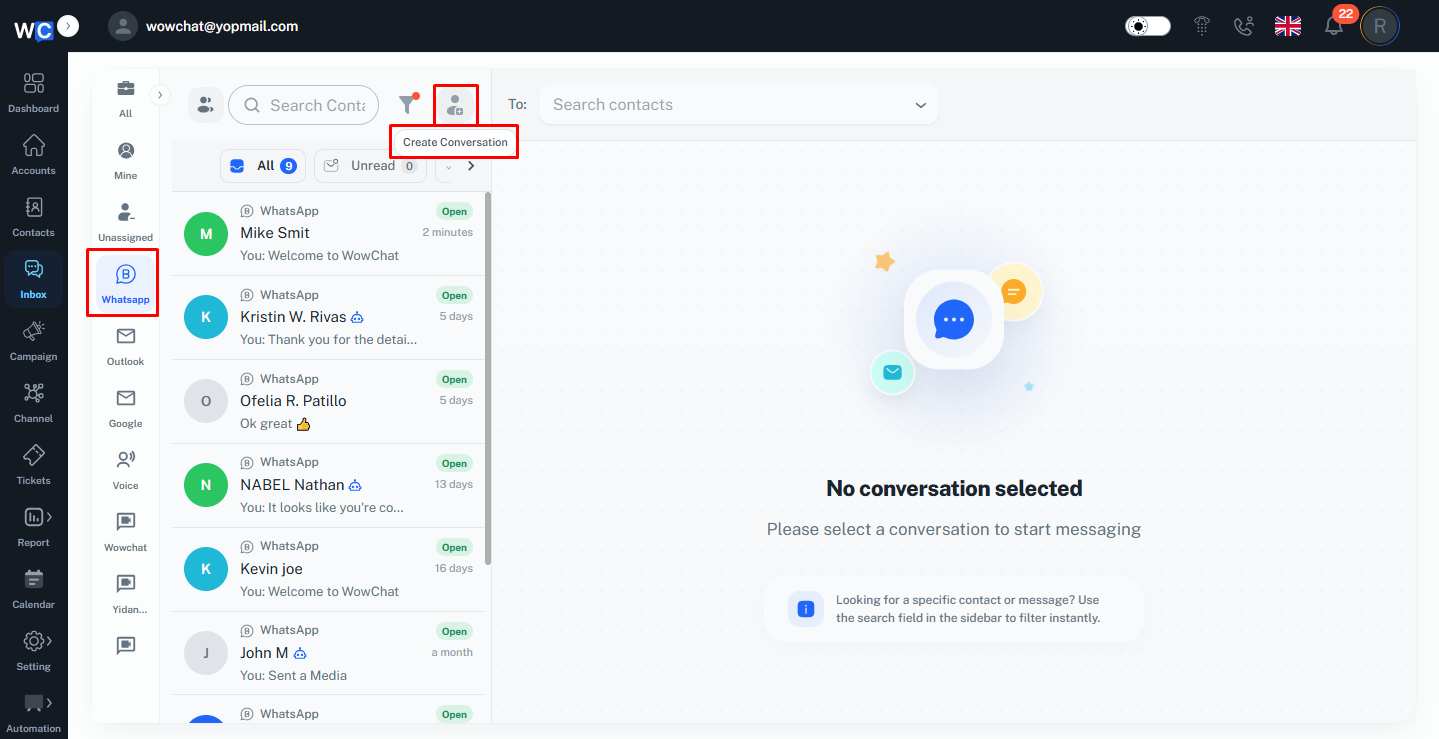
A new conversation window will open where you can select an existing contact or search for a contact using the search option.
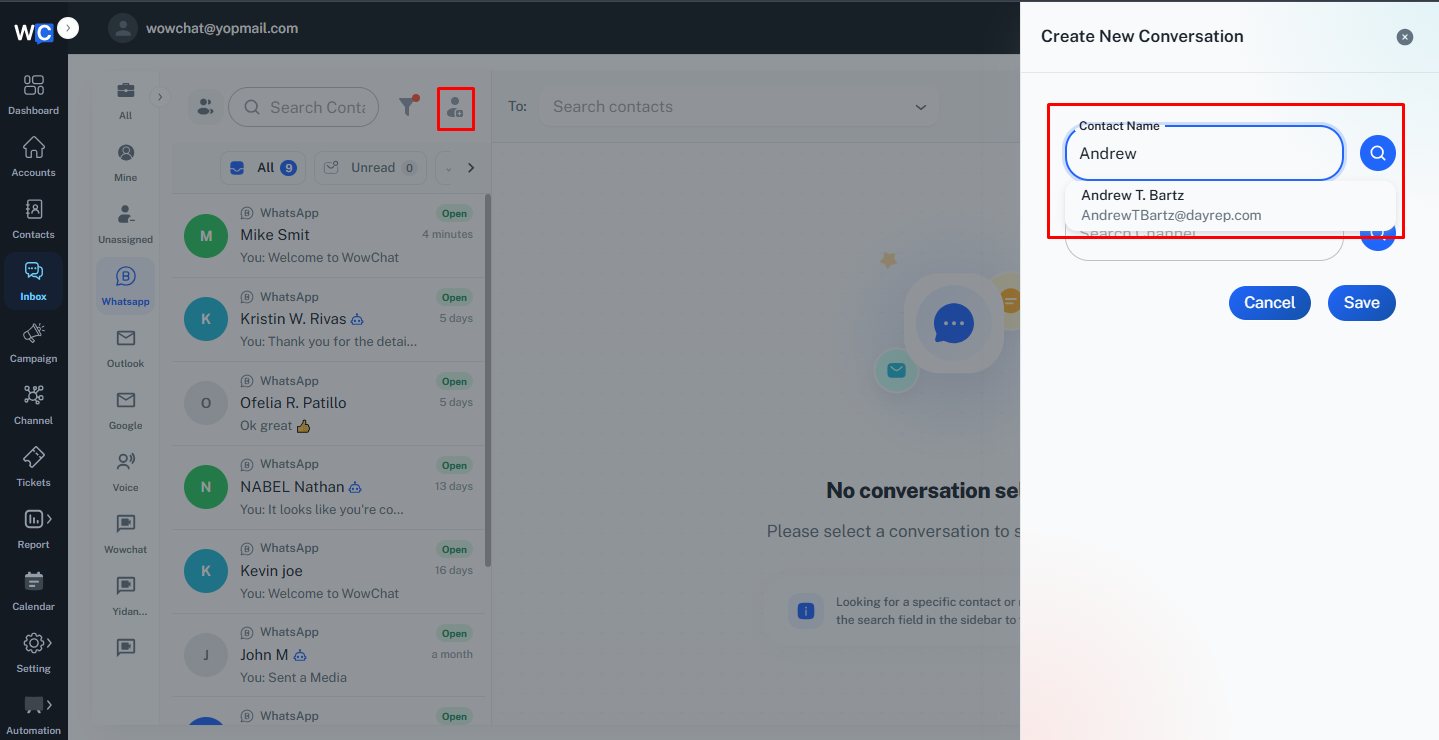
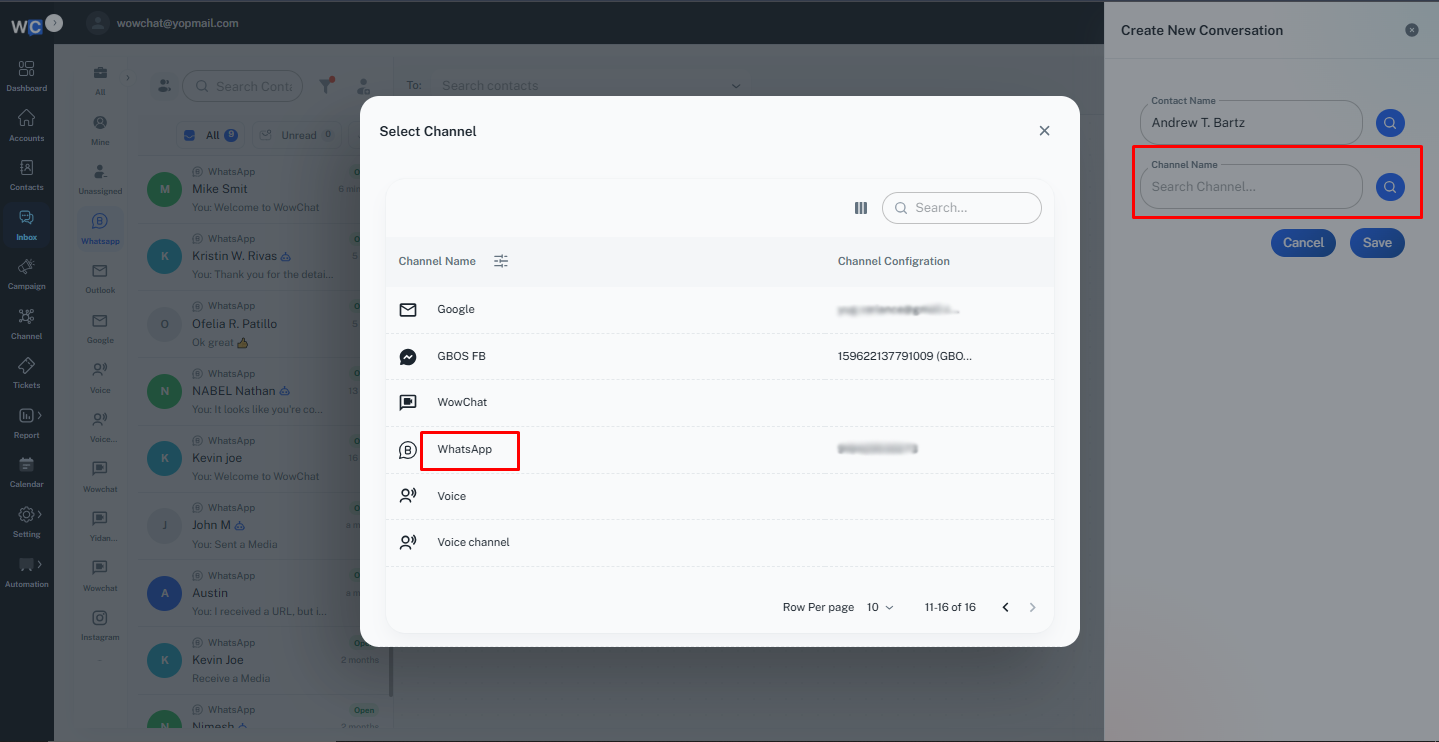
After selecting the contact, choose the communication channel you want to use for sending the message. For example, select WhatsApp Business to start the conversation through the WhatsApp Business channel.
Once the required contact and channel are selected, click on the Save button to create the conversation.
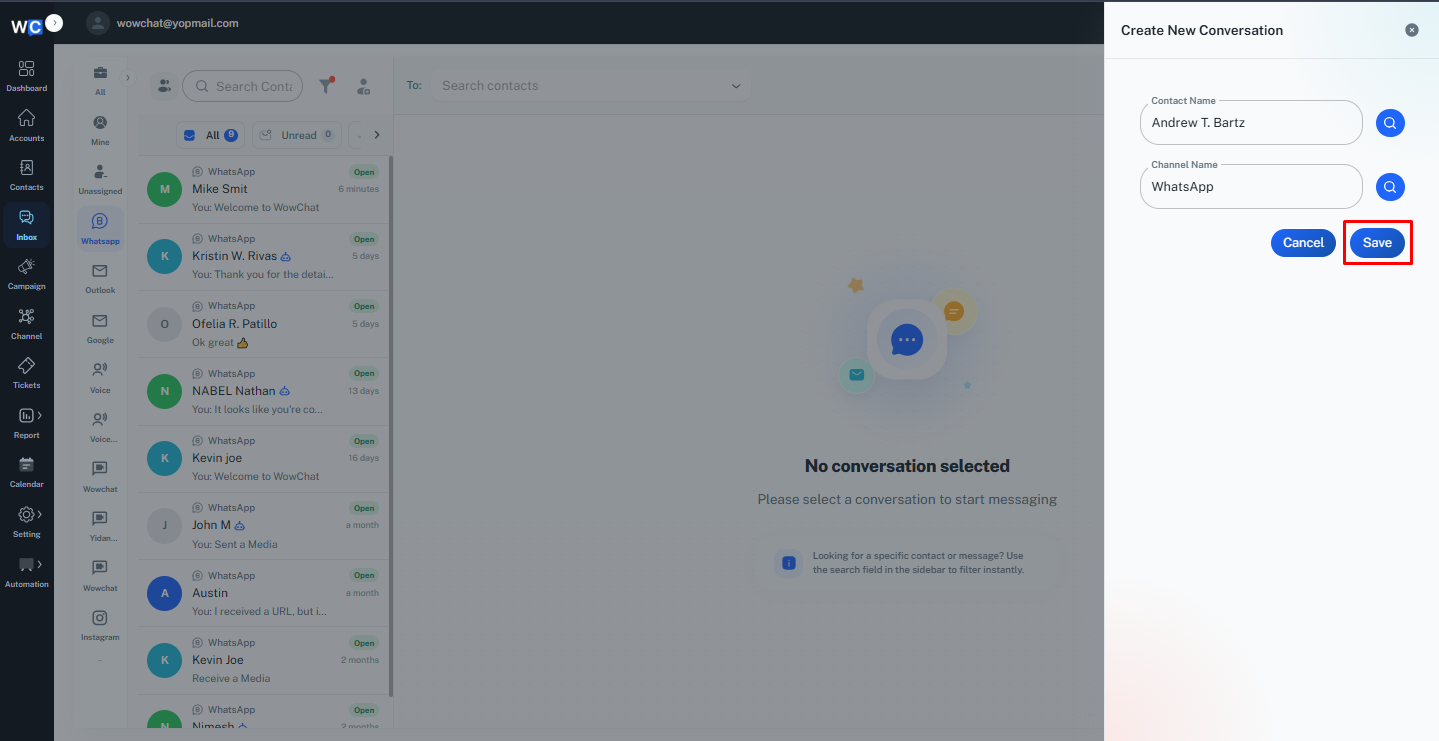
The new conversation will be created, and you can start communicating with the selected contact from the chosen channel.
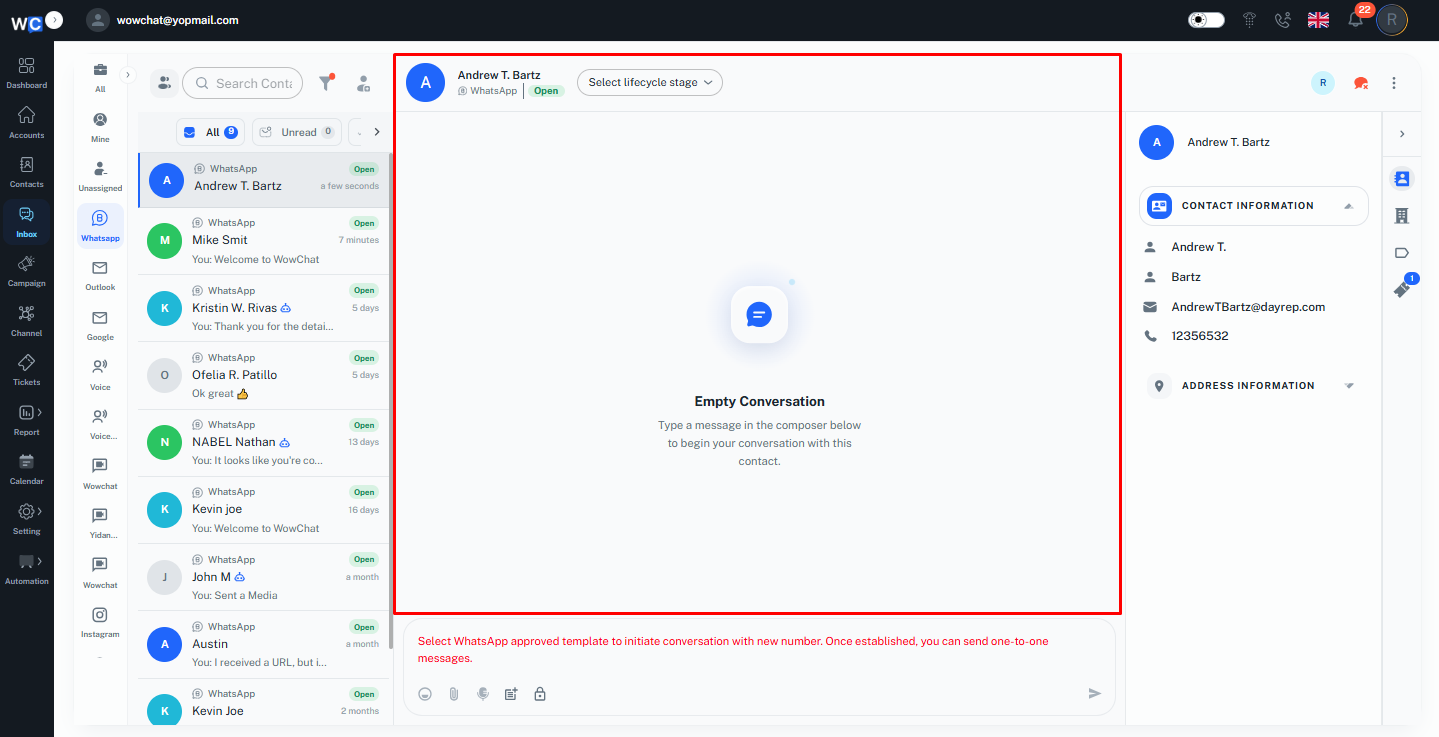
WhatsApp Business 24-Hour Conversation Window
WhatsApp Business follows a 24-hour messaging window policy for customer conversations.
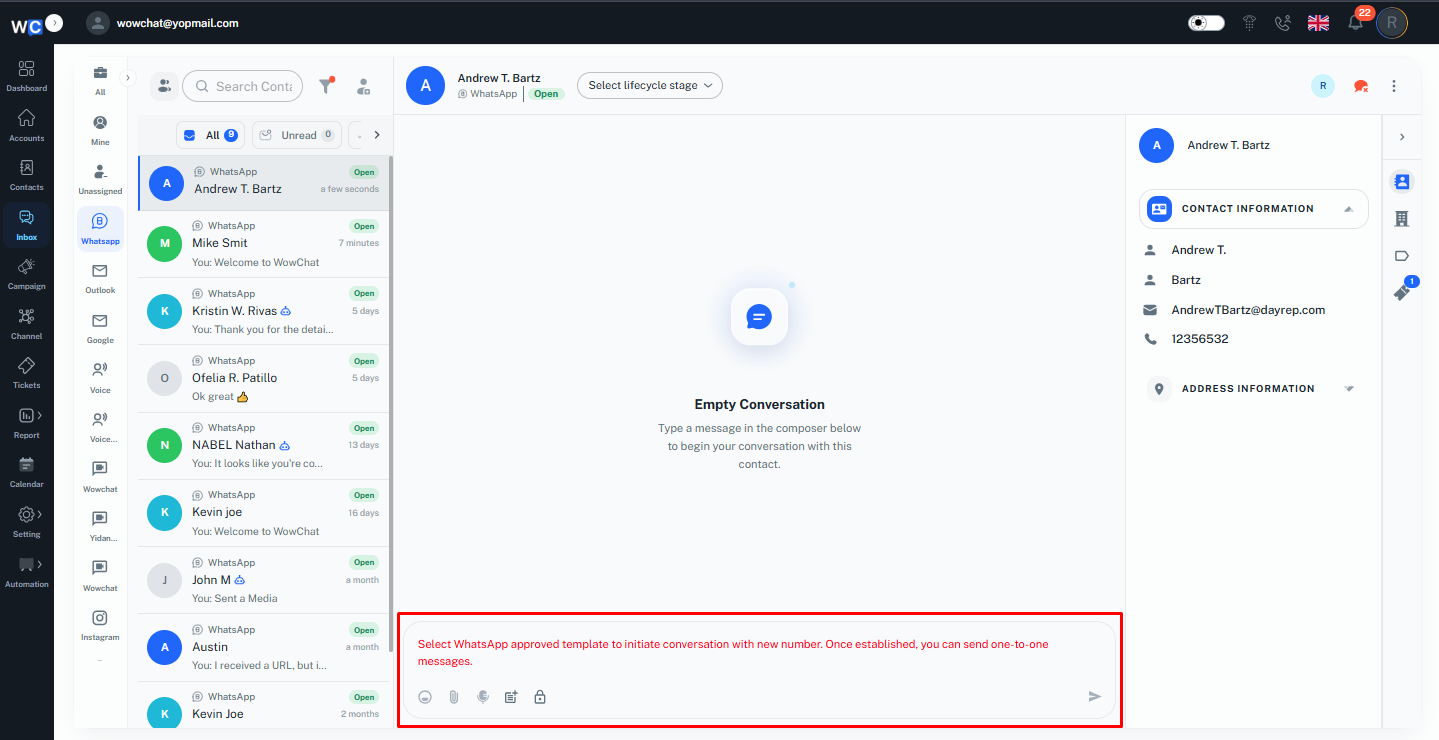
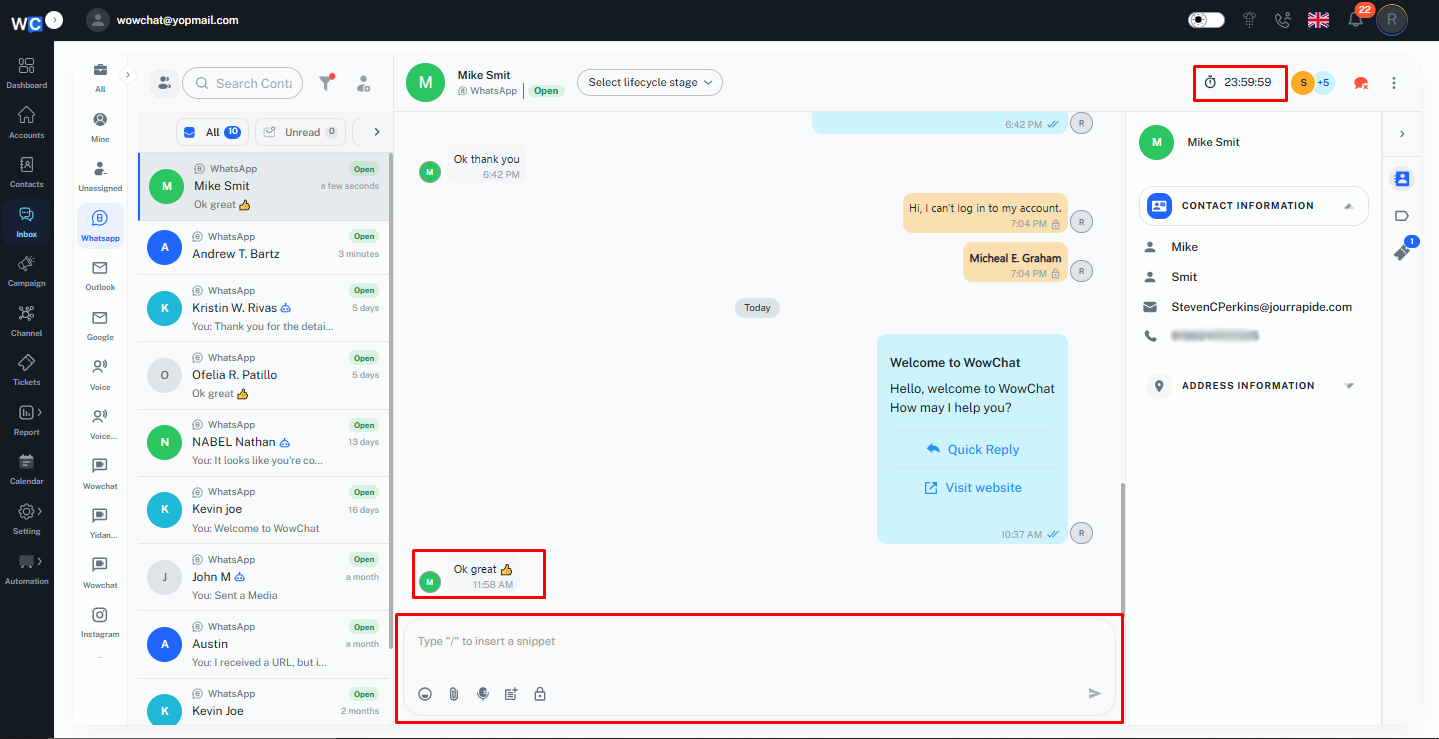
When a customer sends a message to your WhatsApp Business number, you can reply freely within the next 24 hours from the customer’s last message.
If you want to start a new conversation with a customer, or if the 24-hour window has expired, you must first send an approved WhatsApp Business Template Message.
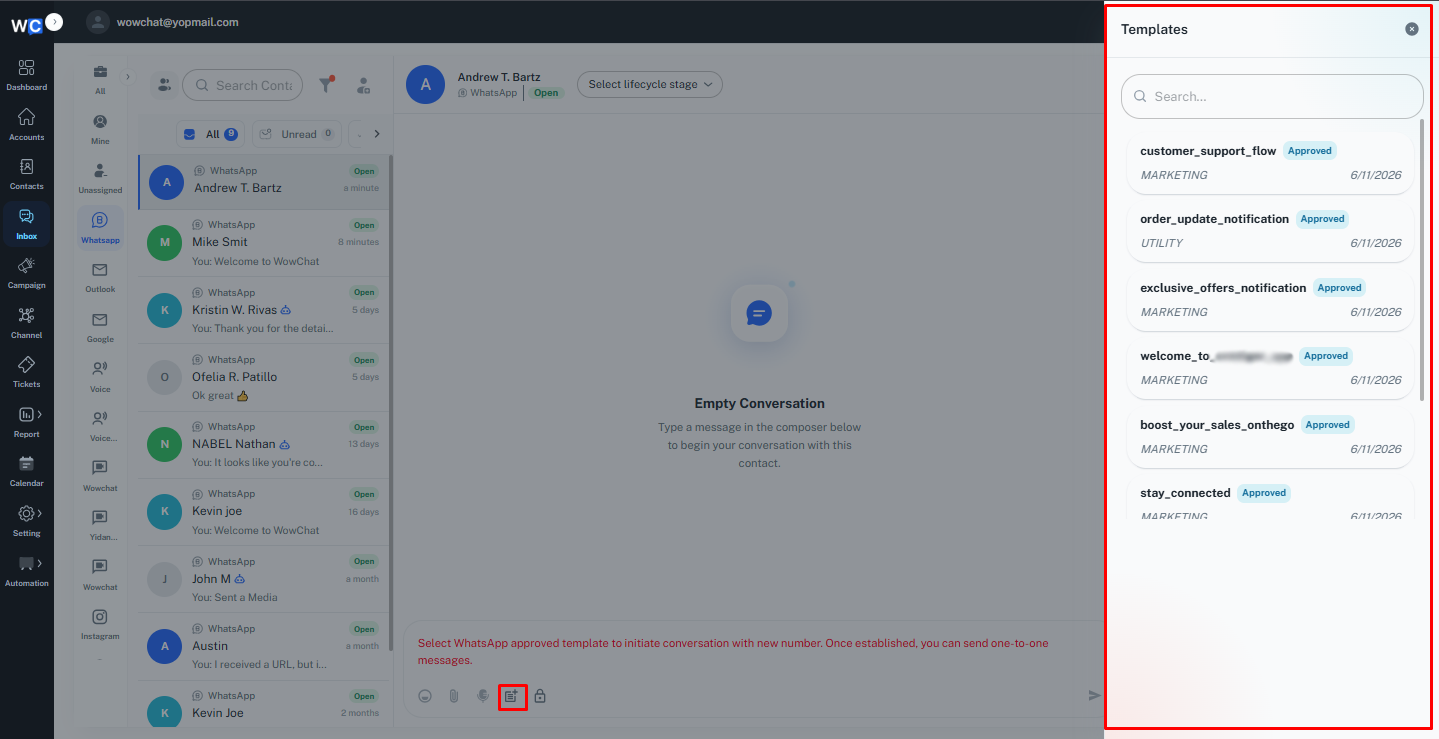
Once the customer receives the template message and responds, the 24-hour conversation window will open again, allowing you to continue the conversation through regular messages.
Note: Template messages can only be sent after they are approved by Meta. Only approved templates can be used to initiate conversations outside the 24-hour window.
Manage Records from Chat Window
Users can access the related record information directly from the chat window.By clicking on the Arrow Icon, the record details panel will open, allowing users to view the available information associated with the conversation.
Users can also update or modify the record details directly from the chat window by editing the required fields.
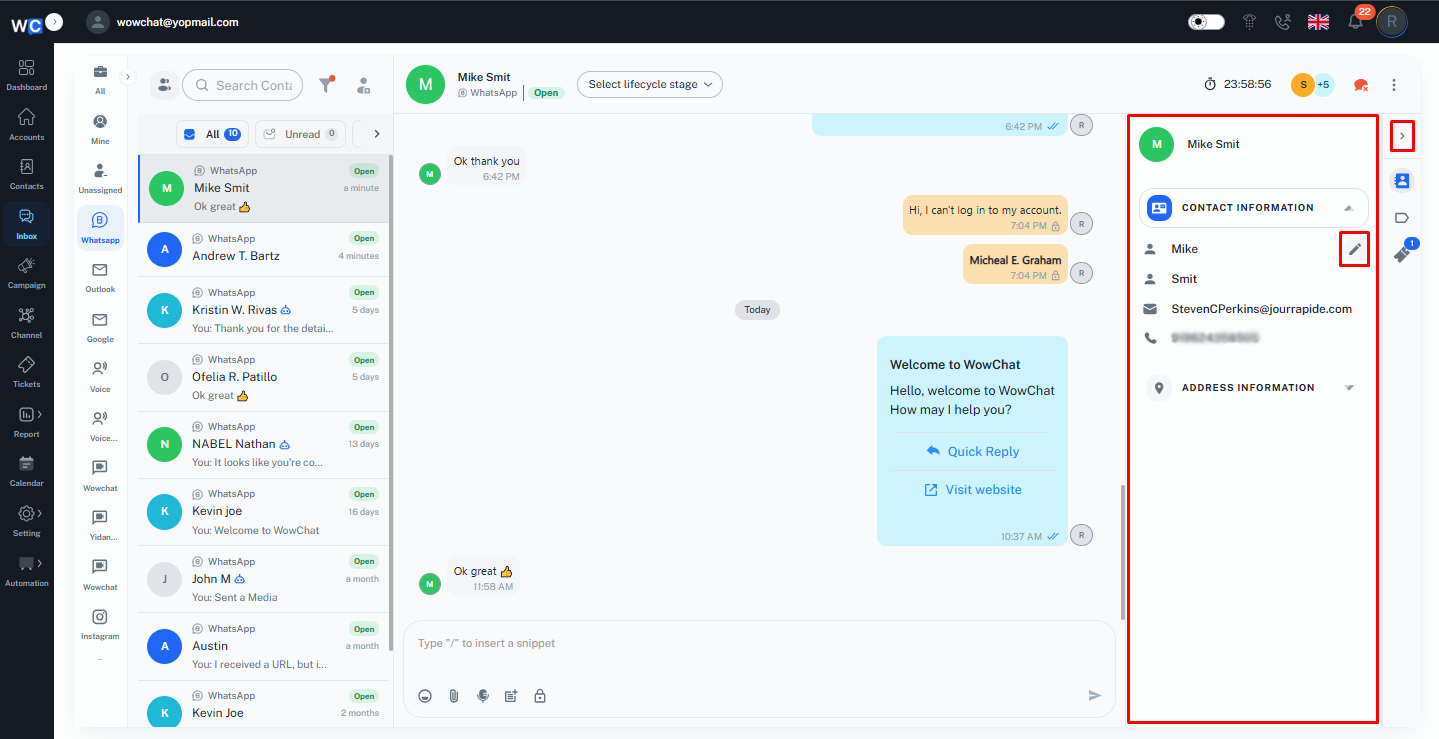
This allows users to manage customer information efficiently without leaving the conversation screen.Users can manage customer records directly from the chat window by using quick actions.
From the chat window, users can add labels to categorize and organize conversations based on requirements. Labels help teams easily identify, filter, and manage customer interactions.
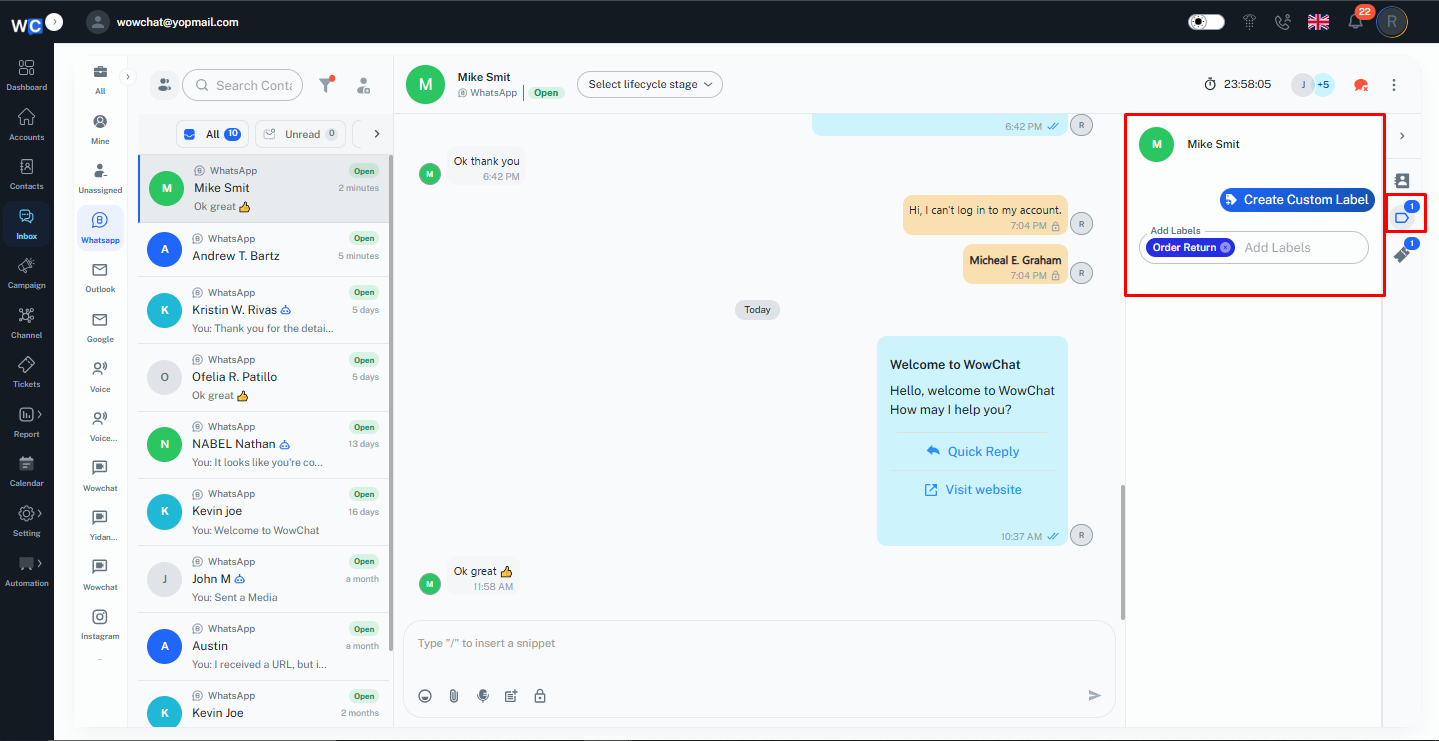
Users can also create tickets directly from the chat window to track customer issues, requests, or follow-ups efficiently.
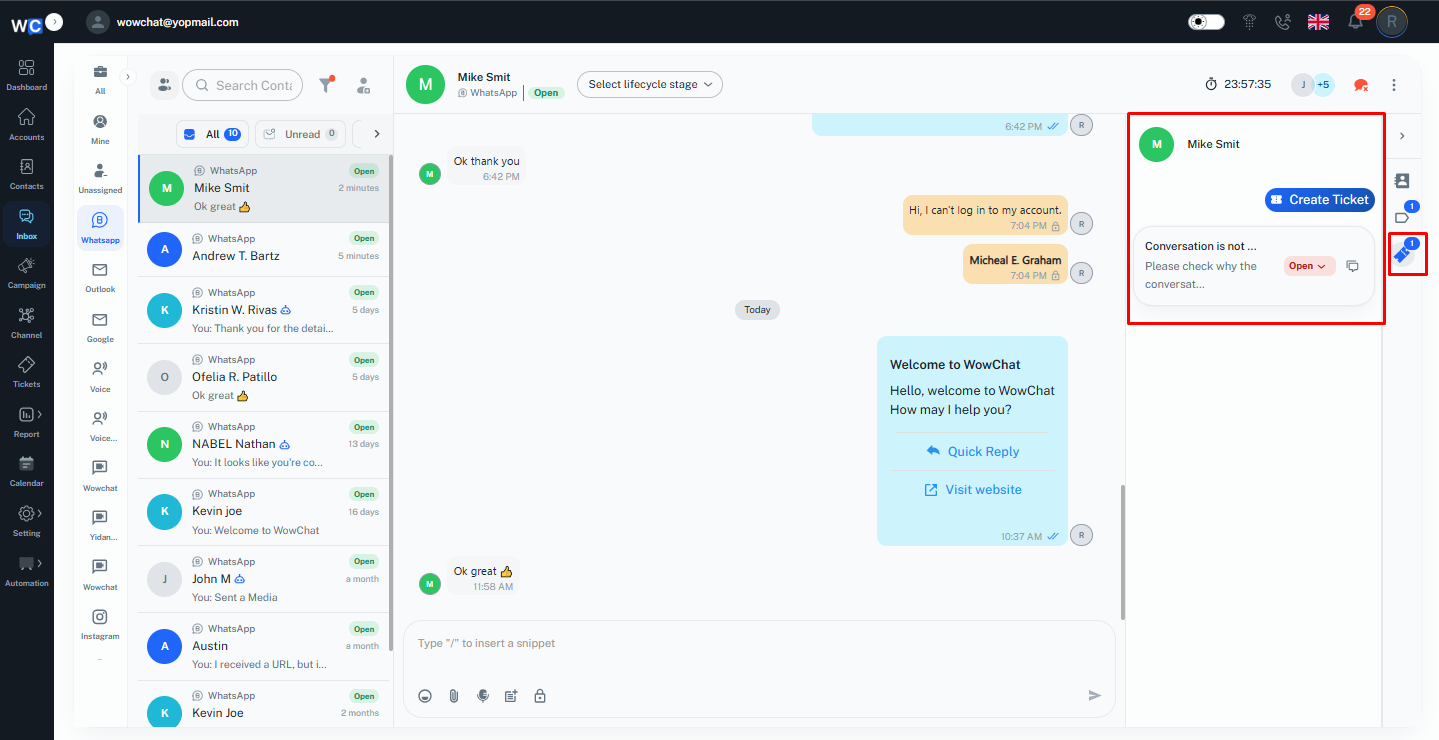
These quick actions help users manage conversations, customer details, and support activities without leaving the chat interface
The chat window provides various quick actions that help users manage and continue conversations efficiently.Users can use options such as Emojis, Attachments, Audio Messages, Templates, and Internal Notes to interact with customers in different ways.
- Emojis – Add reactions and make conversations more engaging.
- Attachments – Share files, images, or required documents with customers.
- Audio Messages – Send voice messages for faster communication.
- Templates – Send approved WhatsApp Business template messages when required.
- Internal Notes – Add private notes for team members to share important information without sending it to the customer.
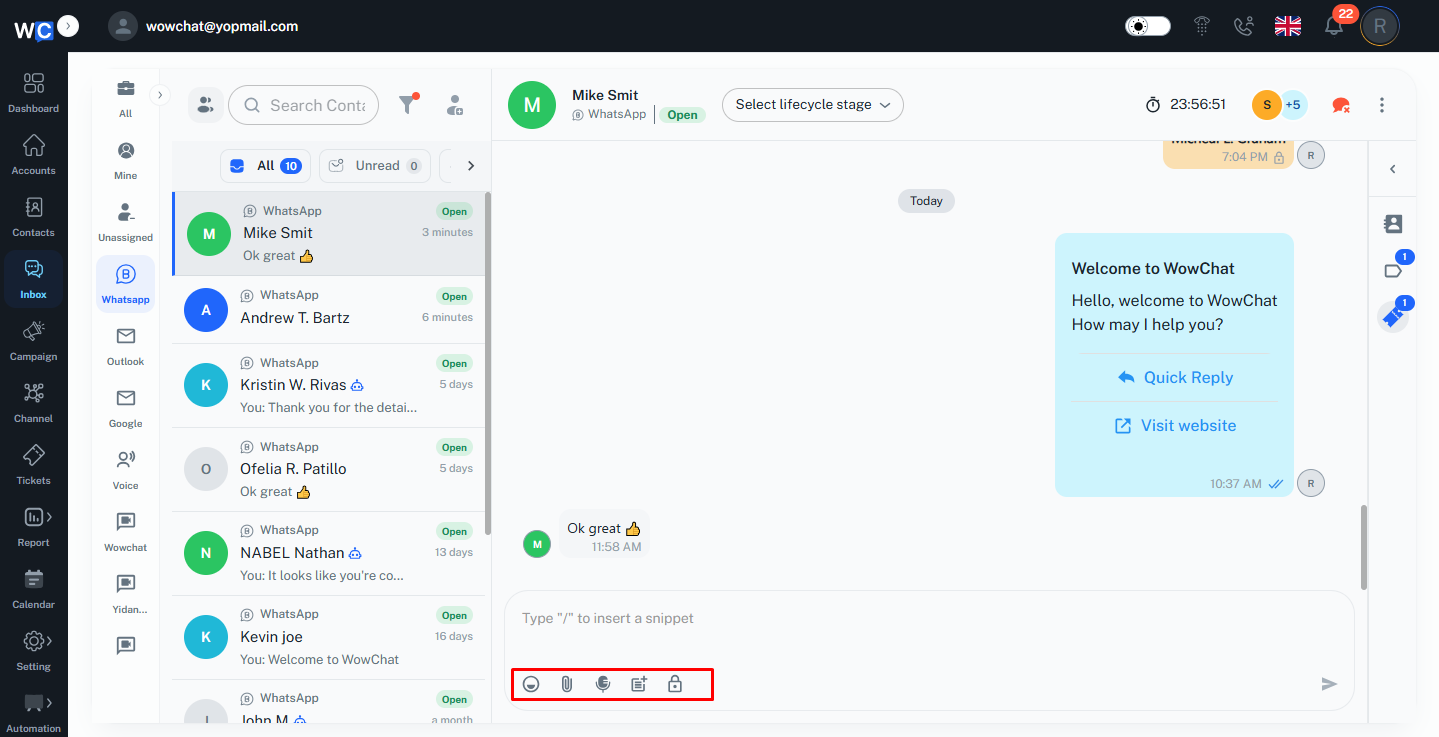
These quick actions help users communicate effectively and manage customer interactions directly from the chat window.Users can quickly add predefined messages to the conversation by using Snippets.By typing “/” in the chat box, the available snippets will appear. Users can select the required snippet, and the saved message will be added directly into the chat.
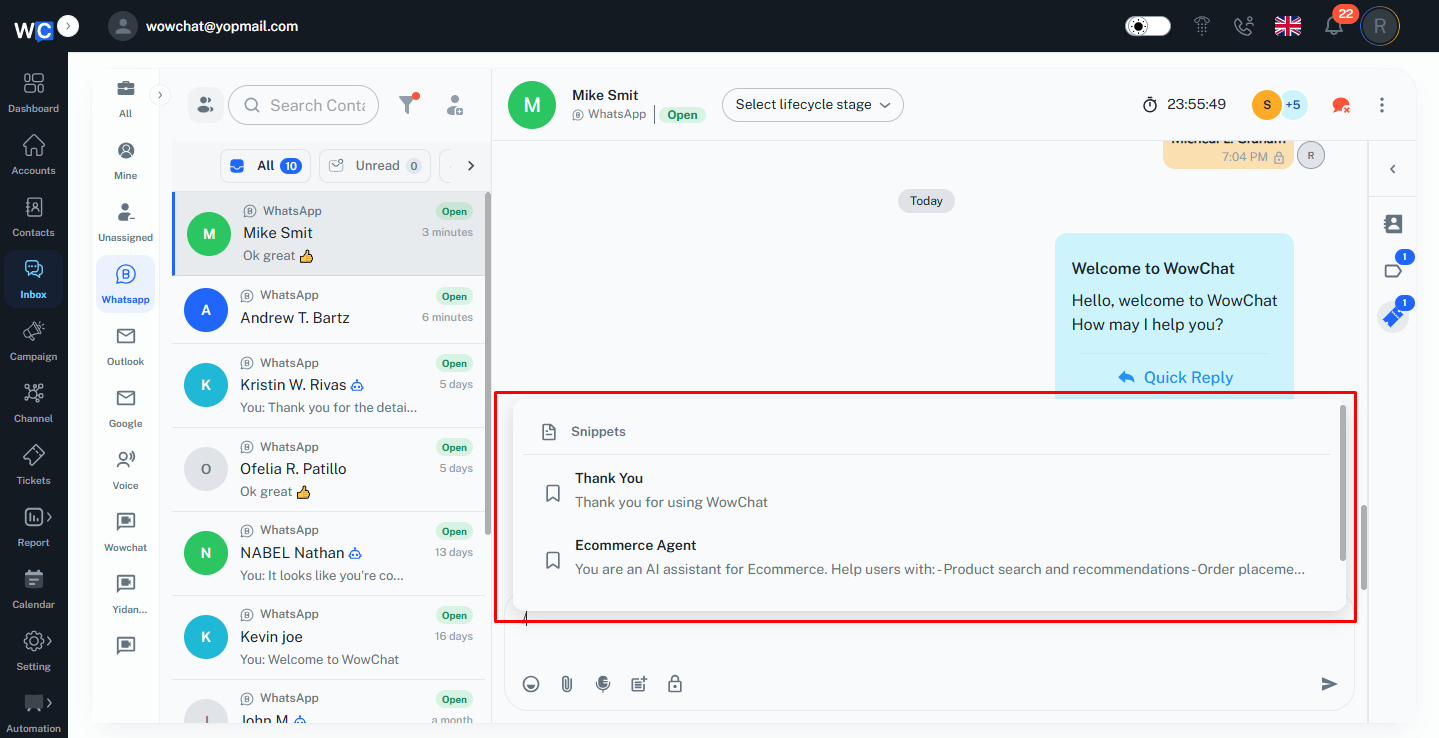
This helps users save time by reusing frequently sent responses while managing customer conversations.
Note: New conversations can be created directly from WowChat only for WhatsApp Business and Email channels. For other channels, the conversation starts when the customer sends the first message, which will then appear in the WowChat Inbox for further communication.
Email Channel
The Email Channel in WowChat allows users to manage customer email conversations directly from the unified Inbox.
By connecting the Email channel, users can send, receive, and manage customer emails from the same workspace along with other communication channels. This helps teams keep all customer interactions organized and provide faster responses without switching between different email platforms.
Note: To configure and connect the communication channel, refer to the Channel Configuration Guide by clicking on the link.
Users can select the Google channel from the Inbox side menu to view only email conversations or choose All Channels to manage emails along with other connected channels.
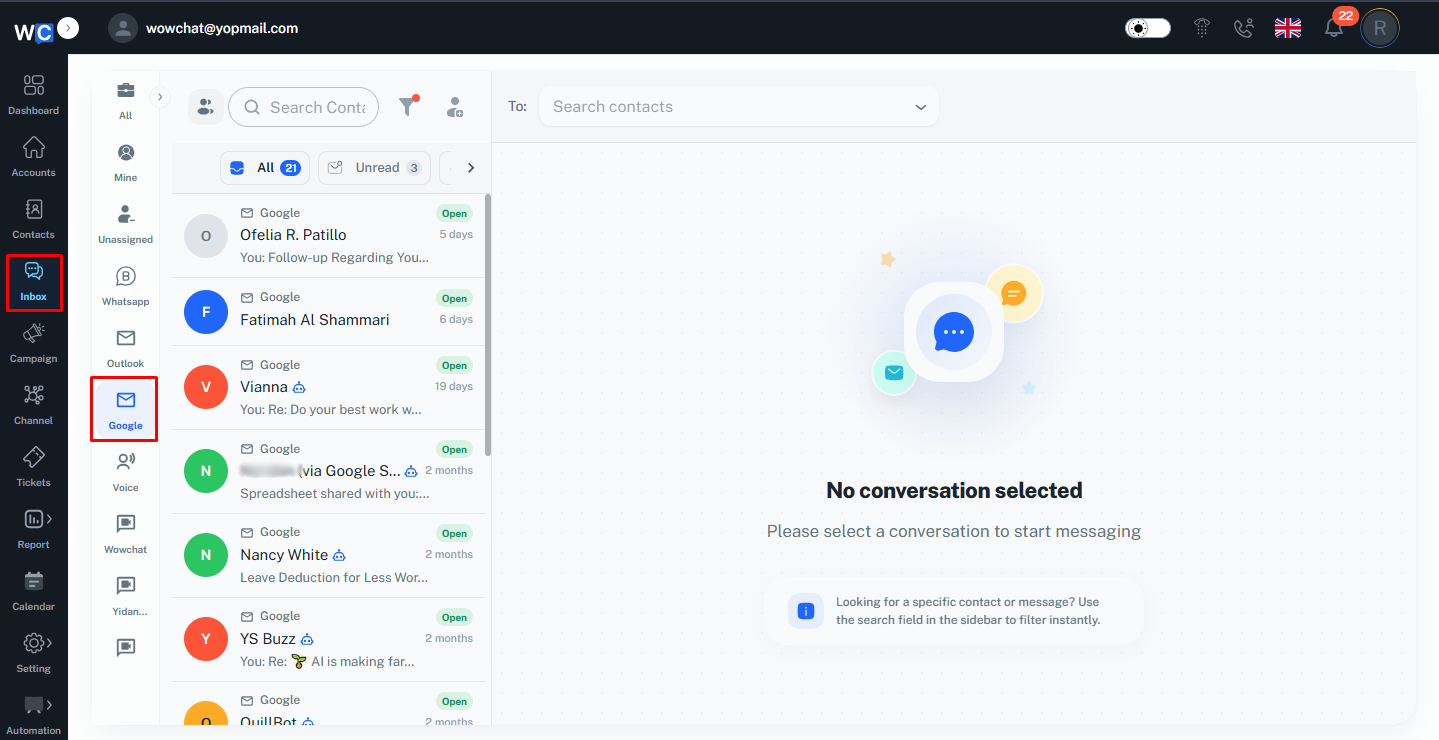
With Email Channel, users can:
- View and reply to customer emails
- Manage ongoing email conversations
- Add notes, labels, and tickets for better tracking
- Collaborate with team members from a single platform
This helps businesses streamline email communication and maintain a complete view of customer interactions.
Create a New Email Conversation
To start a new email conversation, go to the Inbox section and click on the Create New Conversation icon.
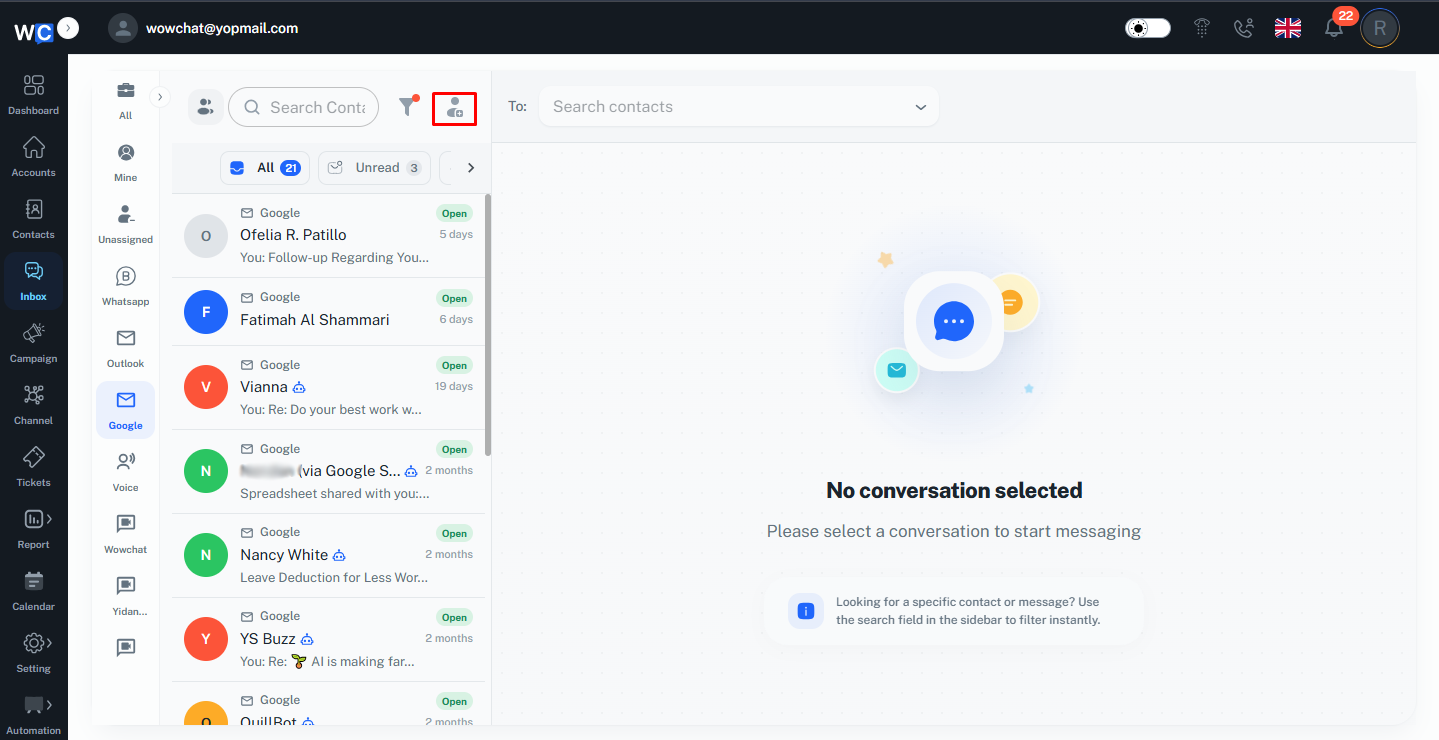
A new conversation window will open where you can select an existing contact or search for a contact using the search option.After selecting the contact, choose the Email channel to start the conversation through email.
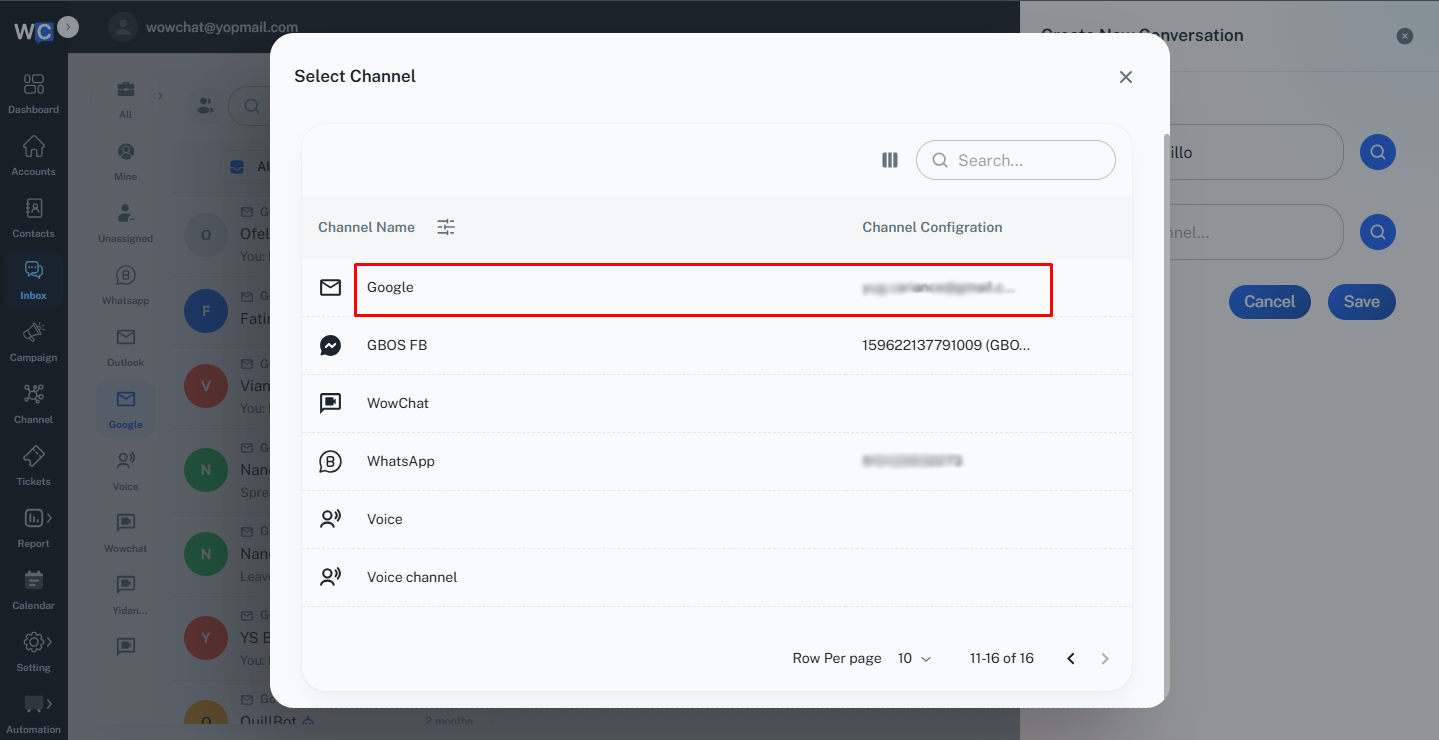
After the required email details, then click on the Save button to create the conversation.
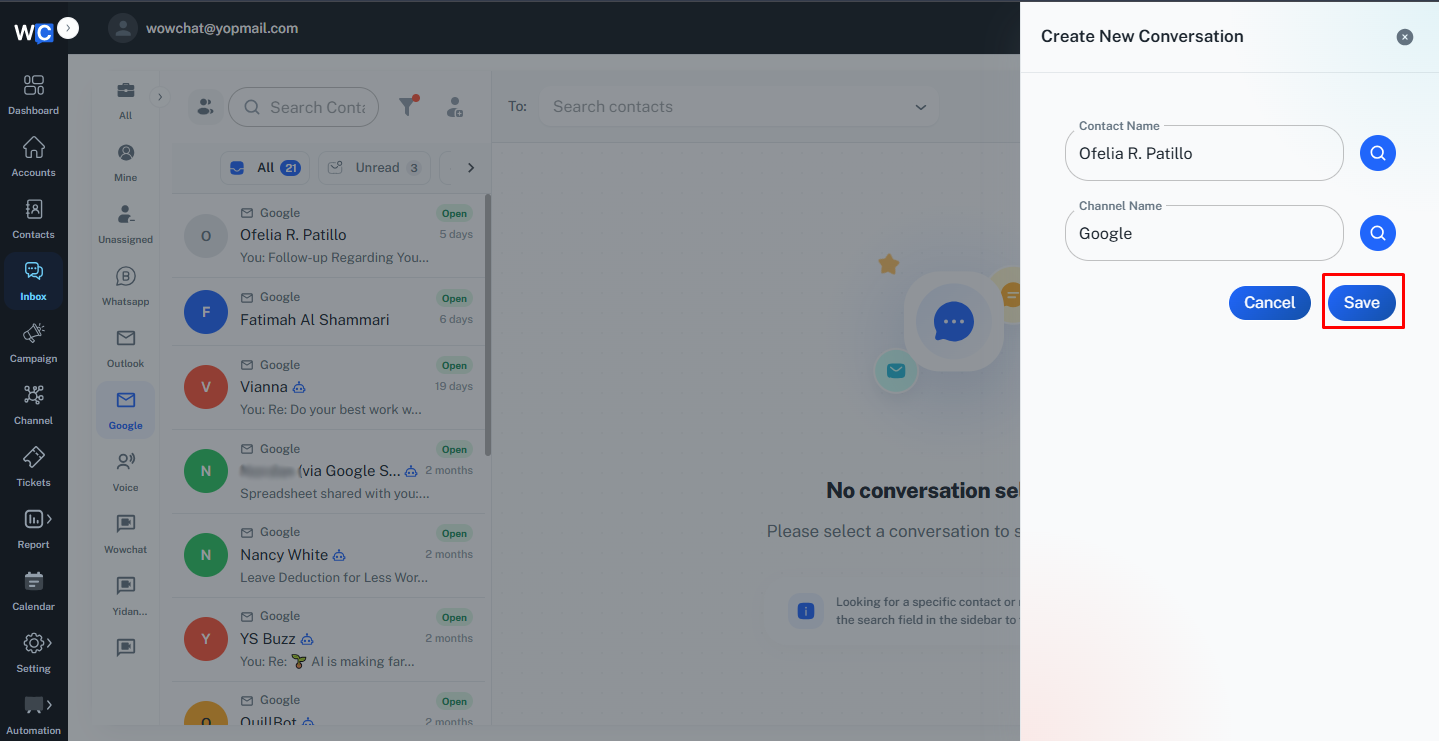
The new email conversation will be created, and you can continue managing the customer interaction directly from the Inbox.
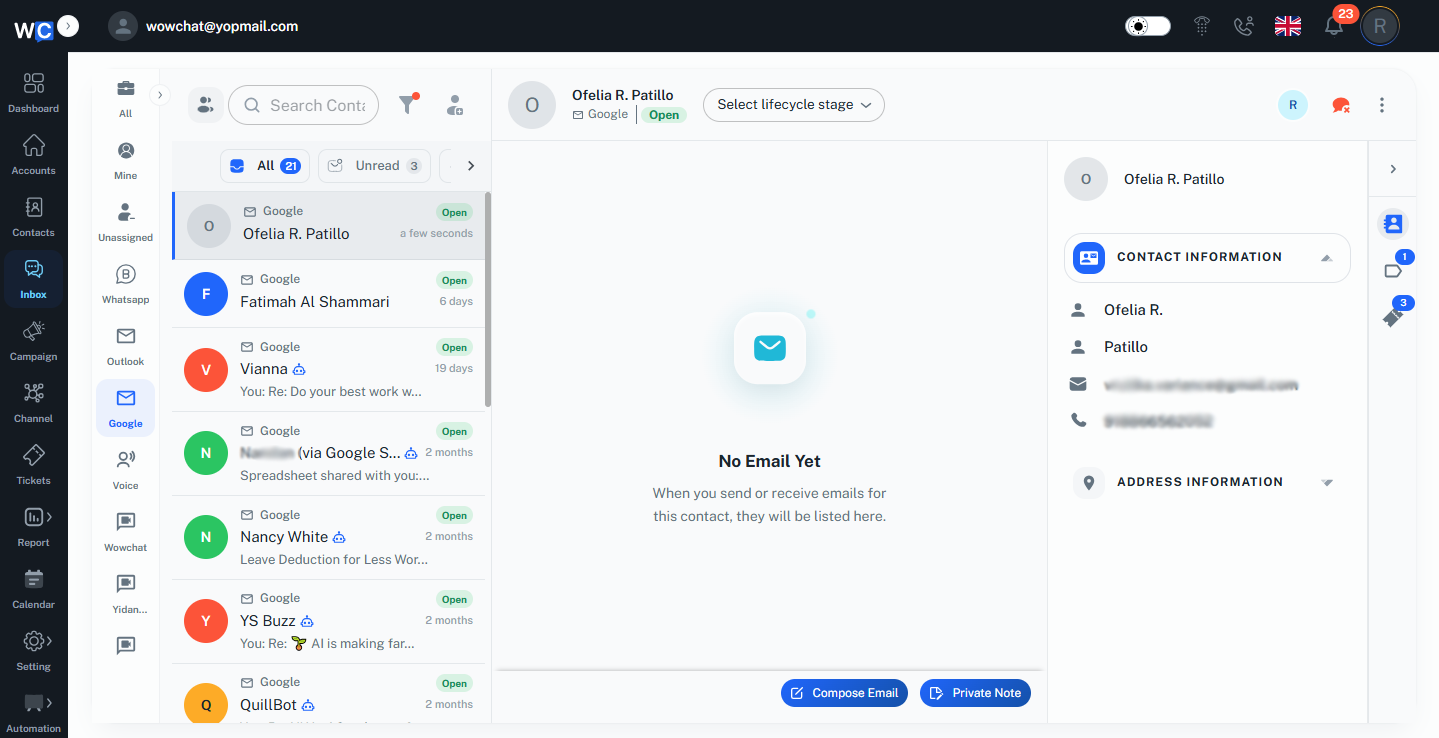
To send a new email, click on the Compose Mail button from the Email channel.A new email composition window will open where you can draft and manage your email message.Here, you can add the recipient details, enter the email subject, write the message content, and attach files if required.
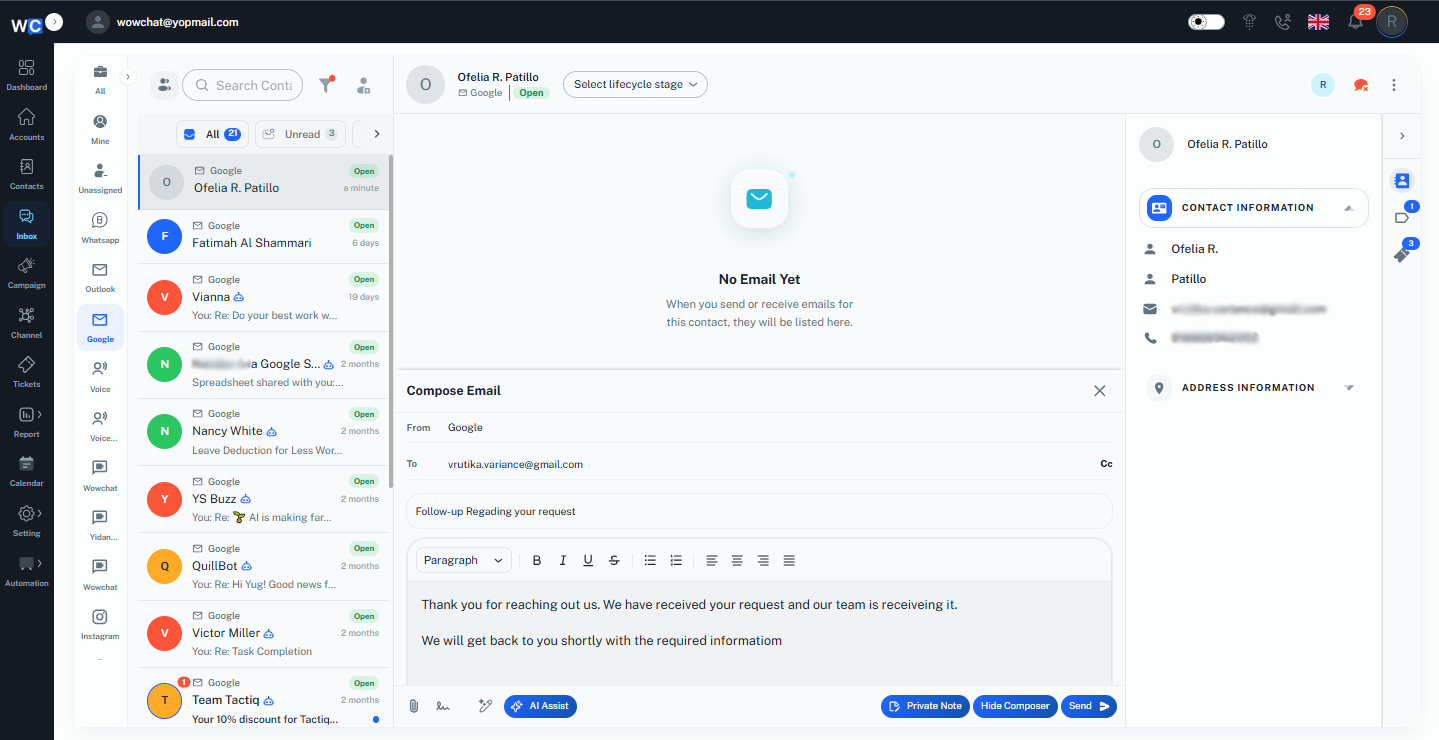
The Compose Email section provides quick actions that help users create and manage emails more efficiently.Users can use available options such as:
- Add Signature – Automatically add a predefined email signature to maintain consistent communication.
- Generate Replies – Create suggested responses to quickly reply to customer emails.
- AI Assistance – Use AI-powered support to improve email content, generate responses, and enhance communication.
These quick actions help users save time, improve email quality, and manage customer communication more effectively.
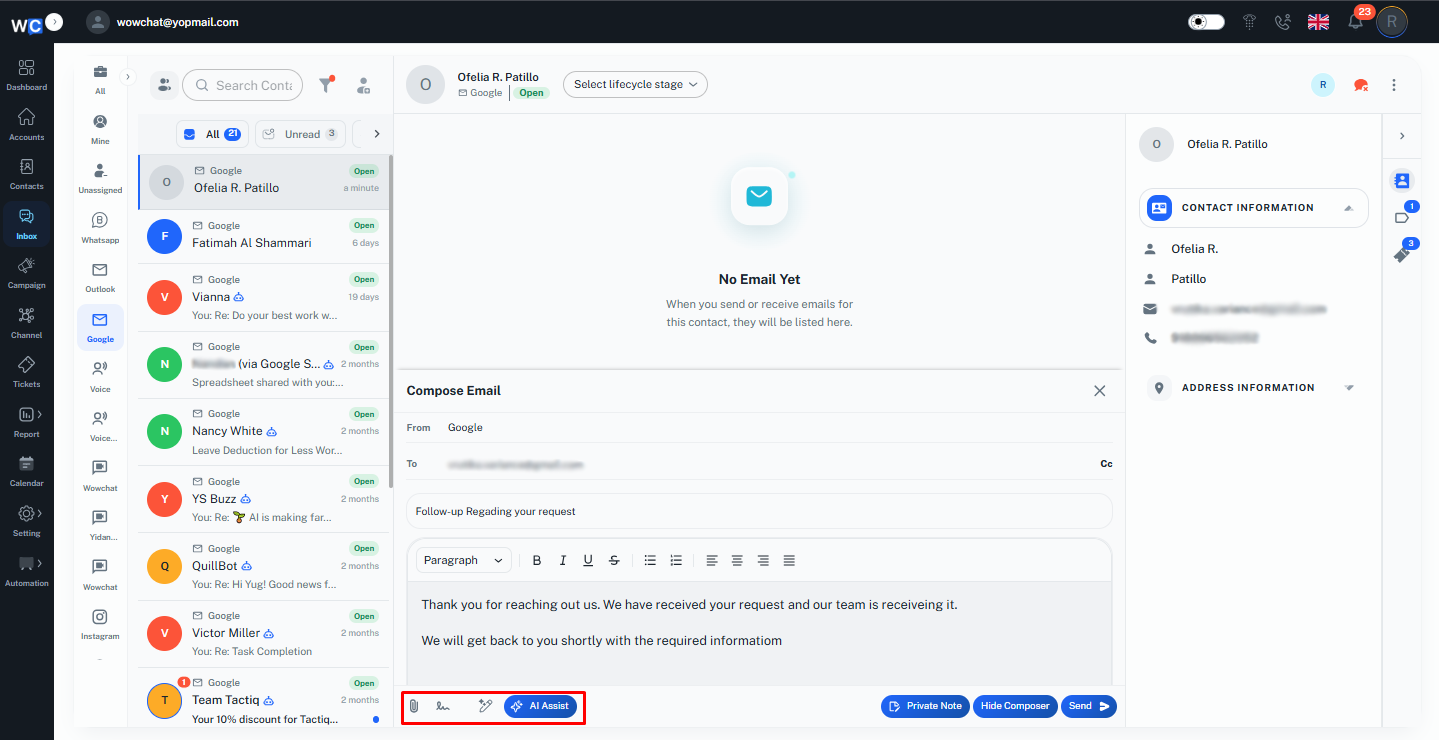
While composing an email, users can access additional options to manage the email workflow effectively.Users can add a Private Note to keep internal information or updates visible only to team members and not shared with the customer.Users can also use the option to Hide the Compose Section when needed to focus on the conversation history. Once the email is ready, they can click the Send button to deliver the message to the customer.
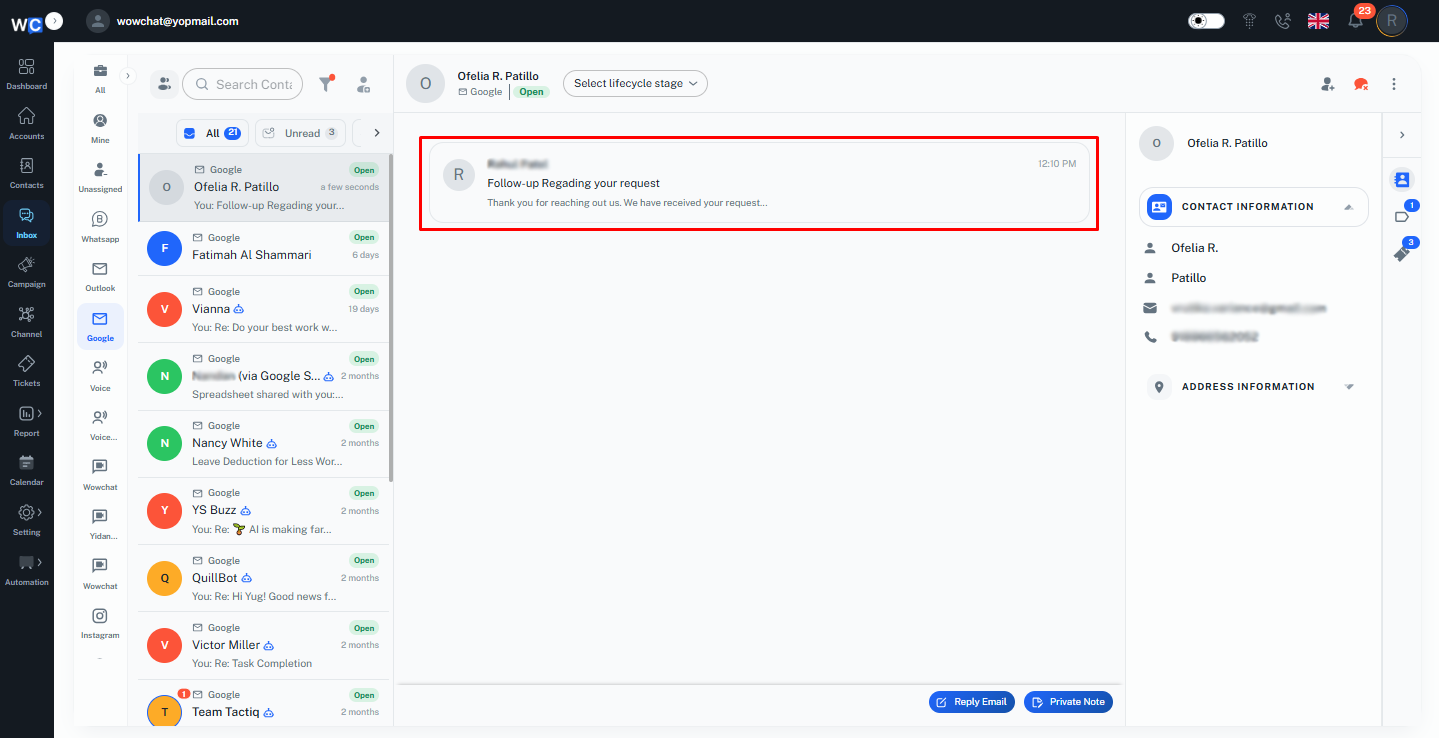
Once the email content is completed, click on the Send button to deliver the email to the customer.After sending the email successfully, the sent message will appear in the conversation thread, allowing users to view the complete email history and continue the interaction from the same chat window.
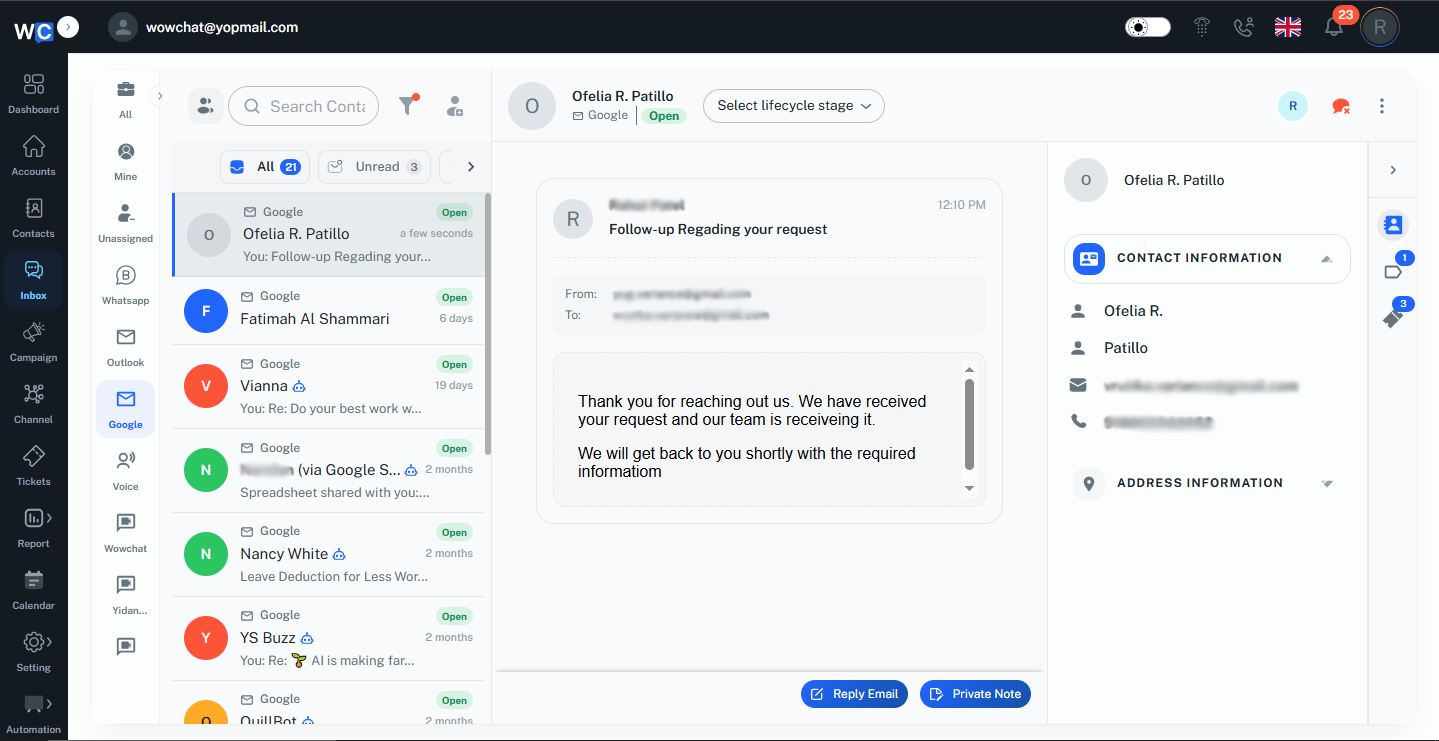
Users can click on the sent email from the conversation thread to view the complete email details.The email preview will display the full message content, including the email body and other available details, allowing users to review the communication history.
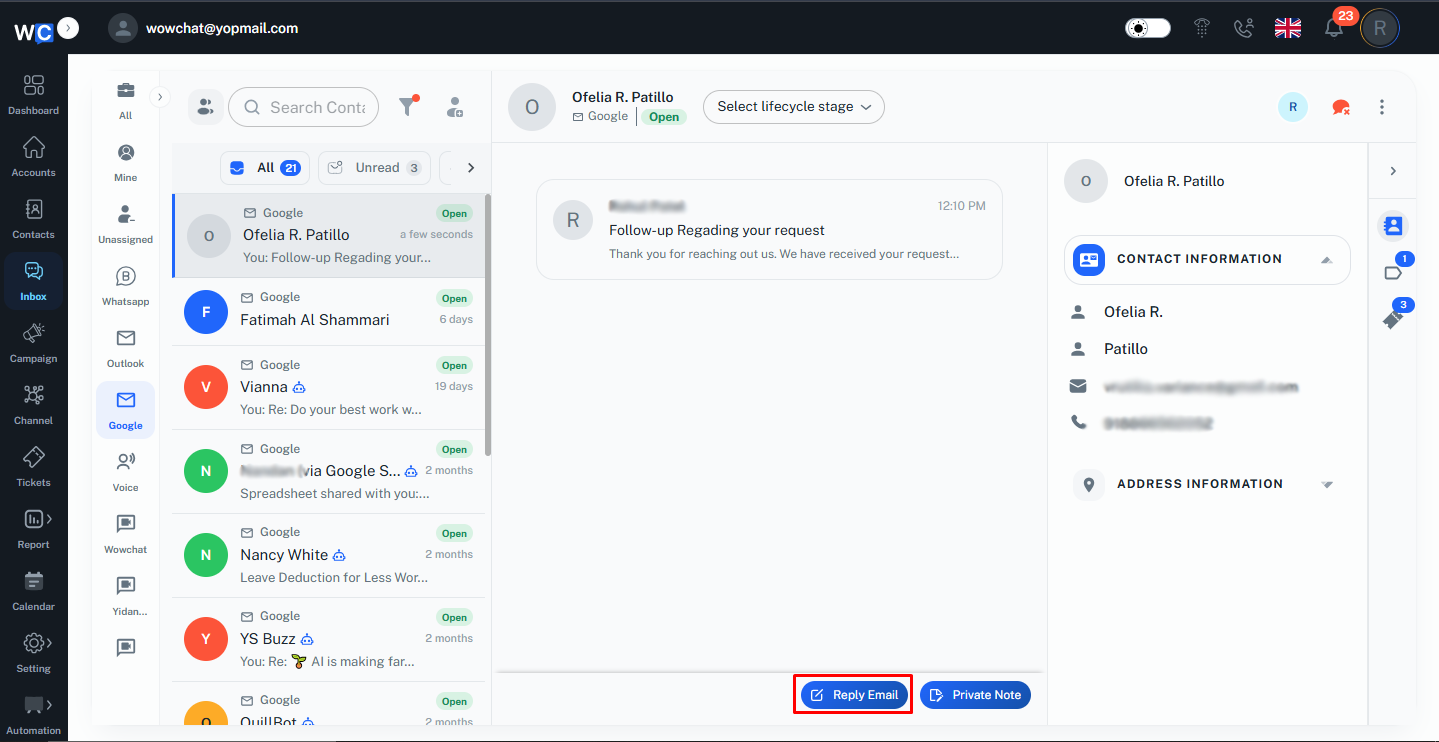
The chat window provides a Reply option that allows users to respond directly to the latest email received from the customer.When the user clicks on the Reply button, the email composer will open automatically with the customer's email address added as the recipient.Users can enter their response, use available compose options if required, and send the email directly from the conversation window.
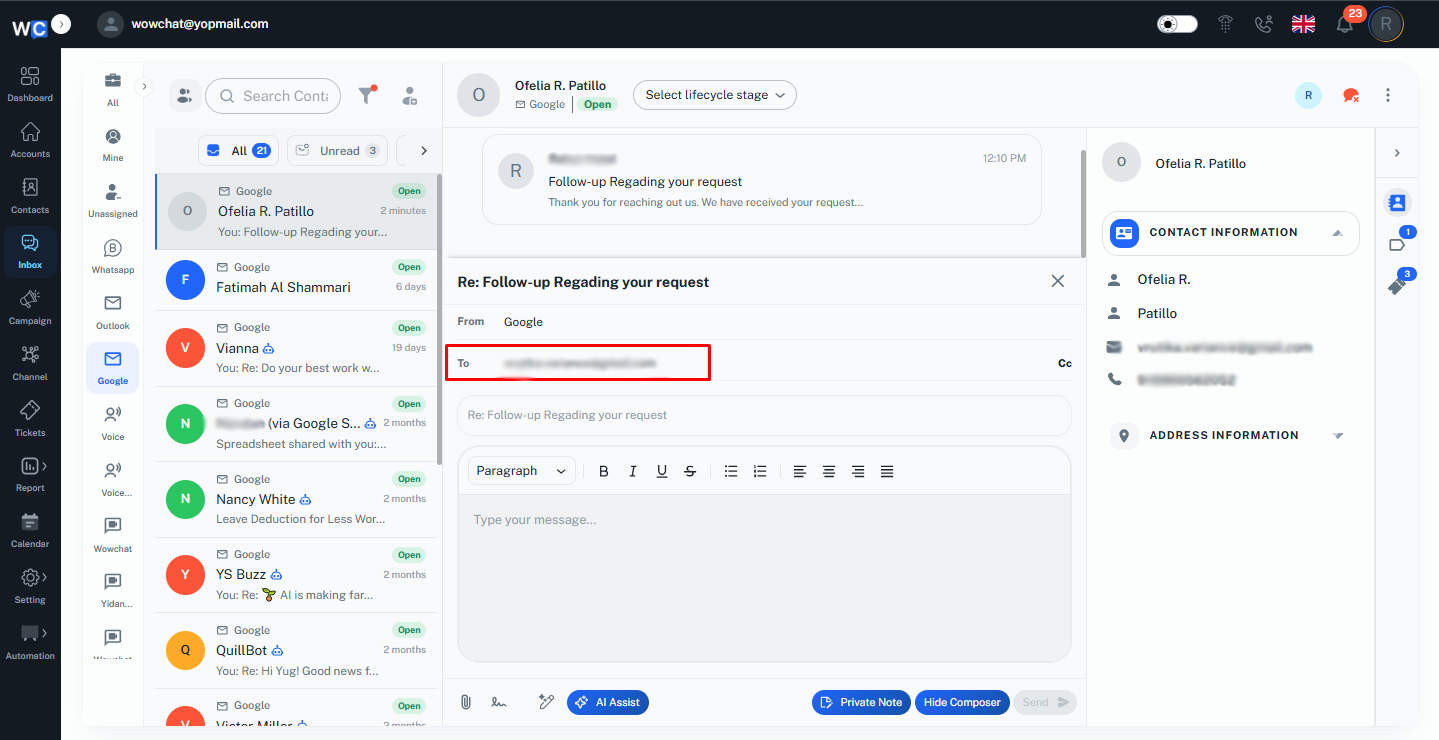
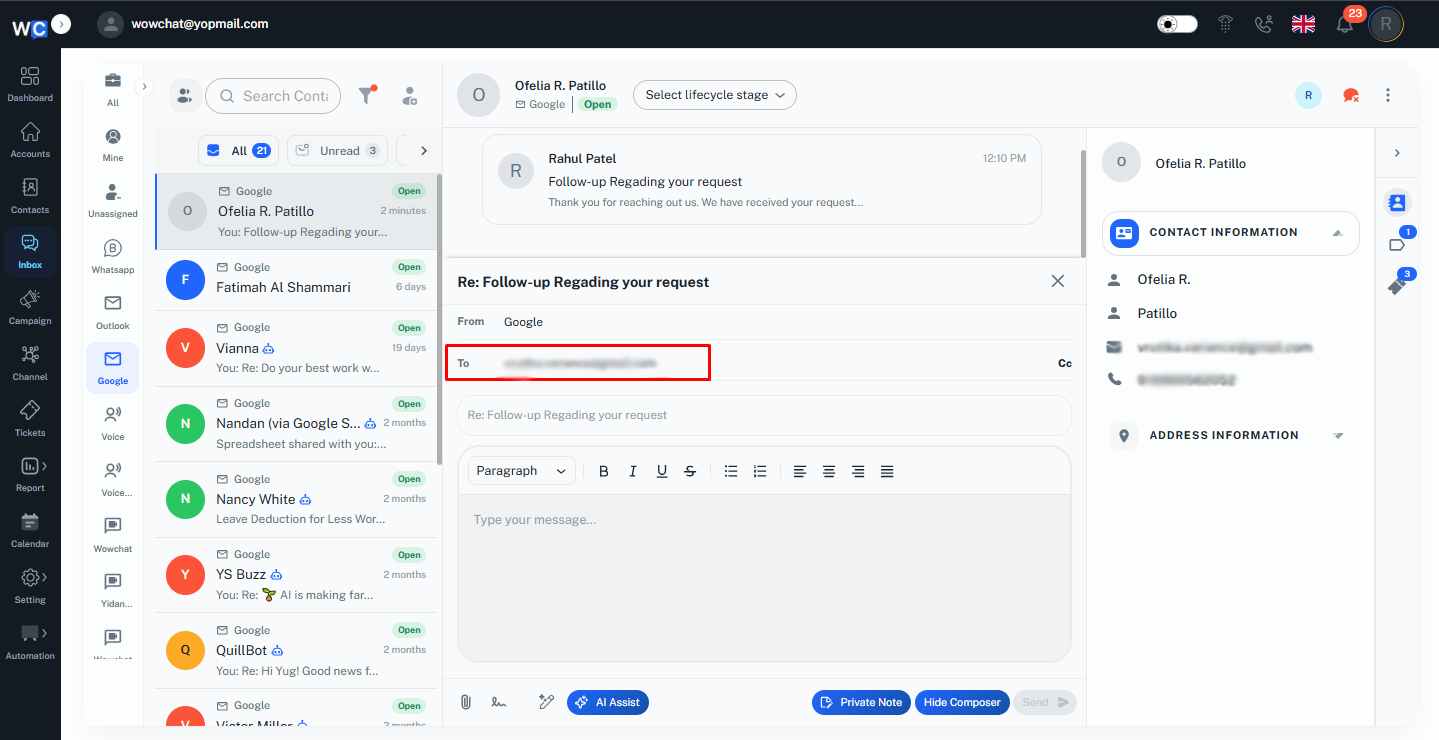
This helps users continue email communication quickly and manage customer conversations efficiently from one place.
Note: New conversations can be created directly from WowChat only for WhatsApp Business and Email channels. For other channels, the conversation starts when the customer sends the first message, which will then appear in the WowChat Inbox for further communication.
Live chat
The Live Chat Channel in WowChat allows businesses to provide real-time customer support through their website or application.
Note: To configure and connect communication channel, refer to the Channel Configuration Guide by clicking on the link.
By connecting the Live Chat channel, users can manage visitor conversations directly from the unified Inbox and respond instantly to customer queries.Customers can start a chat from the website or app, and the conversation will appear in WowChat where agents can view, reply, and manage interactions.
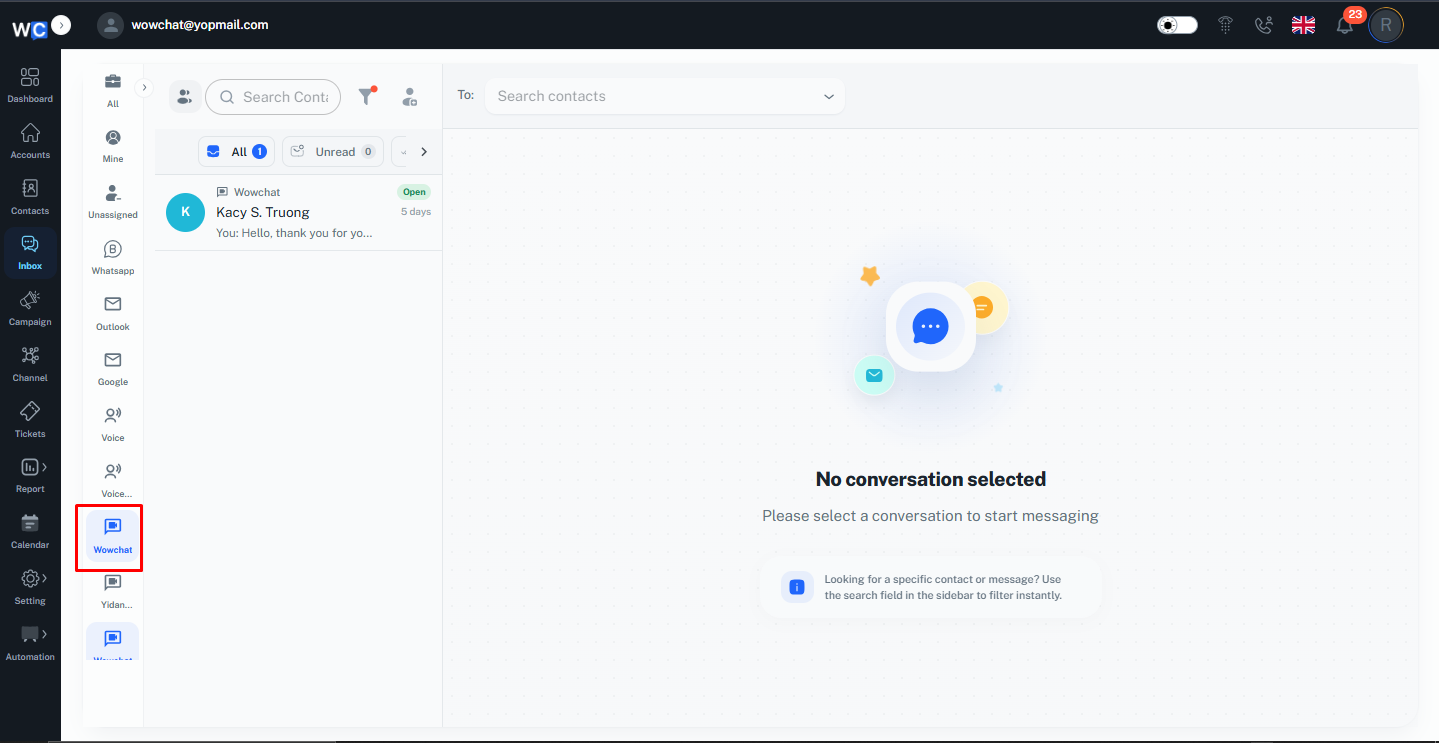
With Live Chat, users can:
- Handle real-time customer conversations
- Respond quickly to website visitors
- Manage customer queries from a single Inbox
- Add labels, notes, and tickets for better conversation tracking
- Collaborate with team members while handling chats
This helps businesses deliver faster support and improve customer engagement through instant communication.
When a visitor sends a message through the website or application Live Chat widget, the conversation is automatically created in WowChat.The new conversation will appear in the Inbox, where users can access it from the All conversations view or by selecting the Live Chat channel from the side menu.
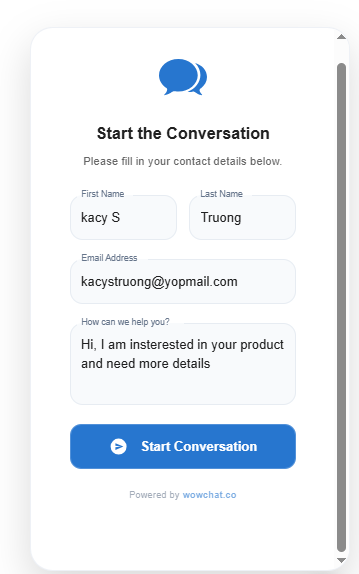
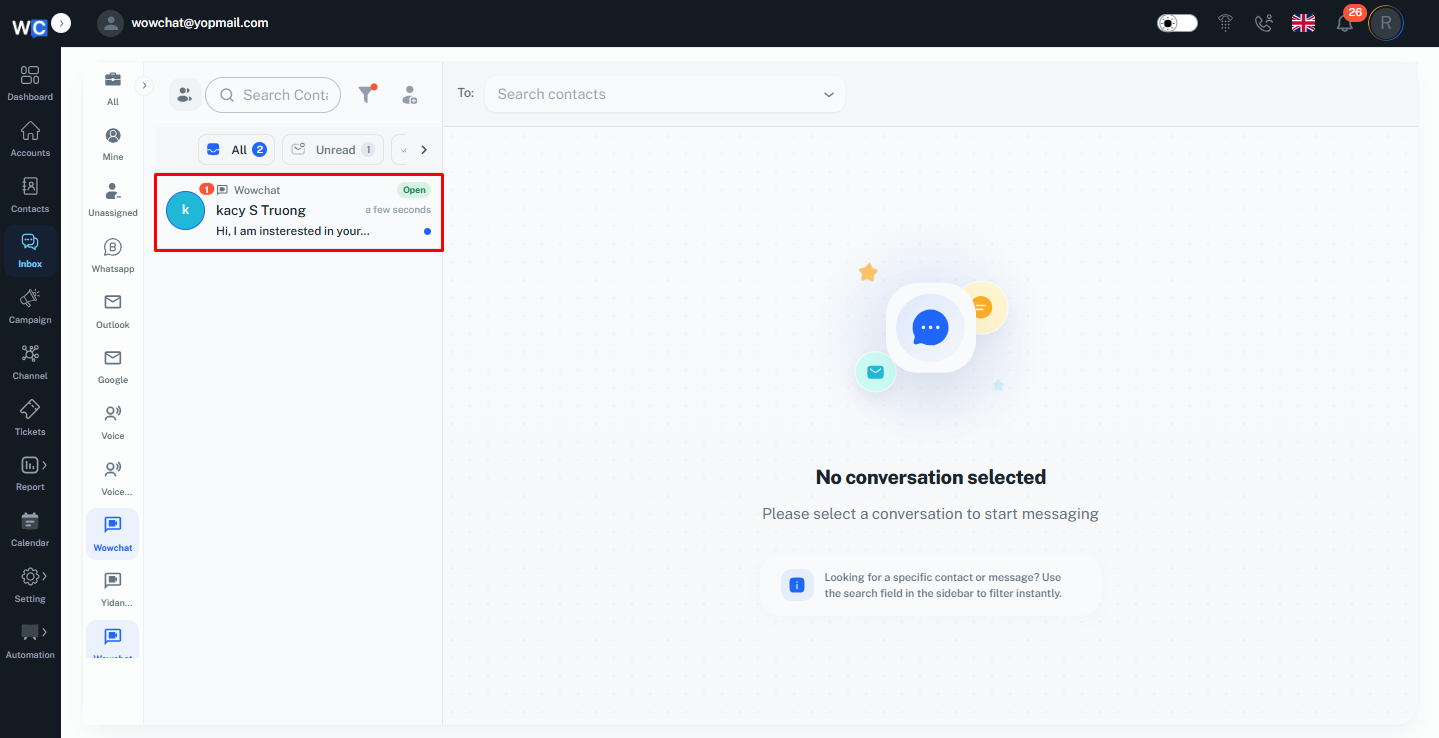
Users can view the details of the customer record directly from the Live Chat conversation window.By opening the record details section, users can check the available customer information associated with the conversation.Users can also edit the record details if any information needs to be updated or modified.
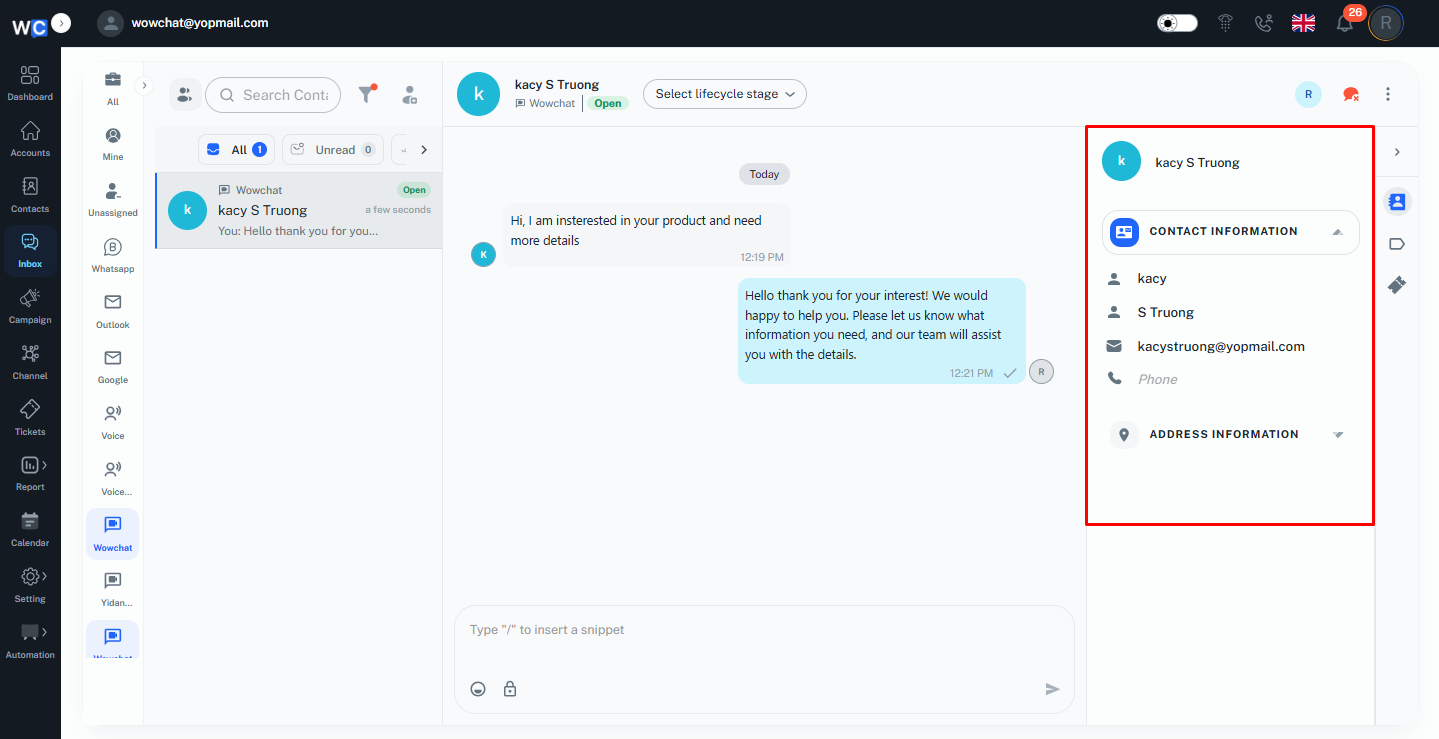
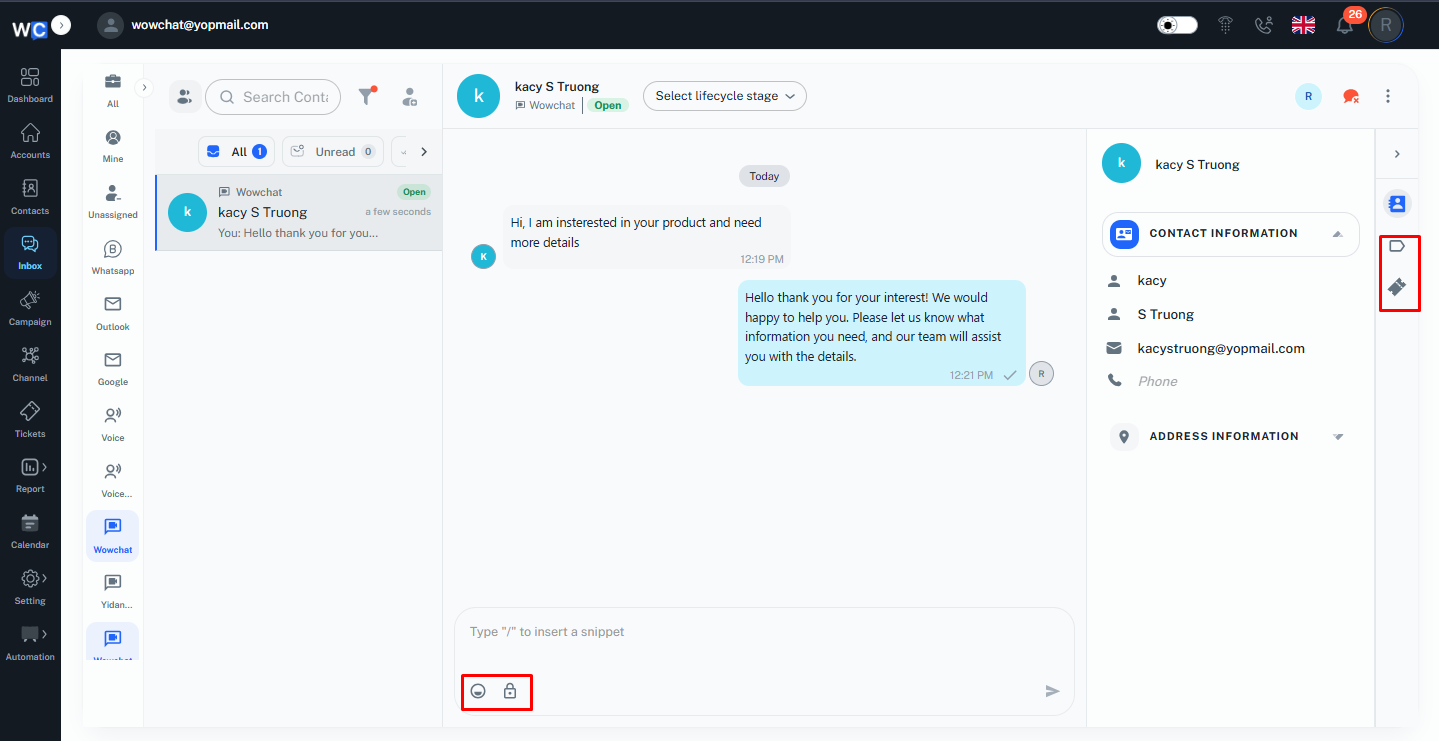
Users can open the conversation, respond to the visitor in real time, and use available chat features such as labels, tickets, notes, attachments, and assignments to manage the interaction efficiently.
The Live Chat conversation window displays all customer communication in real time.Users can view incoming messages received from website visitors and send replies directly from the same conversation window.All sent and received messages are displayed in the conversation history, allowing users to track the complete communication flow with the customer.
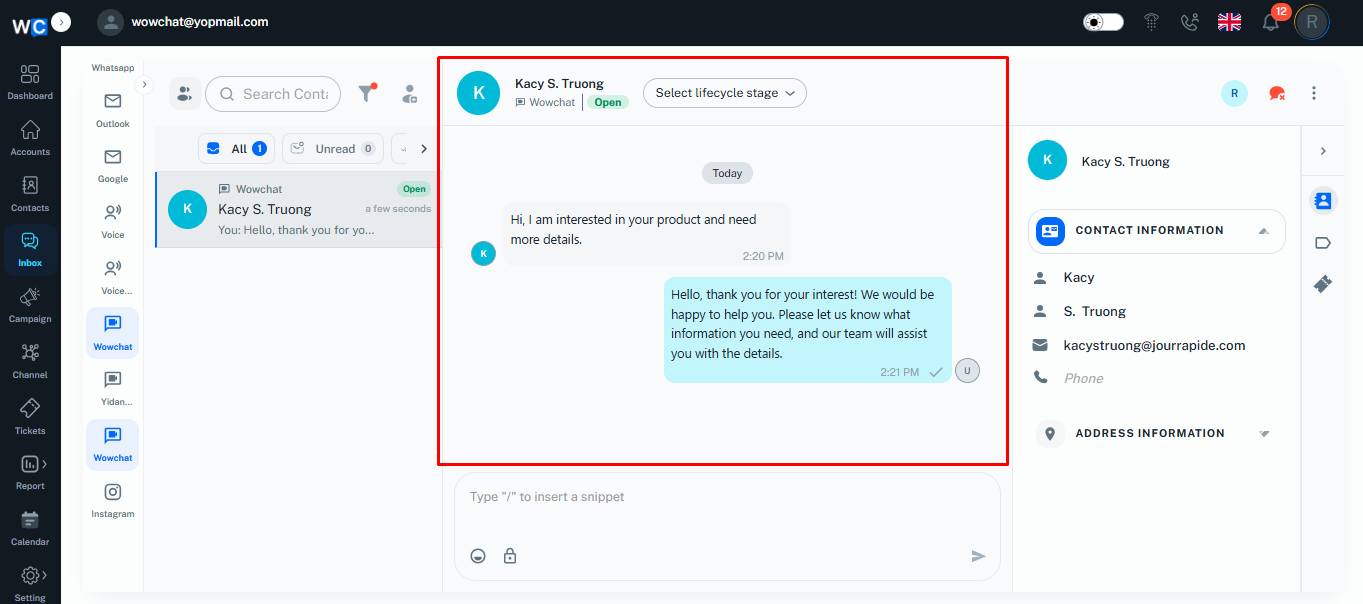
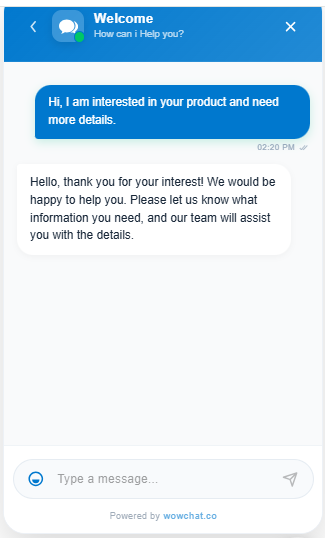
This helps users manage customer interactions efficiently and maintain a complete conversation record within WowChat.
Telegram
The Telegram Channel in WowChat allows businesses to connect their Telegram account and manage customer conversations directly from the unified Inbox.
Note: To configure and connect the communication channel, refer to the Channel Configuration Guide by clicking on the link.
Users can send and receive Telegram messages, respond to customer queries, and track conversations from a single platform.With Telegram integration, teams can manage customer interactions, maintain conversation history, and collaborate efficiently.
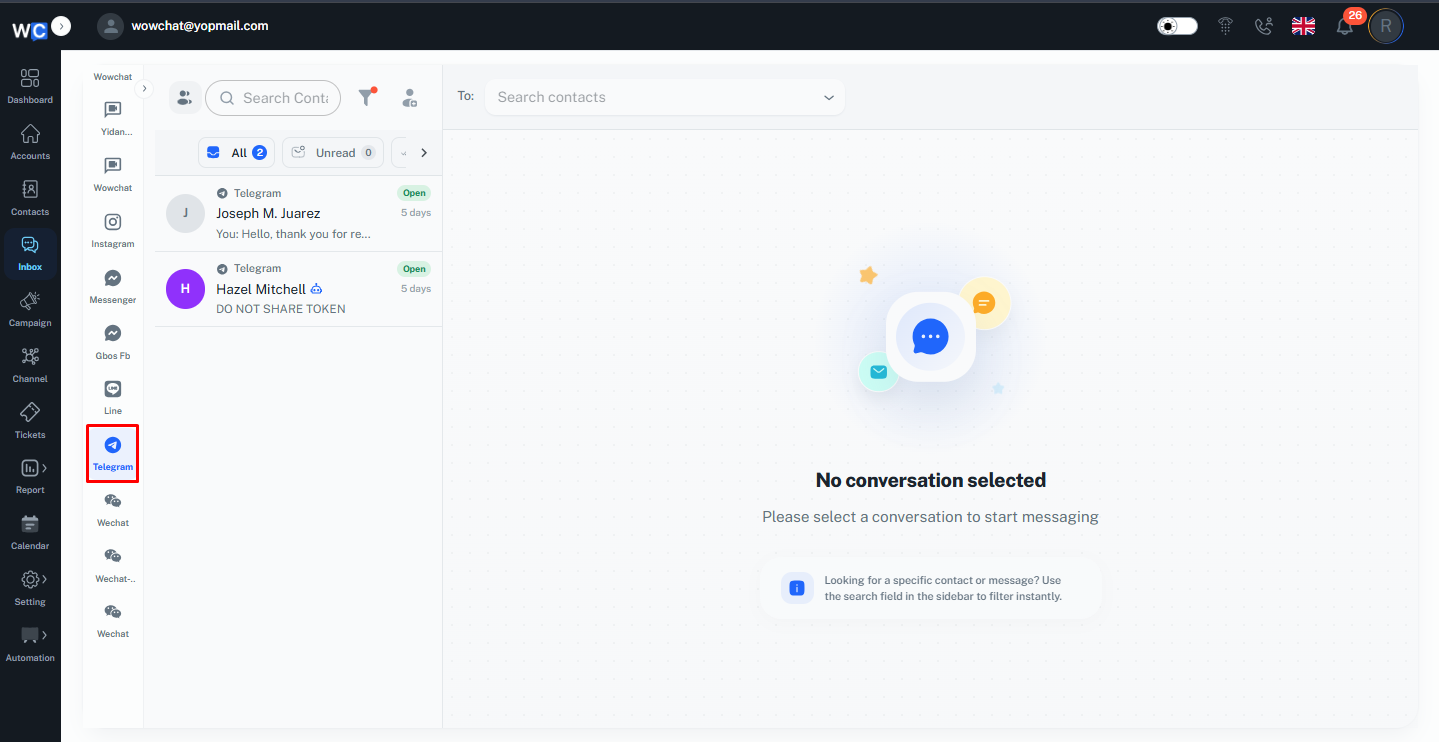
This helps businesses provide quick support and maintain seamless communication through Telegram.
When a user sends a message through the Telegram channel, the system automatically creates a record for the conversation.The received message will appear in the Inbox section, where users can open the conversation and reply directly from WowChat.
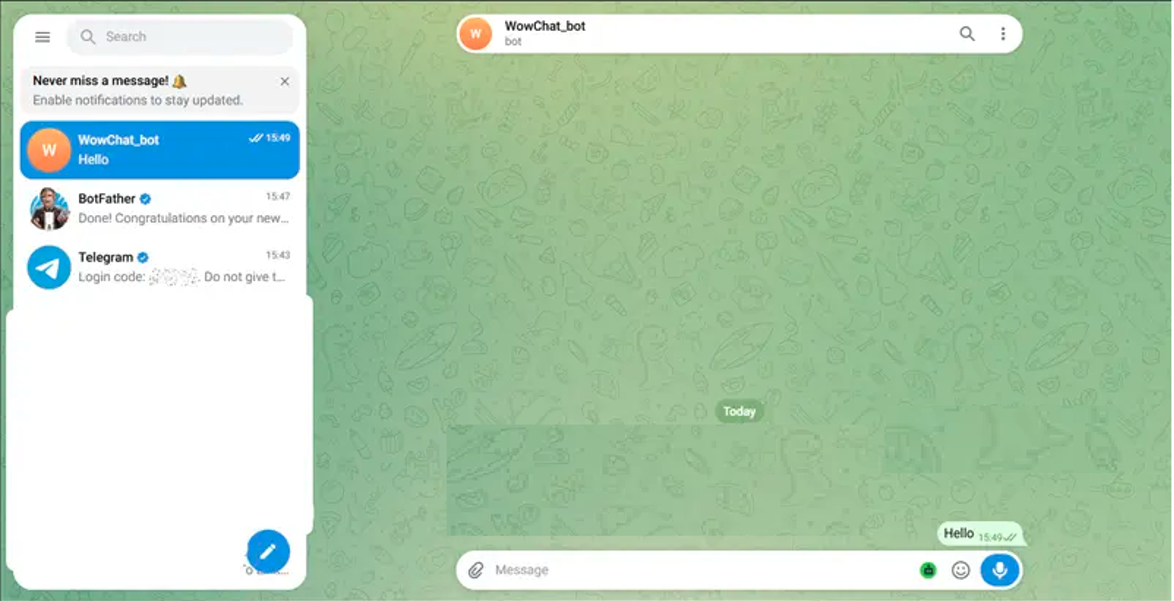
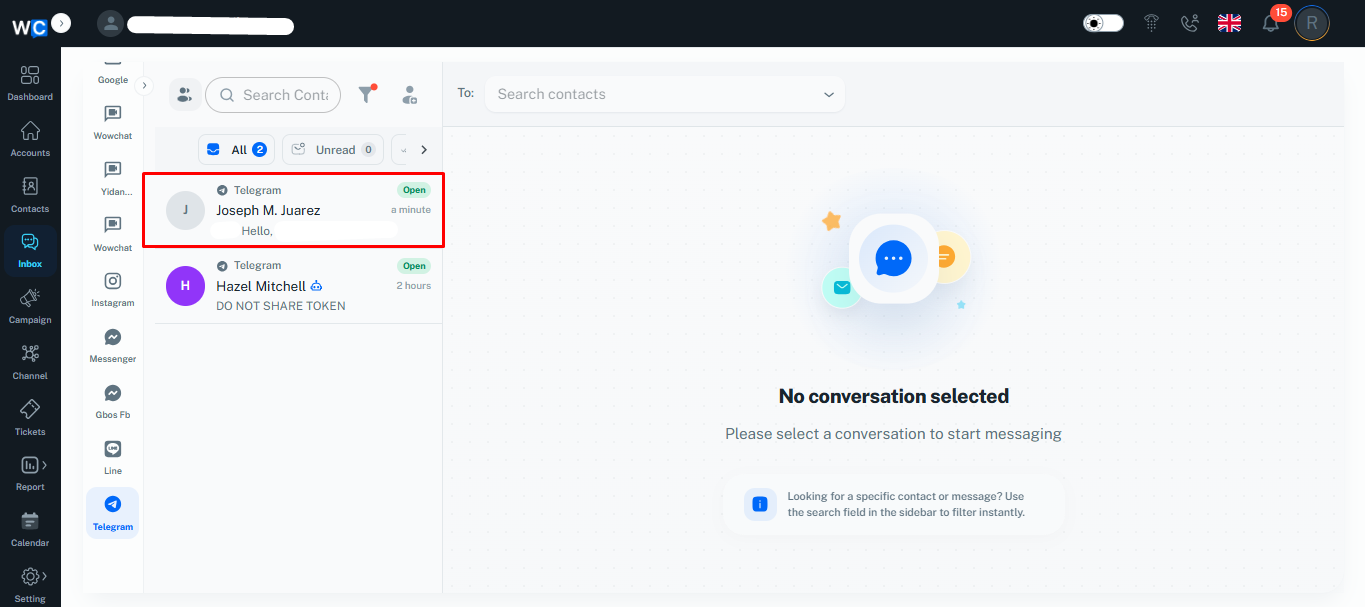
Users can send and receive messages directly from the Telegram conversation window in WowChat.All incoming and outgoing messages are displayed in the conversation history, allowing users to track customer communication and continue the conversation from the same Inbox.
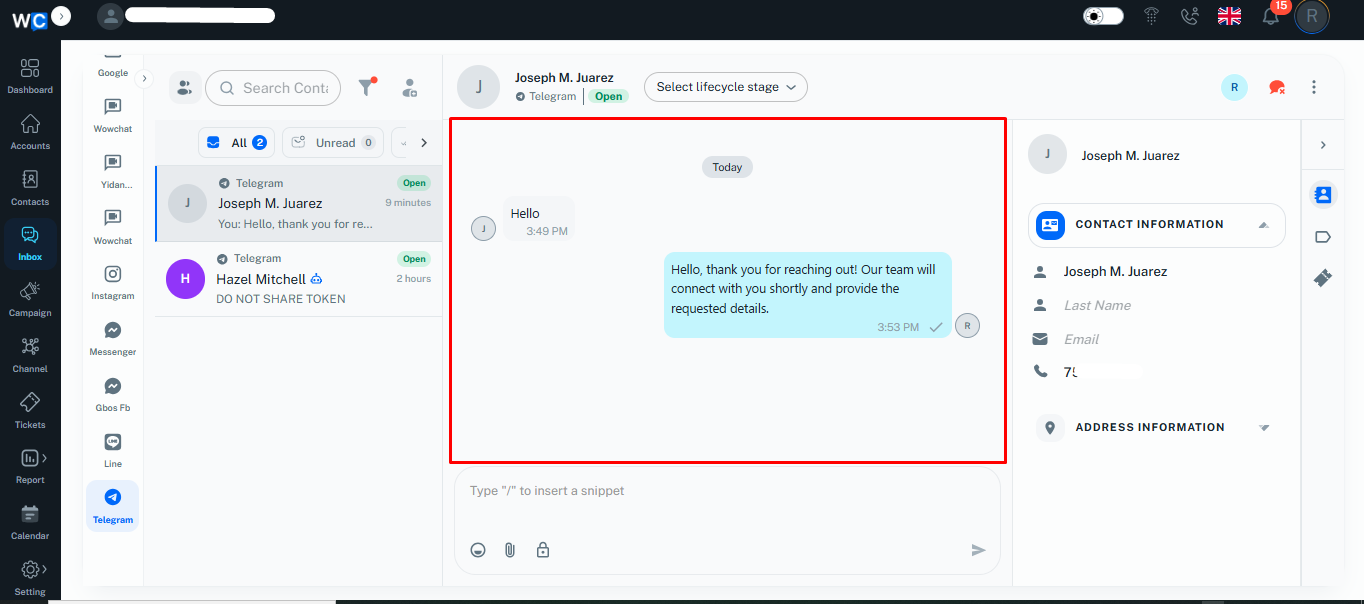
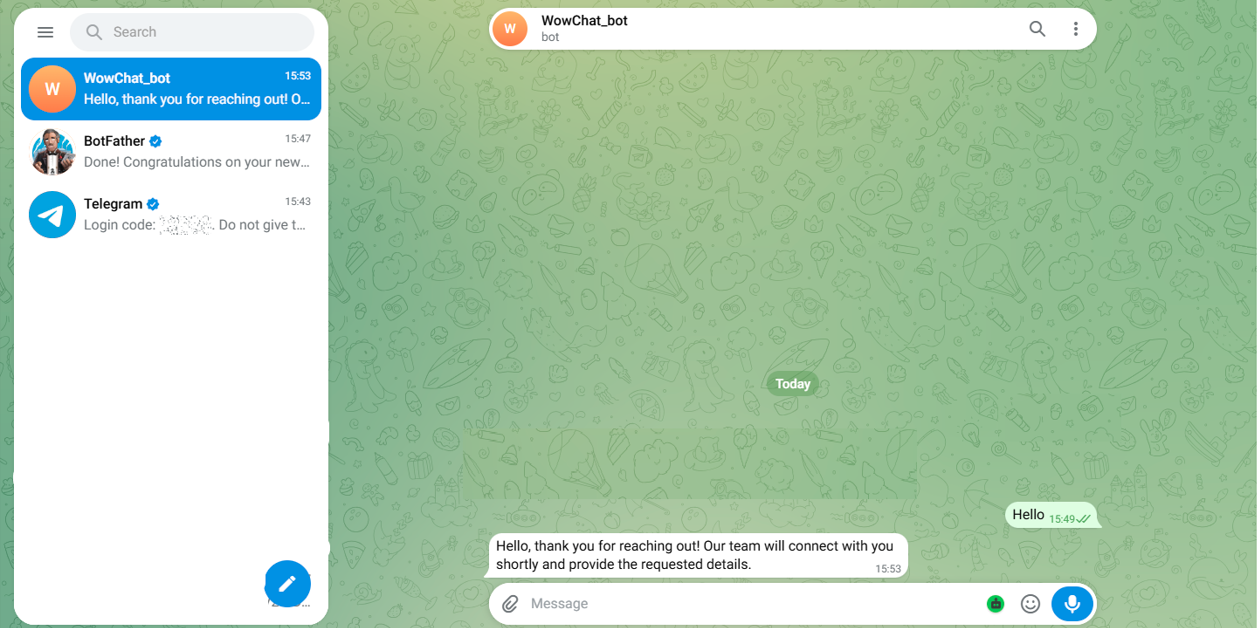
Users can manage Telegram conversations, respond to customers, and use available chat actions to handle interactions efficientlyUsers can view the customer record details directly from the Telegram chat window.The record information associated with the conversation is displayed within the chat window, allowing users to review customer details while managing the conversation.
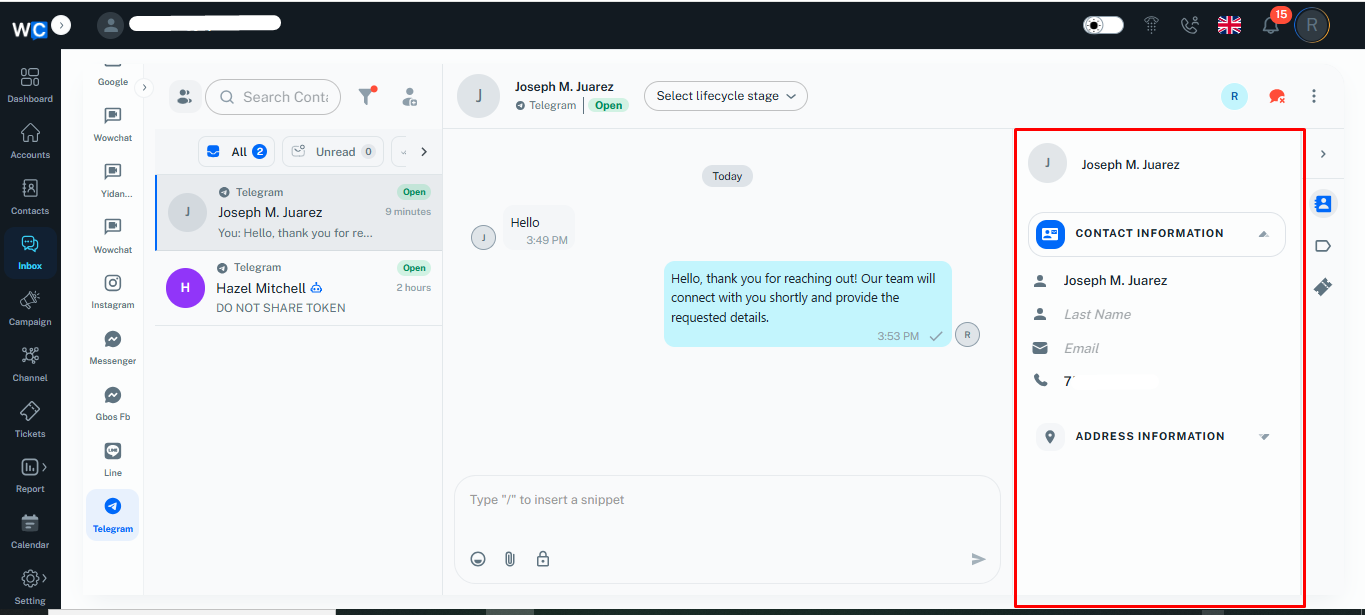
The Telegram chat window provides quick actions that help users manage conversations efficiently.Users can use options such as Emojis, Attachments, Labels, and Tickets to improve communication and organize customer interactions.
- Emojis – Add reactions and make conversations more engaging.
- Attachments – Share files, images, or documents with customers.
- Labels – Categorize conversations for easier tracking and management.
- Tickets – Create and manage customer requests or issues directly from the chat window.
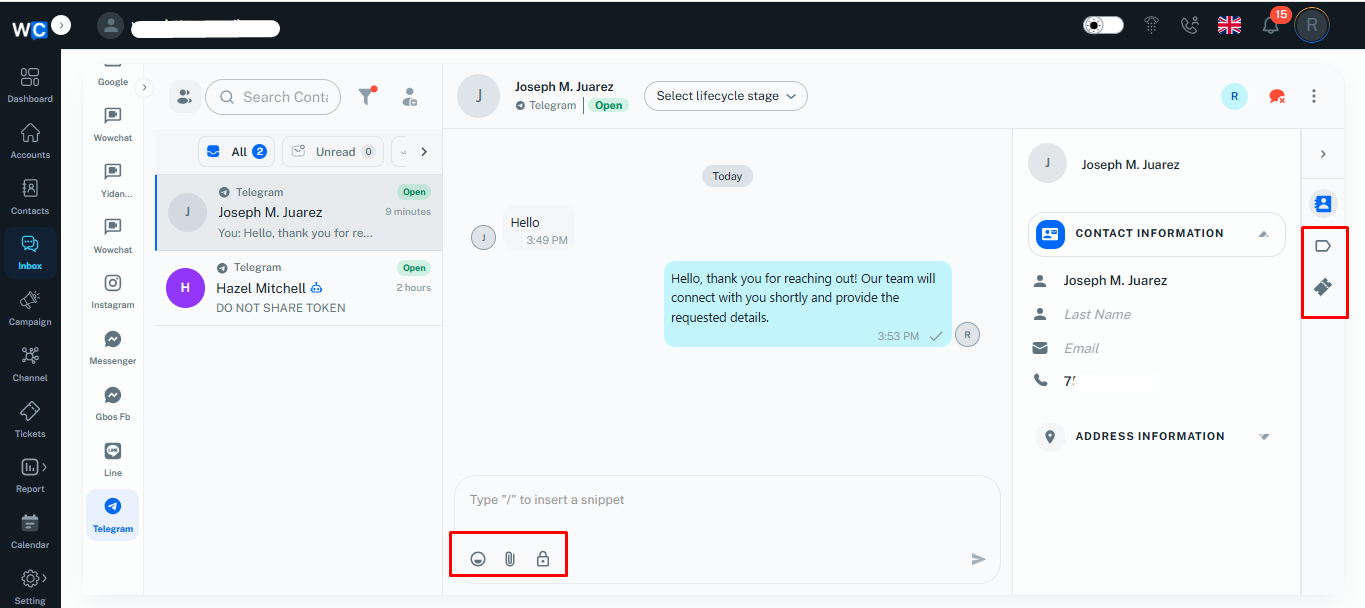
Messenger
The Messenger Channel in WowChat allows businesses to connect Facebook Messenger and manage customer conversations directly from the unified Inbox.
Users can send and receive messages, respond to customer queries, and manage Messenger interactions from the same platform.With Messenger integration, teams can track conversations, collaborate efficiently, and provide faster customer support.
Note: To configure and connect the communication channel, refer to the Channel Configuration Guide by clicking on the link.
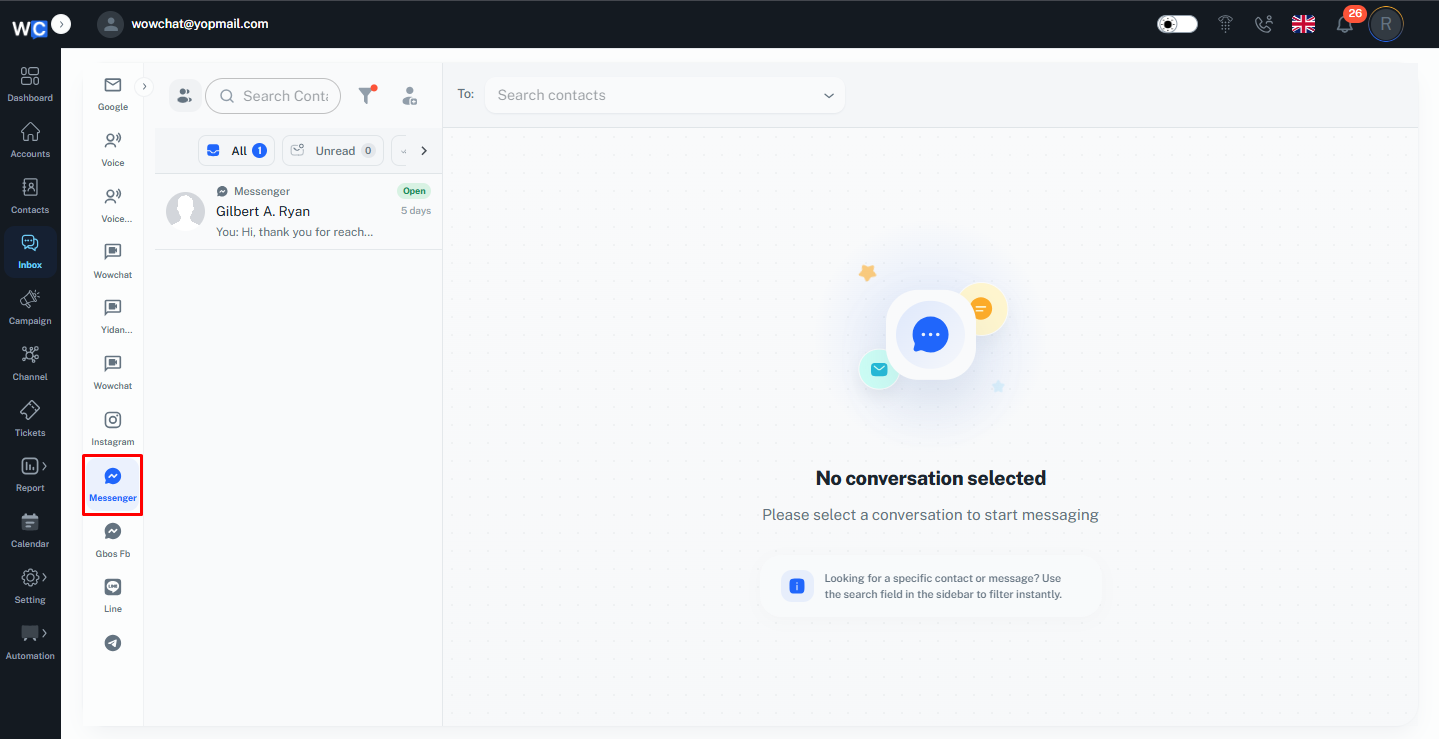
This helps businesses maintain seamless communication with customers through Facebook Messenger.
When a customer sends a message through Facebook Messenger, the conversation is automatically received in the WowChat Inbox.The system creates and saves the customer record details, and the conversation appears under the Messenger channel section. Users can also view it from the All section along with other connected channel conversations.
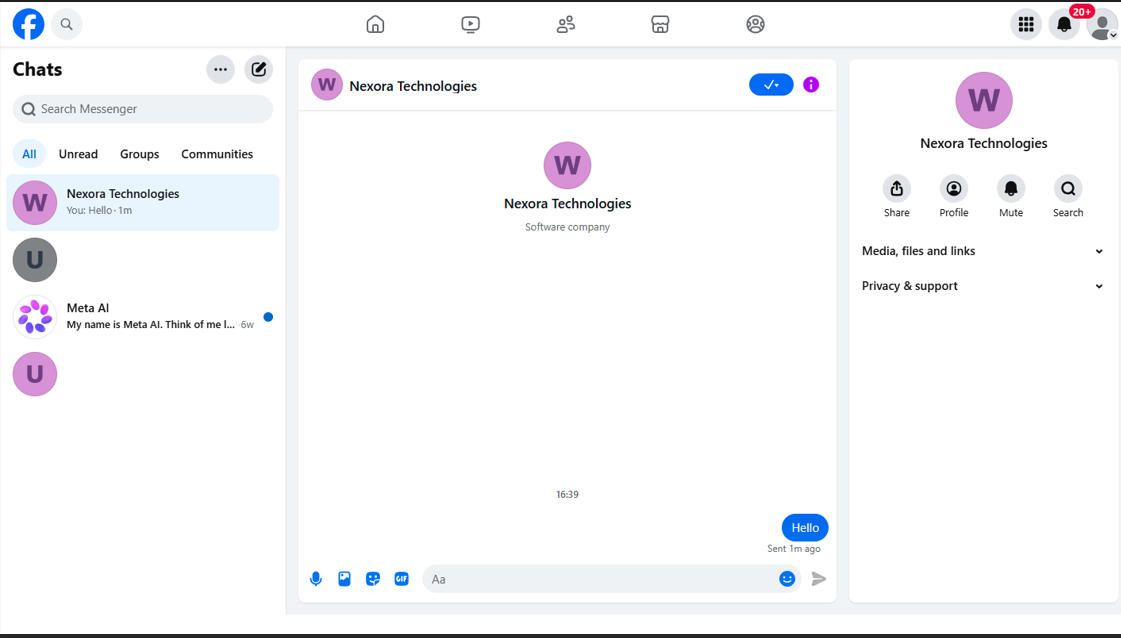
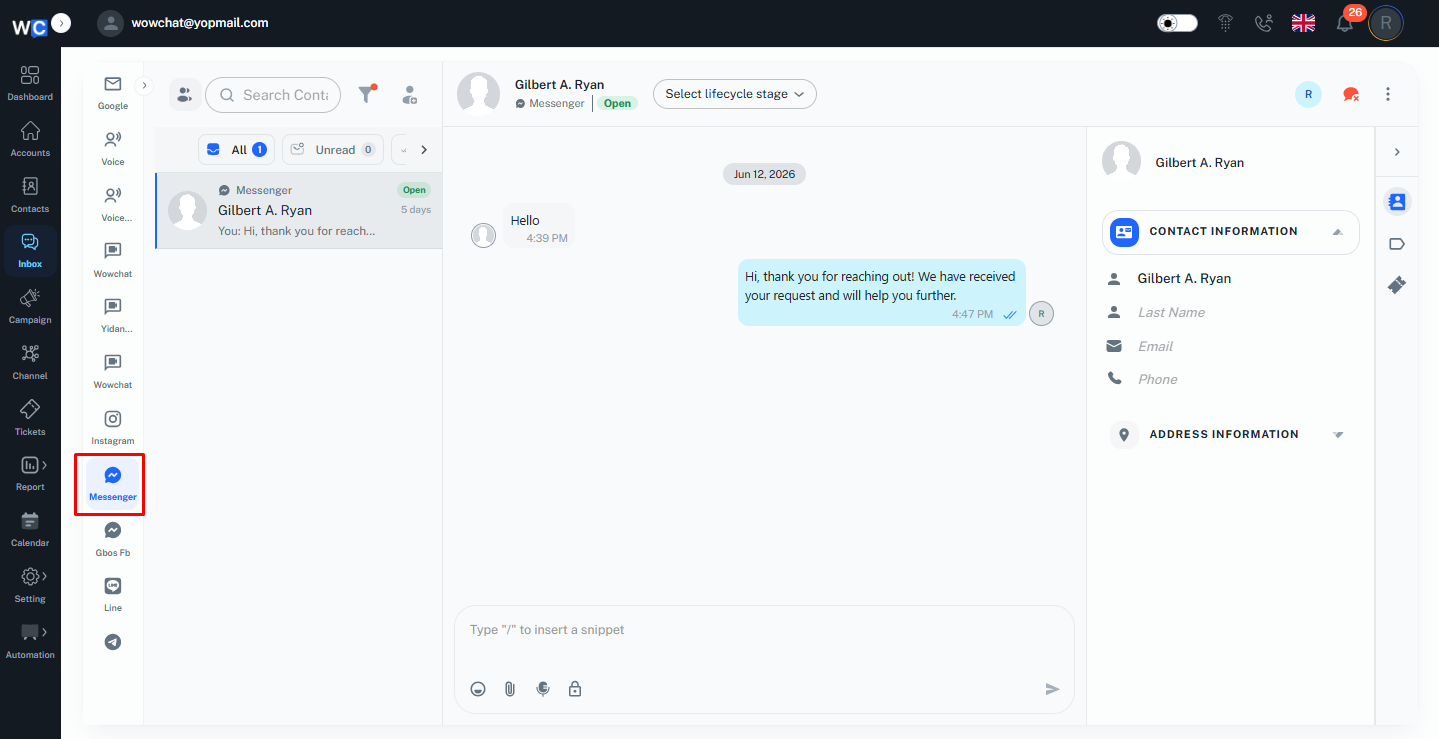
Users can send and receive Facebook Messenger messages directly from the WowChat Inbox.All incoming and outgoing messages are displayed in the conversation history, allowing users to track customer interactions and continue communication from the same workspace.
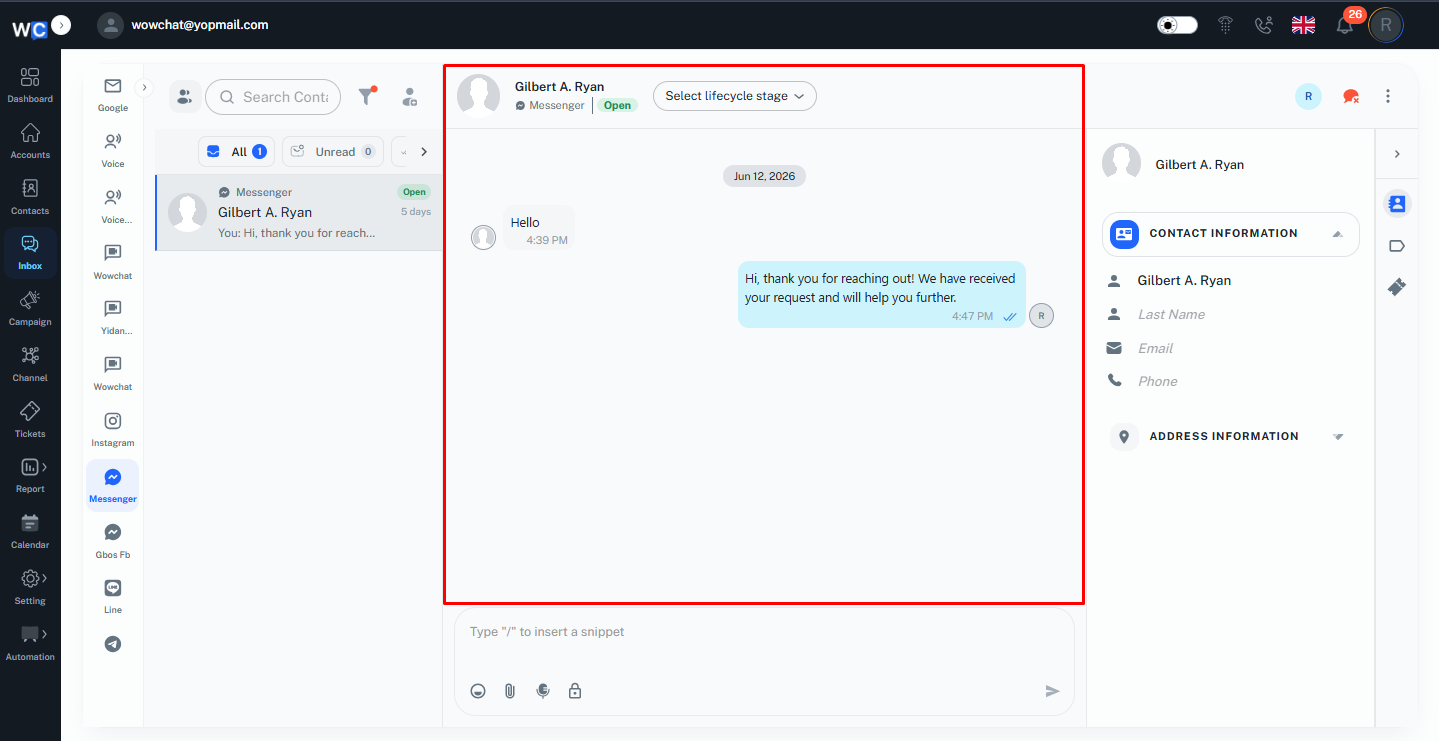
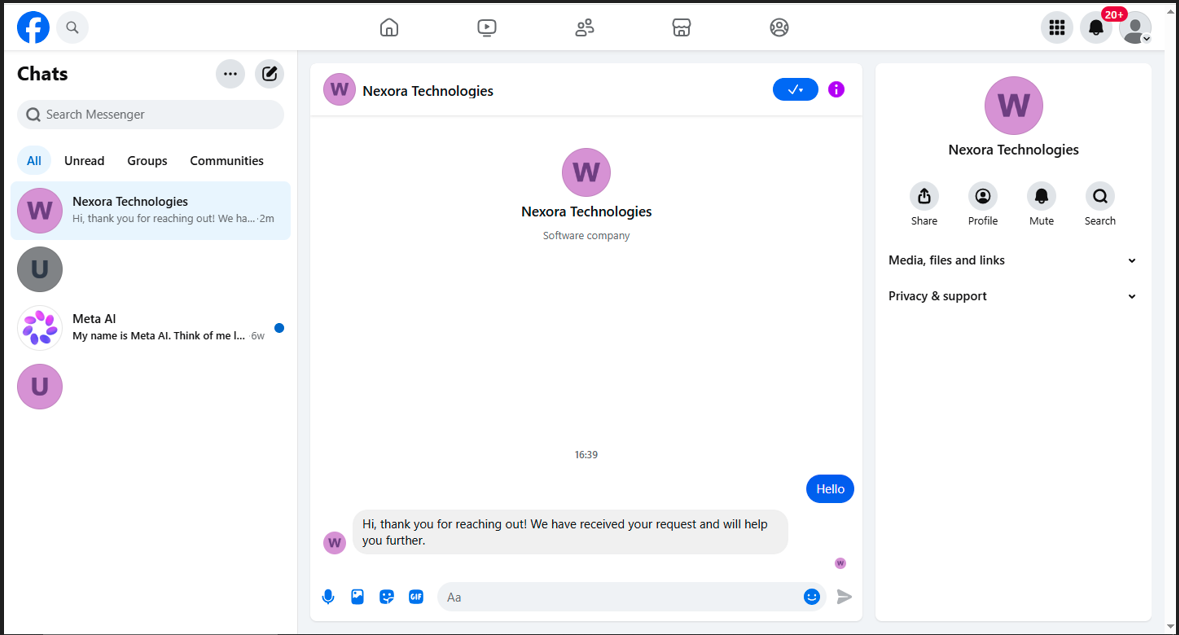
Users can view the customer record details from the side panel of the Messenger conversation window.The side panel displays the available customer information related to the conversation, allowing users to review details while communicating with the customer.Users can also update the record information when required to keep customer details accurate.
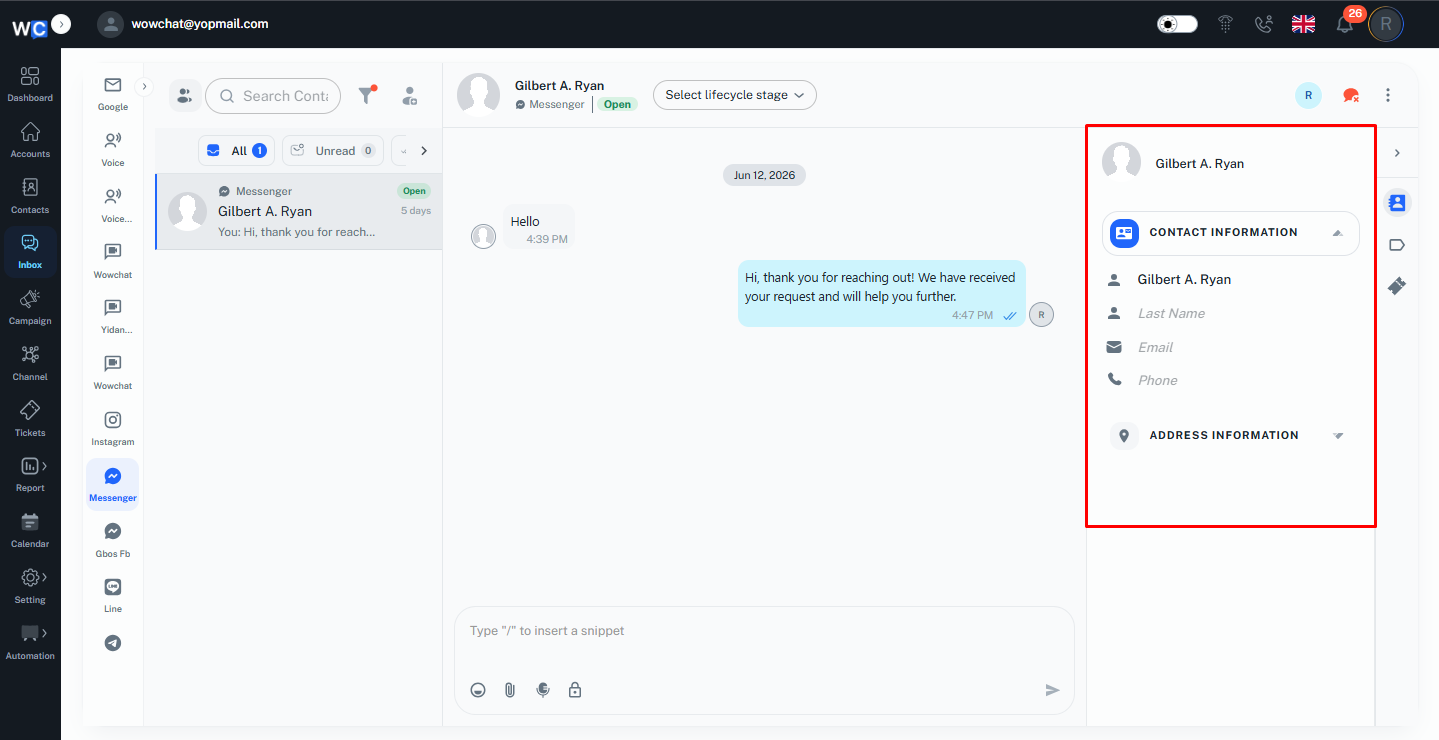
The Messenger chat window provides quick actions to help users manage conversations efficiently.Users can use options such as Emojis, Attachments, Audio Messages, Labels, Tickets, and Internal Notes to improve communication and organize customer interactions.
- Emojis – Add reactions and make conversations more engaging.
- Attachments – Share files, images, or documents with customers.
- Audio Messages – Send voice notes for faster communication.
- Labels – Categorize conversations for easier tracking and management.
- Tickets – Create and manage customer requests or issues directly from the chat window.
- Internal Notes – Add private notes visible only to team members for internal reference.
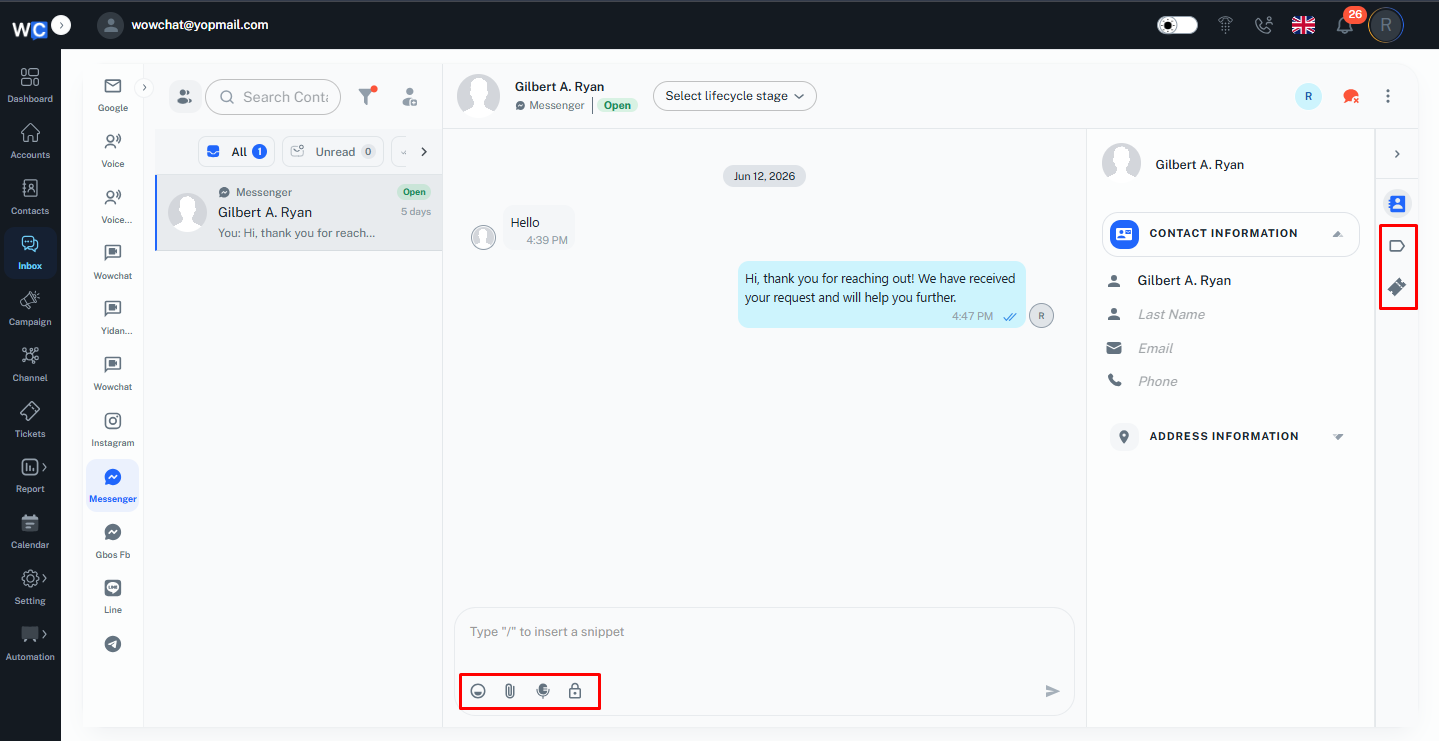
These quick actions help users manage Messenger conversations and support activities directly from the Inbox.
The Instagram Channel in WowChat allows businesses to connect their Instagram account and manage customer conversations directly from the unified Inbox.
Users can send and receive Instagram messages, respond to customer inquiries, and handle interactions from a single platform without switching applications.With Instagram integration, teams can manage conversations efficiently, maintain chat history, and provide faster customer support.
Note: To configure and connect the communication channel, refer to the Channel Configuration Guide by clicking on the link.
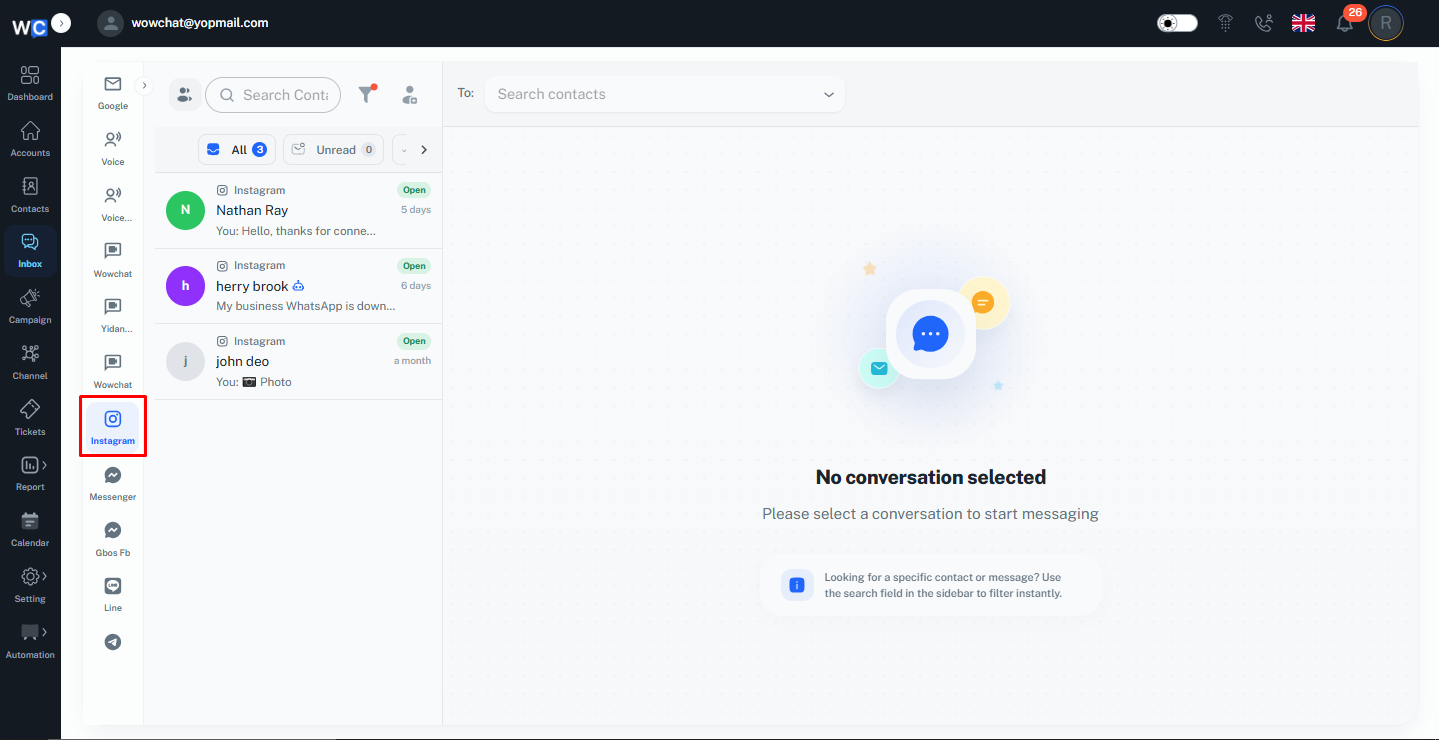
When a customer sends a message on Instagram, the conversation is automatically received in the WowChat Inbox.The system creates and saves the customer record by default, and the conversation is displayed under the Instagram channel section as well as in the All section.
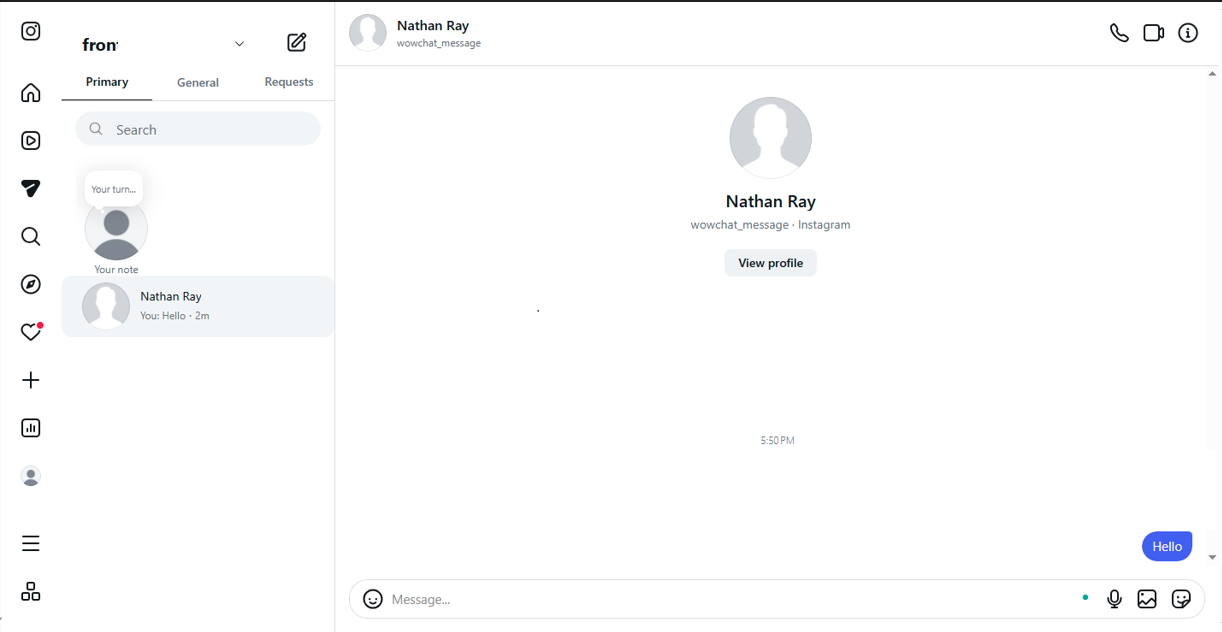
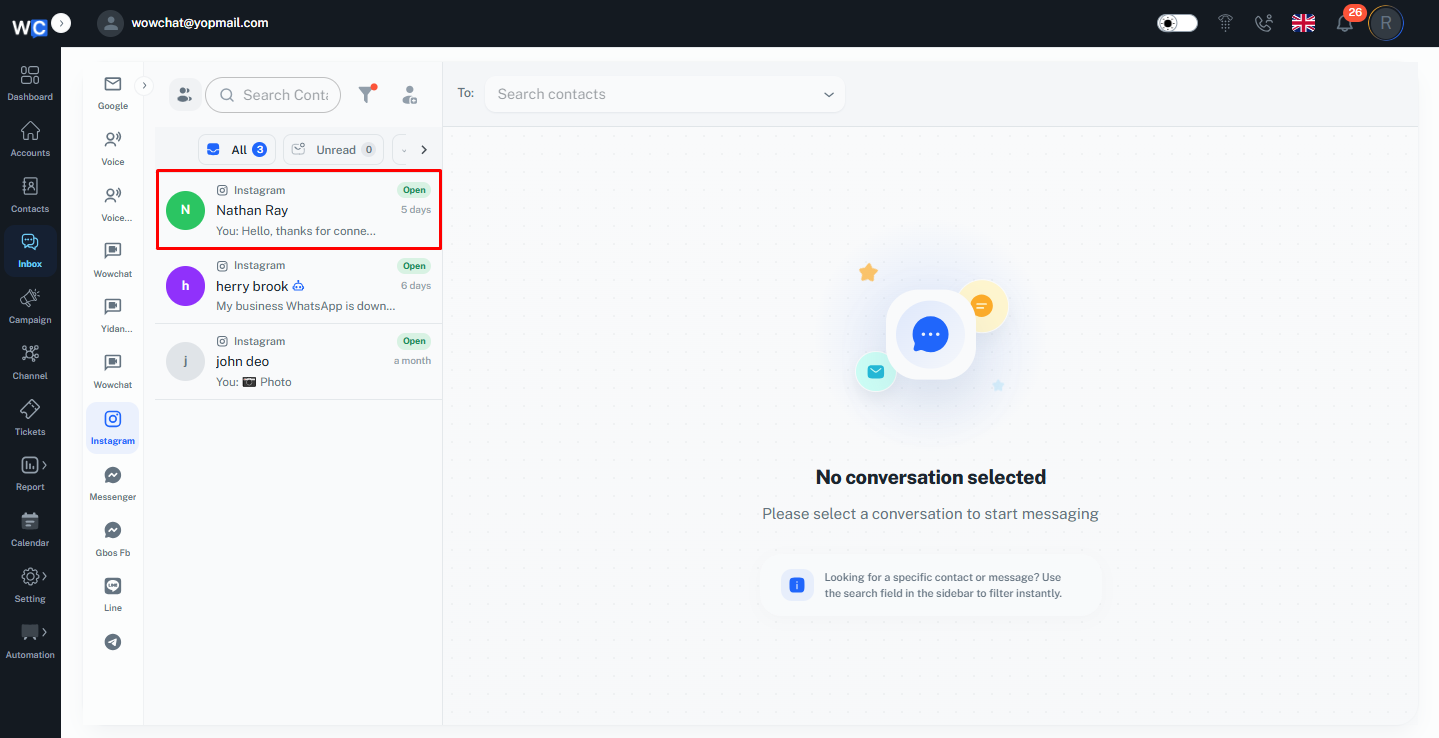
Users can open the conversation and reply directly from the Inbox while managing all customer interactions in one place.Users can send and receive Instagram messages directly from the WowChat Inbox.All incoming and outgoing messages are shown in the conversation history, allowing users to track interactions and continue communication seamlessly.
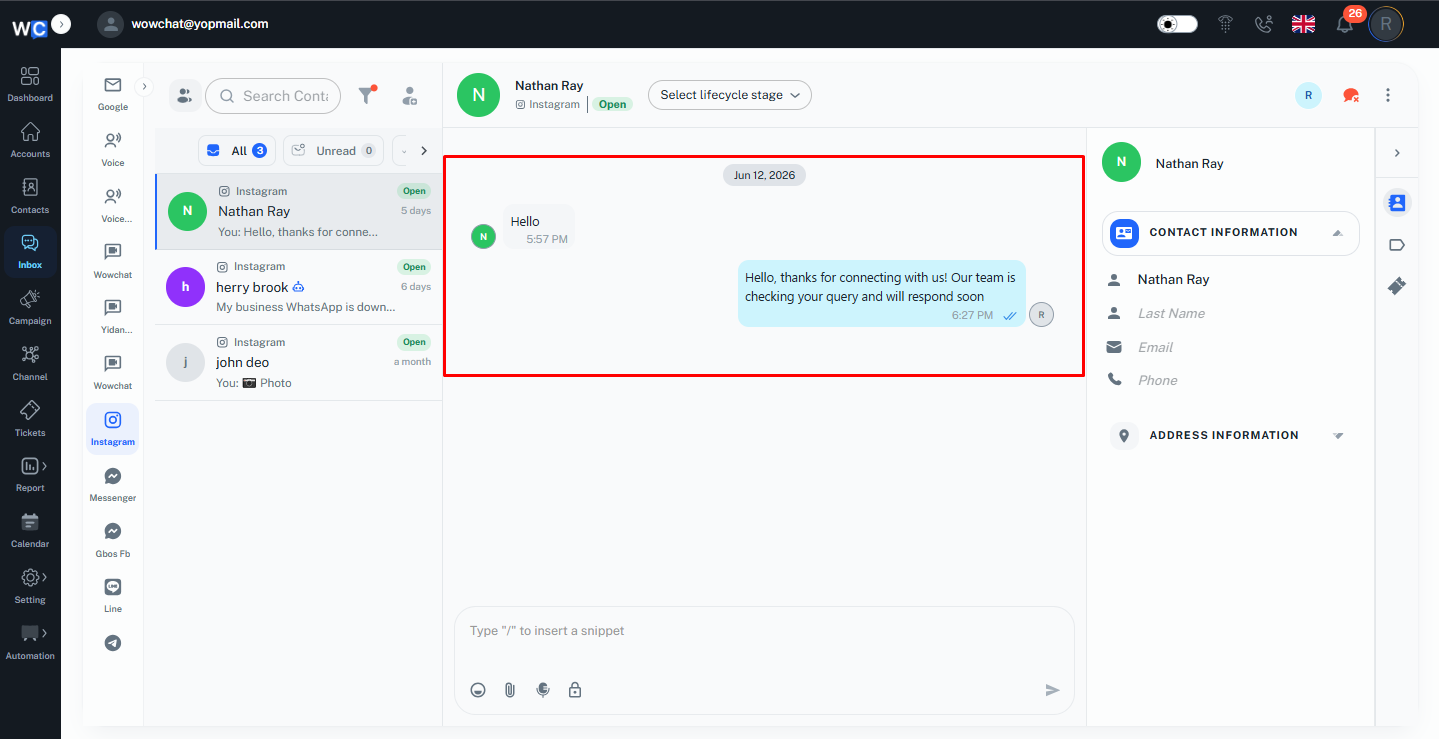
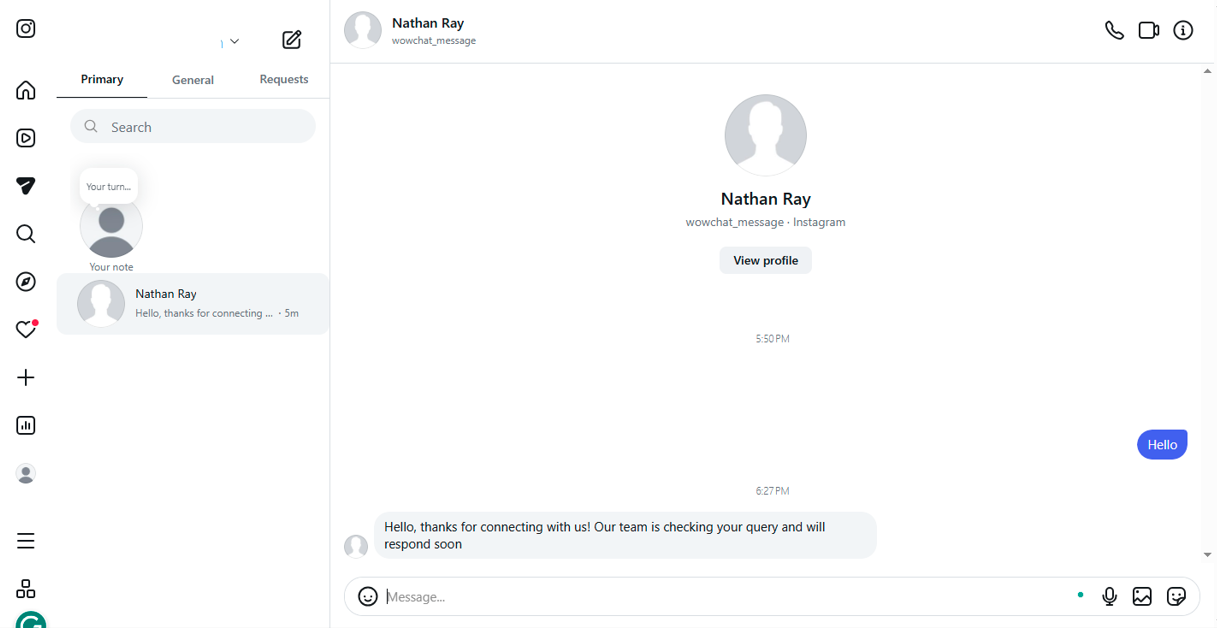
Users can view the customer record details directly from the Instagram chat window side panel.The side panel displays all available record information linked to the conversation, allowing users to quickly review customer details while chatting.Users can also update or edit the record details if required to keep the information accurate and up to date.
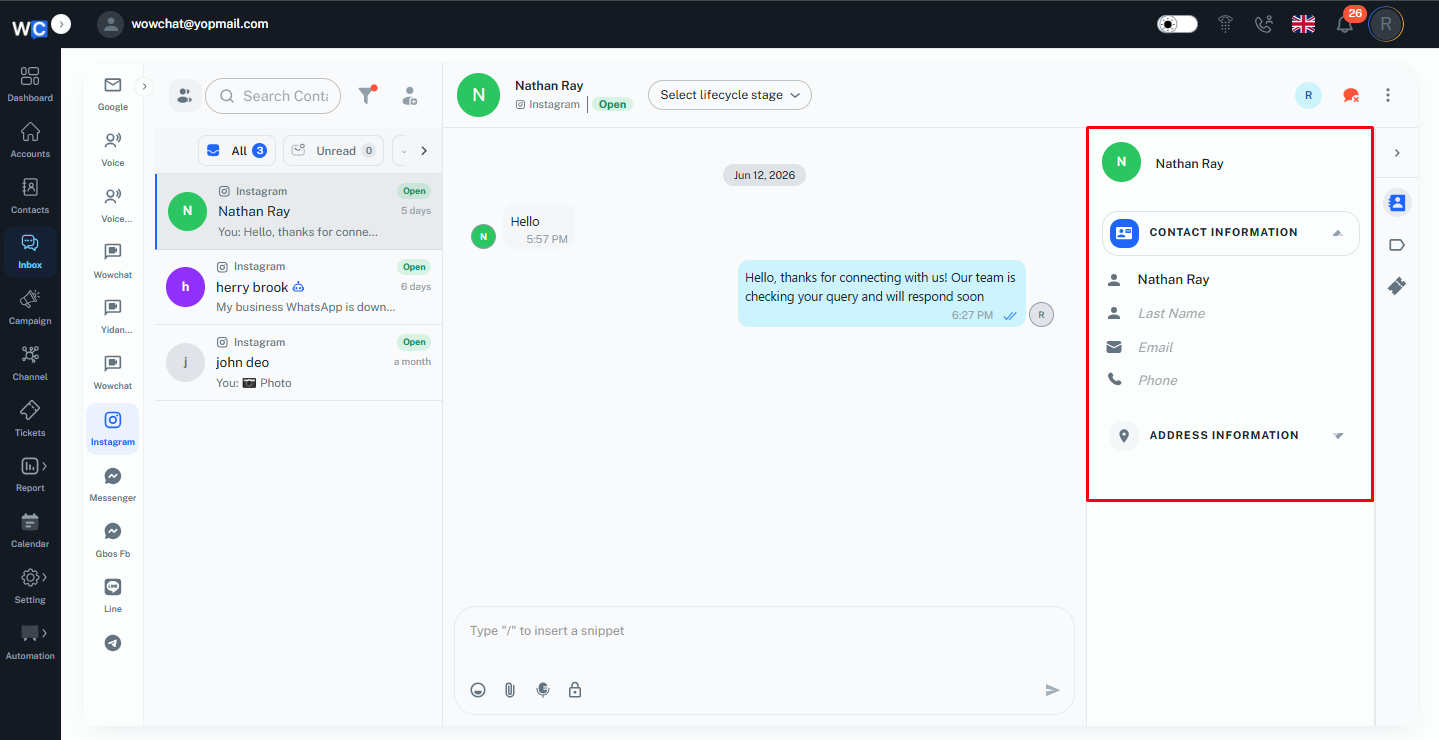
The Instagram chat window provides quick actions that help users manage conversations efficiently.Users can use options such as Emojis, Attachments, Audio Messages, Labels, Tickets, and Internal Notes to enhance communication and organize customer interactions.
- Emojis – Add reactions and make conversations more engaging.
- Attachments – Share images, files, or documents with customers.
- Audio Messages – Send voice notes for faster communication.
- Labels – Categorize conversations for better tracking and management.
- Tickets – Create and manage customer issues or requests directly from the chat window.
- Internal Notes – Add private notes for internal team reference.
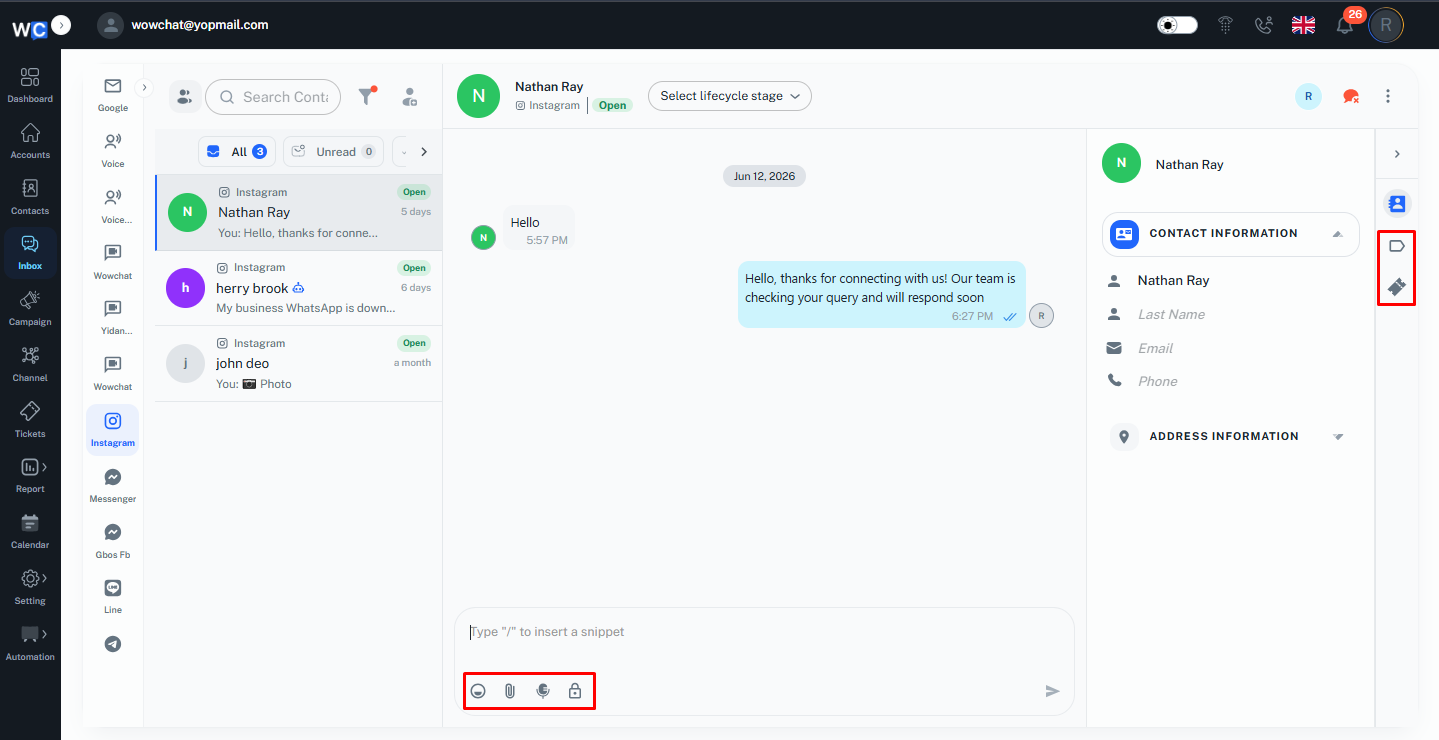
These quick actions help users manage Instagram conversations and support activities directly from the Inbox.
LINE
Connect your LINE Official Account with WowChat to manage customer conversations directly from a single platform.
Once connected, users can receive and respond to messages from LINE customers through the WowChat inbox. Customer conversations are automatically captured and organized, allowing agents to manage interactions efficiently.
Note: To configure and connect the communication channel, refer to the Channel Configuration Guide by clicking on the link.
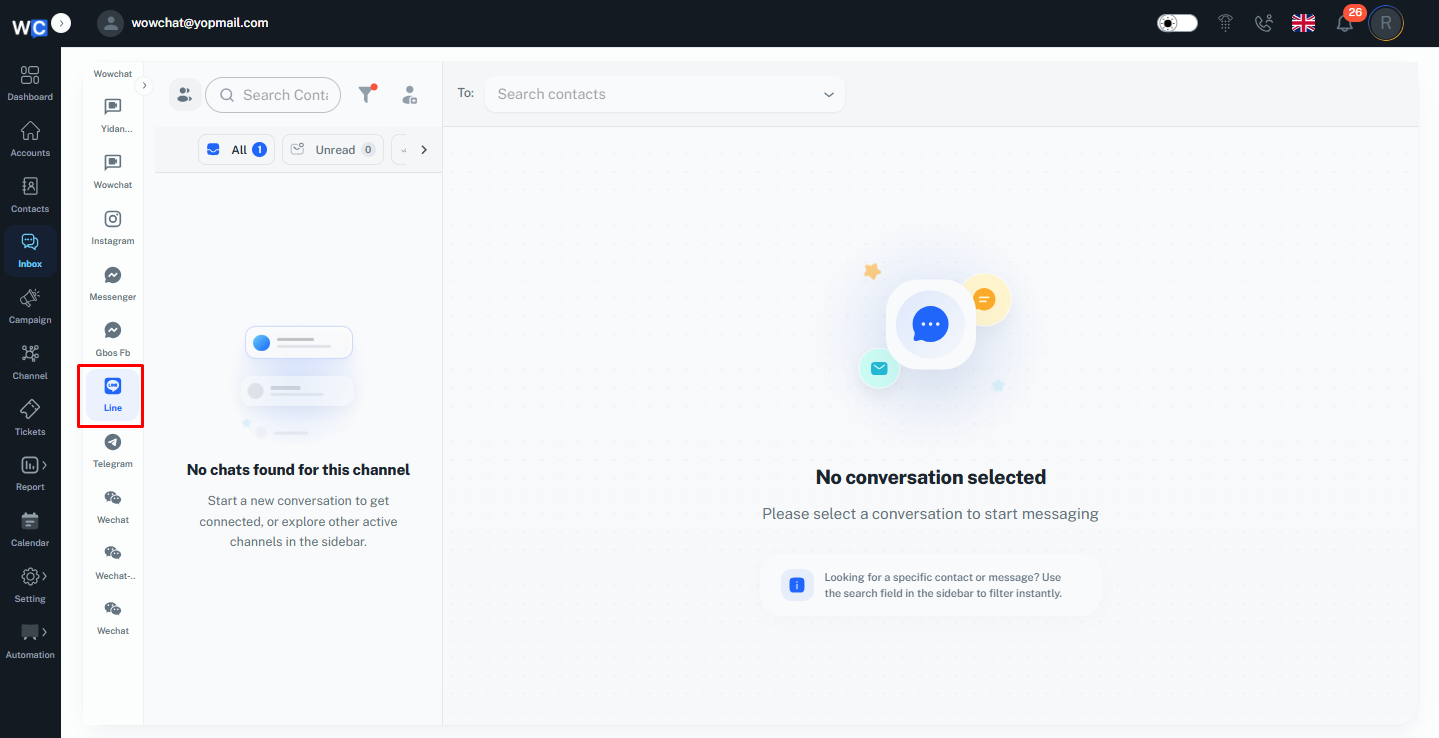
With LINE integration, you can:
- Receive customer messages from LINE
- Reply to customers directly from the WowChat inbox
- View conversation history and customer details
- Manage LINE conversations along with other connected channels
This helps businesses provide faster support and maintain customer communication across multiple platforms.
To start a conversation with a customer on LINE, the customer must first send a message to your connected LINE Official Account.Once the incoming message is received, the conversation will appear in the WowChat inbox. Agents can then reply to the customer and continue the conversation directly from WowChat.
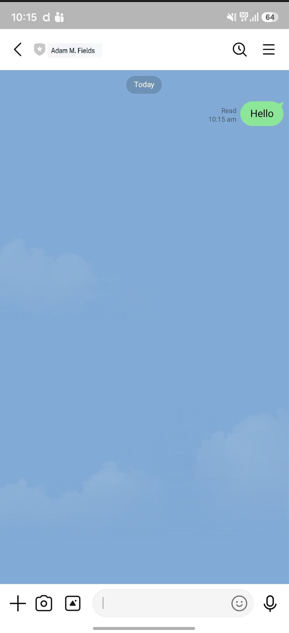
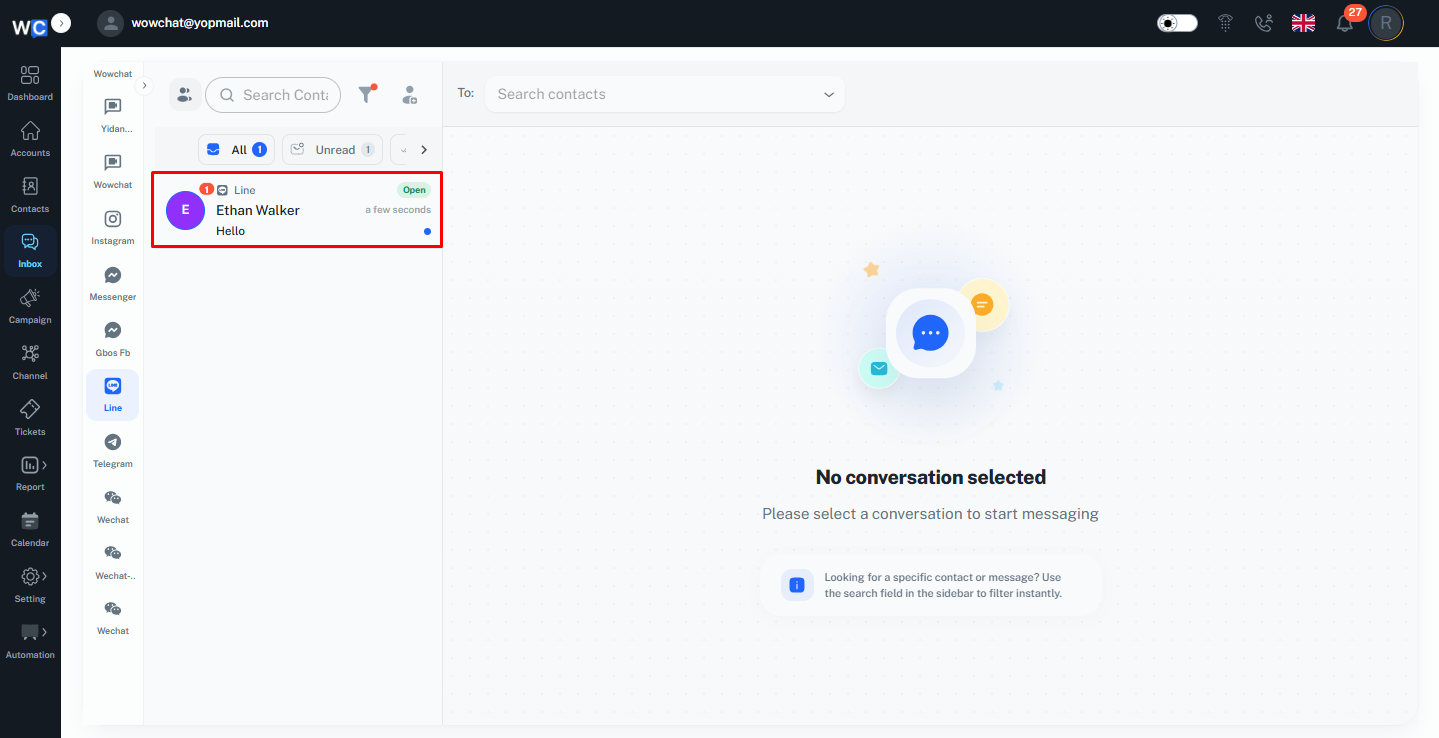
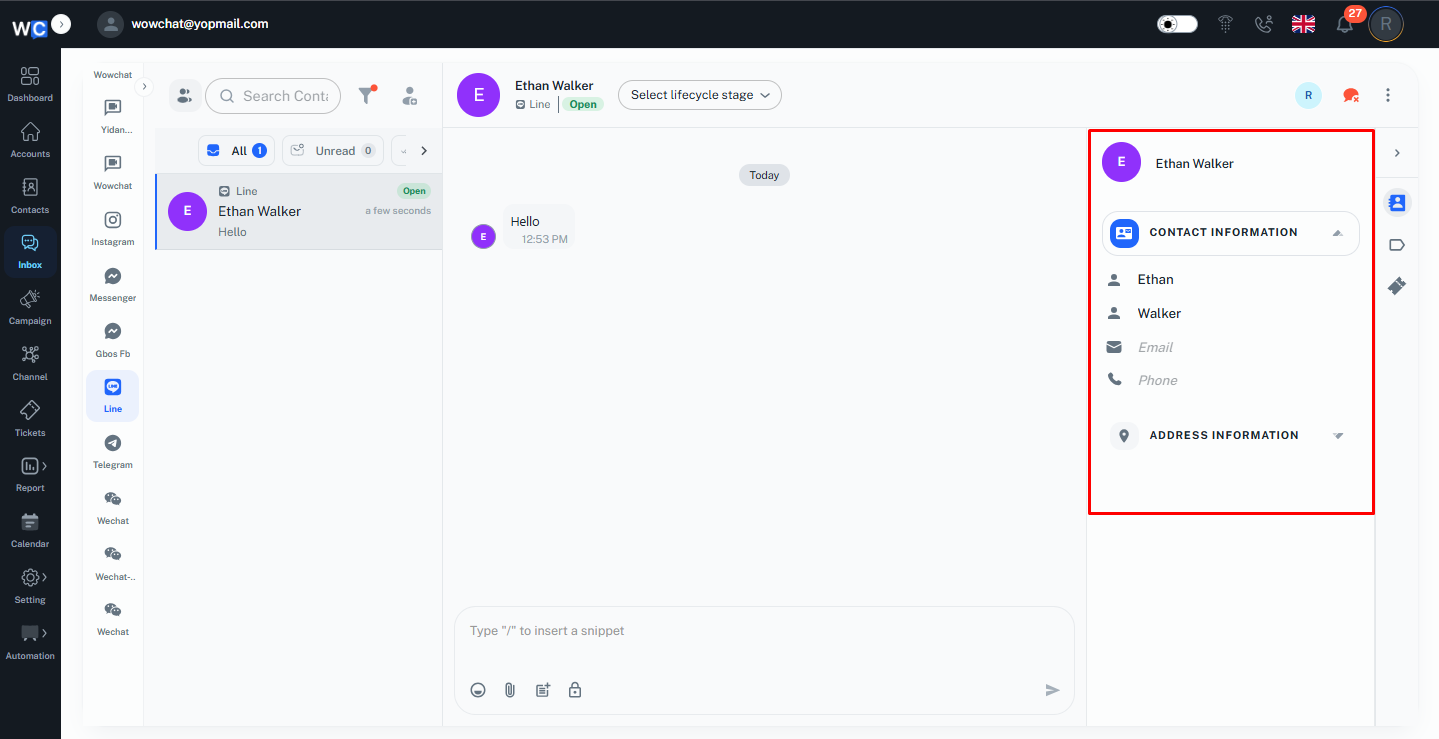
When a customer starts a conversation through LINE, their contact details are displayed in the side panel of the conversation window.Agents can view customer information while interacting with the customer, helping them understand the conversation context and provide better support.
Quick Actions in the LINE chat window allow agents to quickly manage conversations and perform frequently used actions while communicating with customers.These options help agents organize chats, add context, and provide faster responses without leaving the conversation window.
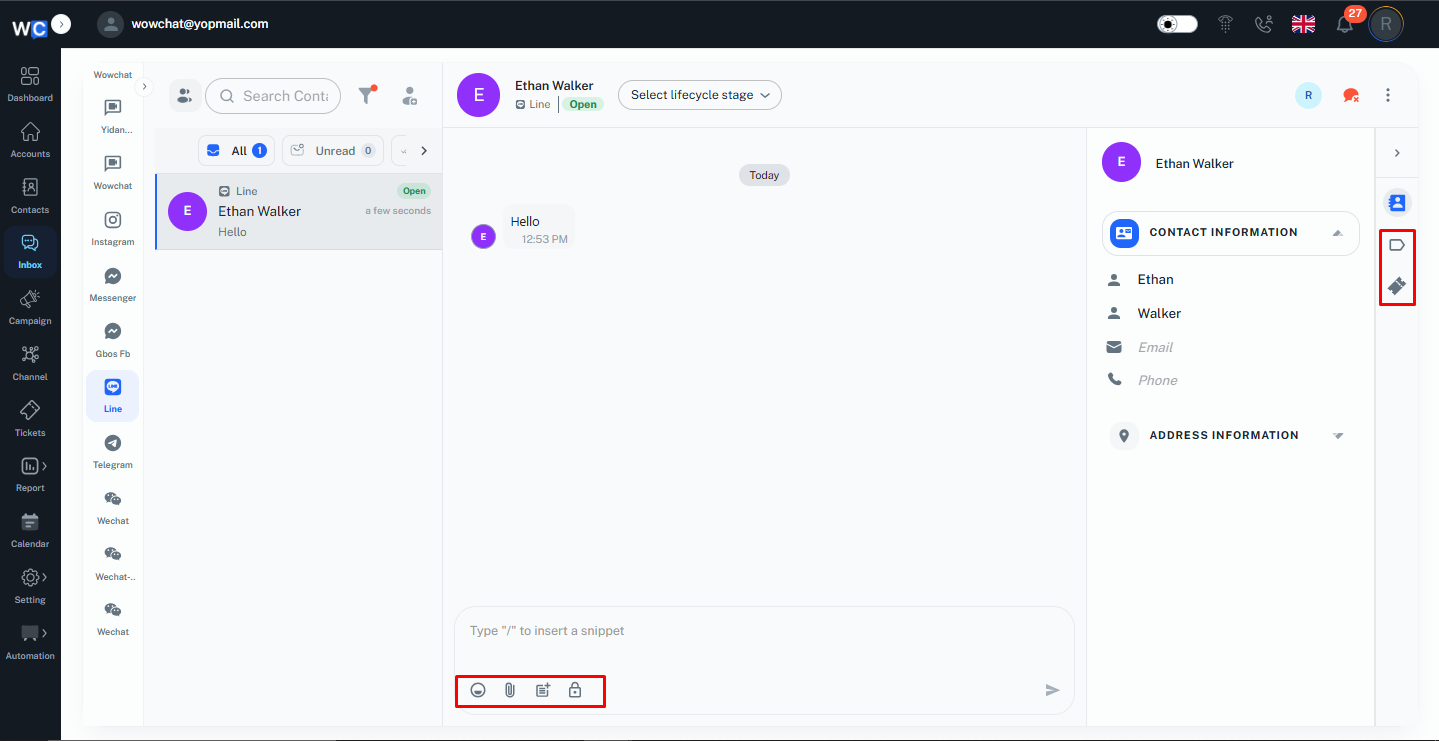
Using Quick Actions, users can:
- Add labels to categorize and organize conversations
- Create or manage tickets for customer requests
- Use emojis to make conversations more interactive
- Add attachments and share files with customers
- Use templates for quick and consistent responses
- Add internal notes for team members without showing them to the customer
Quick Actions help streamline daily conversation handling and improve agent productivity.
The LINE integration allows agents to send and receive messages directly from the WowChat inbox.When a customer sends a message to your LINE Official Account, the conversation is automatically created in WowChat. Agents can view the incoming message and reply to the customer from the same chat window.
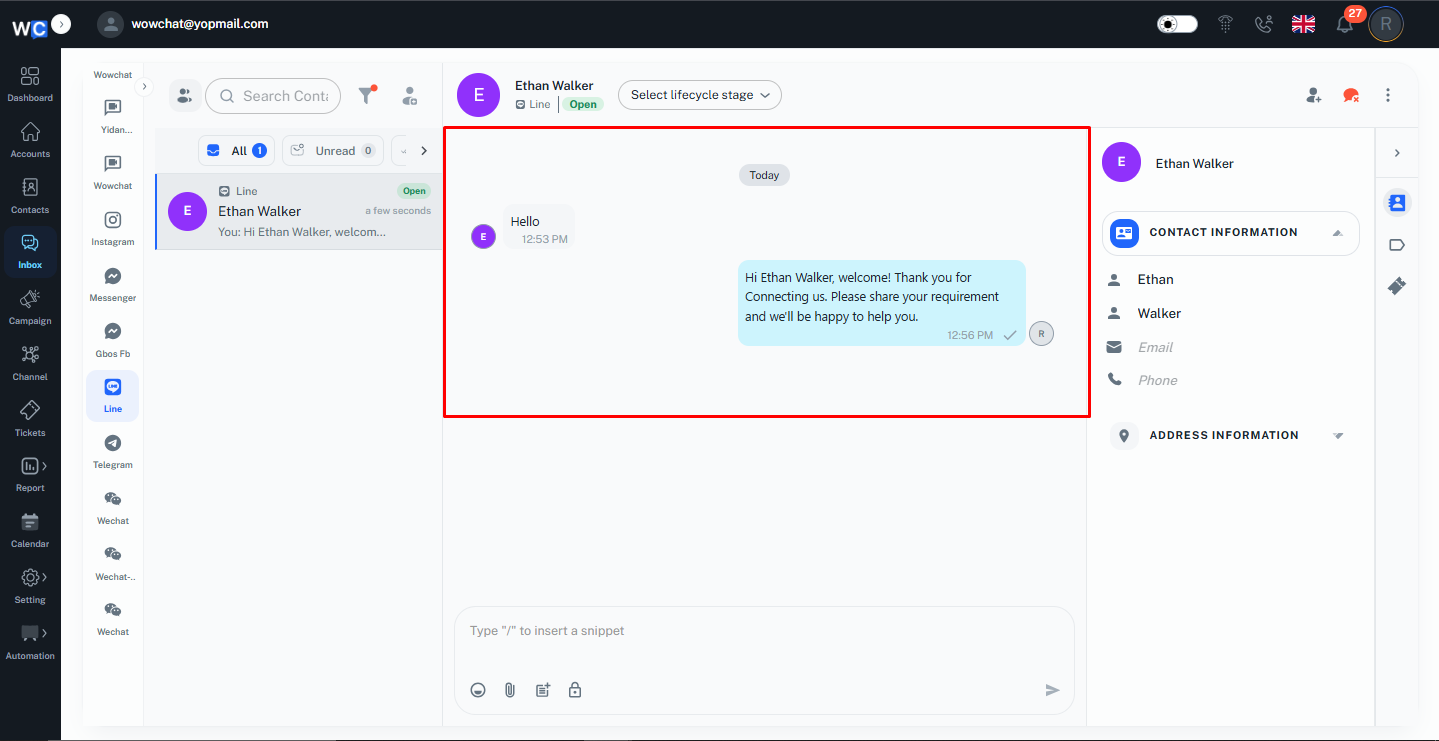
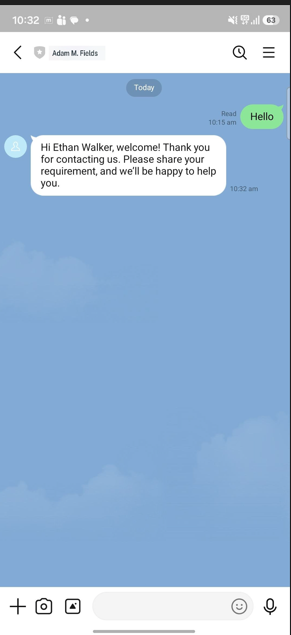
This helps agents manage LINE customer communication efficiently along with other connected channels.
Connect your WeChat Official Account with WowChat to manage customer conversations from a single platform.
Note: To configure and connect the communication channel, refer to the Channel Configuration Guide by clicking on the link.
With WeChat integration, businesses can communicate with customers through the WowChat inbox and handle incoming messages efficiently. Customer conversations are automatically captured, allowing agents to view and respond without switching between platforms.
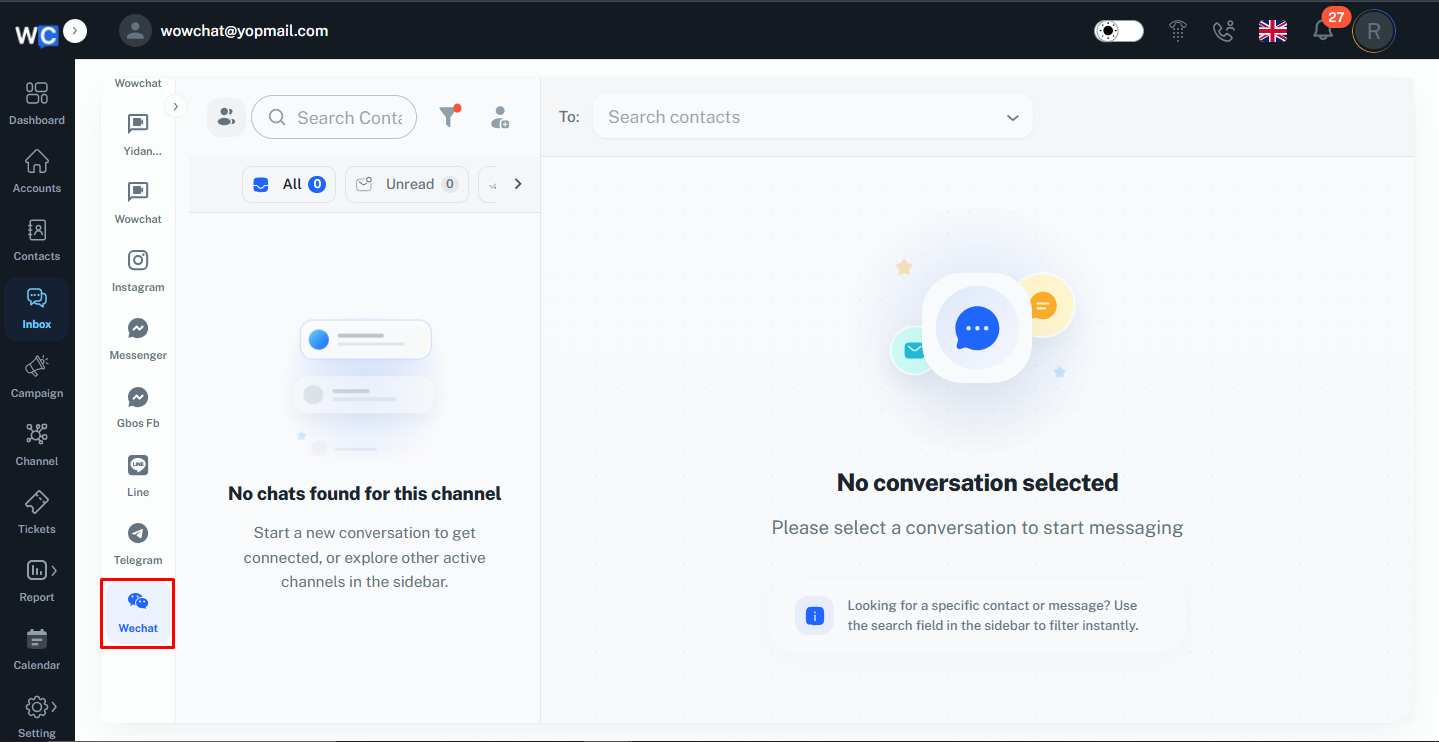
This helps businesses provide a consistent customer support experience across multiple communication platforms.
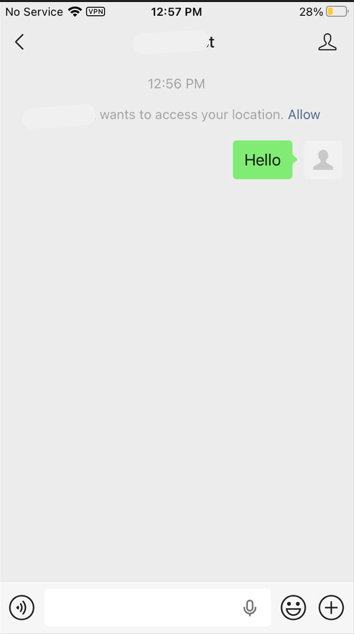
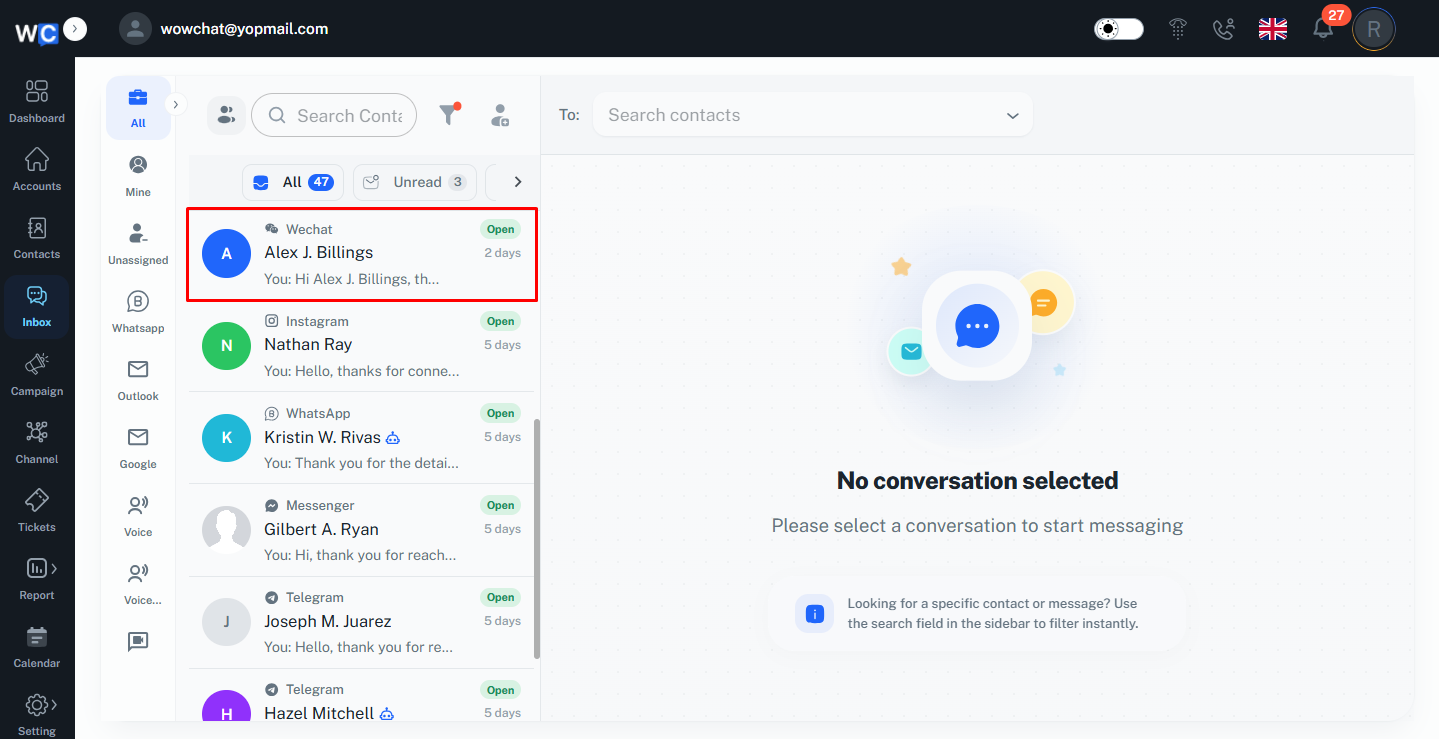
When a customer sends a message through your connected WeChat Official Account, the conversation is automatically received and displayed in the WowChat inbox.Agents can view the incoming message, access customer information, and continue the conversation directly from the chat window.
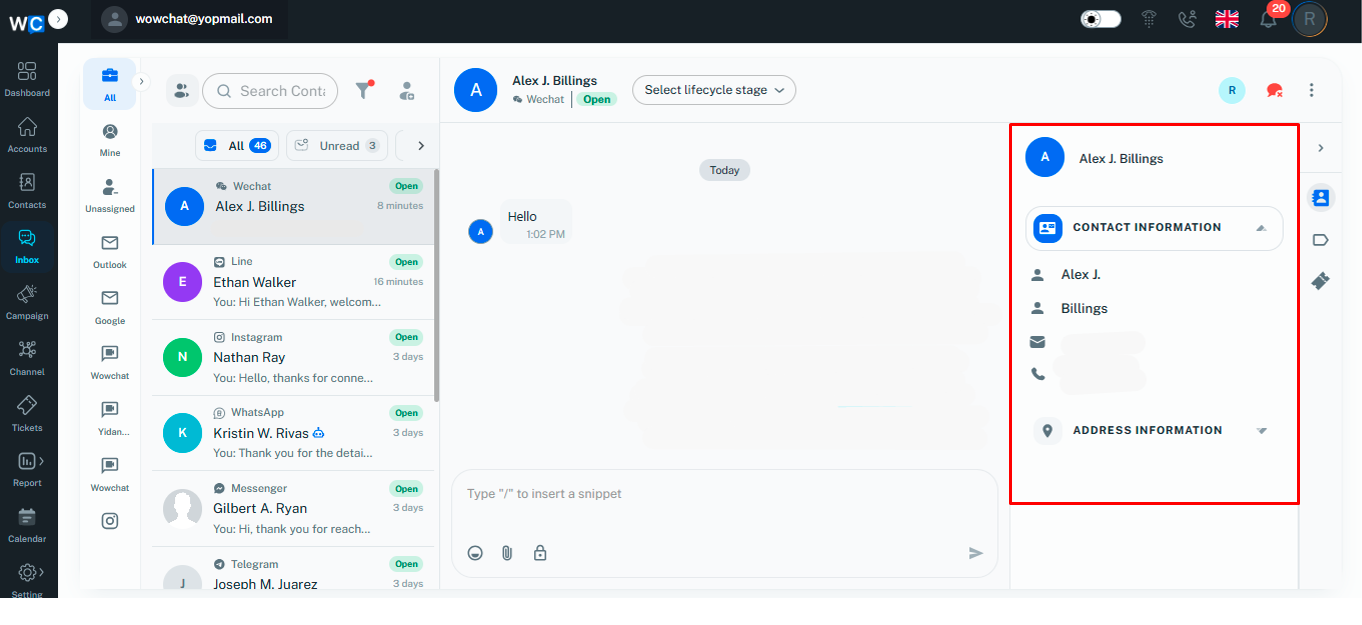
The Record Details panel provides important customer information alongside the WeChat conversation, helping agents access relevant details without leaving the chat window.As messages are received, agents can view customer information, activity history, and associated records directly from the side panel.
Quick Actions in the WeChat chat window help agents manage conversations efficiently by providing commonly used actions while communicating with customers.Agents can use these options to organize chats, add information, and respond faster without leaving the conversation.
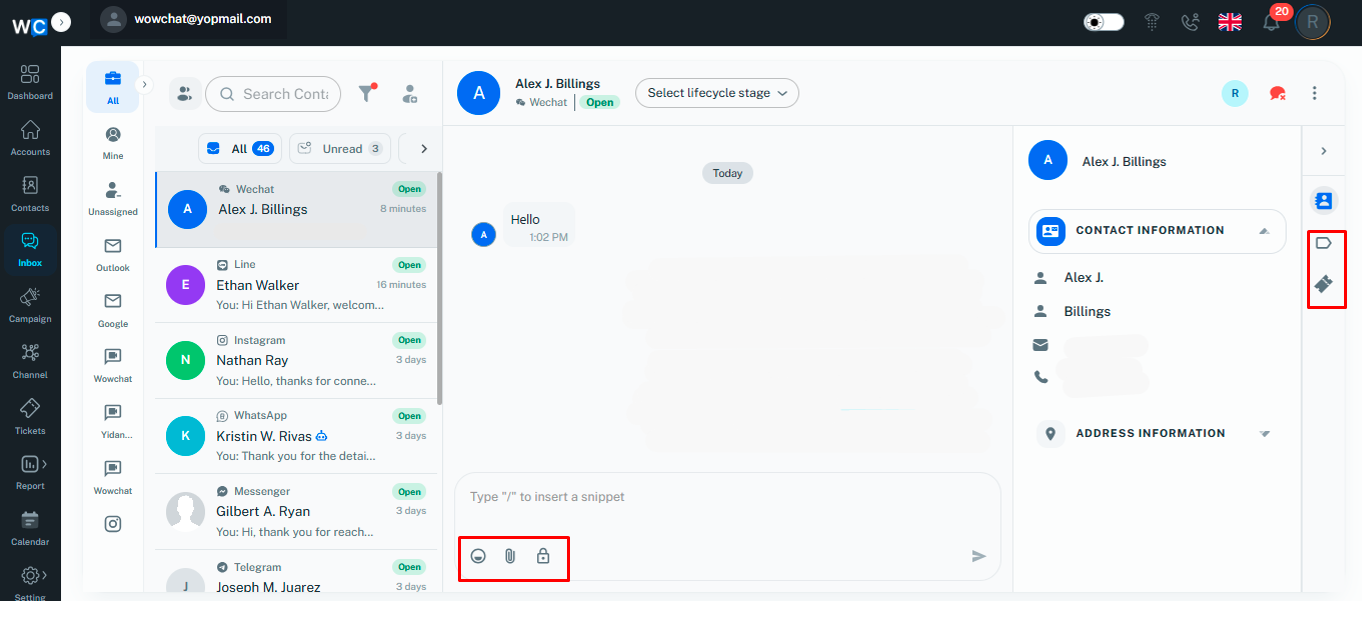
Using Quick Actions, users can:
- Add labels to categorize and organize conversations
- Create or manage tickets for customer requests
- Use emojis to make conversations more interactive
- Add attachments and share files with customers
- Add internal notes for team members without showing them to the customer
Quick Actions help agents handle WeChat conversations smoothly and keep customer communication organized.
The WeChat integration allows agents to send and receive customer messages directly from the WowChat inbox.When a customer sends a message through the connected WeChat Official Account, the conversation is automatically created in WowChat. Agents can view the incoming message and reply to the customer from the same conversation window.
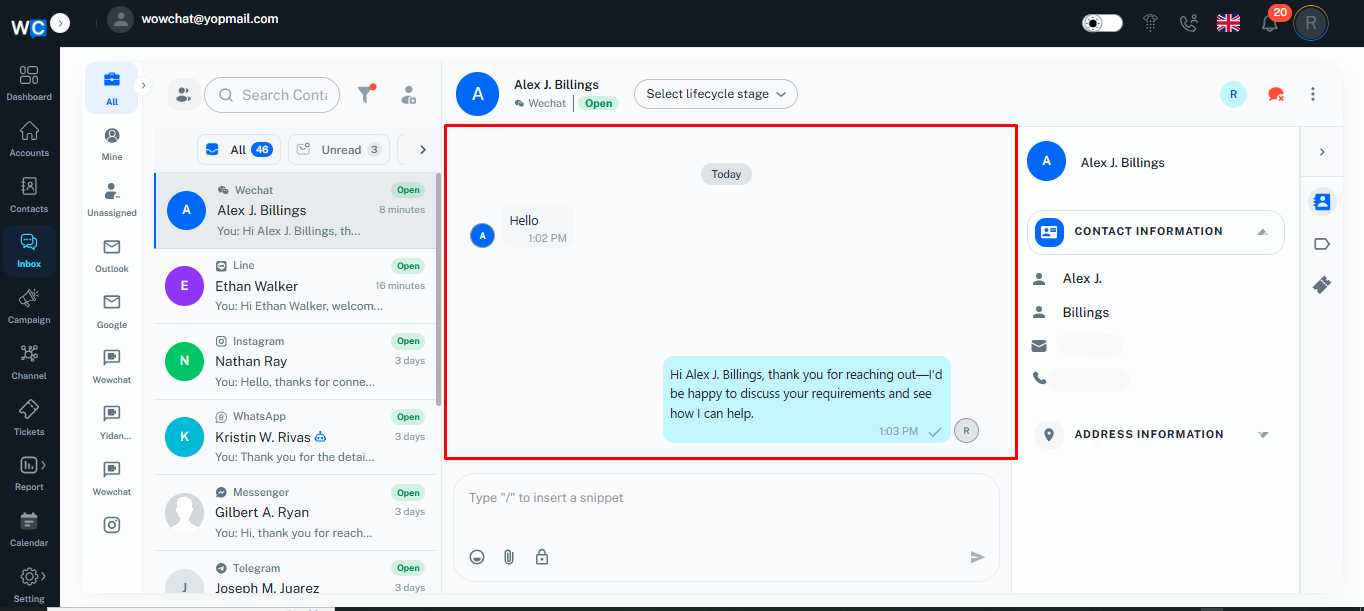
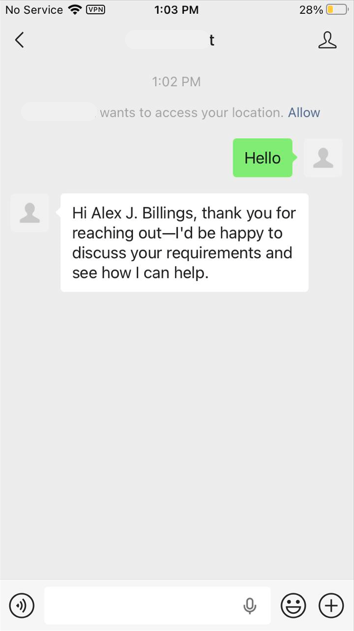
This helps teams manage WeChat conversations efficiently and maintain a structured support workflow.
FAQ
WowChat is an omnichannel communication platform that allows businesses to manage customer conversations from multiple channels like WhatsApp Business, Email, Live Chat, Messenger, Instagram, Telegram, LINE, WeChat, and more from a single unified Inbox.