After connecting your communication channels and inviting team members, you're ready to start managing customer conversations. This guide will walk you through the basics of handling your first conversation in WowChat and help you become familiar with the communication workflow.
Whether the message comes from WhatsApp, Instagram, Facebook Messenger, Telegram, Email, or Website Live Chat, all customer interactions are managed through the Unified Inbox.
Before You Start
Before handling your first conversation, ensure that:
- Your workspace has been created successfully
- At least one communication channel is connected
- Users have access to the workspace
- Incoming messages are being received in the Inbox
Once everything is configured, you are ready to begin engaging with customers.
Understanding the Conversation Flow
In WowChat, all customer messages are automatically collected and displayed in the Unified Inbox.
When a customer sends a message through any connected channel:
- The message appears in the Inbox.
- A user or team can be assigned to the conversation.
- The assigned user responds to the customer.
- The conversation history is stored for future reference.
- The conversation can be monitored until it is resolved.
This workflow helps ensure that no customer message is missed.
Managing Your First Conversation
Follow these steps to handle your first customer conversation.
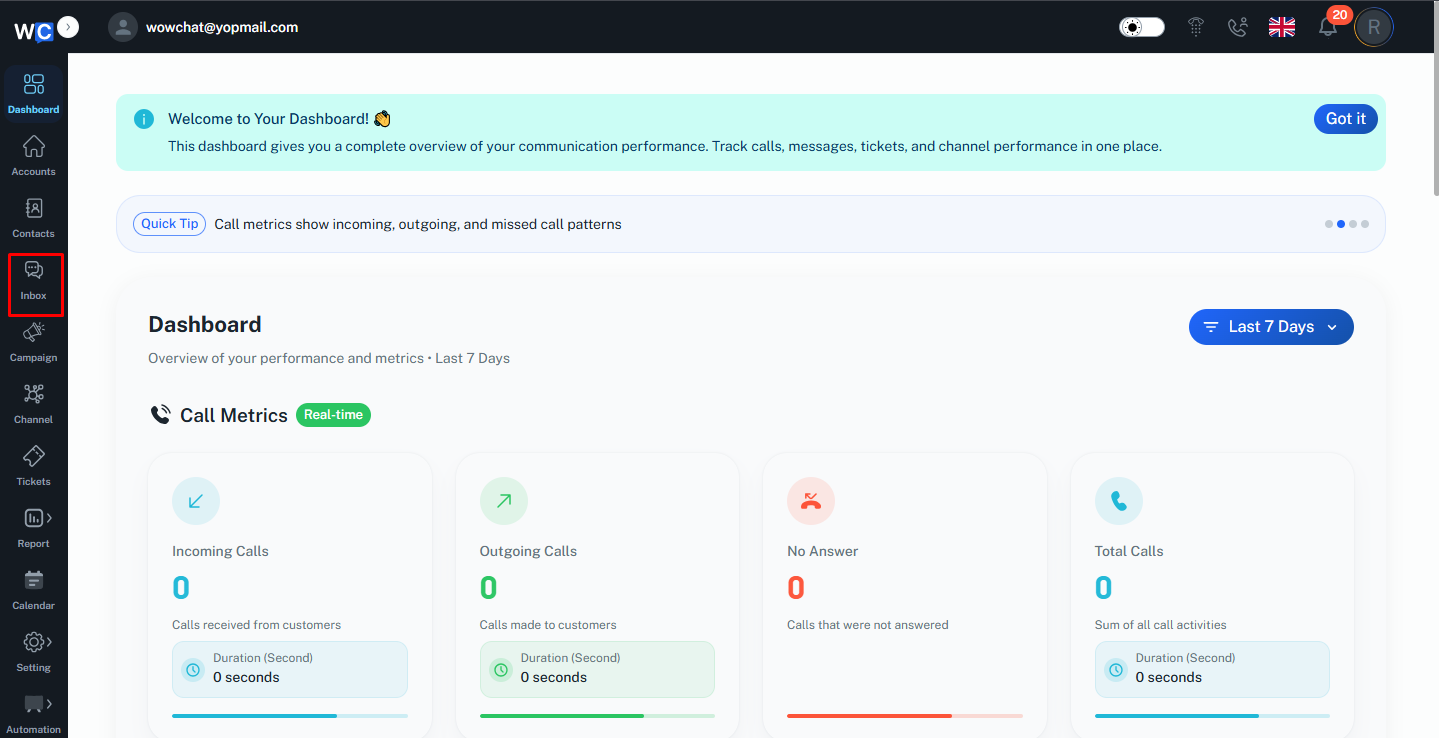
Step 1: Open the Inbox
After successfully logging in to your WowChat account, navigate to the Inbox page from the left-hand menu.
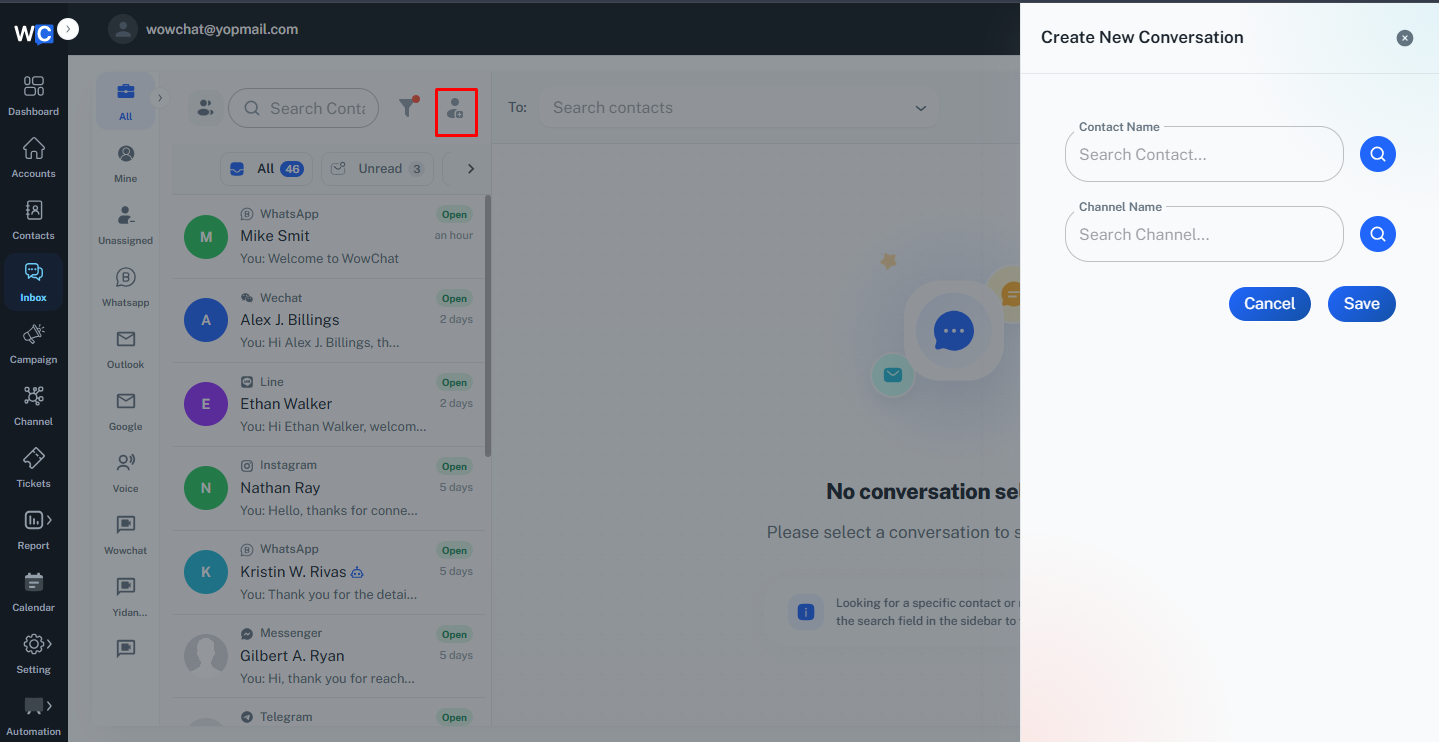
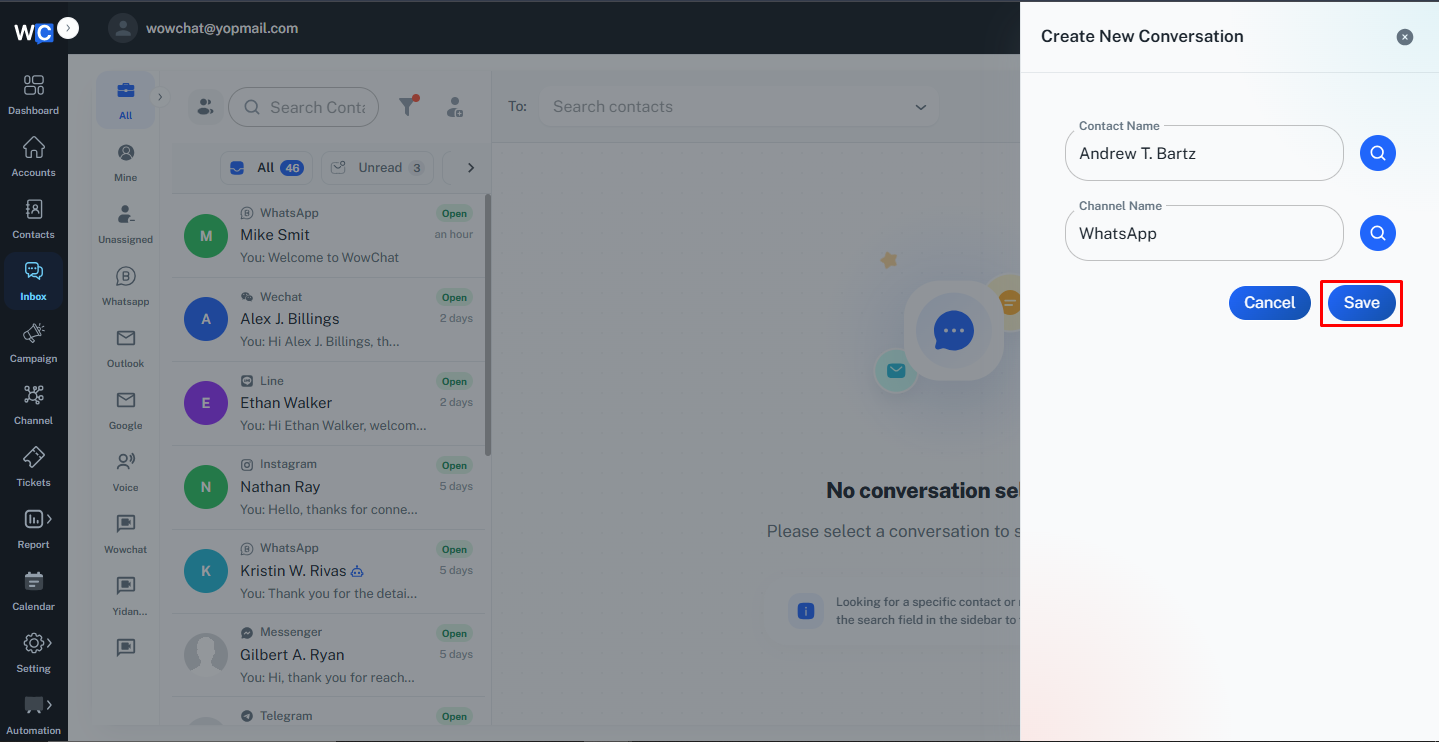
Step 2: Click Create Conversation
On the Inbox page, click the Create Conversation button.This will open the Create Conversation window.
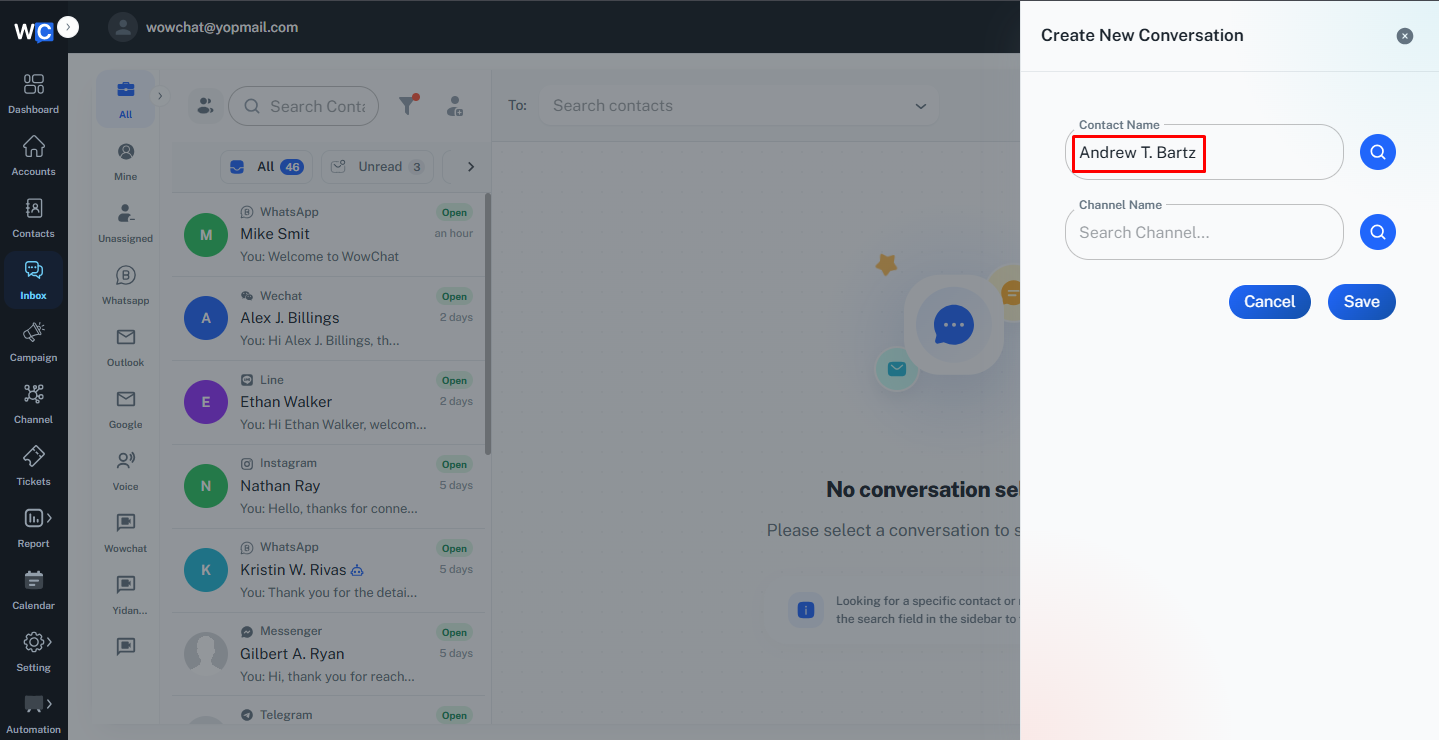
Step 3: Select a Contact
Choose the contact you want to start a conversation with.You can search for an existing contact or select one from the available contact list.
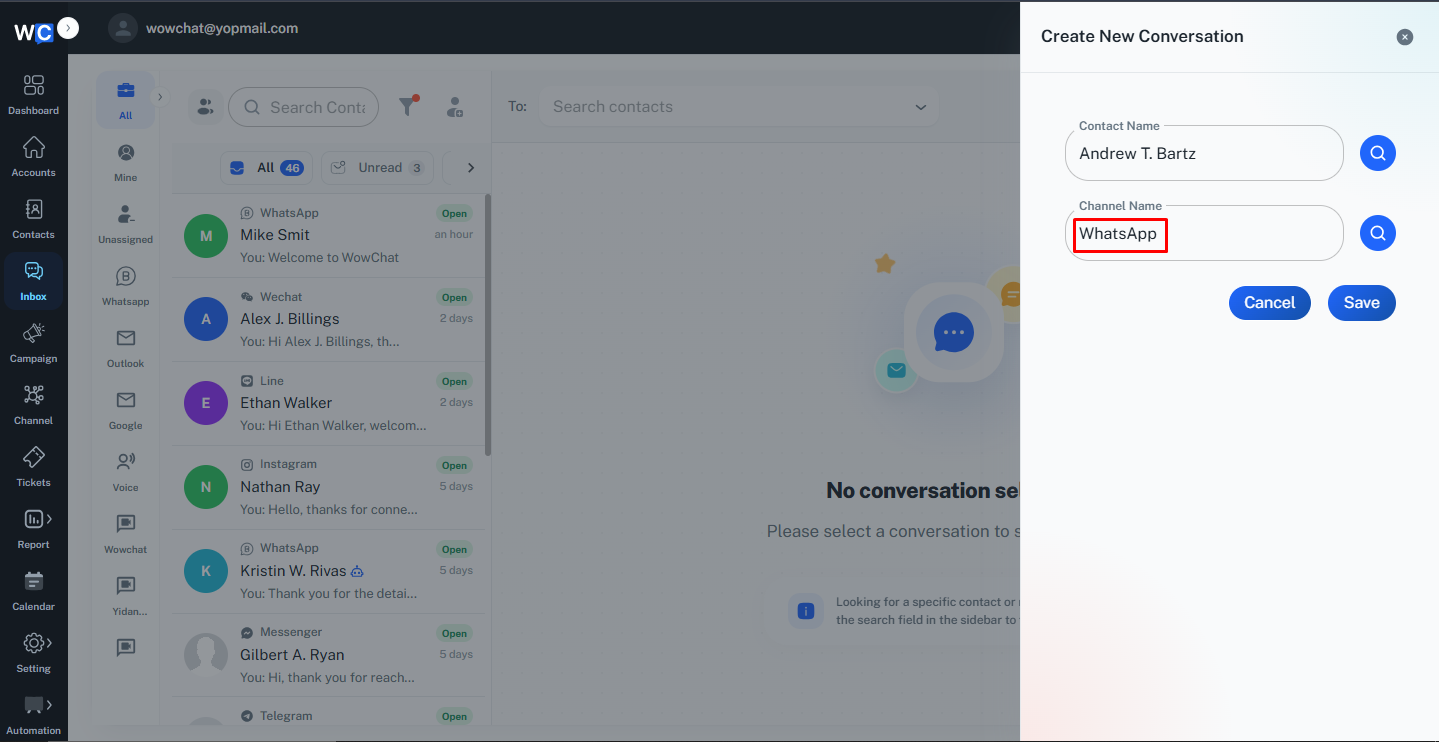
Step 4: Select a Channel
Select the communication channel you want to use for the conversation.For example: - WhatsApp - Instagram - Facebook Messenger - Telegram - Email - Live Chat - Wechat - Line - SMS - Teams
Step 5: Click Save
After selecting the contact and channel, click the Save button to create the conversation.
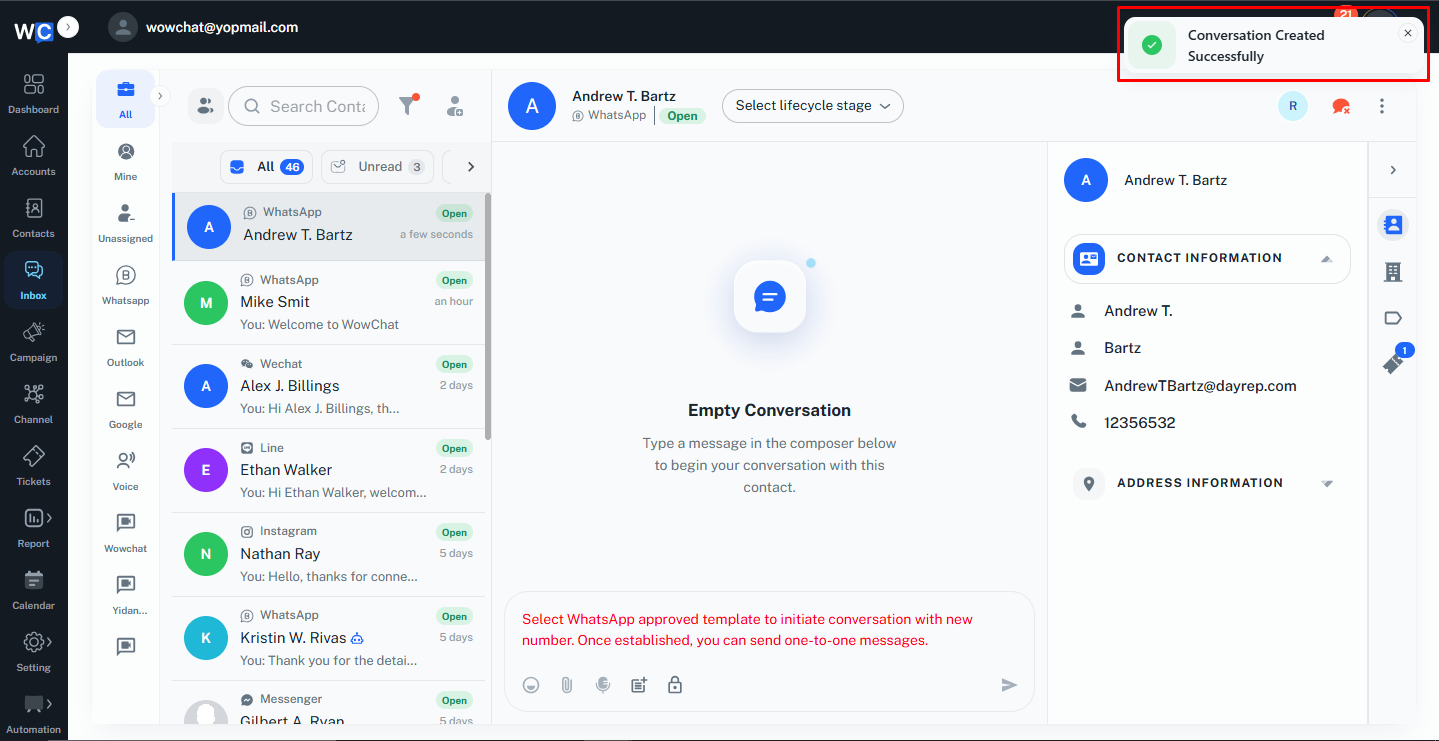
Step 6: Conversation Created Successfully
The conversation will be created successfully and will appear in your Inbox.You can now open the conversation and start communicating with the customer.
What Happens Next?
After handling your first conversation, you can continue using WowChat to:
- Manage multiple conversations simultaneously
- Collaborate with team members
- Monitor customer interactions
- Track conversation performance
- Improve response times and customer satisfaction
As your team grows, WowChat helps keep customer communication organized and efficient.
Benefits of Using WowChat Conversations
Managing conversations through WowChat helps organizations:
- Centralize customer communication
- Reduce missed messages
- Improve response times
- Increase team collaboration
- Maintain complete conversation history
- Deliver consistent customer experiences
Frequently Asked Questions (FAQ)
All customer conversations can be viewed and managed from the Unified Inbox.