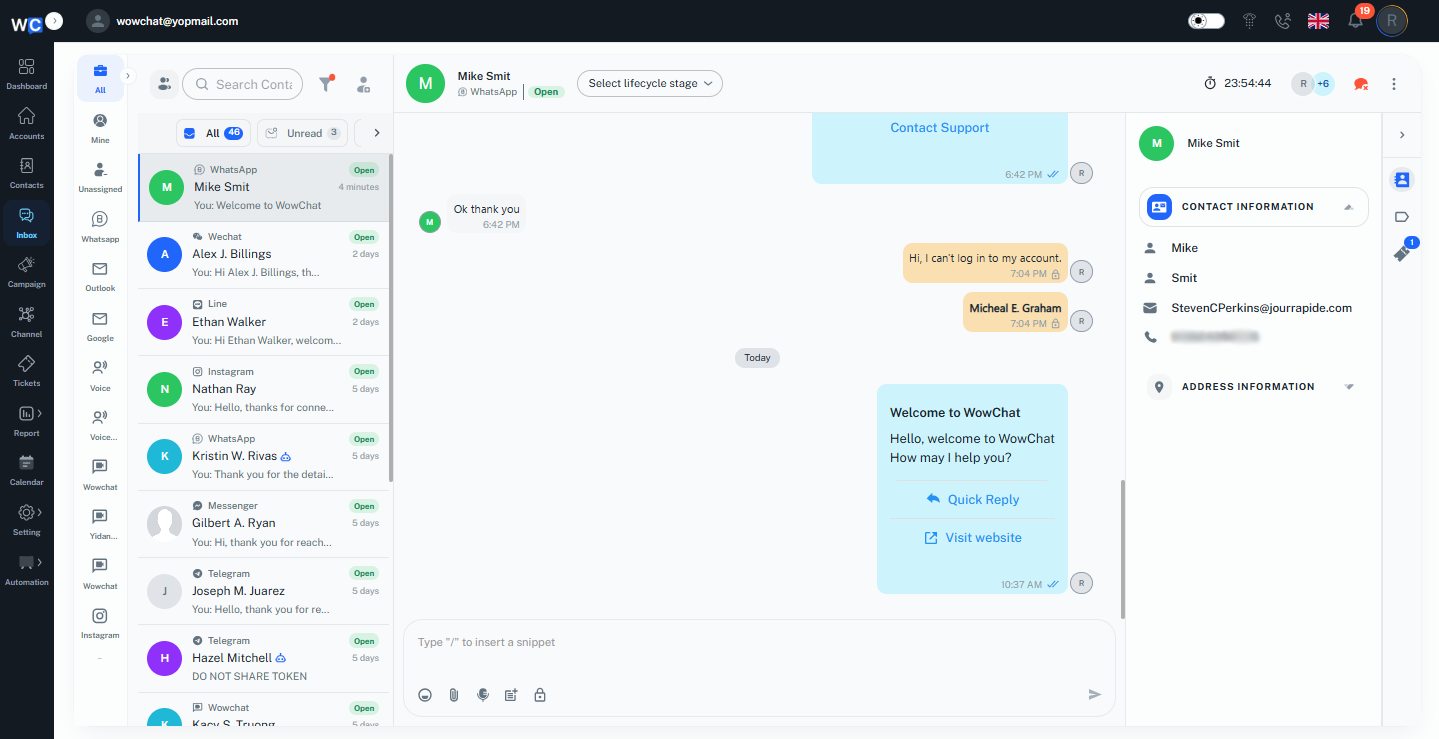
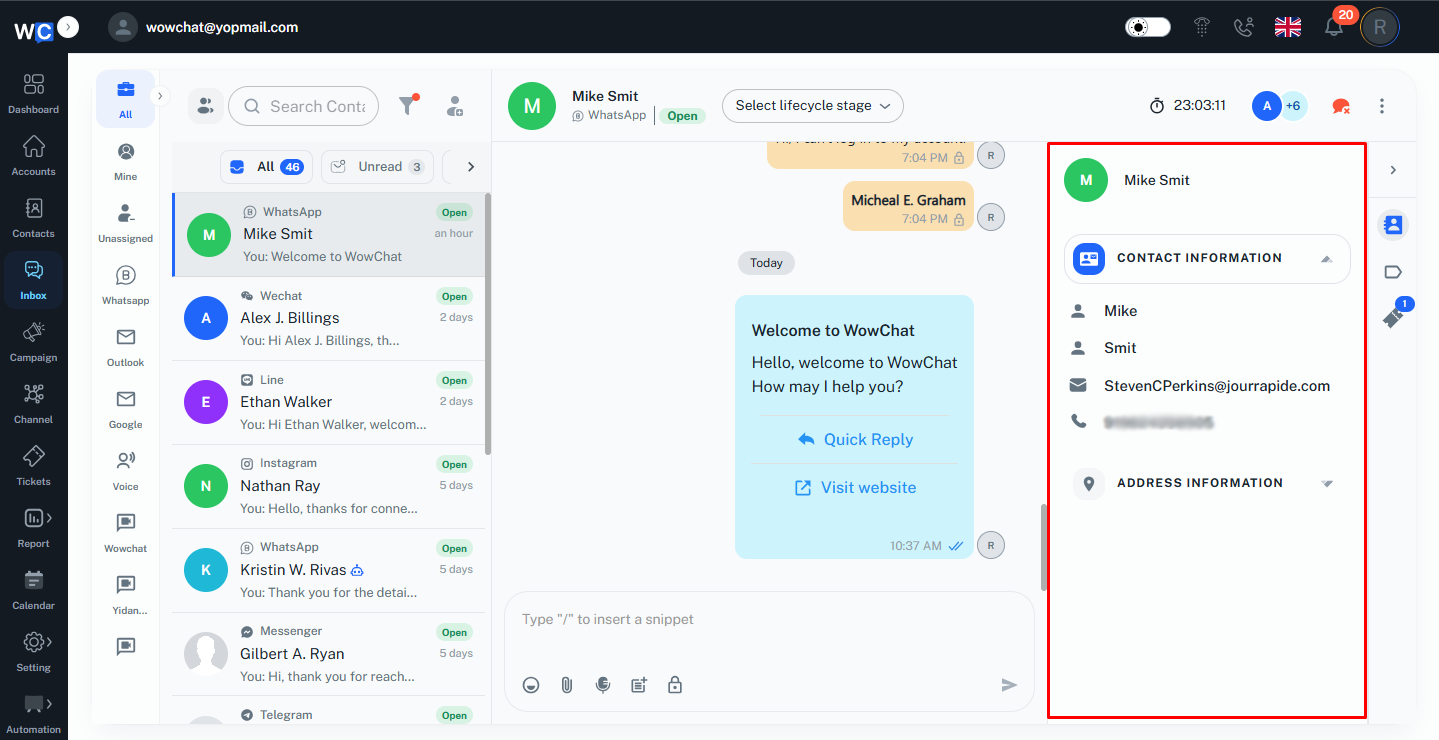
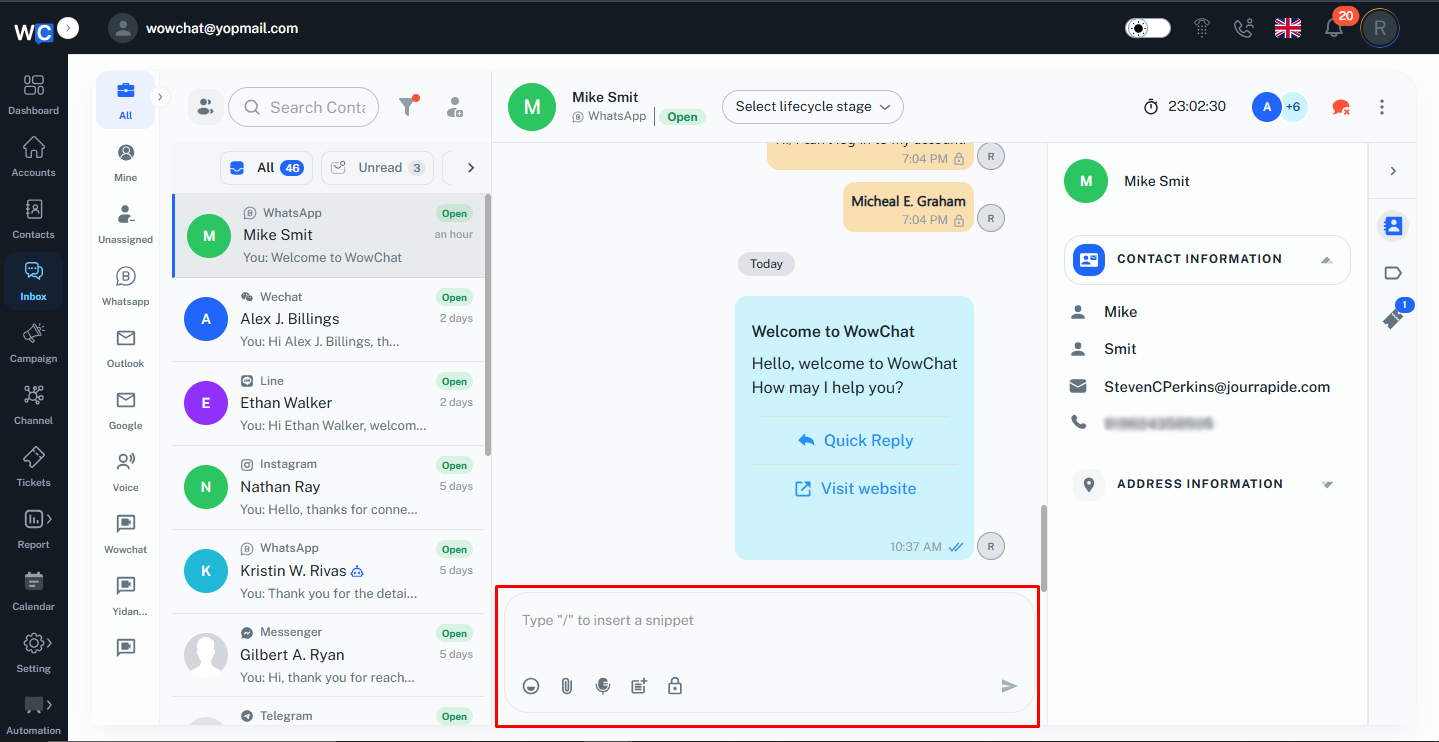
The left panel displays conversation channels and chat lists, allowing admin to quickly switch between channels and access customer conversations. The center panel shows the selected conversation, where admin can view message history, send replies, share files, use quick responses, and continue customer interactions. The right panel provides customer details and contact information, giving admin the context they need to deliver personalized support.
With conversation filters, assignment options, and customer information readily available, the Inbox enables admin to collaborate efficiently, respond faster, and manage customer communications from a single location.
Main Sections of the Inbox
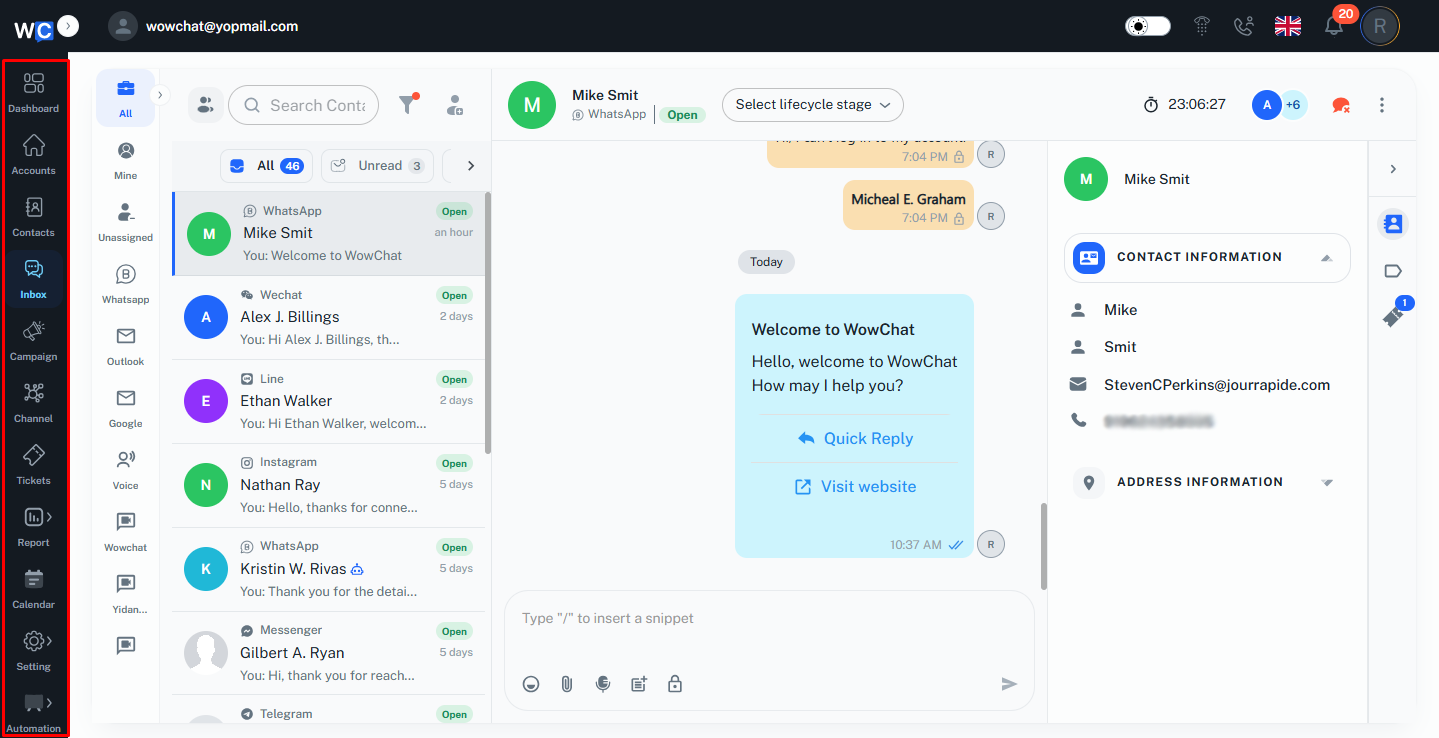
1. Navigation Menu
Access different modules such as Dashboard, Contacts, Inbox, Campaigns, Tickets, Reports, and Settings.
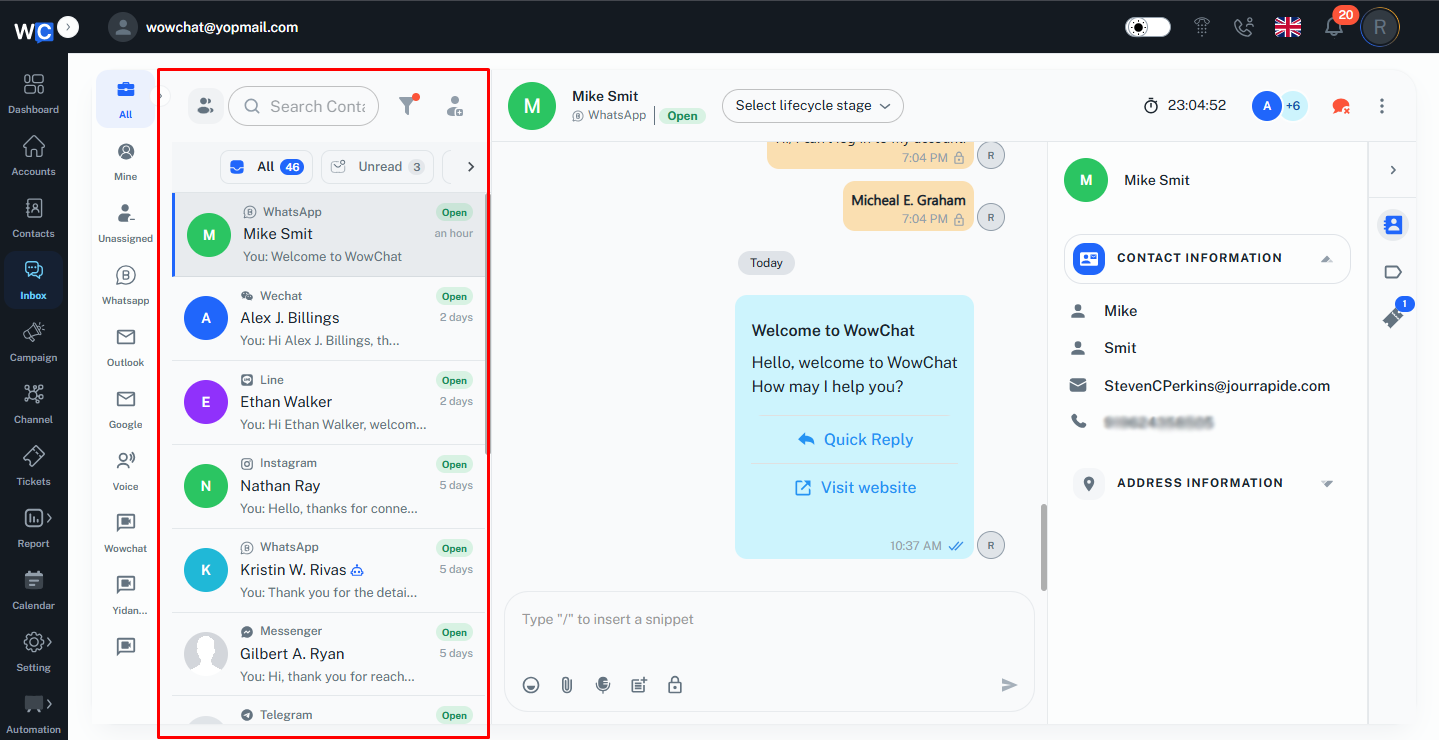
2. Channel & Conversation List
- View conversations from connected channels.
- Switch between assigned, unassigned, unread, or all conversations.
- Search for specific contacts or conversations.
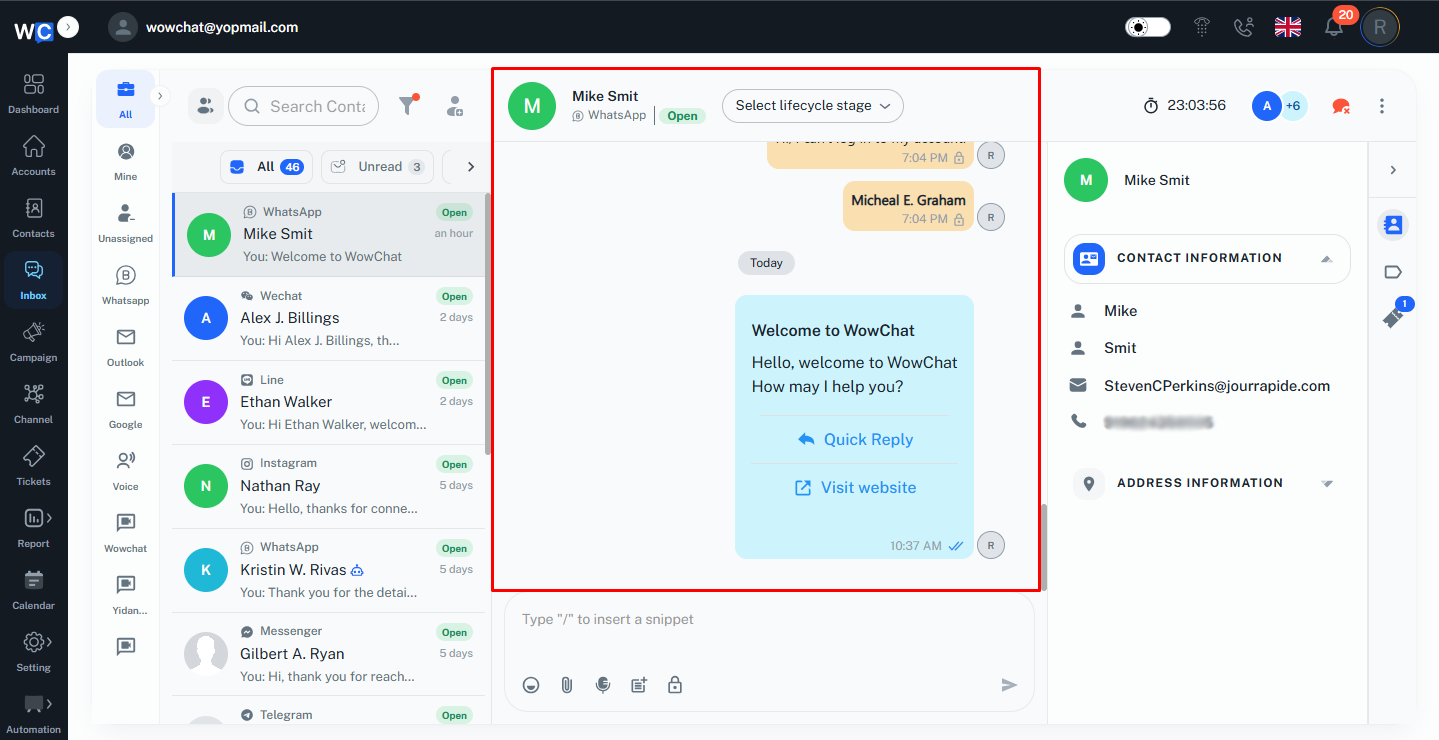
3. Conversation Window
- View complete chat history.
- Send messages, attachments, and quick responses.
- Continue customer conversations in real time.
4. Customer Information Panel
- View contact details and customer information.
- Access customer context while responding.
- Review additional customer information when available.
5. Message Composer
- Type and send messages.
- Attach files and media.
- Use quick actions and communication tools.
Frequently Asked Questions (FAQs)
The Inbox is used to manage customer conversations from multiple communication channels in a single place, making it easier for agents to respond and track interactions.