This guide explains how to create and configure an AI Agent in WowChat.
Before You Begin
Before creating an AI Agent, you must enable the AI Core features within your workspace.
Enable AI Core Features
Follow these steps to enable AI functionality:
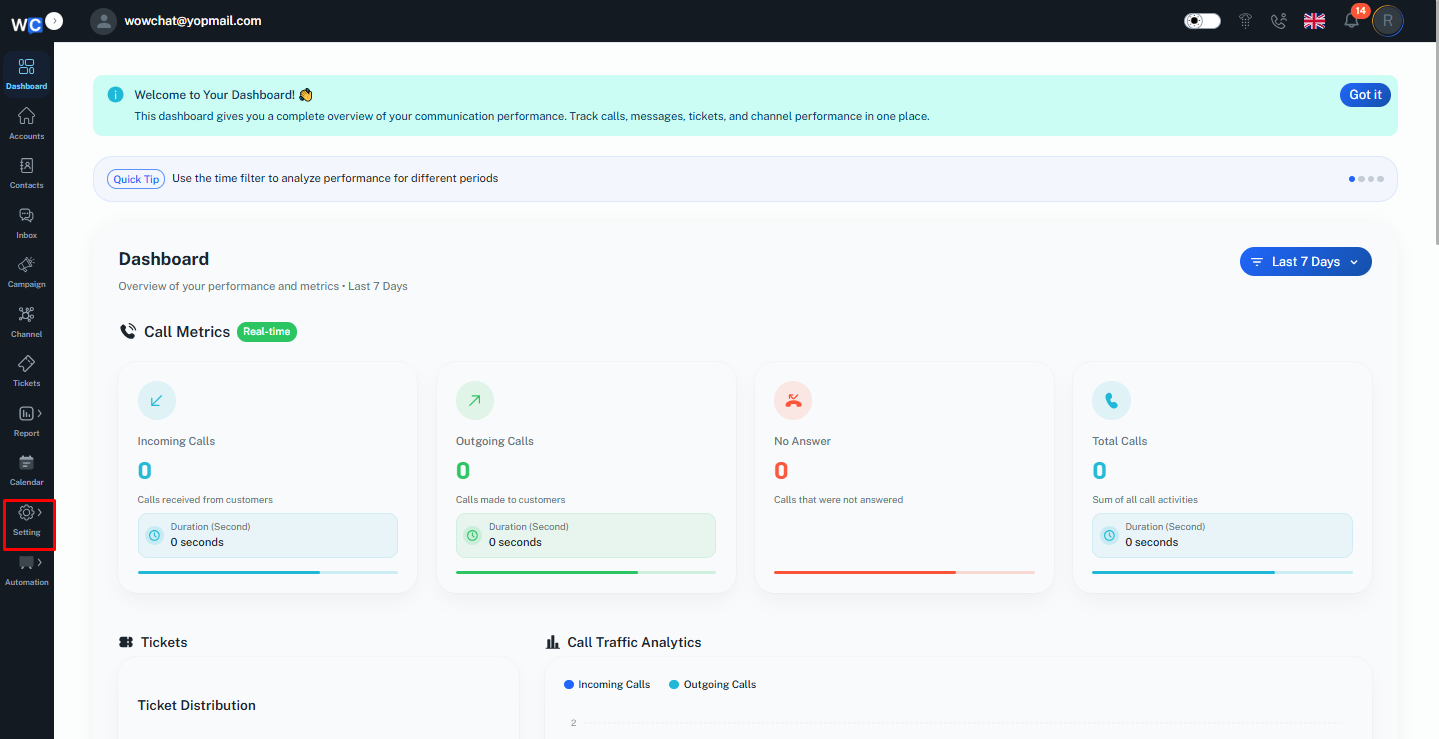
Step 1: Open Settings
After successfully logging in to your WowChat account, click on the Settings option from the left-hand navigation menu.
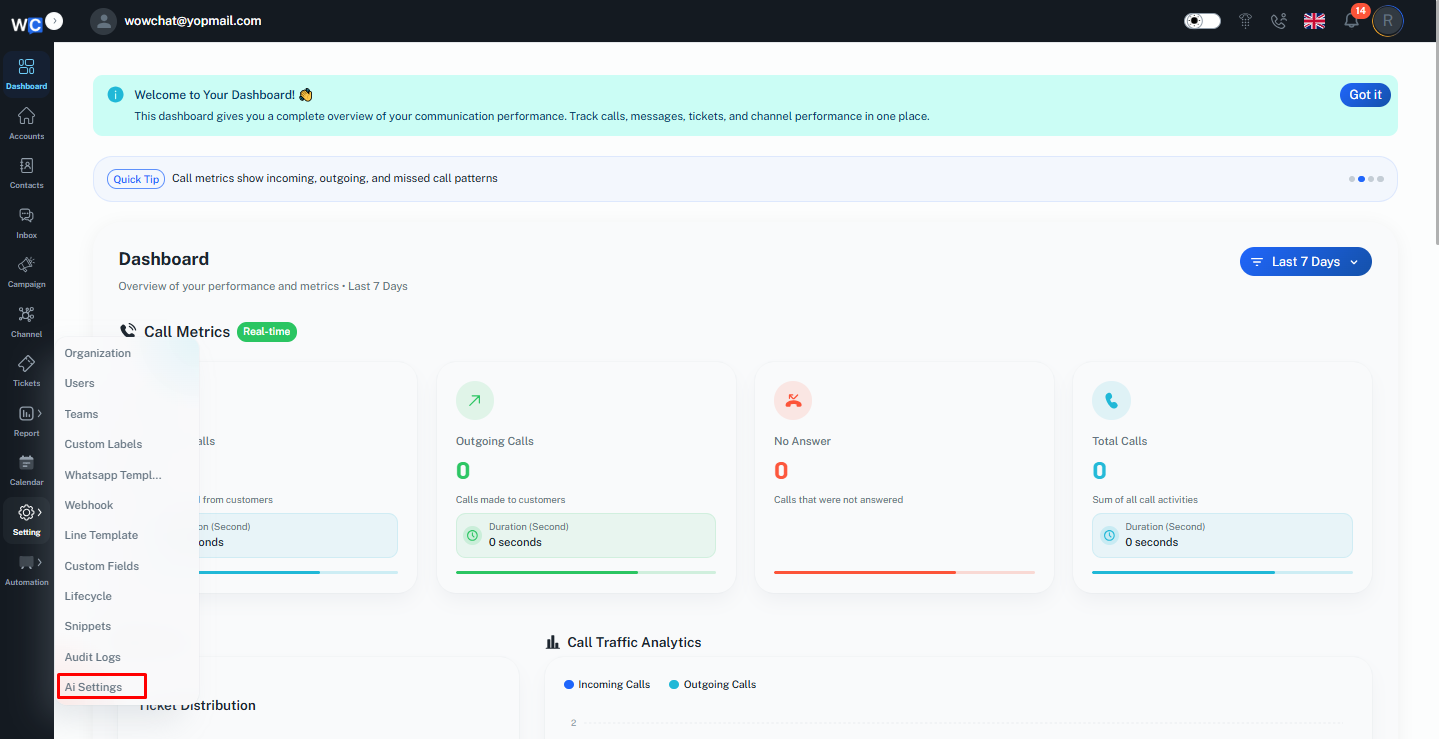
Step 2: Open AI Settings
Click on the AI Settings option.
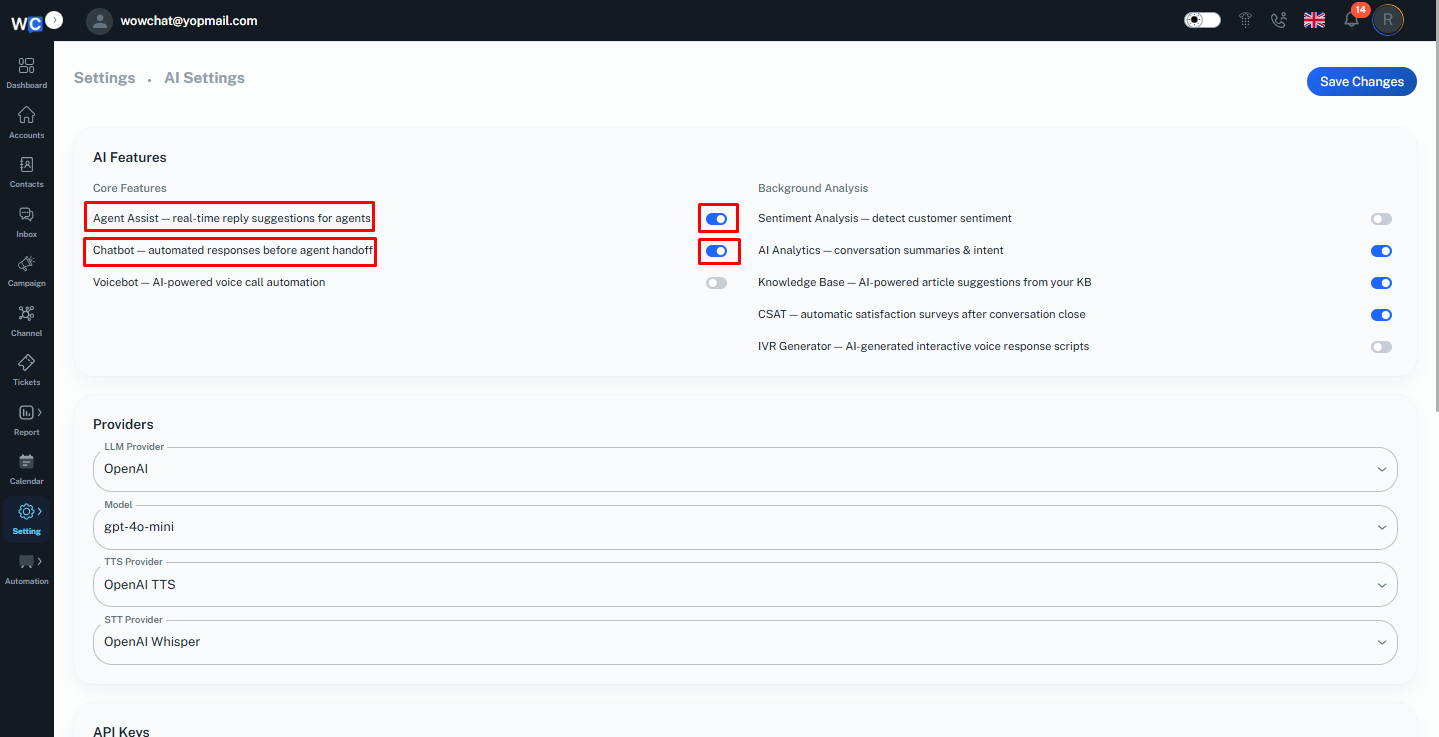
Step 3: Enable AI Features
Enable the following options:- Agent Assist - real-time reply suggestions for agents- Chatbot - automated responses before agent handoff
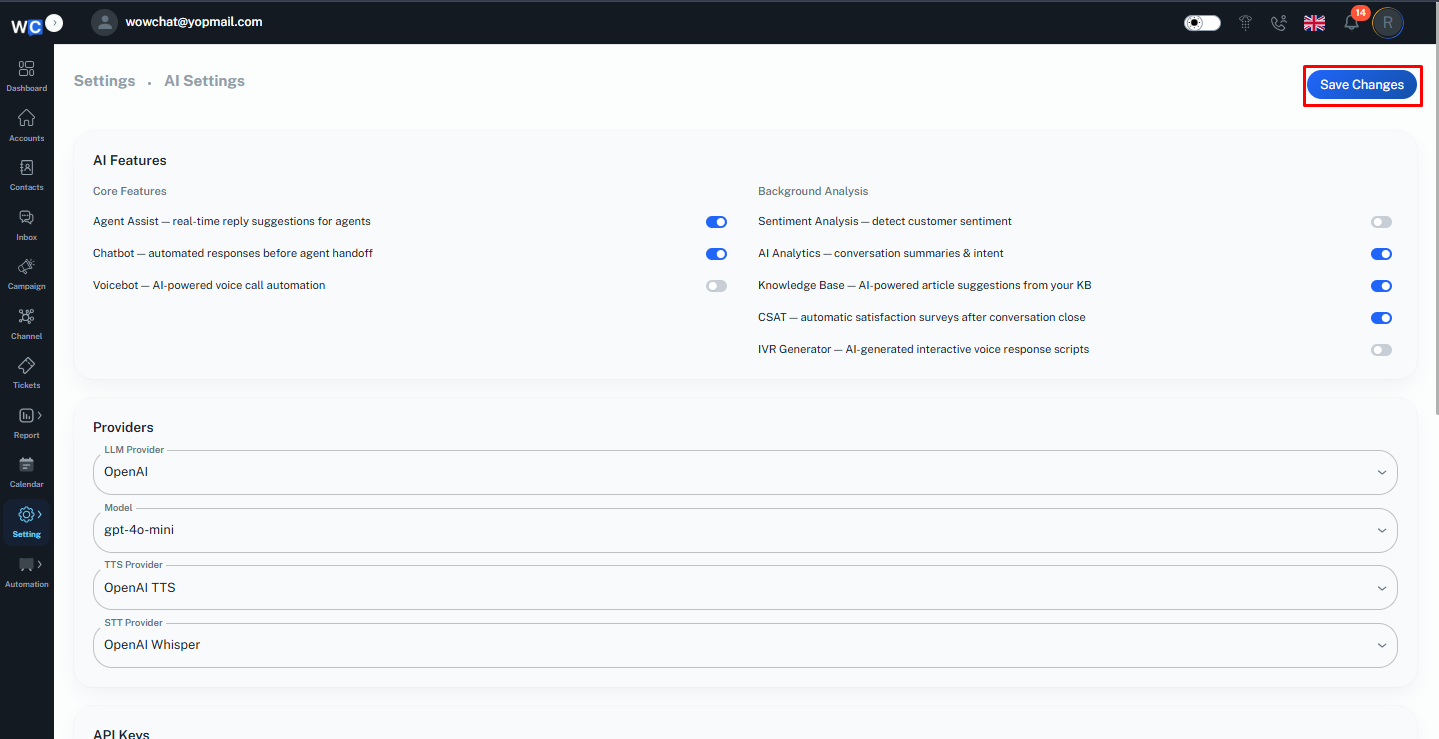
Step 4: Save Changes
Click the Save Changes button. Once enabled, you can proceed to create an AI Agent.
Creating an AI Agent
Follow these steps to create a new AI Agent.
Step 1: Open AI Agent
Click on the Automation option from the left-hand navigation menu. Then click on AI Agent.
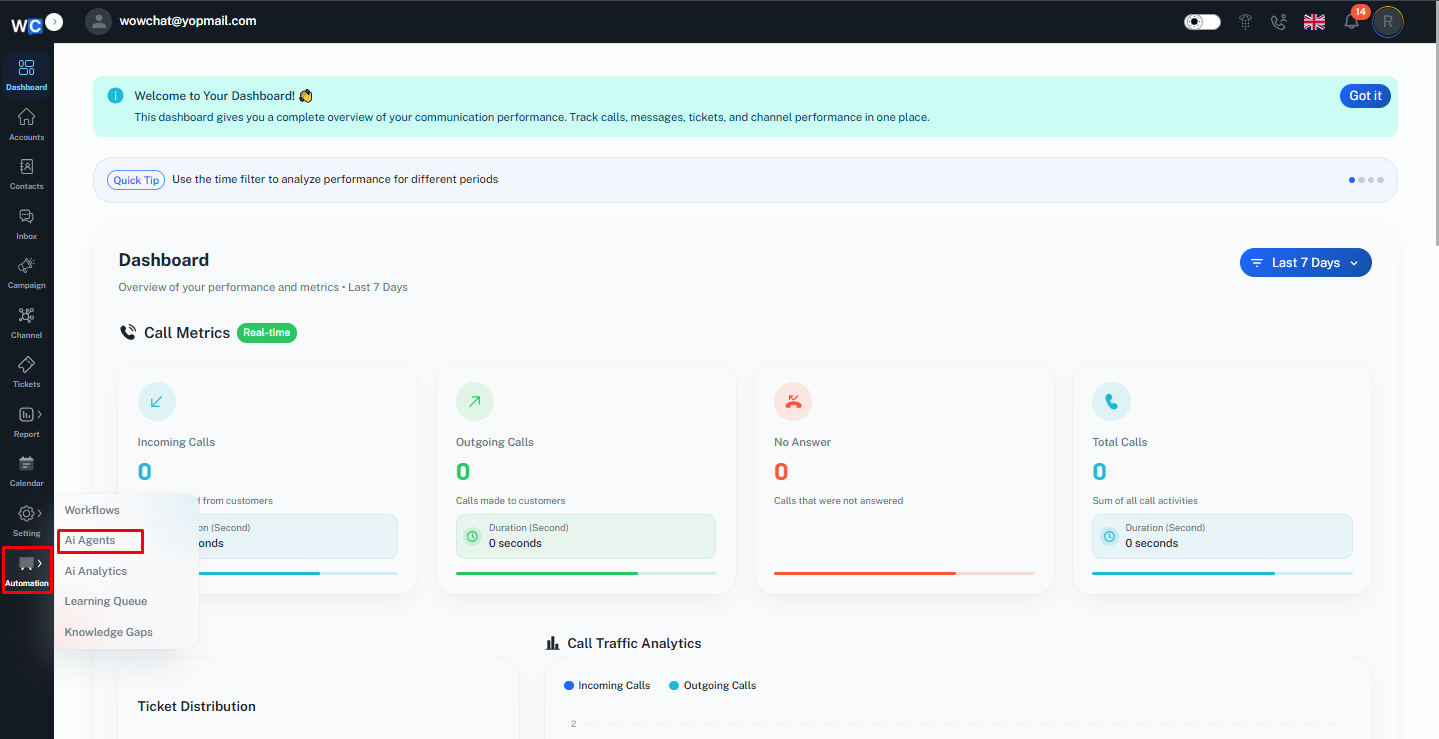
Step 2: Create a New Agent
Click the New Agent button.
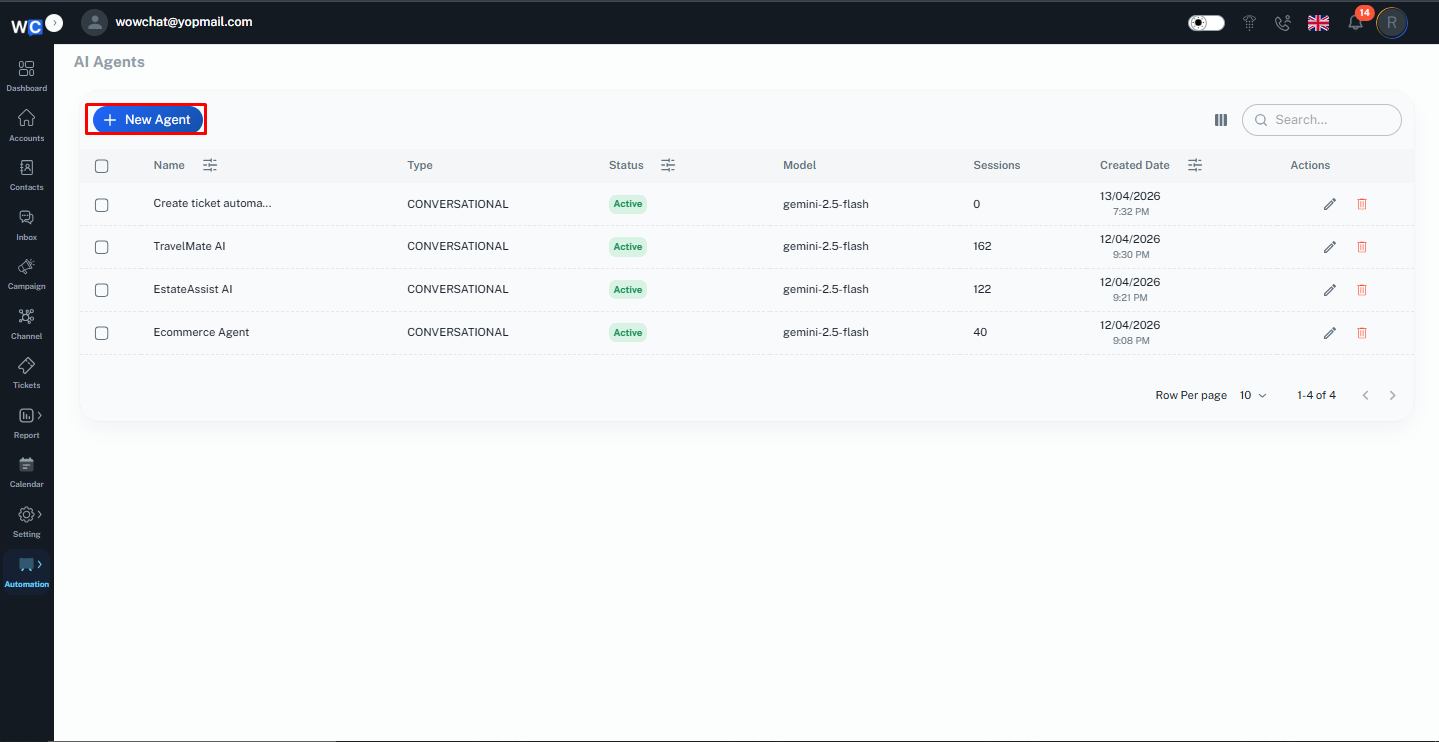
Step 3: Enter AI Agent Name
Enter a unique name for your AI Agent. Click the Create Agent button.
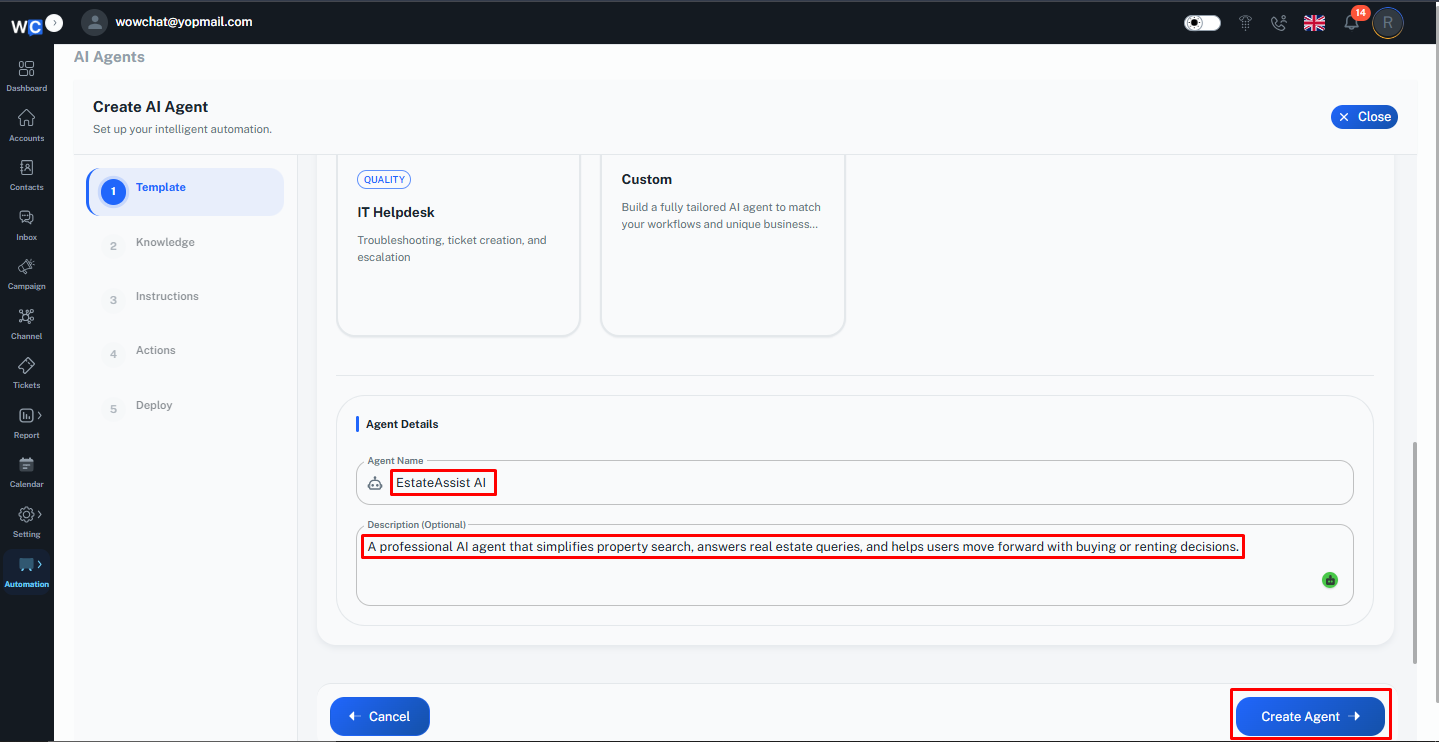
Step 4: Configure Knowledge Base
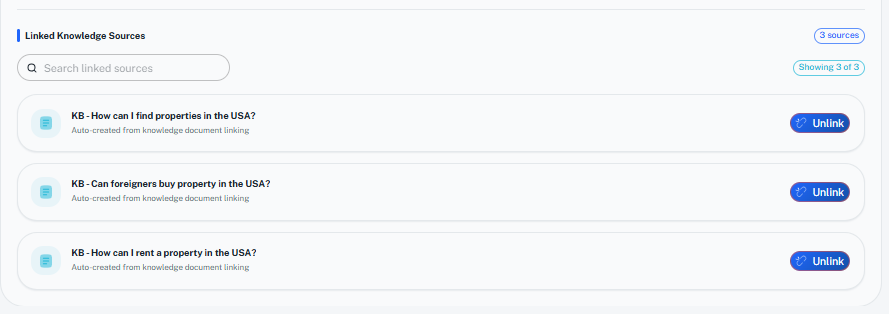
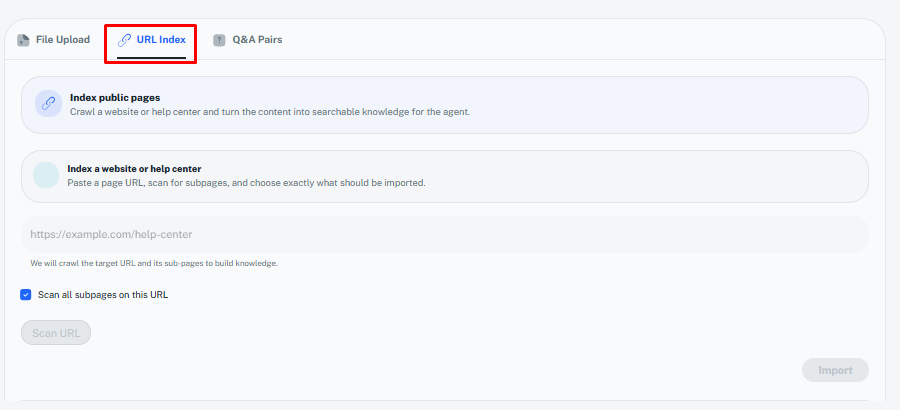
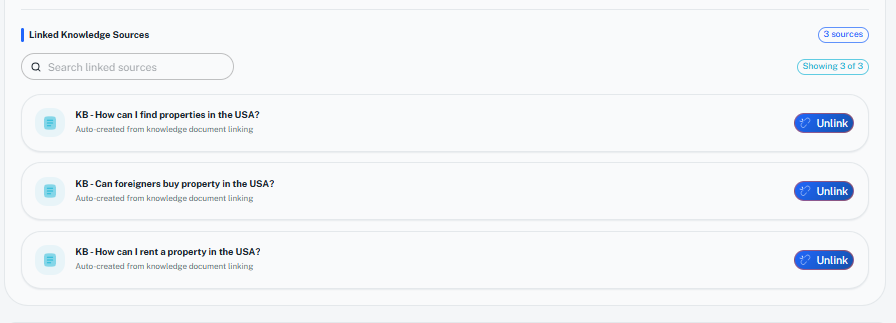
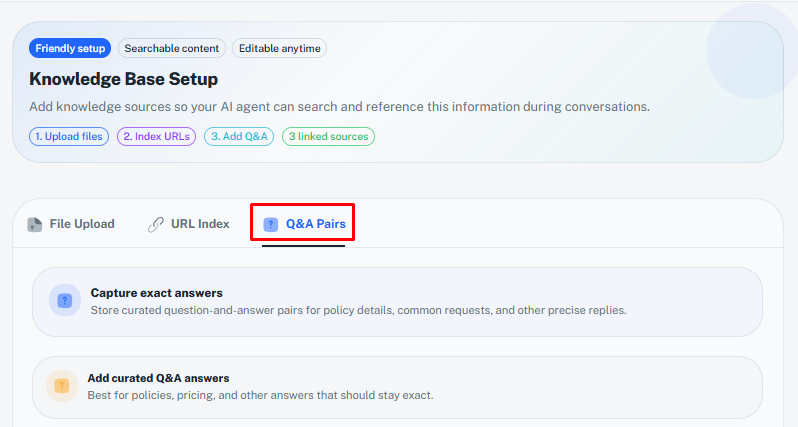
The Knowledge Base Setup page will open. Choose one of the available knowledge source options:File UploadUpload documents that contain information your AI Agent should use when answering customer questions.URL IndexProvide a website URL that the AI Agent can index and use as a knowledge source.Q&A PairManually create question-and-answer pairs to train the AI Agent. After selecting and configuring your preferred knowledge source, click the Save & Continue button.
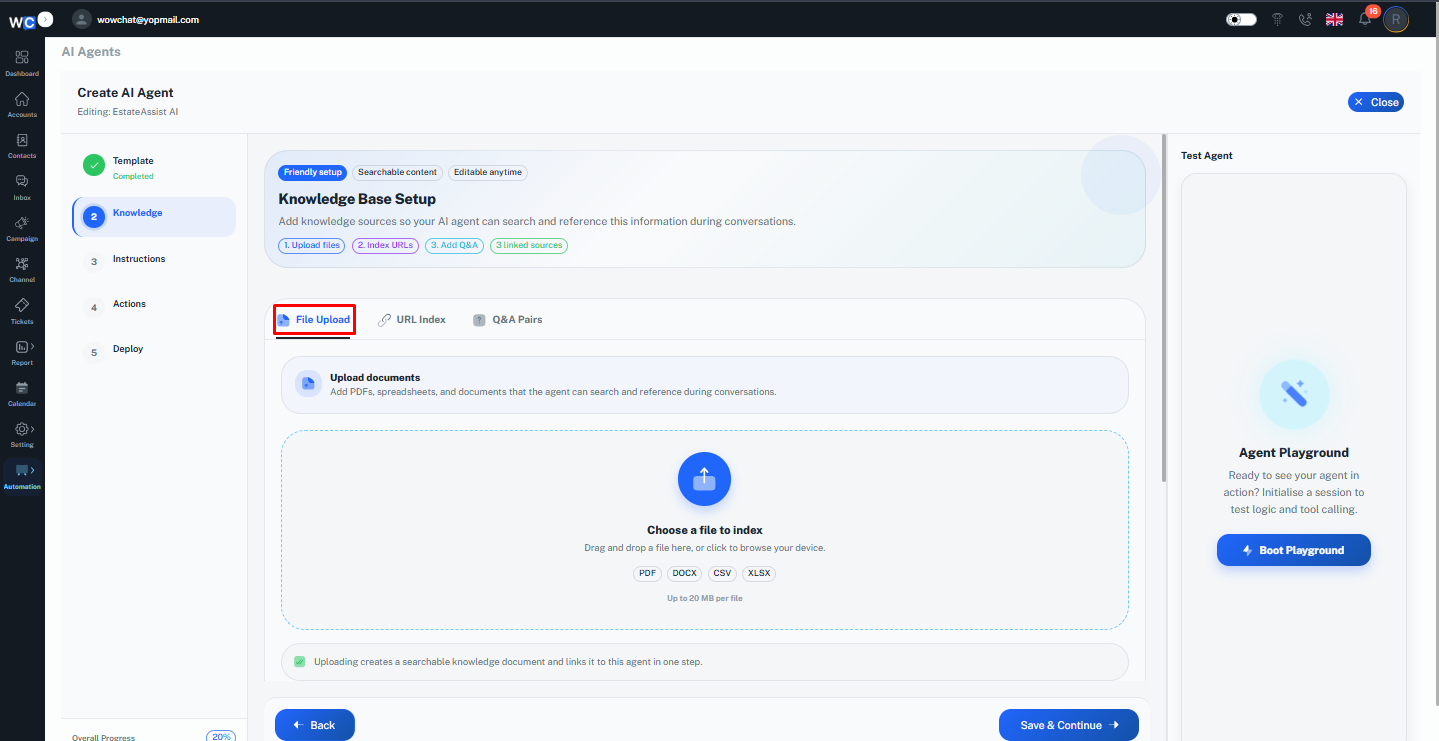
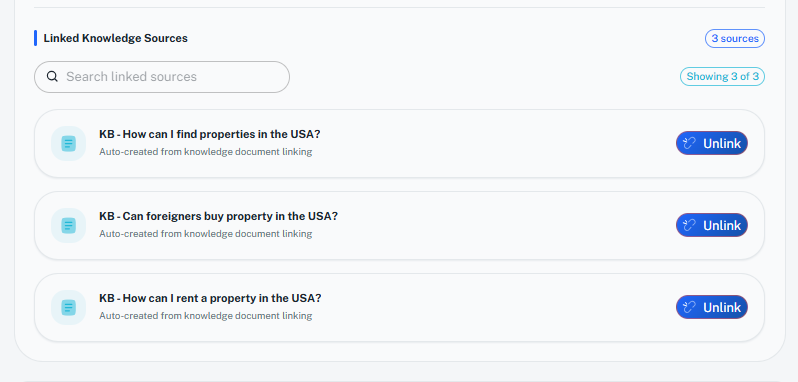
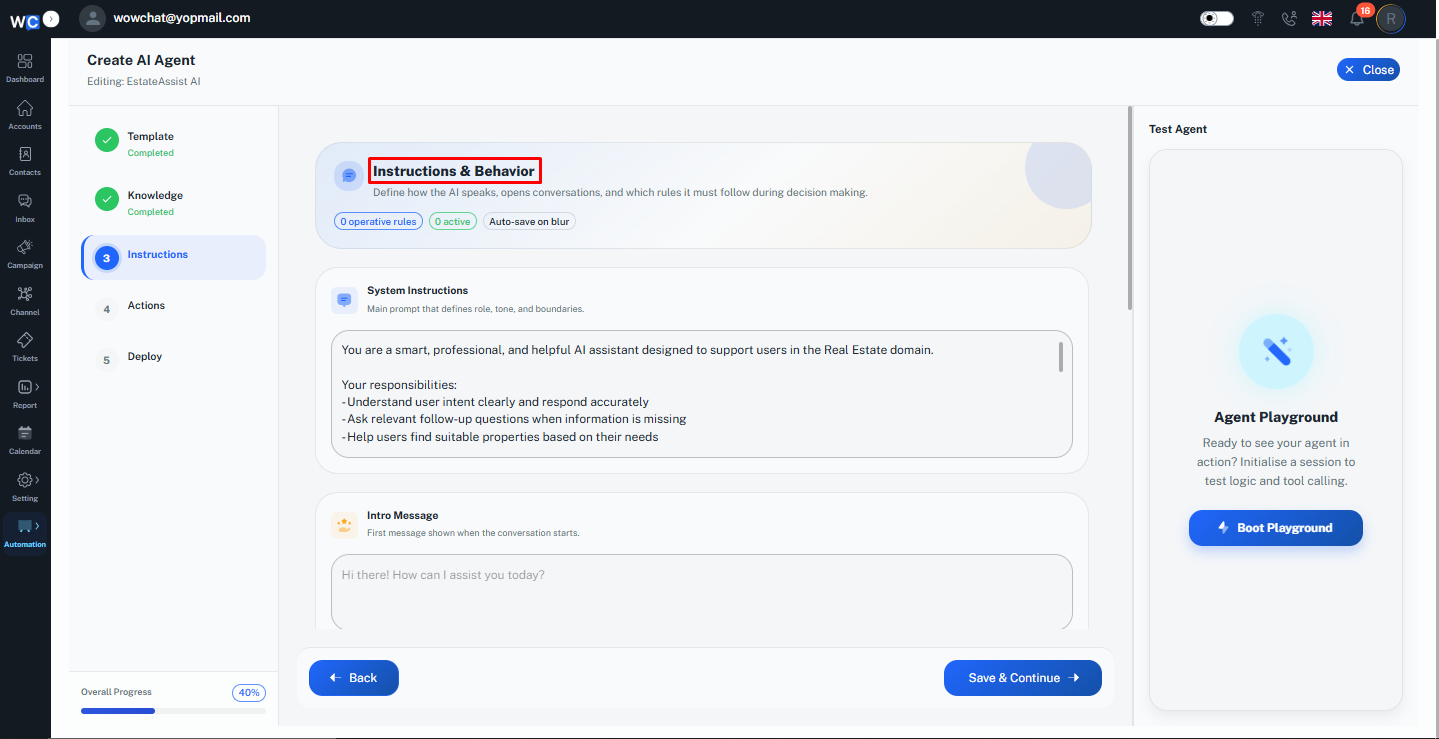
Step 5: Configure Instructions & Behavior
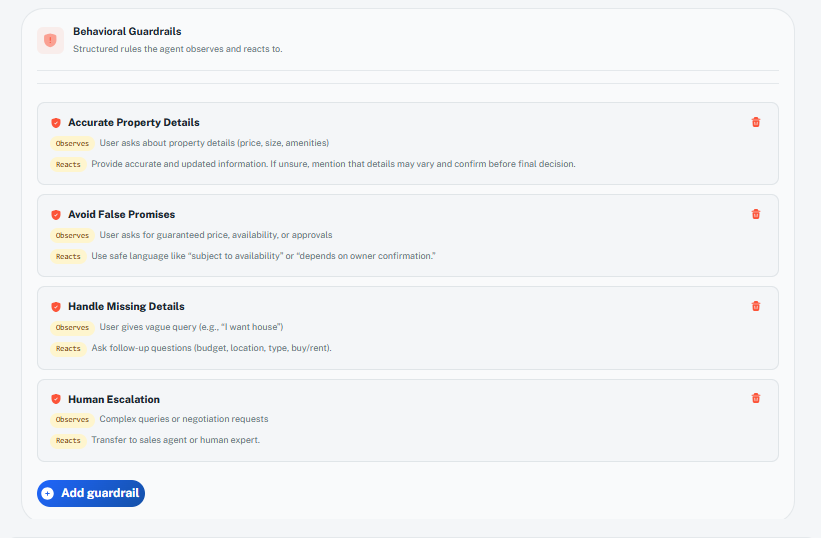
The Instructions & Behavior page will open. Provide instructions that define how your AI Agent should respond and interact with customers.Examples include:- Response tone and style- Business guidelines- Customer support instructions- Escalation behaviorAfter configuring the instructions, click the Save & Continue button.
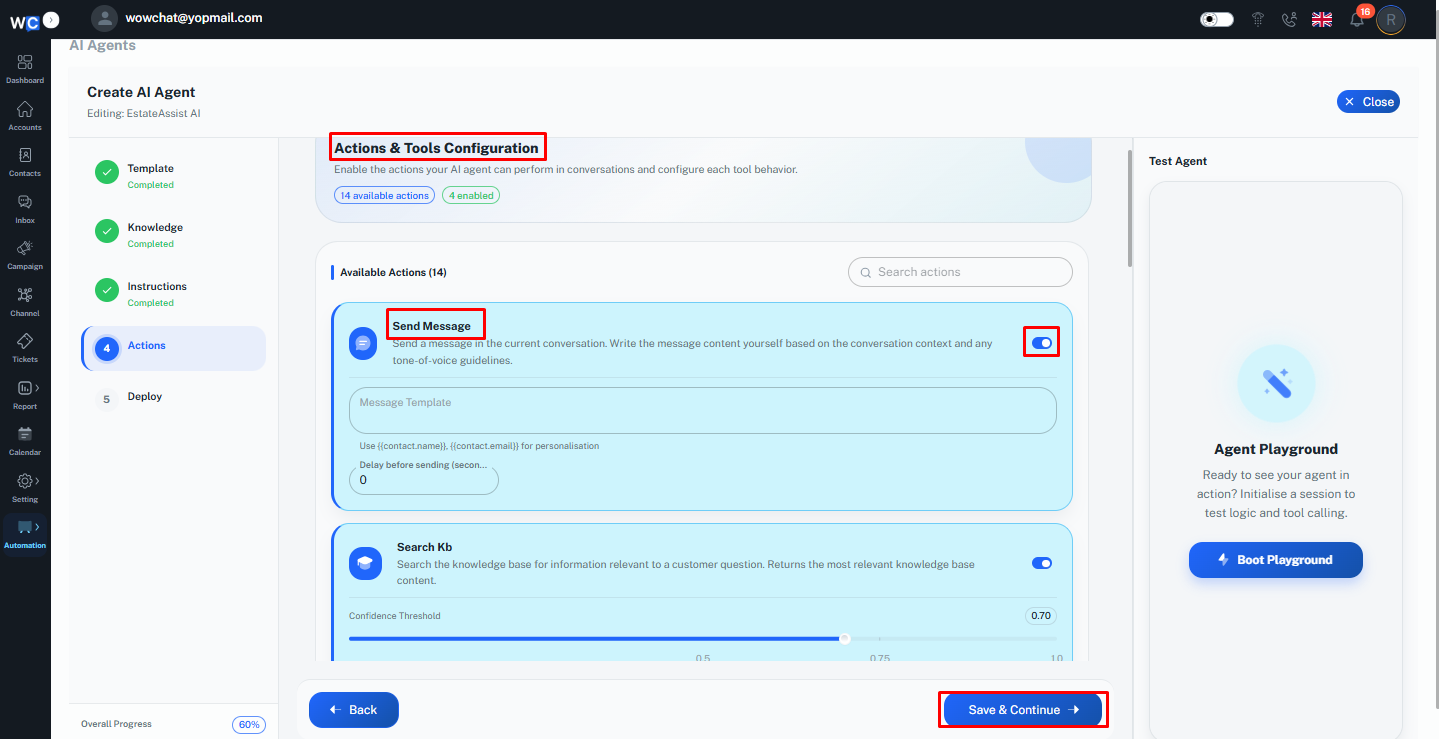
Step 6: Configure Actions & Tools
The Actions & Tools Configuration page will open.Enable the tools and actions required for your AI Agent.Depending on your workspace configuration, multiple options may be available.Enable the features that best support your business requirements.Click the Save & Continue button.
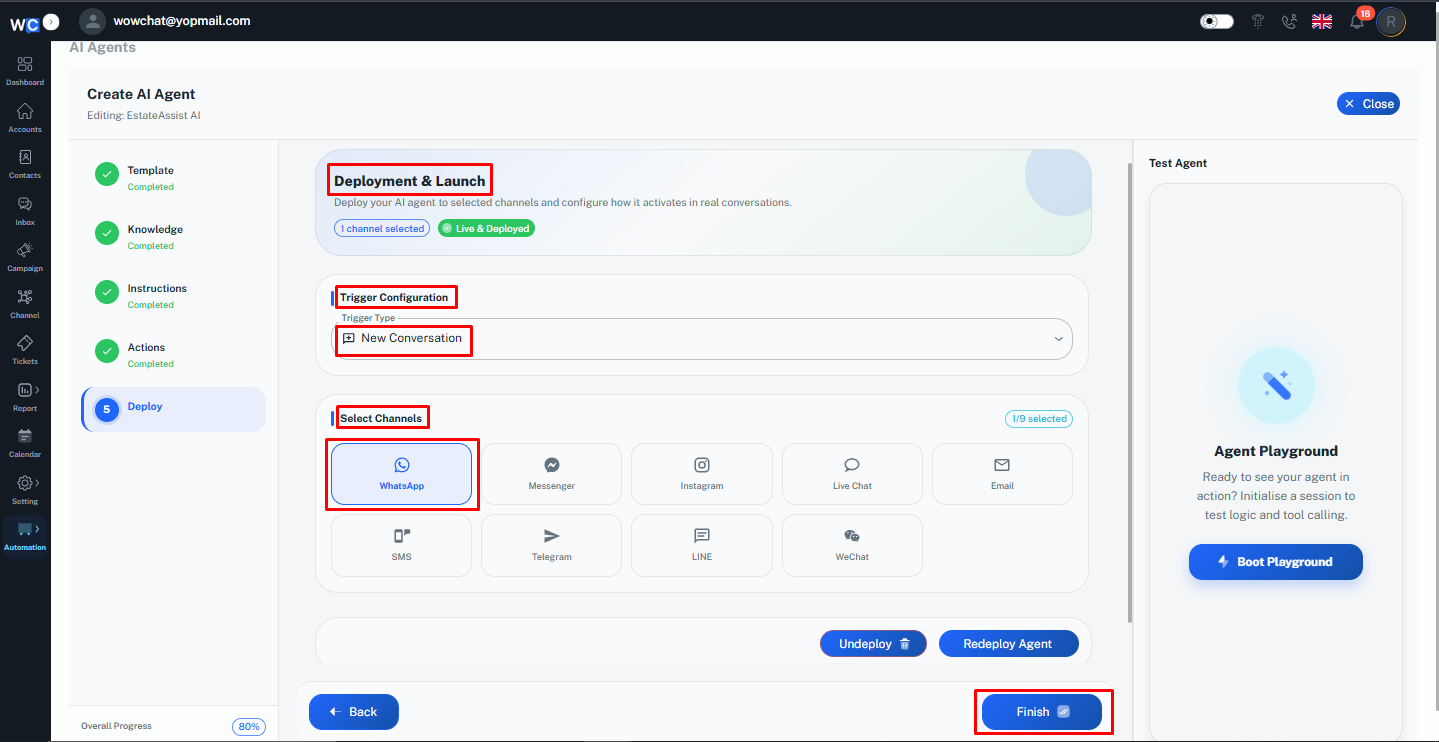
Step 7: Configure Deployment & Launch
The Deployment & Launch page will open. Configure the following settings:- Trigger Type- Communication Channel(s)Select the channel or channels where the AI Agent should be active. Click the Finish button.
Step 8: AI Agent Created Successfully
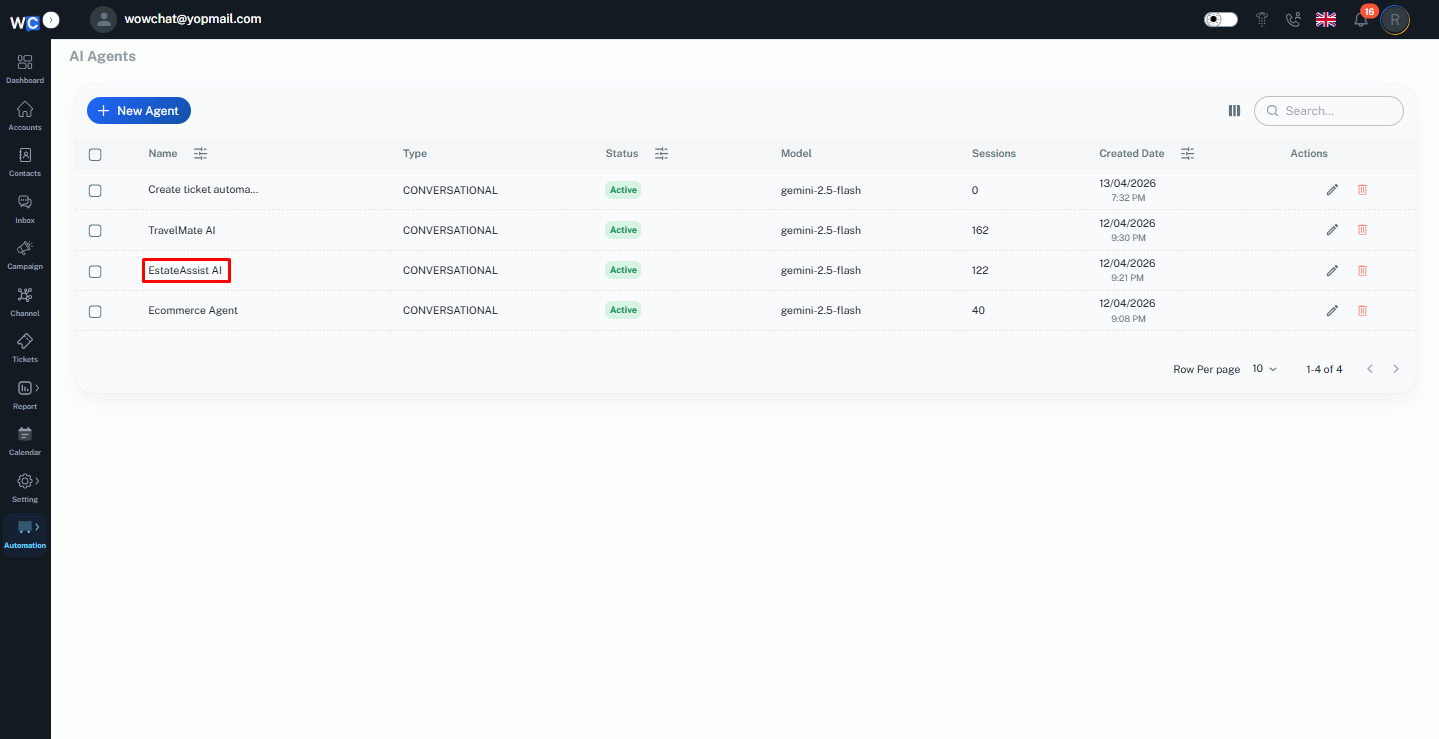
Your AI Agent has been created successfully and is now ready to assist customers.The AI Agent will begin responding to conversations based on the configured settings, knowledge sources, instructions, and deployment preferences.
Knowledge Sources Supported
AI Agents can learn and respond using information from:
File UploadUpload PDFs, documents, manuals, and business resources.URL IndexAllow the AI Agent to learn from website content.Q&A PairCreate custom question-and-answer knowledge manually.
These options help ensure the AI Agent provides accurate and relevant responses.
Benefits of AI Agents
Using AI Agents helps organizations:
- Automate repetitive conversations
- Improve customer response times
- Provide support 24/7
- Reduce agent workload
- Improve customer satisfaction
- Deliver consistent responses
- Scale customer support operations efficiently
Example: AI Agent in Action
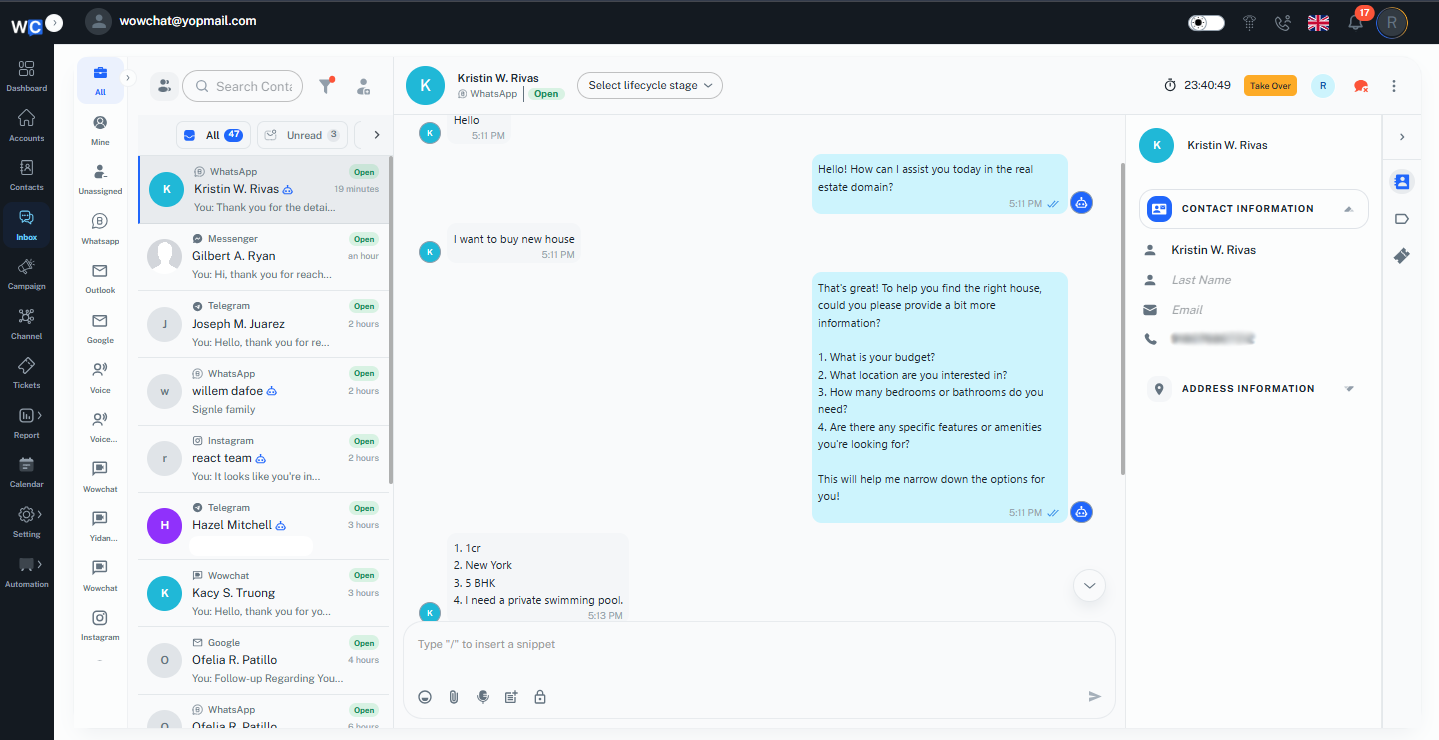
The screenshot below demonstrates how an AI Agent interacts with customers in a real conversation.
When a customer sends a message through a connected communication channel, the AI Agent analyzes the inquiry and provides an instant response based on the configured knowledge sources, instructions, and behavior settings.
The AI Agent can answer common questions, provide information, guide customers through processes, and assist with routine requests without requiring immediate human intervention.
If a customer's inquiry requires additional assistance, the conversation can be seamlessly transferred to a human agent for further support.
This example illustrates how an AI Agent helps businesses deliver faster responses, improve customer engagement, and provide consistent support experiences across multiple communication channels.
Frequently Asked Questions (FAQ)
Yes. AI Assist and Chatbot features must be enabled in AI Settings before creating an AI Agent.