The Message Report provides detailed insights into all messages sent and received across your connected communication channels. It helps organizations monitor messaging activity, analyze communication trends, and track customer engagement from a centralized reporting dashboard.
Whether you're reviewing message volumes, analyzing channel performance, or monitoring user activity, the Message Report provides valuable information to help your team make informed decisions.
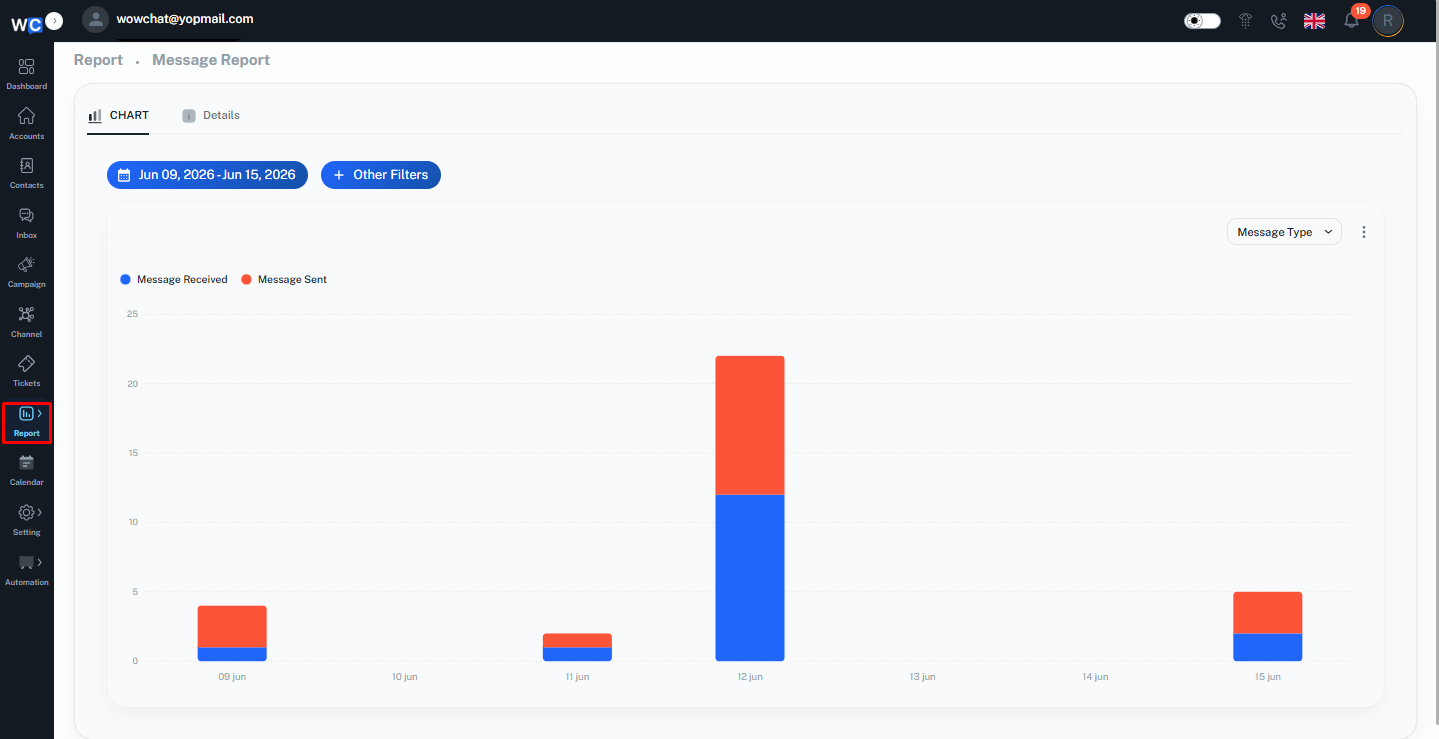
What is the Message Report?
The Message Report is an analytics tool that displays messaging activity across all connected channels within WowChat.
The report allows users to view message statistics in both chart and detailed table formats, making it easier to analyze communication data and identify trends.
Using the Message Report, organizations can:
- Monitor incoming and outgoing messages
- Analyze communication trends
- Review channel performance
- Track customer engagement
- Export report data for further analysis
Chart View
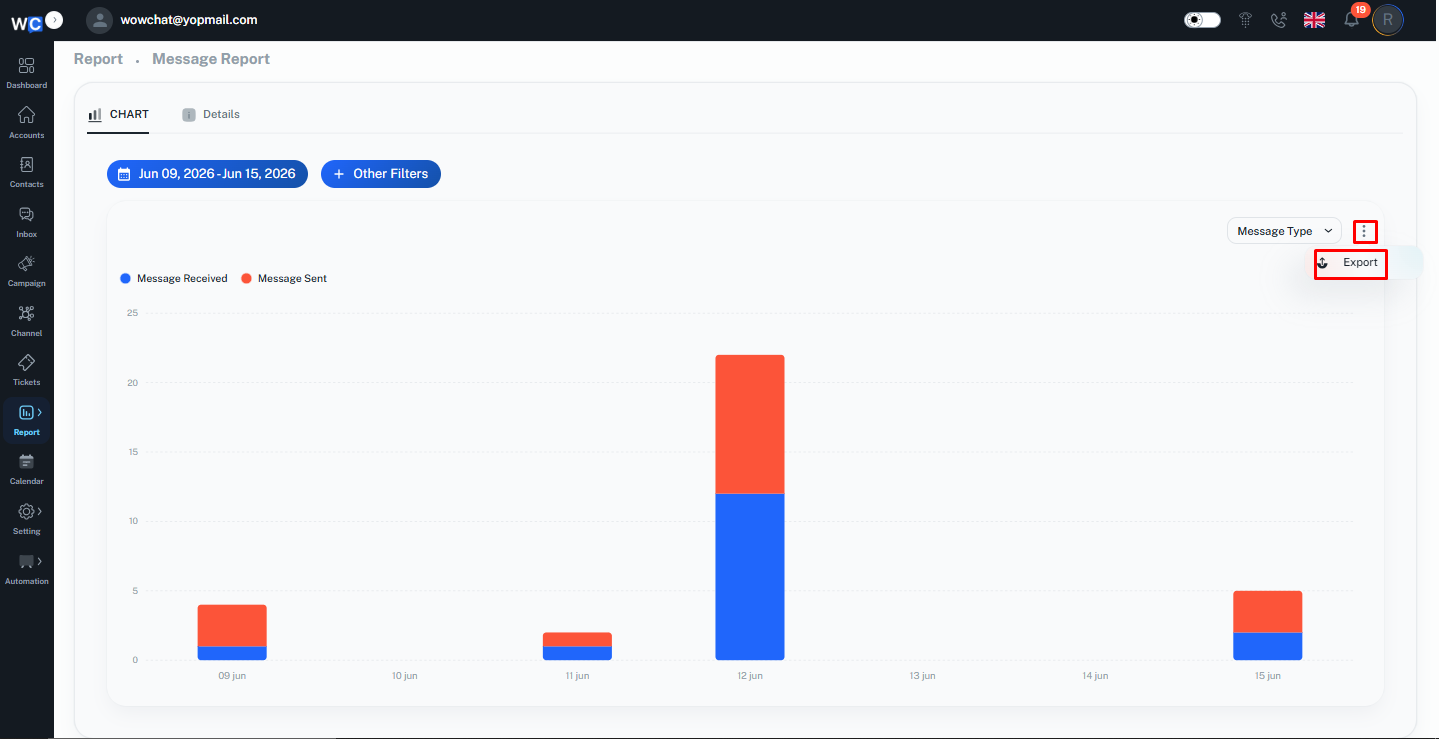
The Chart View provides a graphical representation of messaging activity over a selected period.Users can compare the number of messages received and messages sent to better understand communication trends.
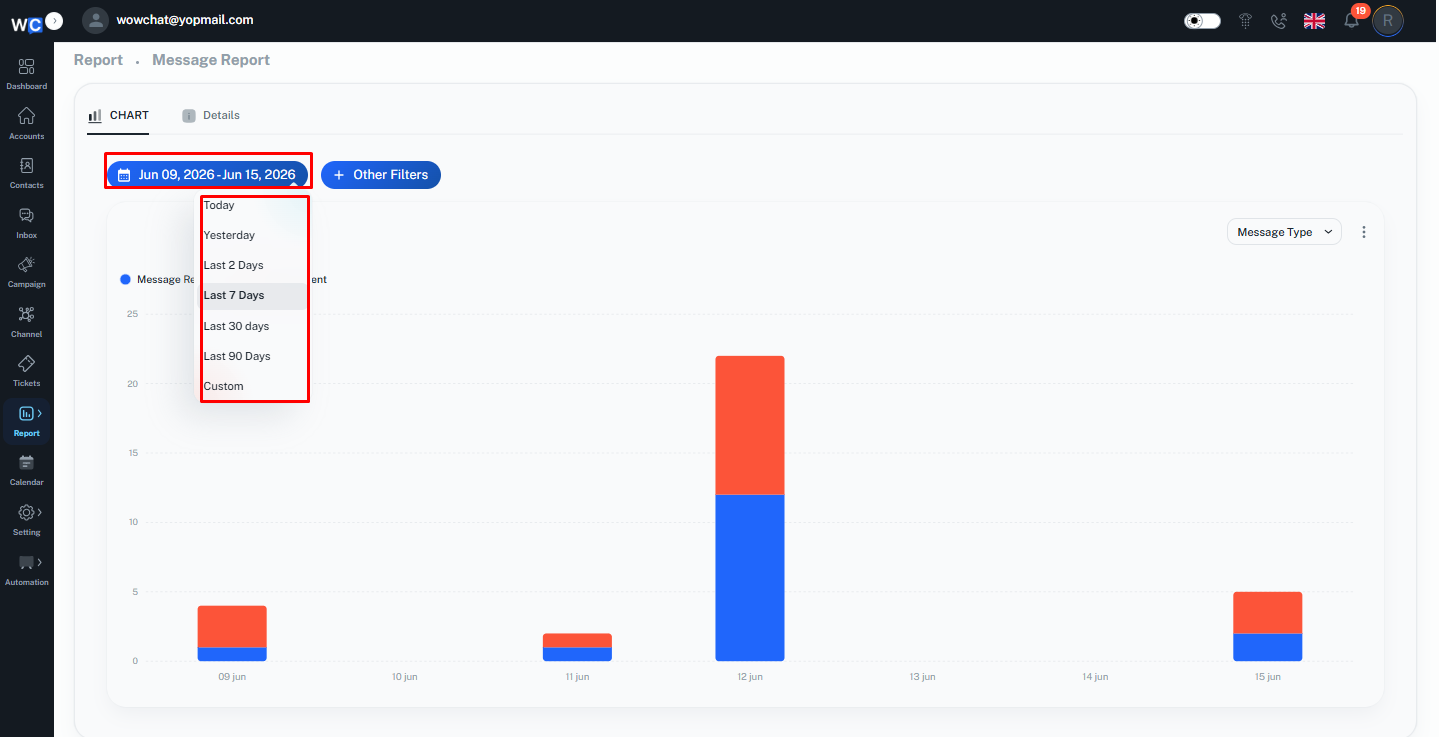
Date Range Selection
Click the Calendar button to select the reporting period.Available options include:
- Today
- Yesterday
- Last 2 Days
- Last 7 Days
- Last 30 Days
- Last 90 Days
- Custom Date Range
Selecting a date range automatically updates the report data.
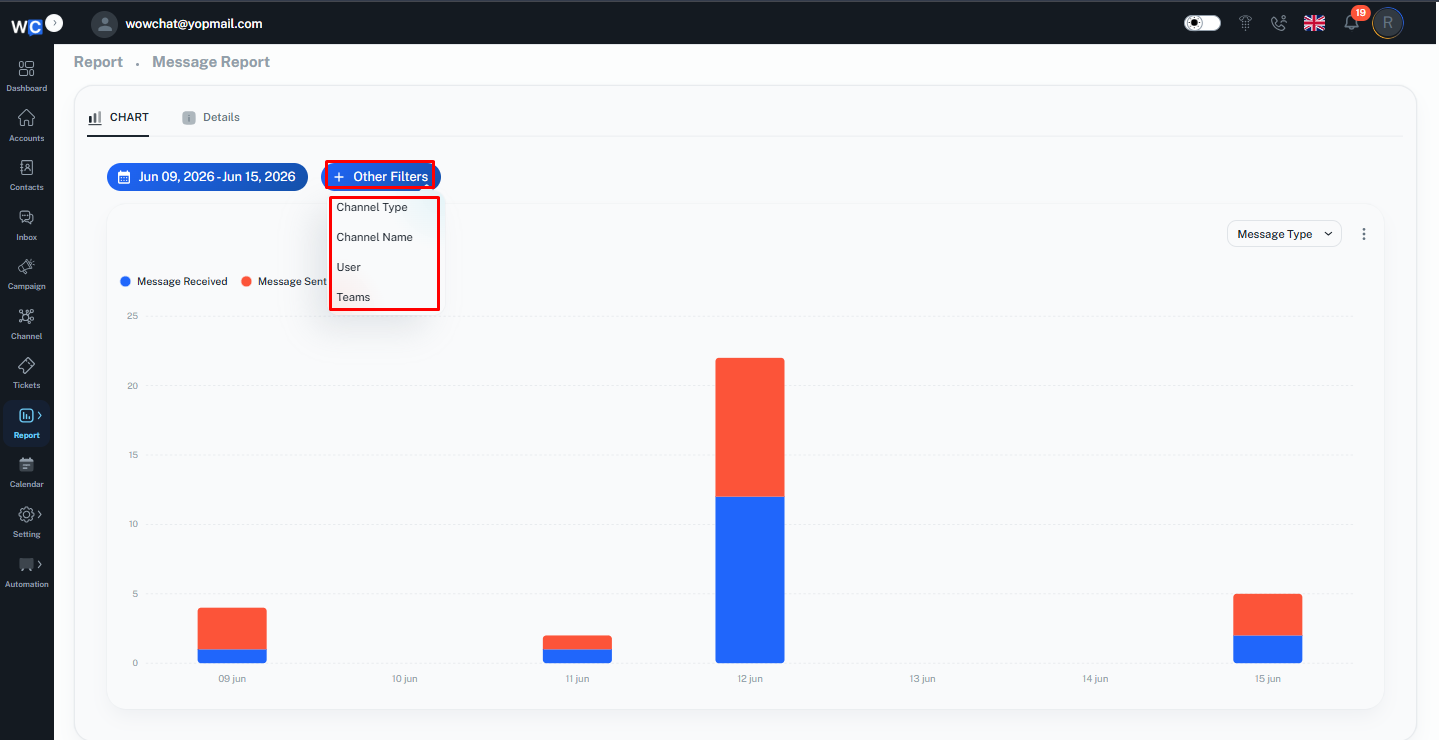
Other Filters
Click the Other Filters button to apply additional filtering options.Available filters include:
- Channel Type
- Channel Name
- User
- Teams
These filters help users focus on specific communication channels, users, or teams.
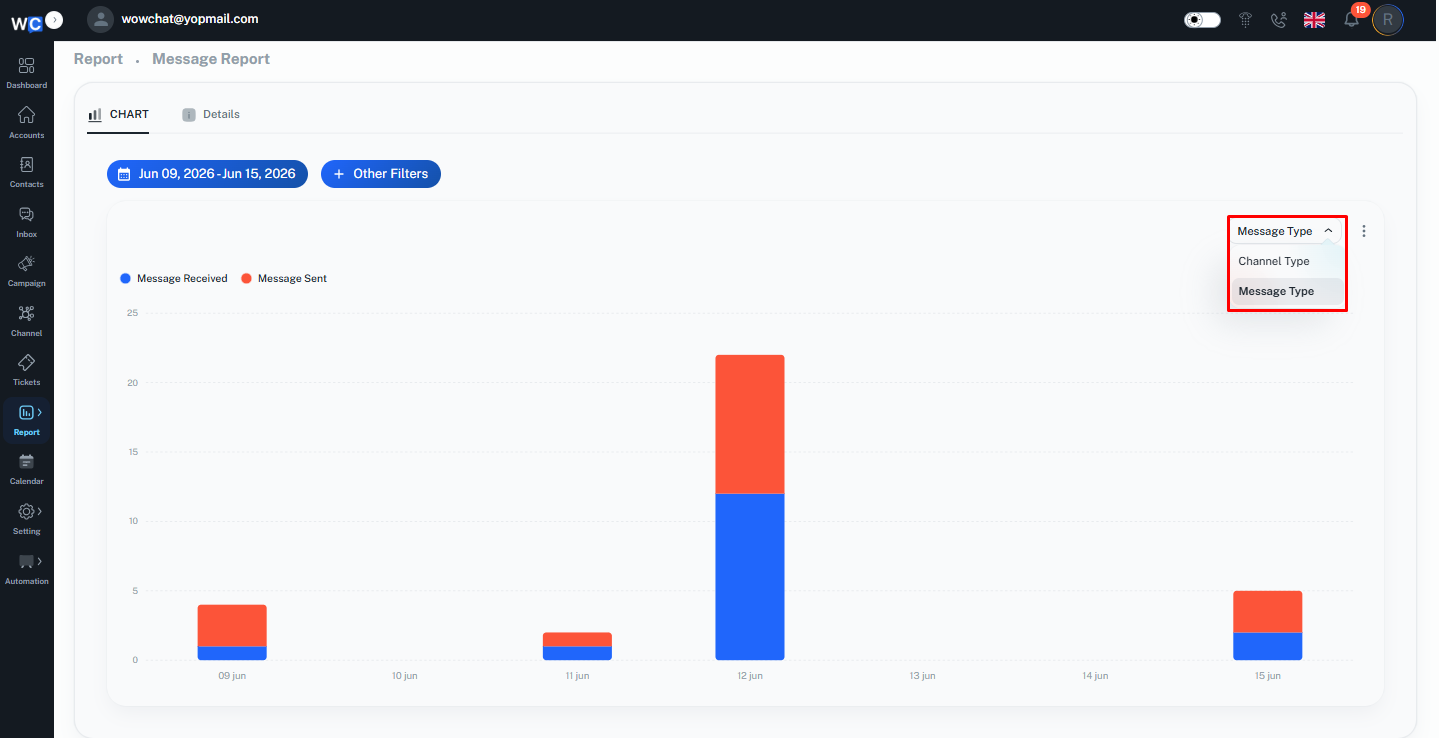
Message Type Filter
Click the Message Type dropdown to filter report data.Available options include:
- Channel Type
- Message Type
This allows users to analyze specific categories of messaging activity.
Export Report
Click the Three-Dot Menu located in the top-right corner of the report.The Export option allows users to download report data in CSV format for reporting, auditing, and analysis purposes.
Details View
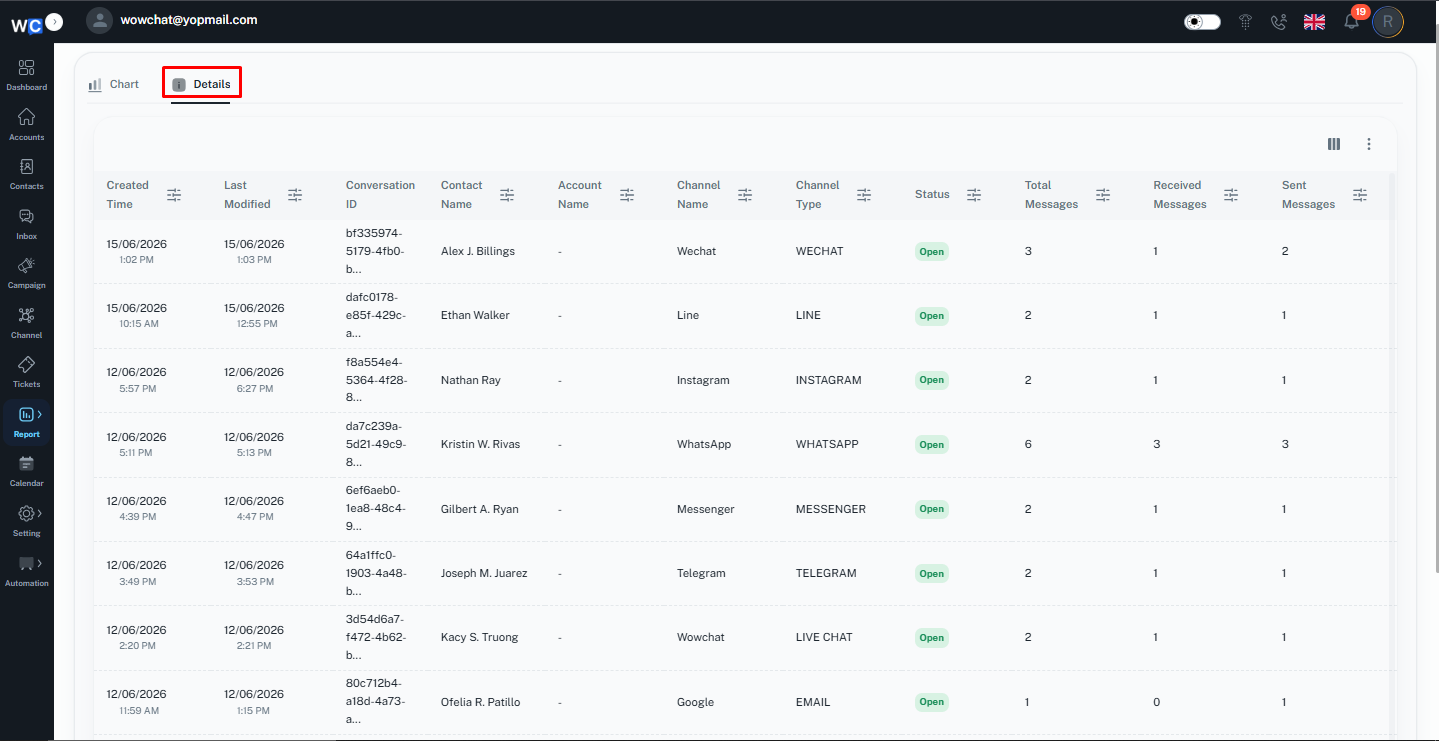
The Details View displays report data in a tabular format, allowing users to review individual message records.Click the Details tab to switch from Chart View to Details View.
Message Status Tabs
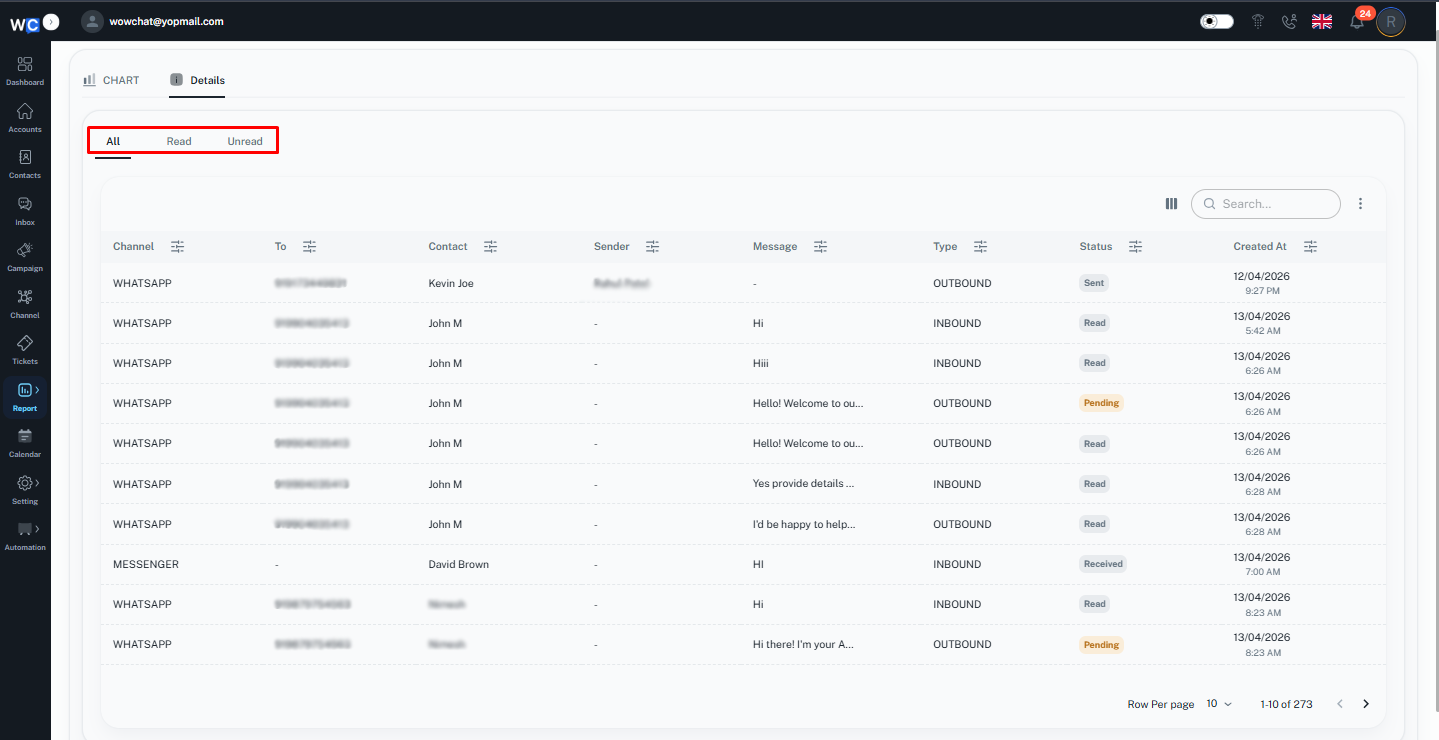
The Details View provides three message status tabs:
- All
- Read
- Unread
Users can switch between these tabs to view messages based on their read status.
Manage Columns
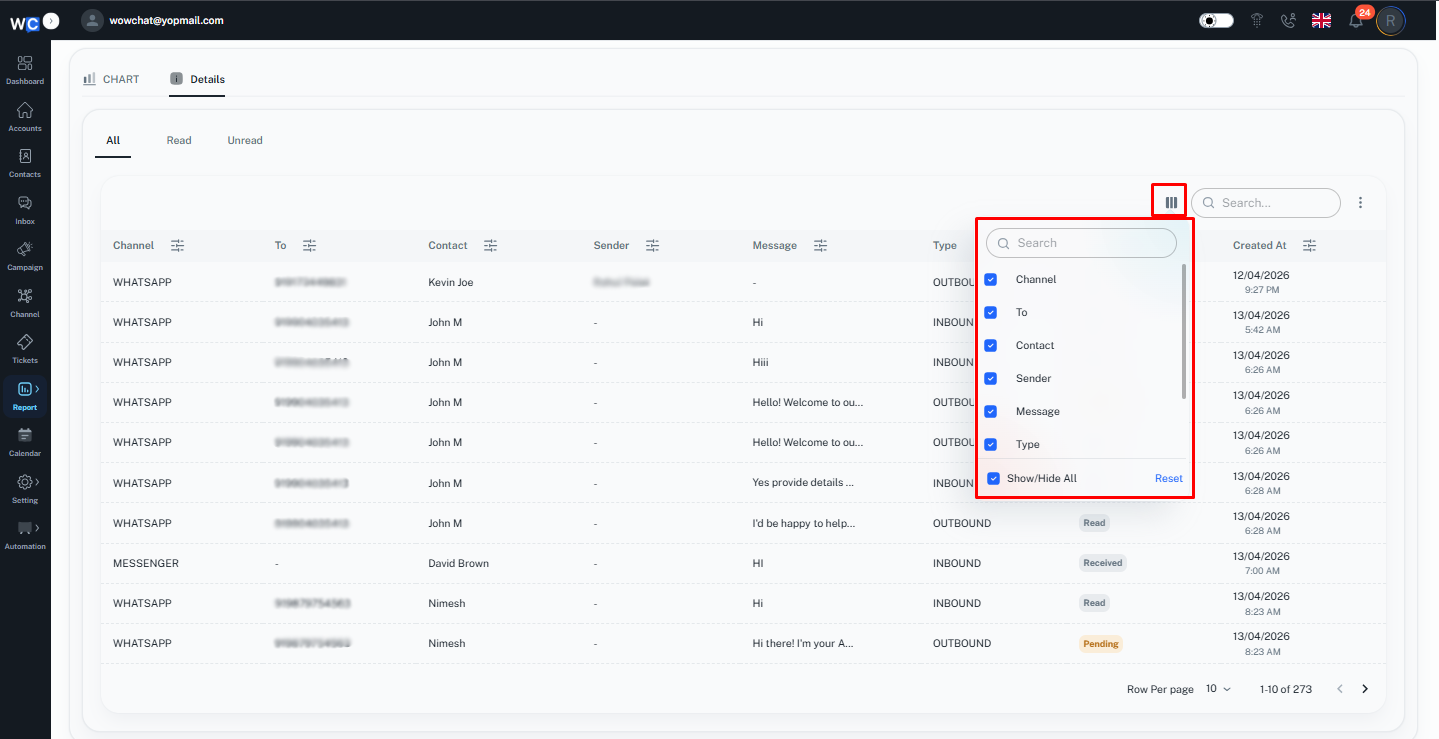
Click the Manage Columns option to customize the table view.
Users can choose which columns should be displayed or hidden based on their reporting requirements.
This helps create a personalized reporting experience.
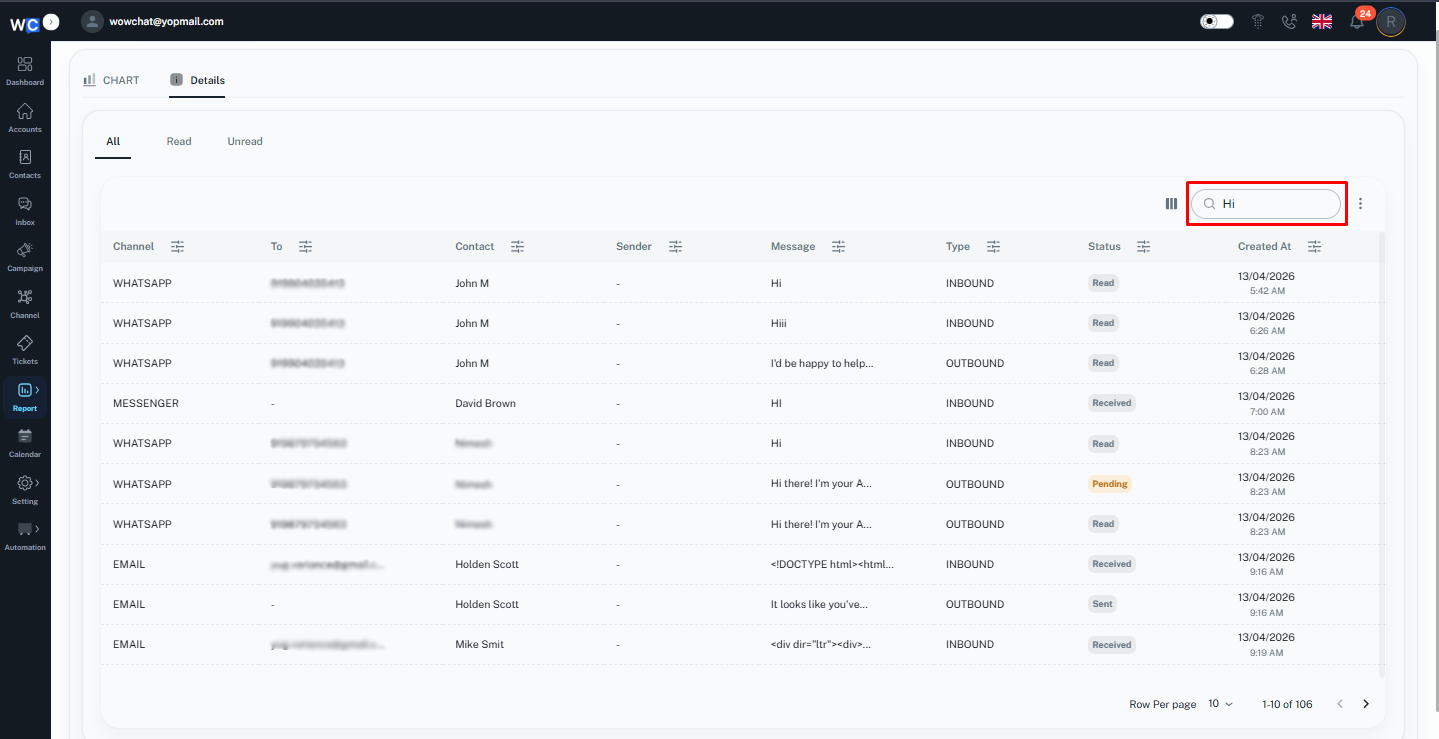
Search Messages
Use the Search box to quickly locate specific message records.Users can search using available message information such as:
- Contact Name
- Phone Number
- Message Content
- Channel Information
This helps users find records without manually browsing the entire report.
Export Detailed Report
Click the Three-Dot Menu in the Details View.The Export option allows users to download detailed message records in CSV format.
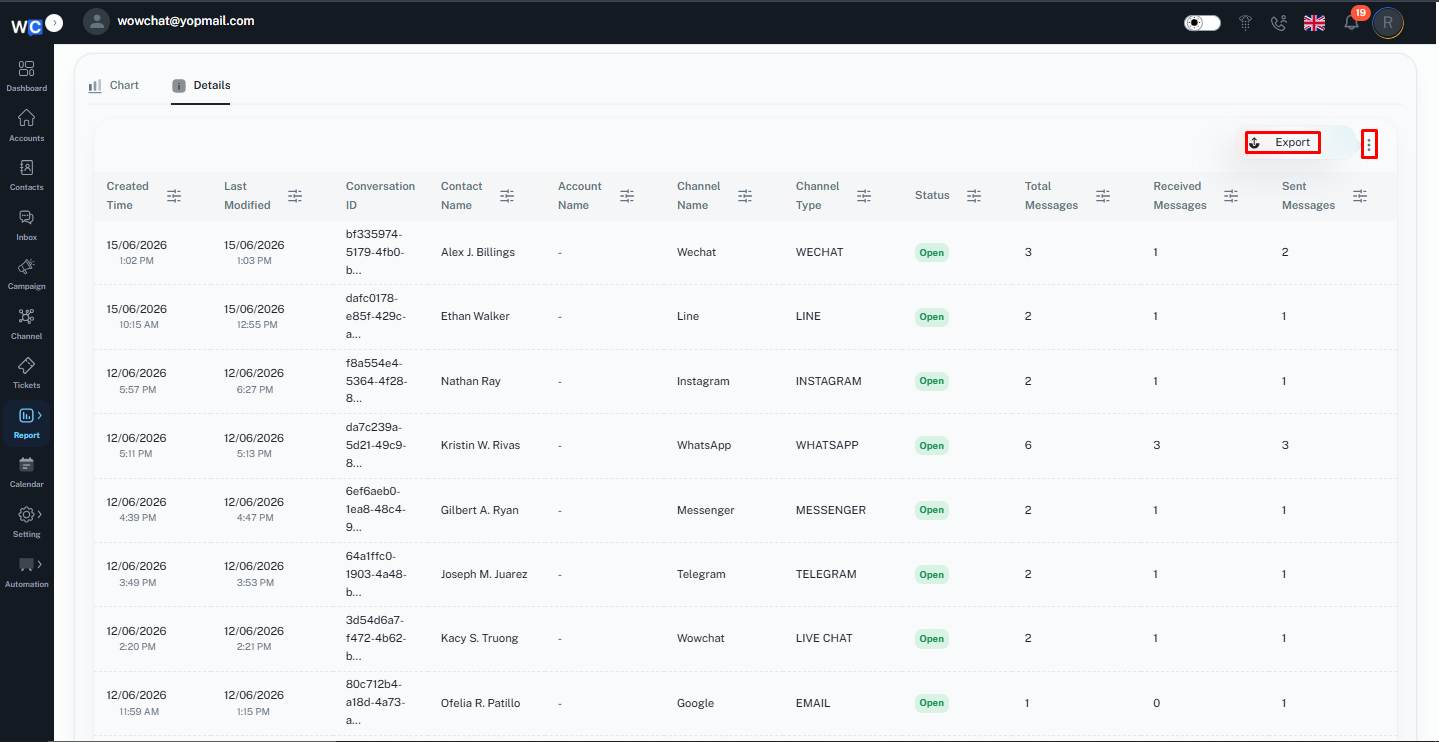
Table Filters
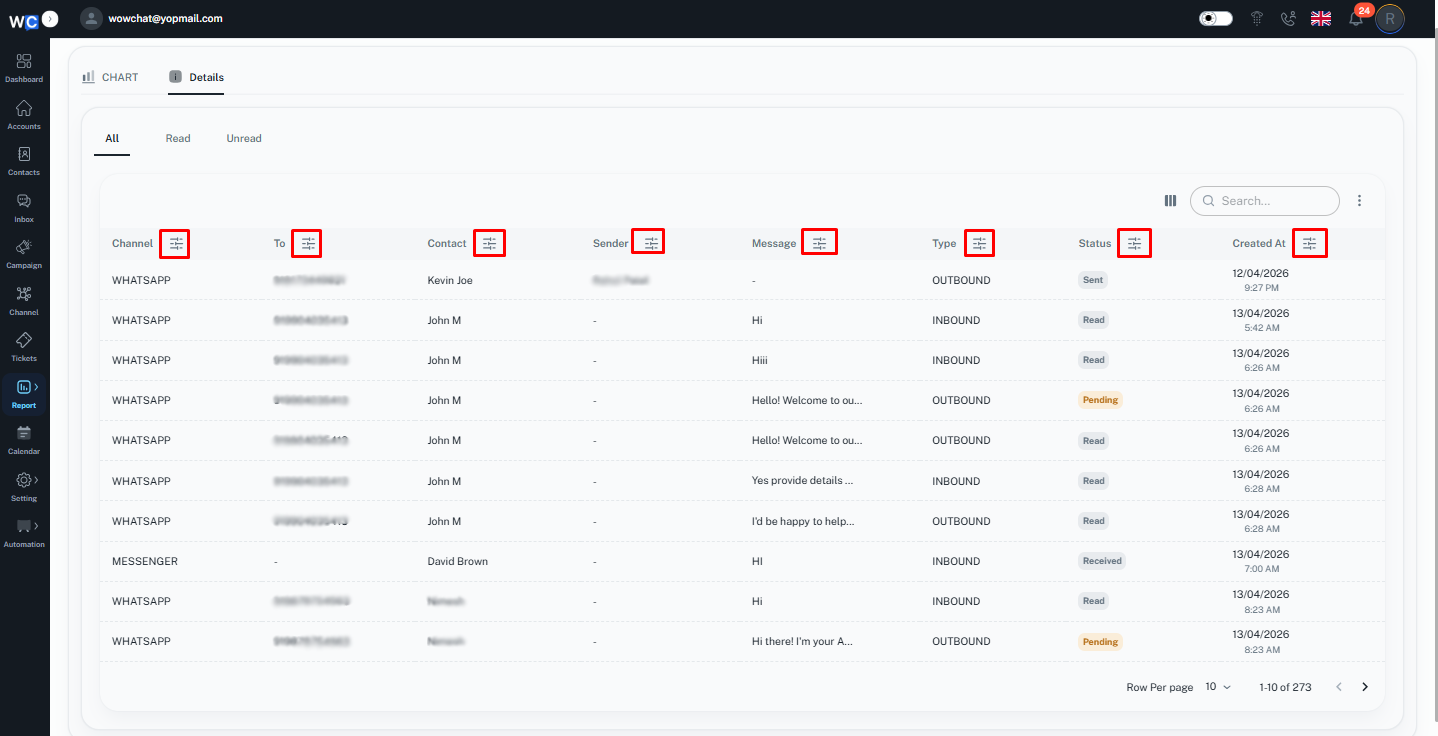
The Details table includes individual filter options for various columns.Available filters may include:
- Channel
- To
- Contact
- Sender
- Message
- Type
- Status
- Created At
These filters help users quickly narrow down records and locate specific message data.
Benefits of Message Reports
Using Message Reports helps organizations:
- Monitor communication activity
- Analyze messaging trends
- Track customer engagement
- Evaluate channel performance
- Improve reporting visibility
- Export data for analysis
- Support business decision-making
Frequently Asked Questions (FAQ)
The Message Report provides insights into messages sent and received across connected communication channels, helping organizations monitor communication activity and customer engagement.